How to Make a GIF from a YouTube Video: Step-by-Step Guide
YouTube has no GIF button. Here are the routes that work, how to land on the exact frame, and the settings that stop your GIF looking like a fax.
By the Spark team ·
YouTube won't make a GIF for you. There's no GIF option in the Share menu, so to make a GIF from a YouTube video you need a second tool. Three routes work in 2026: paste the link into GIPHY's GIF Maker (fast, little control), screen record the moment and convert the recording (works on anything you can play), or save the video somewhere that exports GIFs and keeps the source for next time.
Whichever you pick, the step people skip is the one that matters most: finding the exact second before you open any GIF tool. We cut GIFs out of YouTube videos for treatments every week, and the ones that look amateur almost always start a few frames late.
Rights, briefly
Most YouTube videos belong to someone else, and YouTube's terms don't allow downloading except through features YouTube itself provides, like offline viewing in Premium. A GIF of a film clip on a public account is a copyright question, not a technical one.
The safe ground:
- Your own videos. Use your master file. YouTube's copy has been recompressed. More on that below.
- Internal references. A three-second GIF on page 7 of a treatment that only the client sees, credited to the director, is how this industry has worked for decades. It still isn't a licence, so keep it internal.
- Permission. If a GIF is going on your website or social, ask the rights holder. It's usually one email.
UK "fair dealing" and US "fair use" are both narrower and fuzzier than people assume. We're producers, not lawyers. If it's going public and you're unsure, ask someone who is.
Find the exact second before you open any GIF tool
Every GIF tool has clumsy sliders. Arrive knowing your in and out points to the frame and the slider stops mattering. YouTube's keyboard does the work:
- K pauses and plays. J and L jump back and forward 10 seconds. The arrow keys jump 5.
- While paused, , (comma) steps back one frame and . (full stop) steps forward one. Hardly anyone knows it. Learn it first.
- Right-click the video and choose Copy video URL at current time, or use Share, tick Start at and copy. You get a link ending
?t=83, which drops anyone (including you, next week) on that second.
Write the in and out times down. "1:23 to 1:27" in a note is worth more than ten minutes of fiddling later.
YouTube also has a Clip button (the scissors, on videos where the creator allows it) that saves a 5 to 60 second section as a shareable link. Handy for bookmarking a moment, but it's a link, not a file, so it won't get you a GIF on its own. If you're bookmarking dozens of moments for research, our guide to organising YouTube videos for creative research covers playlists, timestamps and where they run out.
Method 1: GIPHY's GIF Maker (quickest, least control)
GIPHY's maker page still lists YouTube among the links it accepts, and when it works it's the fastest route from link to GIF.
- Go to giphy.com/create/gifmaker and sign in if it asks.
- Paste the YouTube link into the URL box.
- Drag the start time and duration sliders to your in and out points. This is where your notes earn their keep.
- Add a caption if you must, then upload.
- Open the finished GIF and download it, or copy the link.
The trade-offs are real. You get almost no say over size, frame rate or colours, and the result is tuned for chat apps and shows it on a 4K screen in a client's boardroom. The GIF is uploaded to GIPHY, which is a public library by design, so think twice before putting anything there that belongs to a pitch. And it doesn't always take the link. If it won't, don't fight it. Move on to method 2.
Method 2: Screen record, then convert (works on anything)
This is the route we use. It works on any video you can play, gives you full control over the GIF, and the "download" is a recording of your own screen.
Record the clip
- In YouTube, open the gear, then Quality, and pick 1080p or higher. Recording a 480p stream gets you a 480p GIF, however clever your settings.
- Turn captions off (press C) and switch to theatre mode (T) or full screen (F).
- Pause about two seconds before your in point.
- Start recording, drawing the box tightly around the picture (Mac and Windows details below).
- Press play, move the mouse right off the player so the controls fade, and stop a second or two after your out point.
On a Mac, press Cmd+Shift+5, choose Record Selected Portion, drag the box, then click Record. The .mov lands on your desktop. On Windows 11, Win+Shift+R opens the Snipping Tool's recorder; drag the box and click Start, and the MP4 goes to Videos, Screen Recordings.
Those spare seconds at each end are handles. You trim them off in the next step, and they save you from a GIF that opens on a half-faded play button.
Windows has a shortcut here. Recent versions of the Snipping Tool put an Export GIF button on the recording preview (Microsoft started rolling it out in mid 2025), with a low or high quality choice and a 30 second cap. Fine for a quick one. You can't set the width or frame rate, though, so for a deck we still convert the MP4 ourselves. Our guide to converting MP4 to GIF on Windows compares it with the other free options.
Convert the recording
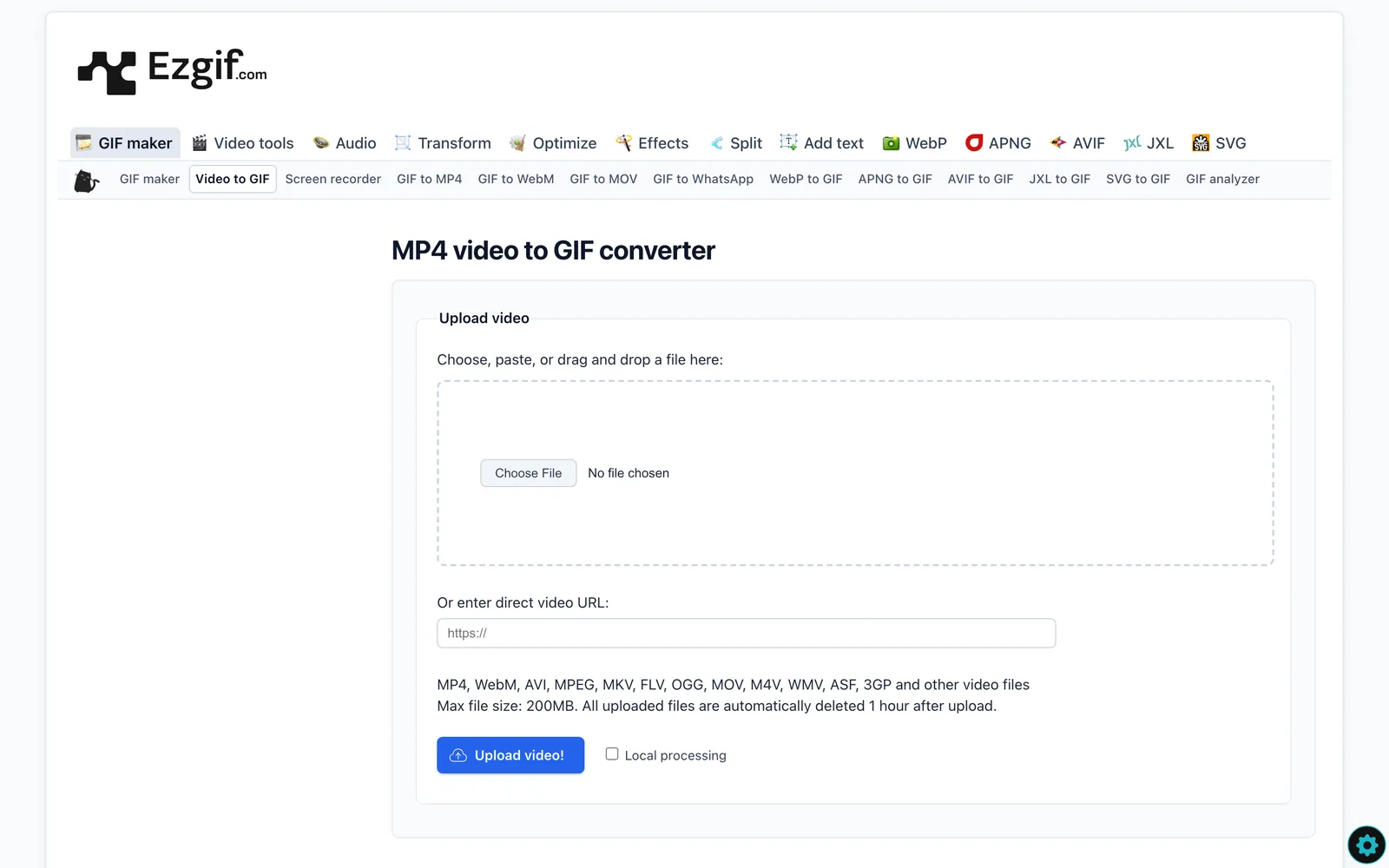
The simplest option is a browser converter. Ours trims, sizes and exports without uploading the file anywhere, which matters if the recording is of something confidential, and you can nudge the in and out by a single frame.
ezgif is the other one everyone knows. It's free and it works, with the catch that your clip goes up to their server and the file limit is far smaller.
If you live in a terminal, FFmpeg gives the best results for the size. This trims from 2 seconds in, keeps 4 seconds, and builds a palette from the clip itself, all in one command:
ffmpeg -ss 2 -t 4 -i recording.mov -vf "fps=15,scale=480:-1:flags=lanczos,split[a][b];[a]palettegen=stats_mode=diff[p];[b][p]paletteuse=dither=bayer:bayer_scale=3" youtube.gifChange -ss to wherever your in point sits in the recording, -t to the length, and 480 to the width. The fps=15 filter also fixes a common screen recording annoyance: Macs and PCs often record at a variable frame rate, which some converters turn into a jerky GIF.
If it's your own video, skip the recording
Sounds obvious. Isn't, at 11pm with the deck half built. If the video on YouTube is yours, the original export from the edit beats anything you'll get back off YouTube, which recompresses everything you upload. Find the master or a ProRes copy and convert that.
If the master really has gone, YouTube Studio lets you download your own uploads: Content, hover the video, three dots, Download. Expect a compressed MP4 rather than your original, but it's legitimately yours and it beats a screen recording. If the GIF is coming out of an edit you've still got open, our guide to exporting a GIF from Premiere Pro covers that route.
Method 3: Save it as a reference, export the GIF from there
If the YouTube video is a reference (a lighting setup you love, a transition the director keeps mentioning), you'll want the GIF more than once. Remaking it every time is how you end up with nine files on the desktop called gif final 2.gif.
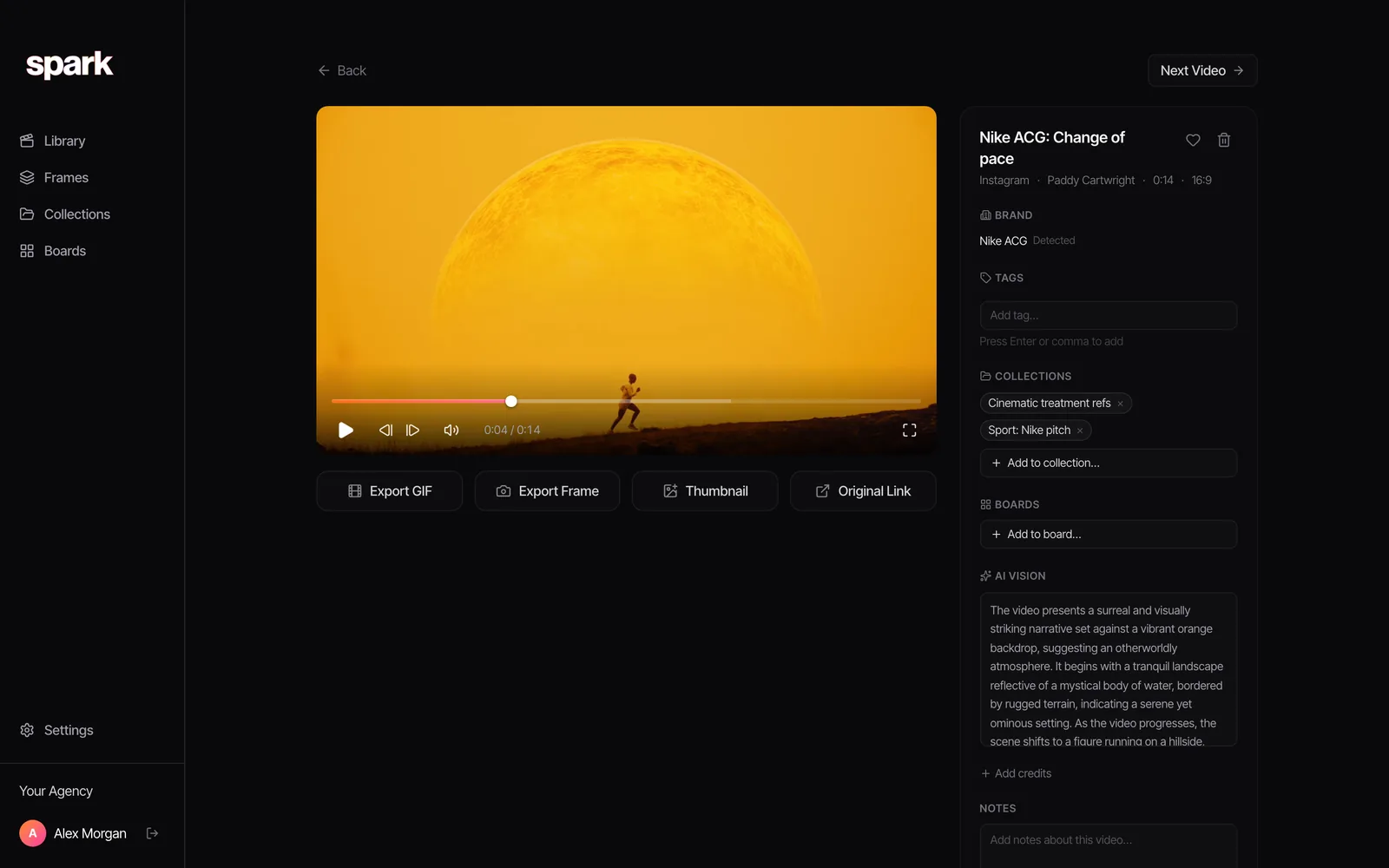
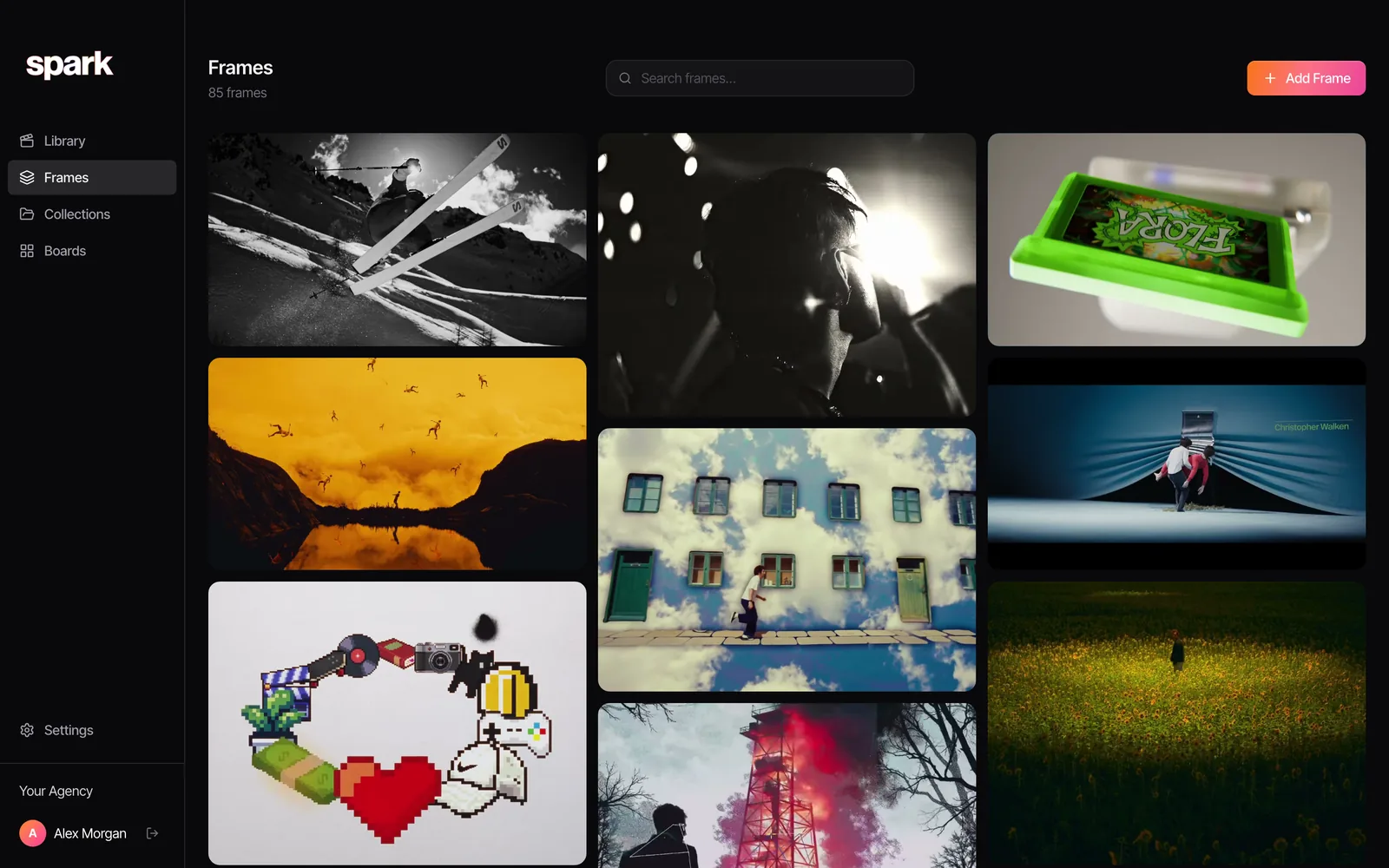
That's the case for a reference library. In Spark you paste the YouTube link and the video saves into your library, source URL and all. Creator and Studio add an AI description and a transcript, so search can find it by what happens on screen or by a line someone says.
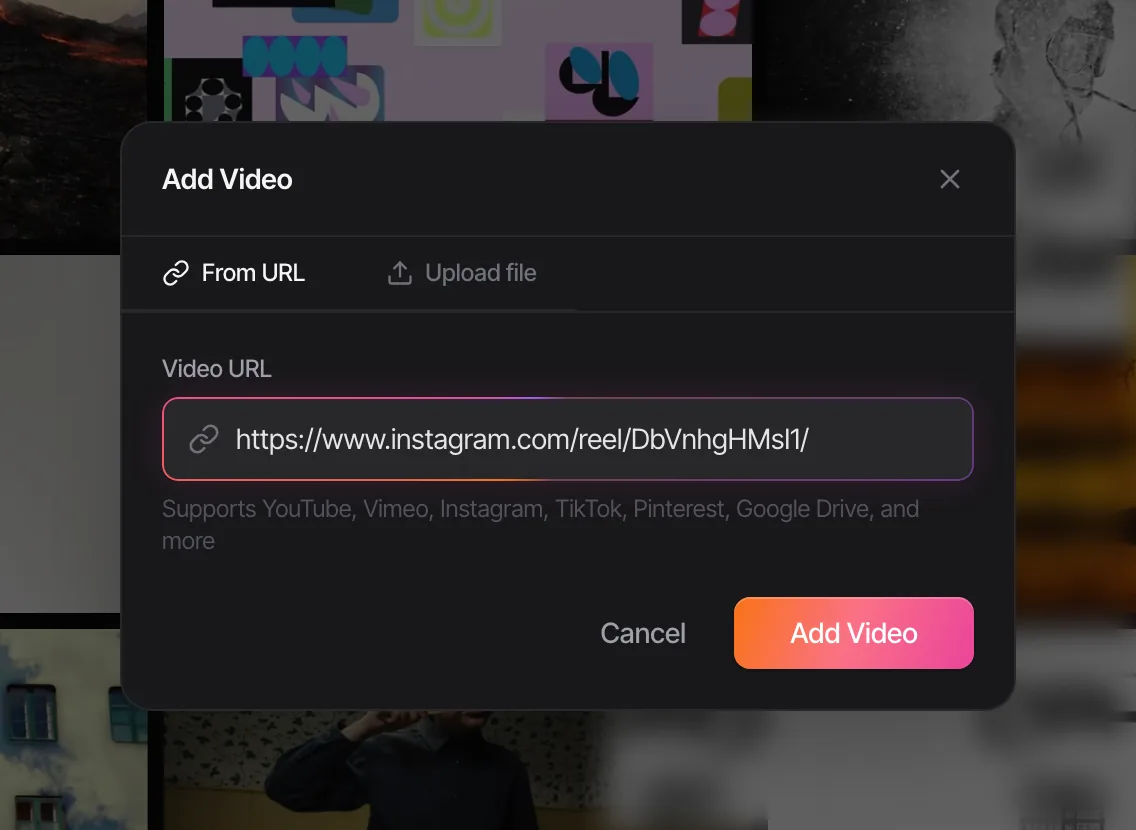
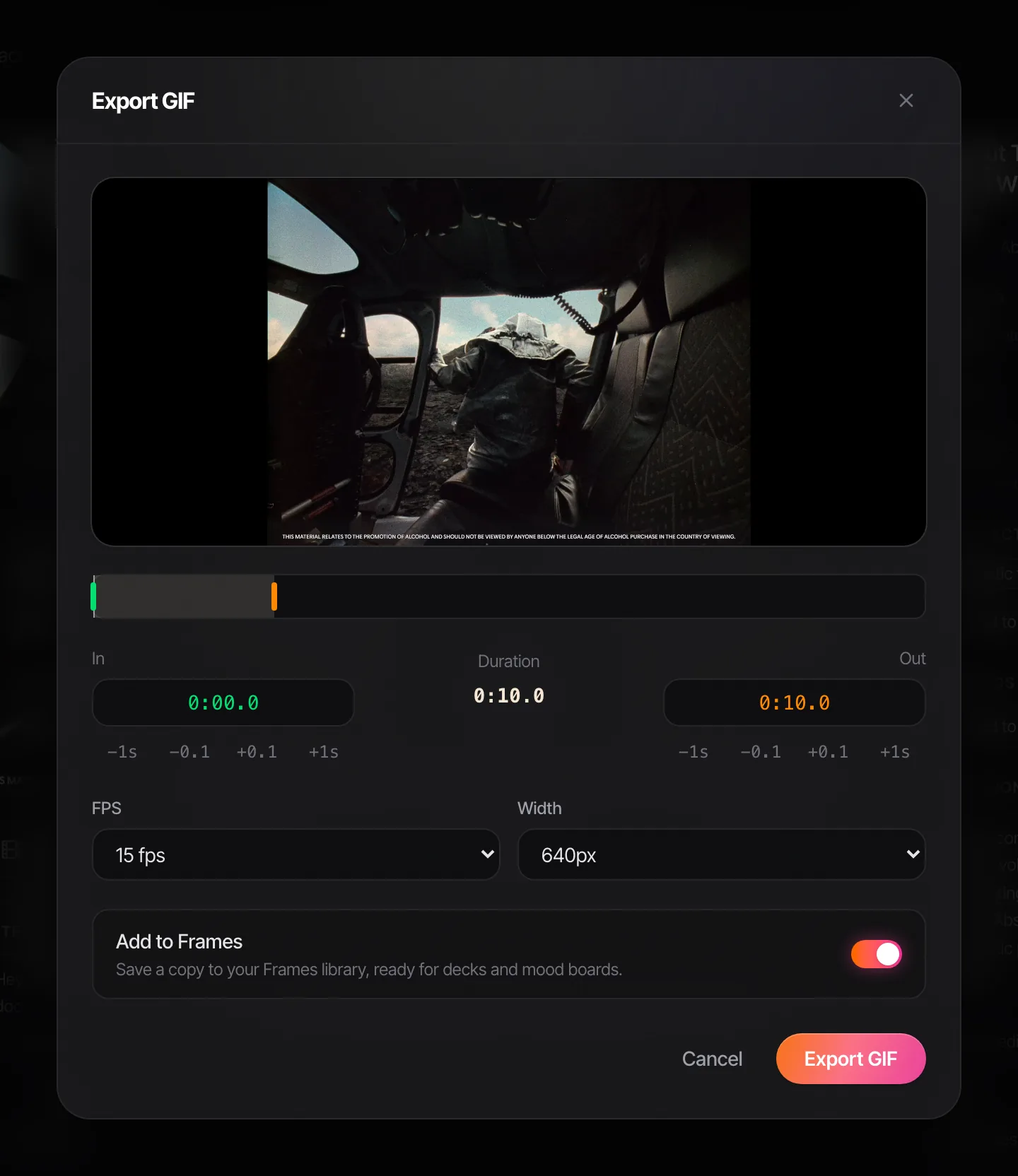
When you need the GIF, open the video, hit Export GIF, set the in and out points, frame rate and width, and save it to your desktop or straight into Frames for the next deck.
The settings that make a YouTube GIF look good
A GIF frame holds 256 colours, and YouTube footage is already compressed, so you're stacking two kinds of damage. We exported the same 4 second clip from our own launch film at different settings, and the numbers are blunt:
| Width | Frame rate | Palette and dither | File size |
|---|---|---|---|
| 800 px | 25 fps | ffmpeg default, one pass | 5.99 MB, noisy and banded |
| 800 px | 25 fps | two-pass palette | 15.02 MB, looks much better |
| 800 px | 15 fps | two-pass palette | 9.19 MB |
| 480 px | 15 fps | two-pass palette | 3.44 MB |
| 480 px | 15 fps | two-pass, Bayer dither | 1.85 MB |
| 320 px | 12 fps | two-pass palette | 1.32 MB |
What we take from it:
- Width is the big lever. File size grows roughly with the square of the width, so 480 px is far cheaper than 800. On a slide the GIF sits in a box a third of the screen wide, and 480 to 640 px is plenty.
- 12 to 15 fps is the sweet spot. YouTube videos are usually 24, 25 or 30 fps. Dropping to 12 or 15 still reads as motion and roughly halves the frame count.
- A good palette costs bytes. At 800 px and 25 fps, the nicer two-pass GIF was two and a half times the size of the ugly default. Bayer dithering claws a lot of that back, especially on skies.
- Keep it short. Two to four seconds. Nobody watches a 12 second GIF in a deck. They watch one loop and turn the page.
If the GIF has to go in an email or Slack and it's still too big, our guide to reducing GIF file size ranks every trick by how much it saves, or the free GIF compressor will squeeze it to a target size without a re-export. For why GIFs band and smear in the first place, see how to turn a video into a GIF without losing quality.
Which method should you use?
- A reaction GIF for the team chat: GIPHY. Done in a minute, and the banding won't bother anyone.
- A reference GIF for a treatment or deck: screen record and convert. More steps, a much better result, and you control the size.
- Your own content: the master file, every time.
- A reference you'll come back to: save it to a library and export from there, so the GIF and its source stay together.
Other platforms have their own quirks. Reels come watermarked and creators can switch downloads off, so see turning an Instagram reel into a GIF. TikTok has a Share as GIF button and a vertical crop problem, both in making a GIF from a TikTok video. And directors' reels on Vimeo, often locked and letterboxed, get a guide of their own.
The GIFs in our decks used to have no idea where they'd come from. Someone would ask for a longer version of the clip on slide 4 and we'd be back in YouTube history, scrubbing. Saving the video once and exporting from it whenever a deck needs a GIF is the habit Spark was built around. It's free to start, so try it on the next YouTube reference you'd otherwise screen record.
FAQs
Does YouTube have a built-in GIF maker?
No. There's no GIF option in YouTube's Share menu. YouTube tested a GIF tool on a small number of channels back in 2014, but it never became a standard feature, so you need a separate tool such as GIPHY, a converter, or a screen recording.
Is it legal to make a GIF from a YouTube video?
It depends on whose video it is and what you do with the GIF. Your own videos are fine, and internal references in a pitch deck are common practice, though not a licence. For anything public, get permission from the rights holder, because YouTube's terms restrict downloading and copyright still applies to a three second clip.
How long should a GIF from YouTube be?
Two to four seconds for a deck or a message. Every extra second at 15 fps is another 15 frames in the file. If you need longer than about six seconds, an MP4 will look better and be a fraction of the size.
Why does my YouTube GIF look blurry or blocky?
Usually one of three things: the video was playing at a low quality when you recorded it, the GIF was scaled up beyond the source, or the converter used a poor colour palette. Set YouTube to 1080p before recording, export at 480 to 640 px wide, and use a two-pass palette.
Can I make a GIF from a YouTube Short?
Yes, the same methods work. Shorts are vertical, so a GIF at 480 px wide is about three times the pixels of a horizontal one at the same width. Go narrower (around 320 to 360 px) or crop it square if it's going into a horizontal slide.
How do I make a GIF from YouTube on an iPhone?
Use the phone's screen recording (add it to Control Centre in Settings), record the moment, then convert the recording. The Shortcuts app's Make GIF action can turn a video from your camera roll into a GIF, or you can open our converter in Safari.
Keep reading
All articles
How to Reduce GIF File Size Without Ruining Quality
We measured every way to shrink a GIF on the same clip. Width wins by a mile, colours save less than you'd think, and grain is the silent killer.
How to Build a Searchable Creative Inspiration Library
Your references live in nine places and none of them has a decent search bar. This is the four-step system we run at our own production company, in whatever tool you like.

How to Make a Moodboard for a Video Project
Twenty well-chosen frames with a line of explanation under each will do more for your shoot than two hundred beautiful pins. Here's how to build that board, section by section.