How to Convert MP4 to GIF on Mac
QuickTime won't do it and Preview won't either. Here are the five free routes that do, from a Finder right-click to ffmpeg, and when each one makes sense.
By the Spark team ·
You can't convert an MP4 to a GIF on a Mac with QuickTime Player or Preview. We've looked in every menu, more than once, usually ten minutes before a pitch. The good news is that the free options are excellent. For the best looking GIF with no typing, use Gifski. If you're on a borrowed Mac and can't install anything, our browser converter does it without uploading the file. Shortcuts and Keynote both make GIFs with nothing extra installed, and ffmpeg does it in one command when you want the same settings every time.
We make GIFs on Macs most weeks at Perspective Pictures, mainly for treatments and pitch decks, so this is the order we reach for things in. Everything below works the same for MOV files, iPhone footage and screen recordings. On a PC? There's a Windows version too.
Pick a method in ten seconds
| Method | Cost (as of October 2026) | Quality | Control | Best for |
|---|---|---|---|---|
| Spark browser converter | Free, no sign-up | Very good | Width, fps, quality, speed, frame-accurate trim | One-offs, nothing to install |
| Gifski | Free on the Mac App Store | Excellent | Width, fps, quality, loop | The best looking GIF with no typing |
| Shortcuts (Make GIF) | Free, built into macOS | Basic | Very little | A right-click GIF for a colleague |
| Keynote | Free with every Mac | OK | Resolution, frame rate | A caption or logo over the clip |
| FFmpeg | Free, open source | Excellent | Everything | Batches and repeat jobs |
| Spark desktop app | Free for 15 videos; GIF export on paid plans from £16 a month | Very good | In and out points, 8 to 24 fps, 320 to 1080 px | GIFs from references you've saved |



If you only remember one line: Gifski for anything a client sees, the browser tool when it isn't your Mac.
First, trim it in QuickTime
Every second you cut is file size you don't pay for later. Open the clip in QuickTime Player, press Command T (or Edit > Trim), drag the yellow handles round the moment and click Trim. File > Save keeps the short copy.
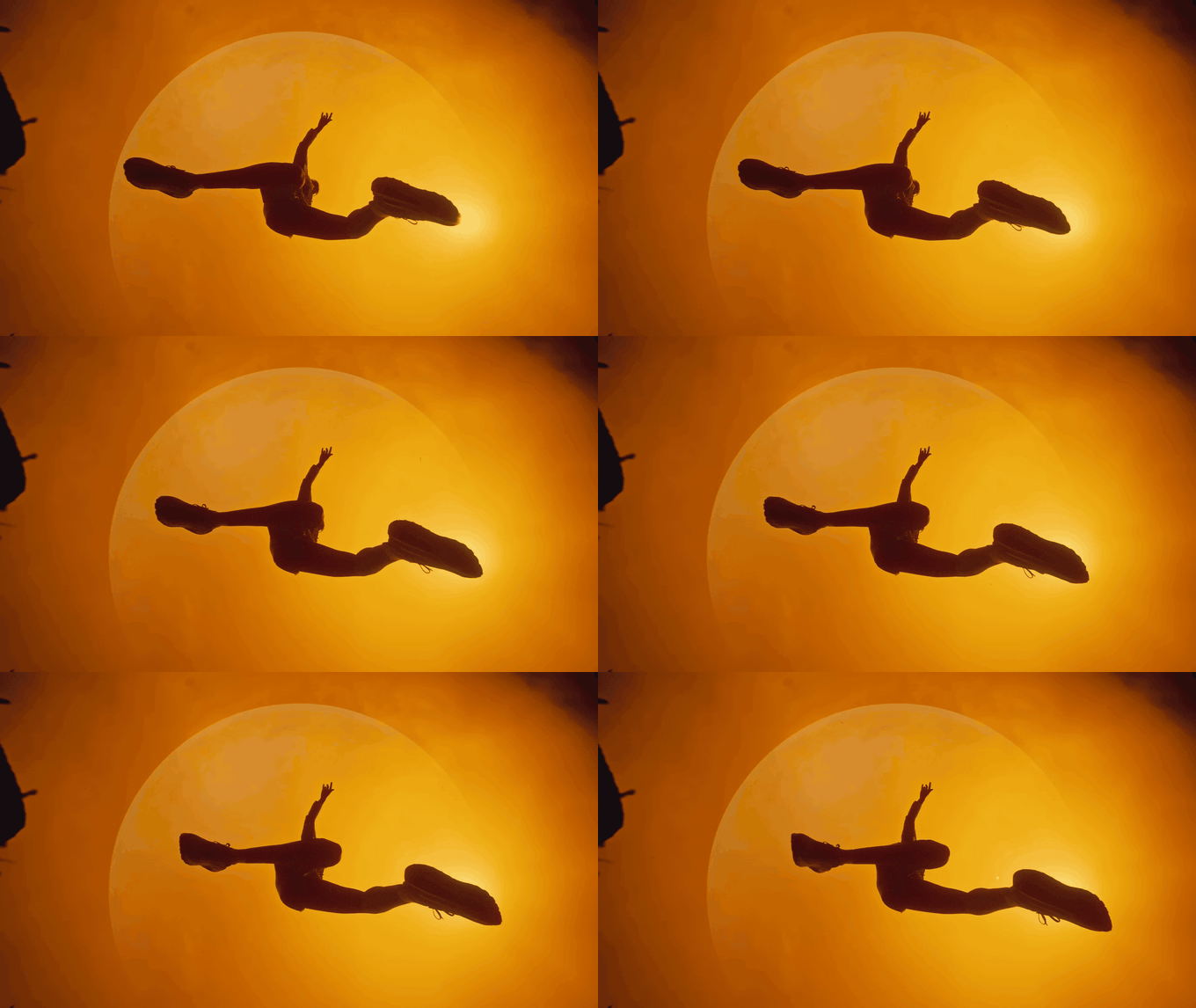
How short? Three to six seconds for a deck or a Slack message. Our own house rule is one camera move, start to finish, and nothing either side of it. The loop below is two seconds of Nike ACG's Change of pace, and two seconds is enough to sell the whole idea of the film.
1. The free browser converter
Drop the video onto the converter on this site in Safari or Chrome. It runs inside the browser on your Mac, so the file never leaves the machine. That matters when it's an unreleased cut and the edit suite has a strict NDA.
Pick up to 30 seconds on the timeline and nudge the in and out points frame by frame with the comma and full stop keys. Then choose a width (480 px is a sensible start), a frame rate (12 or 15 fps), and Small, Balanced or Best quality. You see an estimated file size before you convert, and there's no watermark. Keep the tab in front while it works, because Safari throttles tabs it thinks you've forgotten about.
2. Gifski, the best free Mac app for it
Gifski is a free app by Sindre Sorhus, built on the gifski encoder, and it makes some of the cleanest GIFs of anything on this list. It builds palettes across frames and dithers in time as well as space, which is why a dusk sky comes out smooth instead of striped.
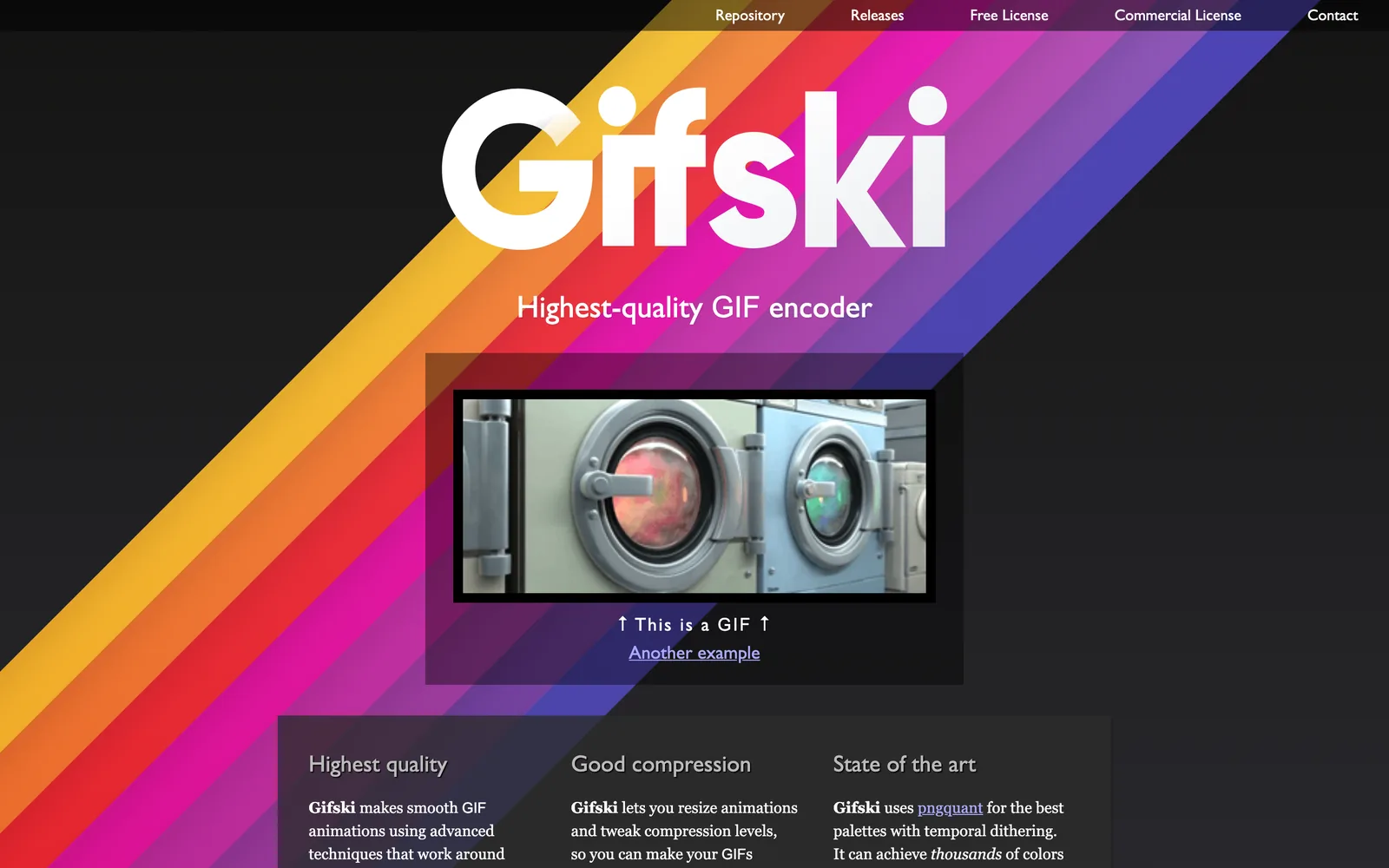
- Install it from the Mac App Store. The current version asks for macOS 26; the GitHub page keeps older builds for older Macs.
- Drag your MP4 or MOV into the window.
- Set the width (start at 480 px), the frame rate (12 to 15) and the quality slider. You can trim and crop here too.
- Leave Loop on. Skip Bounce unless you want the yo-yo effect, because it doubles the frames and the file.
- Click Convert, then Save.
The quality slider is the one to play with. Two notches down usually saves a third of the file with no difference anyone will spot on a laptop.
3. Shortcuts: a right-click GIF maker
The Shortcuts app has a Make GIF action that takes a video. It's the only fully built-in route, and you can wire it into Finder.
- Open Shortcuts and click +.
- Search the actions panel for Make GIF and drag it in.
- Add Save File underneath, so it asks where to save.
- Open the details panel (the i button), tick Use as Quick Action and Finder, and call it "Make GIF".
- In Finder, right-click a video and choose Quick Actions > Make GIF.
Control is close to zero. You get loop and auto-size toggles and that's it, so there's nothing you can do about the size. Lovely for a screen recording you're sending to a colleague. Not what we'd put in front of a client.
4. Keynote, the one everyone forgets
Keynote has exported animated GIFs for years. Reach for it when the clip needs a caption, a logo or a title card on top.
- New presentation. In the Document sidebar, set the slide size to match the video (1920 x 1080 for most widescreen footage).
- Drag the video on and stretch it to fill. To trim, select it and use Edit Movie in the Format sidebar's Movie tab.
- Add your text.
- File > Export To > Animated GIF, pick a resolution and frame rate, click Next.
No palette or dither settings, so test it on the real footage. Skies are the giveaway.
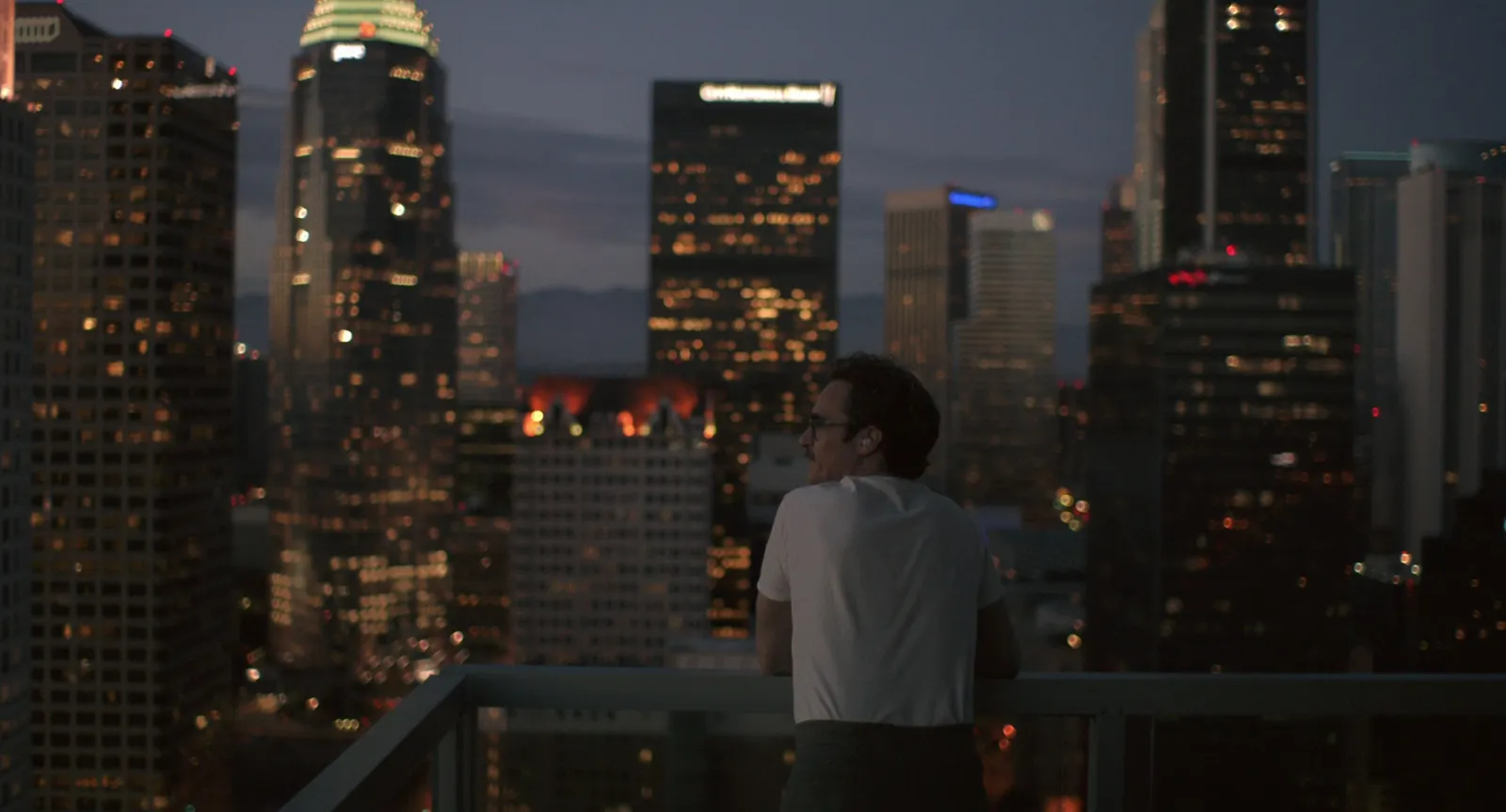
If the GIF is heading back into a deck anyway, our guide to making a moodboard in Keynote covers how Keynote plays GIFs and movies once they're on the slide.
5. ffmpeg: one command, total control
ffmpeg is the free command-line tool most video software is quietly built on. It's what we use when we're making a dozen GIFs at the same size for a treatment and want them to match. Install Homebrew if you haven't, then in Terminal:
brew install ffmpegFrom the folder your video is in:
ffmpeg -i input.mp4 -vf "fps=15,scale=480:-1:flags=lanczos,split[a][b];[a]palettegen=stats_mode=diff[p];[b][p]paletteuse=dither=bayer:bayer_scale=3" output.gifThat builds a palette from your clip first and then encodes with it. People call it the two-pass method, and it's the difference between a clean GIF and a speckled one:
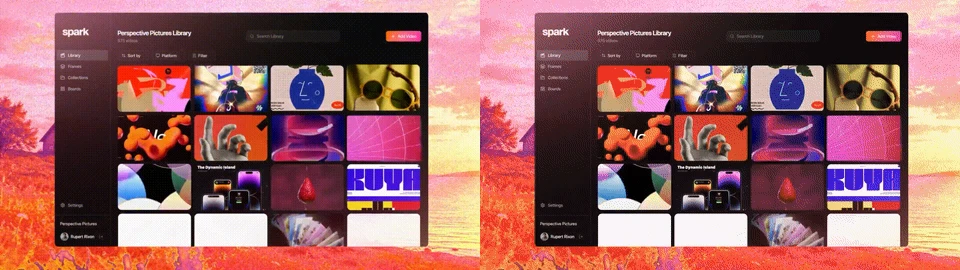
To take part of the video, put -ss 12 -t 4 before -i: 4 seconds, starting at 12. We ran this exact recipe on a 4-second clip of our own launch film. 1.85 MB at 480 px with Bayer dithering, against 3.44 MB with the smoother Sierra dither. On a slide you'd struggle to tell them apart, so we use Bayer. The full table is in our guide to making GIFs without losing quality.
Every MP4 in a folder, in one go:
for f in *.mp4; do ffmpeg -i "$f" -vf "fps=15,scale=480:-1:flags=lanczos,split[a][b];[a]palettegen=stats_mode=diff[p];[b][p]paletteuse=dither=bayer:bayer_scale=3" "${f%.mp4}.gif"; doneGifski has a command-line version too, and Homebrew's build reads video directly:
brew install gifski
gifski --fps 15 --width 480 -o output.gif input.mp4
GIFs from a Mac screen recording
Press Shift Command 5, choose Record Selected Portion, draw a box and click Record. Stop it from the menu bar and a MOV lands on your Desktop. Two things catch people out.
Retina doubles the pixels. A box 800 points wide records at 1,600 pixels. Scale it to half, or the GIF ends up about four times heavier than it needs to be.
Interfaces don't want dithering. Flat buttons and text look crisper without it. In ffmpeg, swap the end of the command for paletteuse=dither=none. In the browser converter, choose Small.
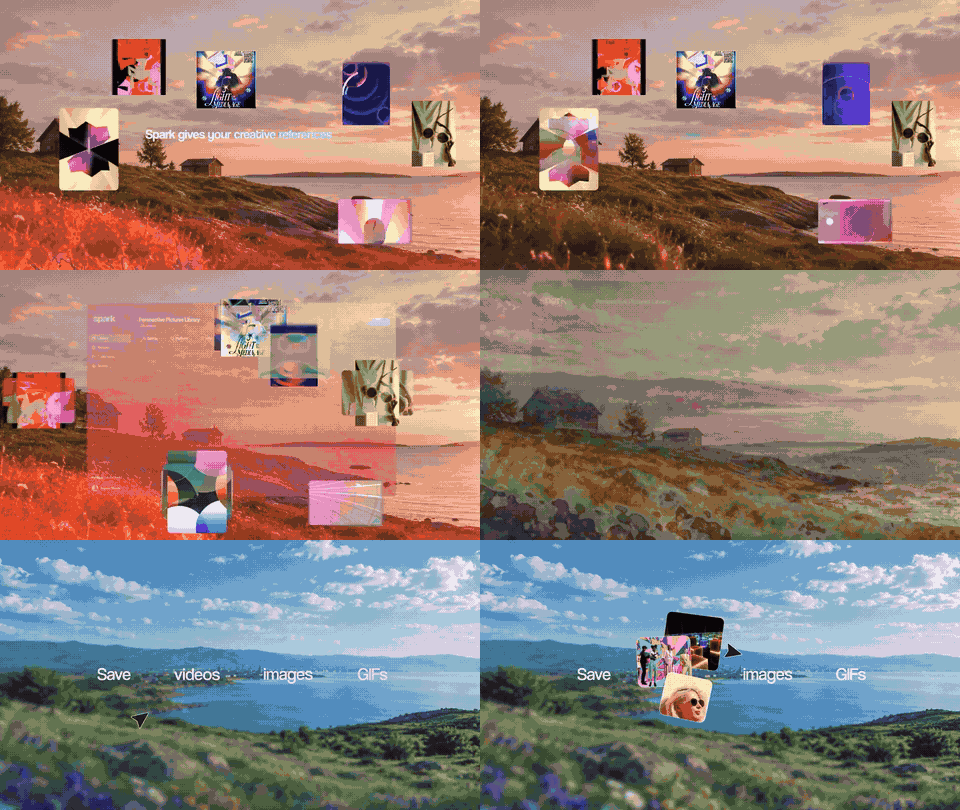
What about ezgif and Photoshop?
ezgif is free and it works, and half the industry has it bookmarked. The difference is that it uploads your file to its servers. For a public trailer, who cares. For a director's cut nobody has signed off, we'd keep it on the machine.
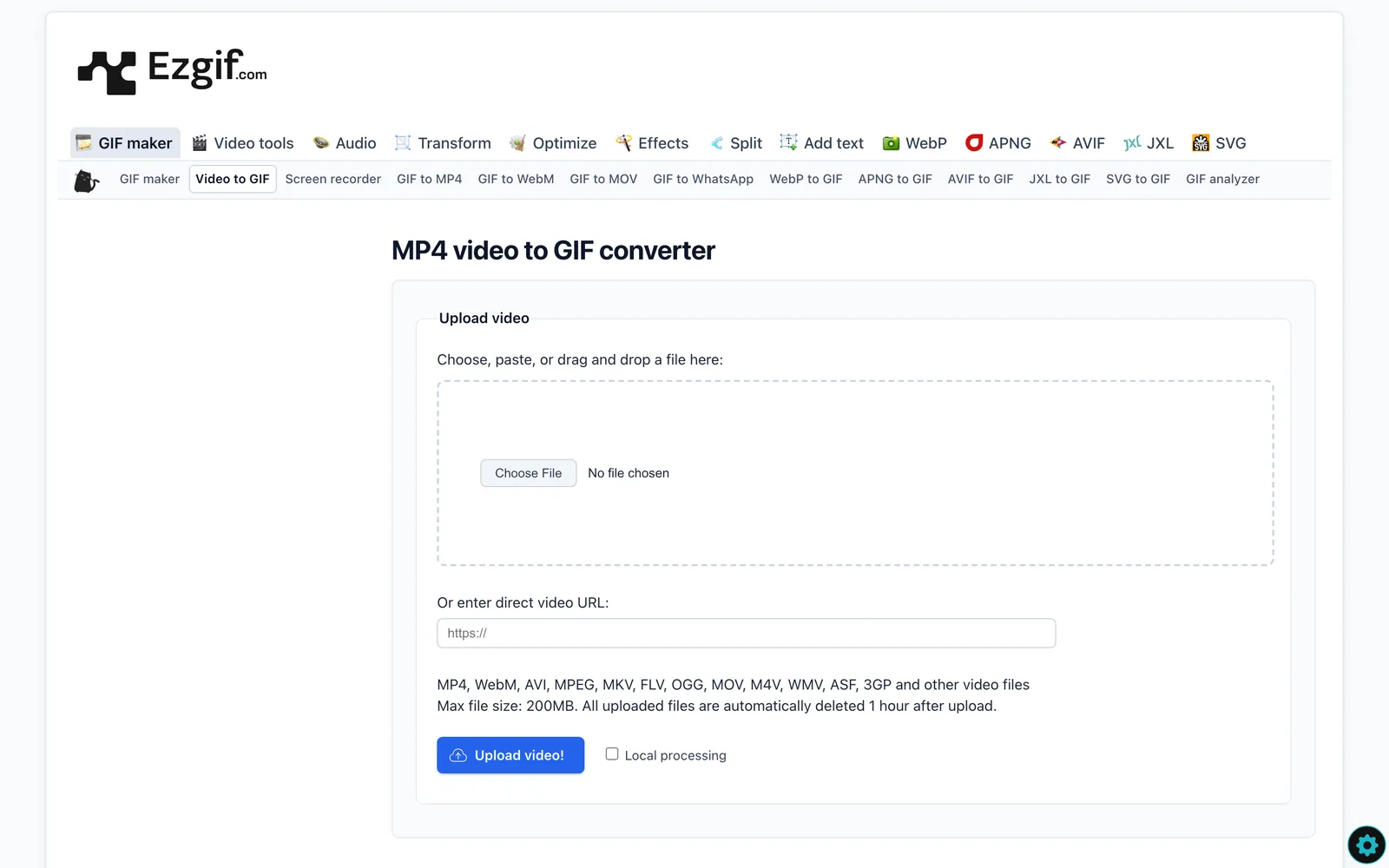
Photoshop works too, and it's slow. File > Import > Video Frames to Layers, then File > Export > Save for Web (Legacy). If you already pay for it and want to fix frame 37 by hand, go for it. Otherwise Gifski does the same job in a tenth of the clicks.
Why some clips shrink and others don't
We only understood this after measuring the loops on this blog. The Nike ACG leap above is 680 px wide, 15 fps and two seconds long, and it weighs 0.54 MB. Absolut's volcano below is narrower, runs at only 10 fps for the same two seconds, and weighs 1.16 MB. More than double, with fewer frames.
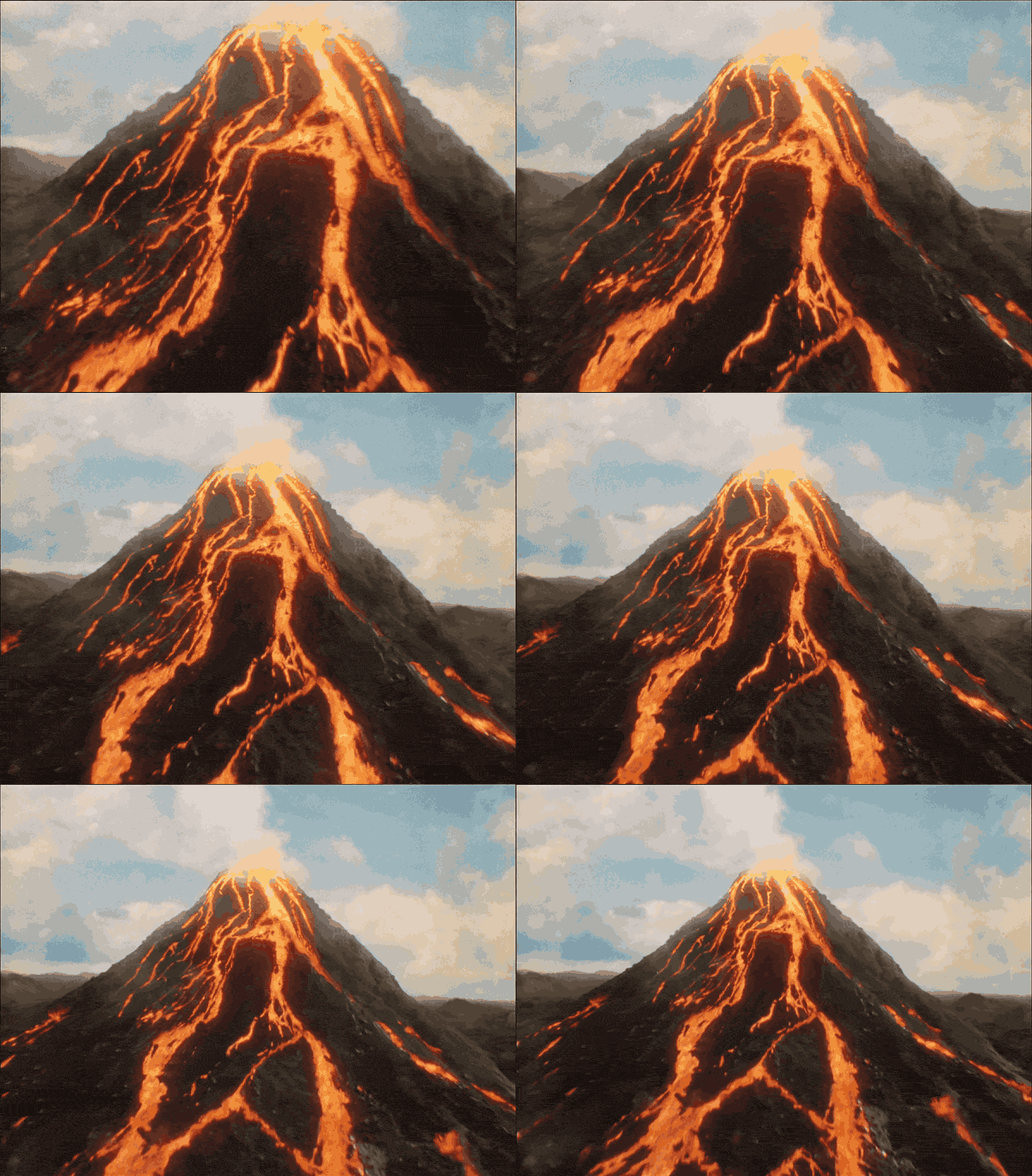
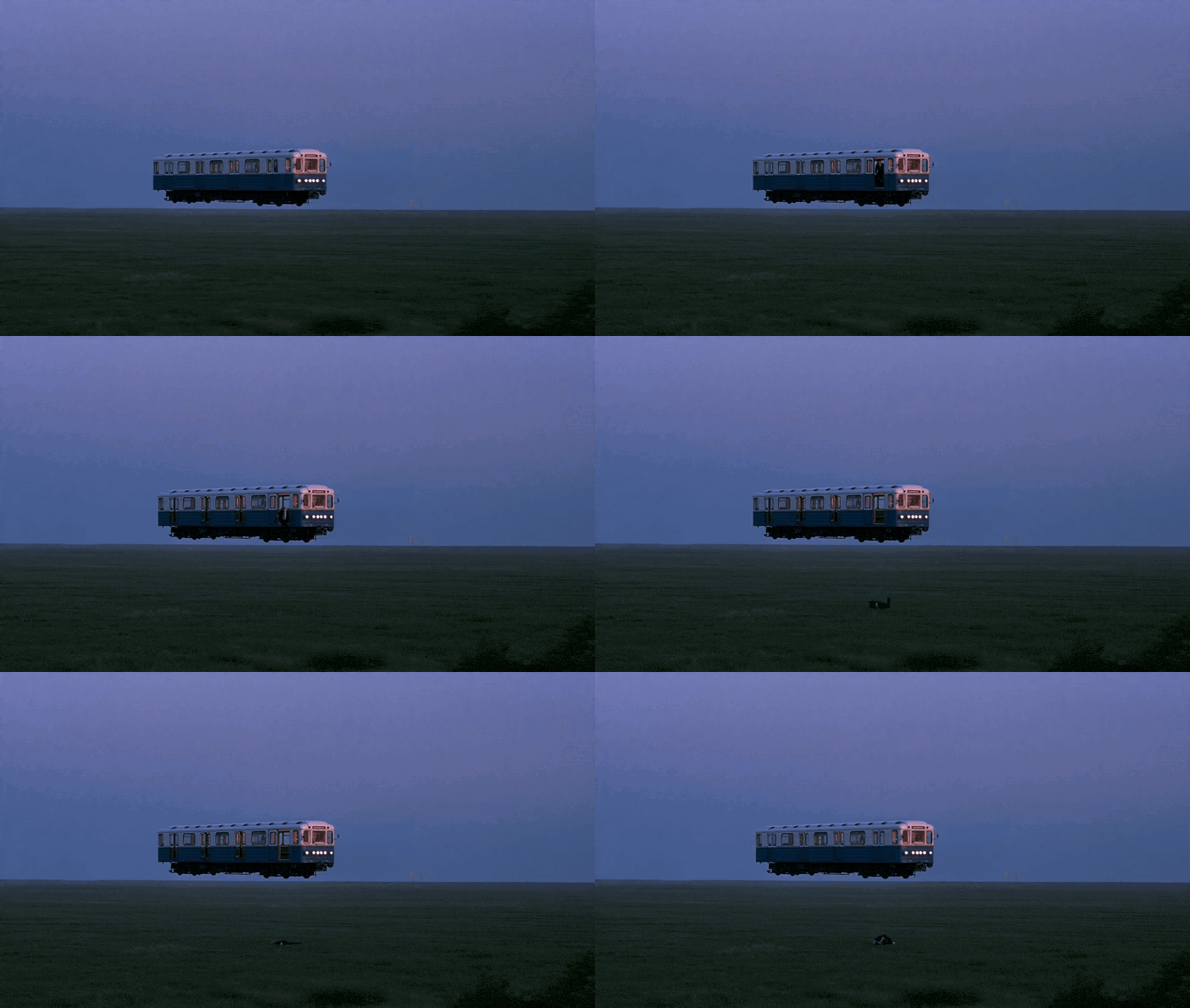
The difference is what's in the frame. Lava is hundreds of oranges moving in every direction, so every frame is new information. The floating metro carriage is 53 frames of soft purple mist where very little changes, and it comes in at 0.54 MB too. Flat colour and stillness are cheap. Texture and movement are expensive. If a GIF won't shrink, it's usually the footage, not the settings. Our GIF compressor will squeeze a finished file to a target size, and the GIF file size guide ranks every fix by how much it saved us.
When the video is a reference, not your footage
Most of the GIFs we make aren't from our own rushes. They're from references: the reel a director sent at midnight, a campaign on Vimeo, a TikTok with the exact whip pan we want to pitch. Downloading each one, finding the file and converting it is a lot of faff for a four-second loop.
That's the job Spark was built for. It gathers reels, TikToks, Vimeo links and the rest into one searchable library on your Mac. Open a saved video, click Export GIF, nudge the in and out points by a second or a tenth, pick 8 to 24 fps and a width from 320 to 1080 px, and it lands in Frames, ready for the deck.
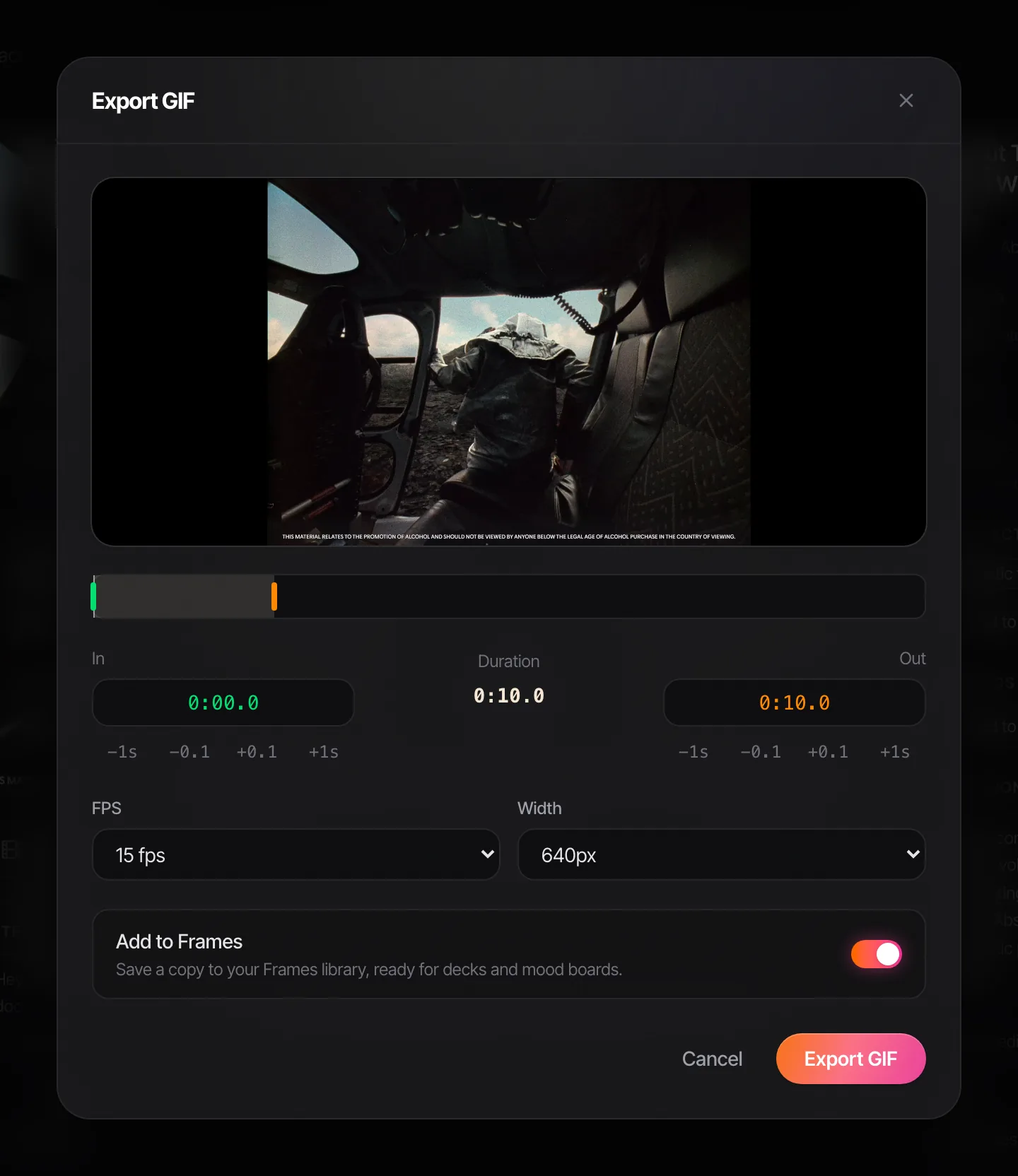
For a one-off, Gifski or the browser tool is all you need. If you're building decks every week out of videos you found online, keep the references and the GIFs in the same place, so the next pitch starts from a library and not from your Downloads folder.
FAQs
Can QuickTime convert MP4 to GIF?
No. QuickTime Player can trim and export video, but not as a GIF. Use it to trim the clip, then convert with Gifski, the Shortcuts Make GIF action, Keynote, ffmpeg or a browser converter.
How do I convert MOV to GIF on a Mac?
Exactly the same way as MP4. Gifski, Shortcuts, Keynote, ffmpeg and Spark's browser converter all accept MOV files, including iPhone videos and screen recordings. With ffmpeg, change the input file name to input.mov.
What's the best free GIF maker for Mac?
Gifski. It's free on the Mac App Store, gives you width, frame rate and a quality slider, and makes very clean GIFs. The current version needs macOS 26, with older builds on its GitHub page. If you can't install apps, use a browser converter that runs locally, like ours.
How do I make a GIF from an iPhone video on my Mac?
AirDrop the video to your Mac or drag it out of Photos onto the Desktop, then convert it with any method above. iPhone footage is high resolution, so scale it down to 480 or 640 px wide or the GIF will be enormous.
Why is the GIF bigger than my MP4?
Because GIF is an image format from 1987, not a video codec. In our test, 4 seconds at 480 px was 0.29 MB as an MP4 and 1.85 MB as a well made GIF. Keep GIFs short and narrow, and send video wherever it will play.
Is ezgif safe for client footage?
ezgif uploads your file to its servers to convert it. That's fine for public footage. For unreleased or confidential work, use something that converts on your own Mac: Gifski, ffmpeg, Keynote, Shortcuts or our browser converter.
Keep reading
All articles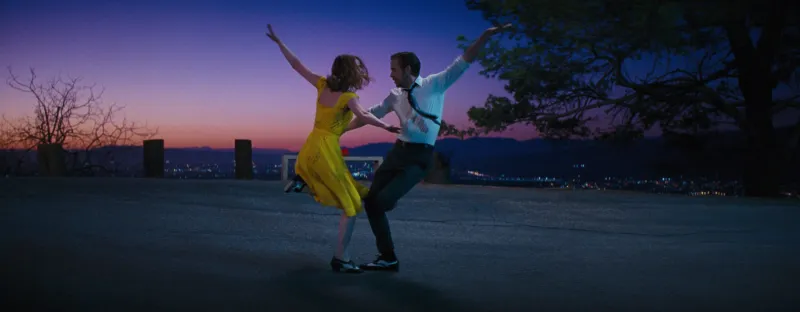
How to Turn a Video into a GIF Without Losing Quality
A GIF can't hold your footage's colours, but it can fool the eye. We exported one clip 13 different ways and measured what each setting really costs.
How to Insert GIFs into PowerPoint Without Playback Problems
Putting a GIF on a slide takes ten seconds. Working out why it froze in front of the client takes longer, so here are the actual causes, the fixes, and our measured file sizes.
How to Make a GIF from a YouTube Video: Step-by-Step Guide
YouTube has no GIF button. Here are the routes that work, how to land on the exact frame, and the settings that stop your GIF looking like a fax.