
How to Insert GIFs into PowerPoint Without Playback Problems
Putting a GIF on a slide takes ten seconds. Working out why it froze in front of the client takes longer, so here are the actual causes, the fixes, and our measured file sizes.
By the Spark team ·

To insert a GIF into PowerPoint on Windows, go to Insert > Pictures > This Device, pick the .gif and click Insert. On a Mac it's Insert > Pictures > Picture from File. In the desktop apps the GIF animates straight away, in Normal view and in Slide Show, and it plays as many times as the file itself says to. Usually that's forever.
When it doesn't move, it's nearly always one of eight things, and most have nothing to do with PowerPoint. We've hit every one of them in a pitch at some point, two of them on a client's own laptop. They're below, with the Keynote and Google Slides versions, and the numbers from our own test that tell you when to stop using a GIF and drop in an MP4. Short version: a 4 second clip that was 15 MB as a GIF was 0.7 MB as an MP4.

How to insert a GIF in PowerPoint
Windows (Microsoft 365, 2021, 2019)
- Select the slide.
- Go to Insert > Pictures > This Device.
- Find the GIF, check the file really ends in .gif, and click Insert.
- Resize it by dragging a corner (hold Shift if your version doesn't keep the proportions on its own).
- Press Shift+F5 to play the current slide and check it moves.
Mac
- Select the slide.
- Go to Insert > Pictures > Picture from File, or drag the GIF from Finder onto the slide.
- Check it in Slide Show > Play from Current Slide.
PowerPoint for the web
Insert > Pictures > This Device works the same way, but playback is unreliable. Microsoft's own help still says PowerPoint for the web can't play animated GIFs in a slide show, while users report them moving in the editor and freezing when presenting. If the deck has GIFs, present from the desktop app. Not the browser. Not on the day.
There's no proper GIF search in PowerPoint. Insert > Pictures > Online Pictures searches Bing, and typing "animated gif" into it gets you the same tired reaction GIFs everyone else has. If you're putting a GIF in a deck, you usually want a specific moment from a specific film or ad, which means making it yourself.

Why your GIF isn't playing in PowerPoint
Work down the list from the top. The first two take thirty seconds to rule out and catch a lot of people.
1. It isn't actually a GIF
"Save image as" on GIPHY, Tenor and plenty of other sites often hands you a .webp file, or the site was quietly serving an MP4 all along. PowerPoint may insert the WebP as a still, or refuse it. On a Mac, select the file in Finder and press Cmd+I to see its real kind; on Windows, turn on file extensions in File Explorer (View > Show > File name extensions). If it's WebP or MP4, insert the MP4 as a video (see below) or convert it to a real GIF.
2. It only plays once
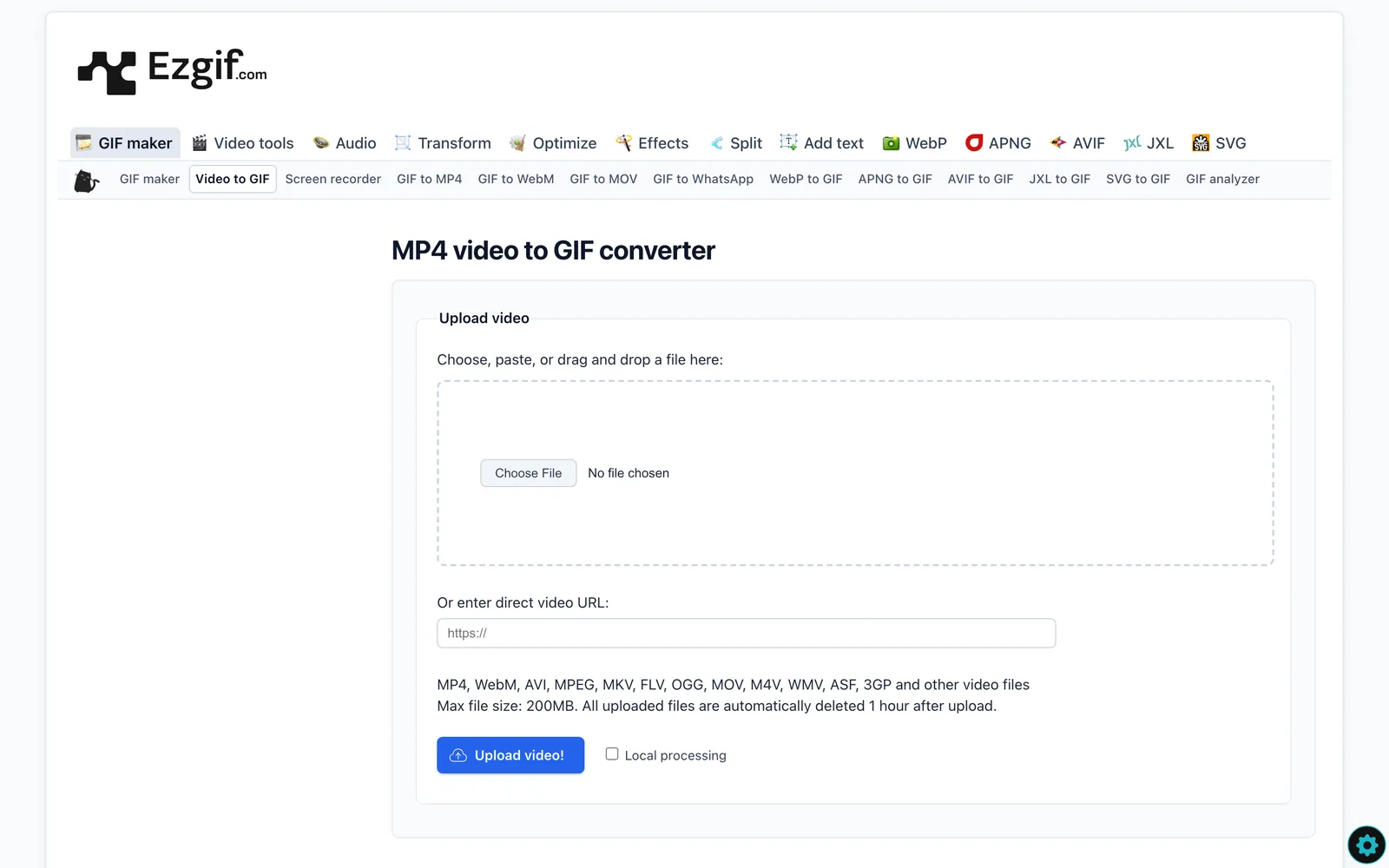
PowerPoint has no loop setting for GIFs. The loop count lives inside the GIF file, so a GIF made to play once plays once and then sits on its last frame looking guilty. To make it loop forever, open it in ezgif and change the loop count, or use gifsicle on the command line:
gifsicle --loopcount=forever input.gif -o output.gifGIFs made with ffmpeg loop forever by default, and so do Spark's. Our free converter has a Loop forever or Play once switch, set to loop unless you change it.
3. An entrance animation is freezing it
Put a Fade or Fly In on a GIF and it can sit stuck on its first frame. Remove the animation (Animations > None), or swap to an MP4 if you need it to fade in.
4. You're presenting from PowerPoint for the web
See above. Download the deck (File > Save As > Download a Copy) and present from the desktop app.
5. Animations are switched off somewhere
Two switches can do this. In PowerPoint, check Slide Show > Set Up Slide Show and make sure Show without animation isn't ticked. In Windows 11, Settings > Accessibility > Visual effects > Animation effects turns animations off across Office when it's off. Check it on any borrowed laptop in a client's meeting room. We learned that one the hard way.
6. You sent a PDF
PDFs can't animate. Every GIF becomes its first frame, which is usually the least interesting frame. If the deck must travel as a PDF, choose the GIF's best frame on purpose and add a link to the clip, or send the .pptx.
7. It's enormous
PowerPoint doesn't publish a GIF size limit, but a 15 MB GIF on every slide makes a deck slow to open, slow to email and jumpy on an older laptop. More on sizes in a moment.

8. It's stuttering over Zoom or Teams
Screen sharing usually drops the frame rate to save bandwidth, so motion on a slide looks choppy at the other end even when it's fine on your screen. In Zoom, tick Optimize for video clip when you share. In Microsoft Teams, share the PowerPoint through PowerPoint Live rather than your whole screen. Otherwise accept the GIF will look worse remotely, and keep it small.
How big should a GIF in a deck be?
We exported the same 4 second clip from our own launch film (1080p, 25 fps, a sunset hillside full of gradients, which is about the worst case for GIF) at different settings, then as MP4 for comparison.
| Format | Width | FPS | File size |
|---|---|---|---|
| GIF, two-pass palette | 800 px | 25 | 15.02 MB |
| GIF, two-pass palette | 640 px | 15 | 5.97 MB |
| GIF, two-pass palette | 480 px | 15 | 3.44 MB |
| GIF, two-pass, Bayer dither | 480 px | 15 | 1.85 MB |
| GIF, 64 colours, Bayer | 480 px | 15 | 1.18 MB |
| GIF, two-pass palette | 320 px | 12 | 1.32 MB |
| MP4 (H.264) | 1920 px | 25 | 2.09 MB |
| MP4 (H.264) | 800 px | 25 | 0.72 MB |
| MP4 (H.264) | 480 px | 25 | 0.33 MB |
The MP4s are plain H.264 (CRF 23, no audio) from the same source. Read those last three rows twice. The full resolution, full frame rate MP4 is smaller than a 480 px GIF at 15 fps, and it looks dramatically better, because MP4 isn't limited to 256 colours.
For a GIF in a box on a slide, 480 px wide at 12 to 15 fps is the sweet spot. In our test that came out between 1.2 and 3.4 MB, depending mostly on the dithering. Filling the slide? Use an MP4. Our guide to reducing GIF file size goes through every lever in order of impact, and if the GIF already exists and is simply too heavy, the free GIF compressor will shrink it to a target size in your browser.

Use an MP4 instead (it's often better)
GIFs are simple and they work everywhere, which is the whole appeal. But for anything bigger than a thumbnail, or anything you want control over, a video file wins: smaller, sharper, and with a proper loop switch.
In PowerPoint (Windows):
- Go to Insert > Video > This Device and pick your MP4 (H.264 is the safe choice).
- With the video selected, open the Playback tab.
- Set Start to Automatically.
- Tick Loop until Stopped.
- Set Volume to Mute if it's a reference and the sound doesn't matter.
On a Mac it's Insert > Video > Movie from File, then the same Playback options. If the deck gets heavy, File > Info > Compress Media (Windows only) shrinks embedded videos to 1080p, 720p or 480p.
An MP4 can't play in a PDF either. Nothing moves in a PDF. Accept it and move on. If you're choosing a format for a whole deck, including email, Slack and Canva, our GIF vs MP4 comparison goes app by app with its own measurements.
GIFs in Keynote
Keynote is the friendliest of the lot. Drag the GIF from Finder onto the slide and it animates when you play the deck. Select it and look at the Format sidebar: recent versions give animated GIFs movie-style controls, and if you see a Movie tab, the Repeat menu offers Loop or Loop Back and Forth. That fixes the play-once problem without touching the file.

For video, the same Movie tab has Repeat, a Start movie on click checkbox (untick it for autoplay) and Edit Movie for trimming. Keynote is happy with MP4 and MOV.
Building in Keynote and sending as PowerPoint (File > Export To > PowerPoint)? Open the exported .pptx and check every GIF and video before it leaves the building. The conversion is good, not perfect. If the GIF is one of a dozen on a Keynote moodboard, our guide to making a moodboard in Keynote covers looping clips, masks and what breaks on export.
GIFs in Google Slides
- In Google Slides, go to Insert > Image > Upload from computer (or By URL if the GIF is online).
- To search, Insert > Image > GIFs and stickers opens a panel of GIFs from the web.
- Keep it under 50 MB, Google's limit for images in Slides.
GIFs animate in Slides while you edit and when you present. Which leads to a slightly odd conclusion: in Google Slides a GIF is often the better choice for a looping clip. Slides only inserts video from YouTube or Google Drive (no upload straight from your computer), and its playback options (Format options > Video playback) offer Play (on click), Play (automatically) and Play (manually), but no loop. If you want a reference to cycle in the background while you talk, that's a GIF's job in Slides.
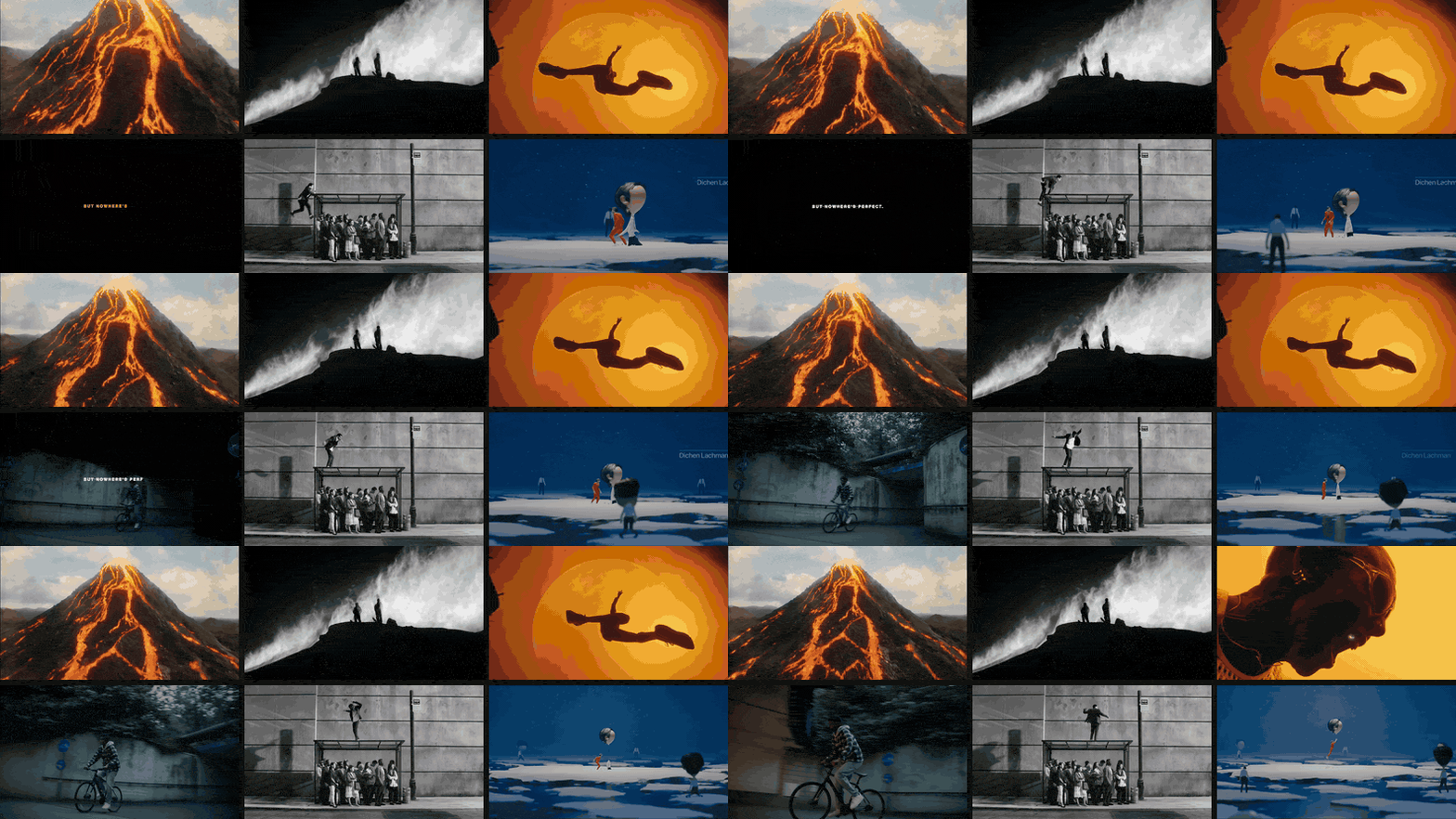
That's also why our guide to building a moodboard in Google Slides uses GIFs for every moving reference.
Making the GIF in the first place
Most GIFs in decks are references: the two seconds of a Spike Jonze office where the colour does all the talking, the camera move from that perfume ad, the cutting rhythm of a music video. So you need to cut a specific moment, not find one on GIPHY.
The quickest free route is the converter we built. It runs in your browser, nothing is uploaded, there's no watermark, and the in and out points move by single frames. For the settings that keep a GIF sharp, see how to turn a video into a GIF without losing quality.
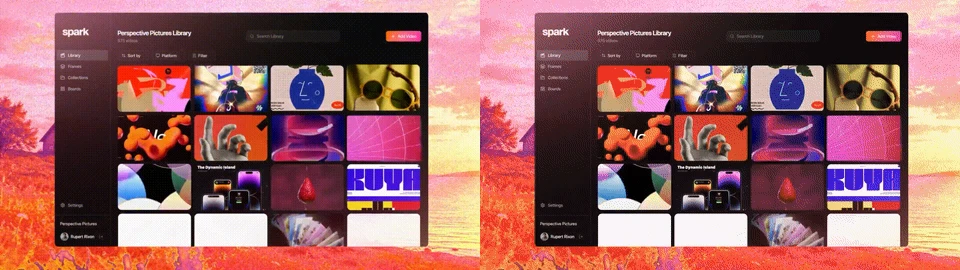
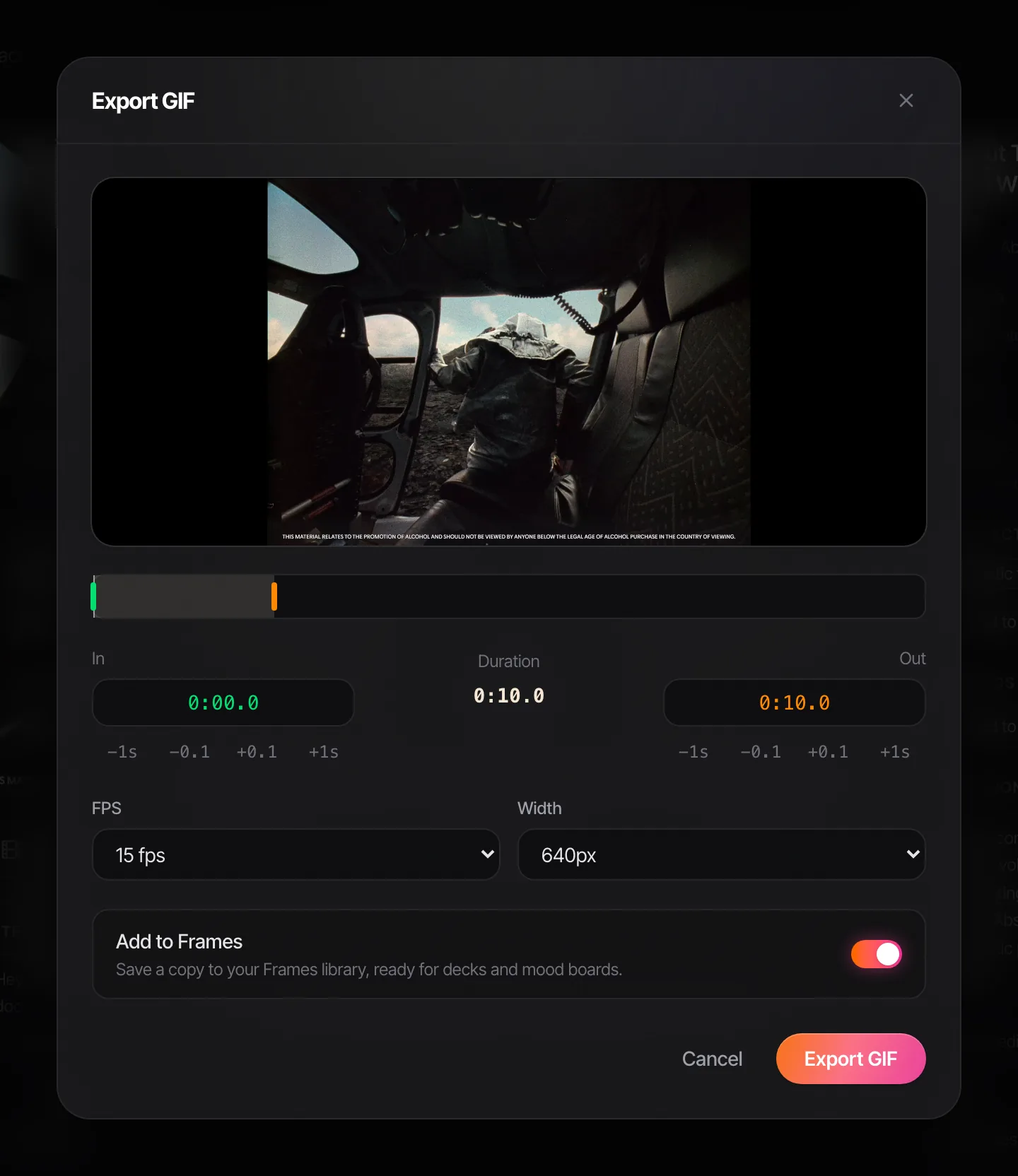
If the reference is a video you've saved to Spark, there's no download step. Open the saved video, click Export GIF, set the in and out points, frame rate and width, and save a copy to Frames, ready for the next deck. (GIF export needs a Creator or Studio plan.)
Building a whole board of moving references rather than one slide? Spark's Create Moodboard lays the frames and GIFs from a board out as a slide and exports it straight to PowerPoint, Keynote (.pptx), Google Slides, Canva or PDF. The GIFs arrive as real animated GIFs, and only the PDF freezes them, so the checks above still apply.
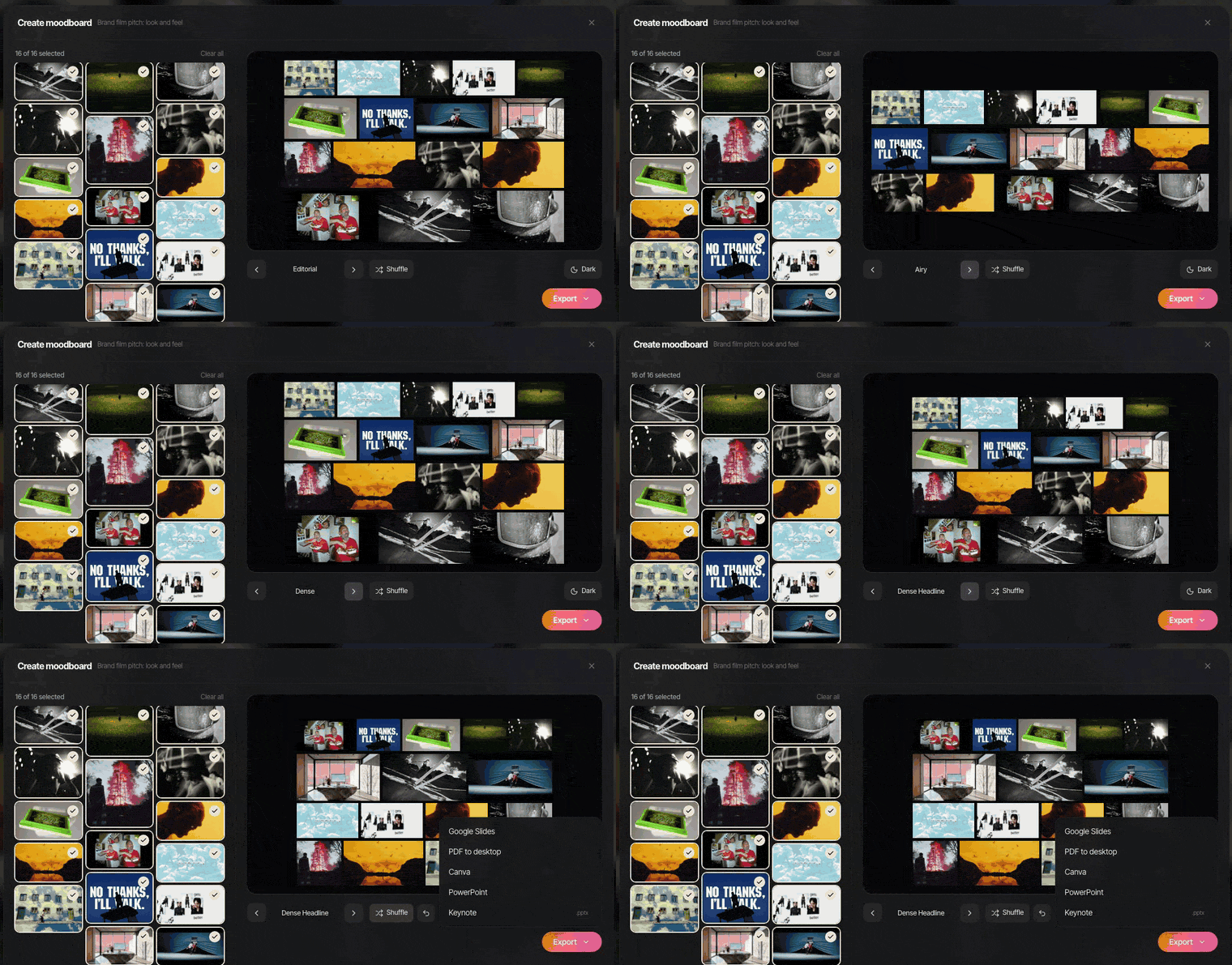
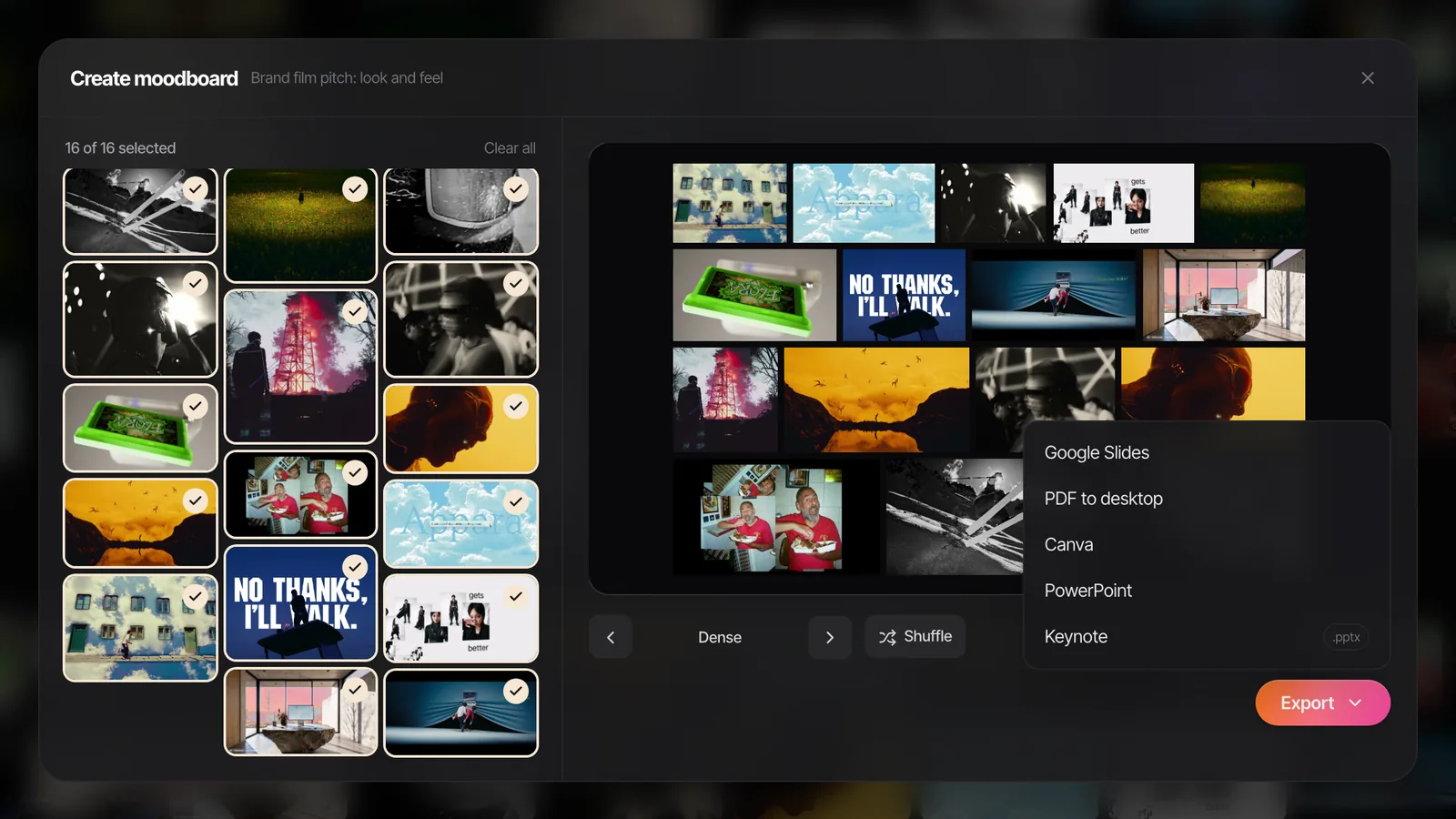
No Spark? The moodboard maker on our tools page does a lighter version in the browser: drop in GIFs and images, pick one of eight layouts, and export a .pptx that keeps them animated. Our guide to creating a video moodboard covers layout and playback across tools.
The bit we built Spark for is what happens after the deck. The GIF that worked so well on slide 7 is somewhere in a Downloads folder by Friday. In Spark it stays next to the original video, so when a client says "like that thing you showed us in the spring", it's a search away.
FAQs
Why is my GIF not moving in PowerPoint?
The most common reasons are that the file is really a WebP or MP4 saved with a .gif name, that the GIF is set to play only once, that an entrance animation is freezing it, or that you're presenting from PowerPoint for the web. Check those four first. Also check Slide Show > Set Up Slide Show isn't set to Show without animation.
How do I make a GIF loop in PowerPoint?
You can't from inside PowerPoint: the loop count is stored in the GIF file. Re-save it to loop forever with ezgif's loop count setting or gifsicle --loopcount=forever. If you'd rather control looping in PowerPoint, insert the clip as an MP4 and tick Loop until Stopped on the Playback tab.
Do GIFs work in PowerPoint on a Mac?
Yes. Insert them with Insert > Pictures > Picture from File or drag them in from Finder, and they animate in the editor and in Slide Show. The same loop and file size rules apply as on Windows.
Will a GIF play if I export my presentation as a PDF?
No. PDFs don't support animation, so every GIF shows only its first frame. Send the .pptx, or export a video with File > Export > Create a Video if the recipient just needs to watch it.
Is it better to use a GIF or a video in PowerPoint?
For small loops in a corner of a slide, a GIF is simple and fine. For anything larger, an MP4 is smaller and far sharper: in our test, a 4 second clip was 15 MB as an 800 px GIF and 0.72 MB as an 800 px MP4. Video also gives you autoplay, loop and mute controls.
How do I add a GIF to Google Slides?
Use Insert > Image > Upload from computer, By URL, or GIFs and stickers to search. GIFs animate in edit and present mode, and they're often better than video in Slides, because Slides can't loop a video.
Keep reading
All articles
How to Turn a Video into a GIF Without Losing Quality
A GIF can't hold your footage's colours, but it can fool the eye. We exported one clip 13 different ways and measured what each setting really costs.

How to Convert MP4 to GIF on Mac
QuickTime won't do it and Preview won't either. Here are the five free routes that do, from a Finder right-click to ffmpeg, and when each one makes sense.

How to Make a GIF from a YouTube Video: Step-by-Step Guide
YouTube has no GIF button. Here are the routes that work, how to land on the exact frame, and the settings that stop your GIF looking like a fax.