How to Turn a Video into a GIF Without Losing Quality
A GIF can't hold your footage's colours, but it can fool the eye. We exported one clip 13 different ways and measured what each setting really costs.
By the Spark team ·
Strictly speaking, you can't turn a video into a GIF without losing quality. A GIF holds at most 256 colours per frame and your footage has millions, so something always gives. What you can do is make a high quality GIF that reads as the video at a glance and still opens on a client's phone. For most clips the recipe is: 480 to 640 px wide, 12 to 15 frames per second, a palette built from the clip itself (the "two-pass" method), the right dither for the footage, and a trim so tight it hurts. Get those right and nobody in the meeting notices it's a GIF.
The rest of this page is the why, with numbers. We exported the same 4-second clip from Spark's launch film 13 different ways and wrote down every file size, so you can see what each setting actually costs instead of taking a converter's word for it.
Why GIFs make good footage look bad
GIF dates from 1987. It shows. Three things go wrong, and each one has a fix.
The 256-colour ceiling. Every frame gets a palette of up to 256 colours. A flat, graphic shot fits into that easily. A dusk sky doesn't, because a gradient from violet to navy is thousands of slightly different shades and the GIF has to pick 256 of them. The result is banding: smooth skies turn into stripes, like a contour map.
Dithering, which is the cure and the cost. To fake the missing shades, encoders scatter pixels of neighbouring colours so your eye blends them, the way a newspaper photo is made of dots. There are two families. Error diffusion (Floyd-Steinberg, Sierra) gives the smoothest gradients, but its pattern is different on every frame, so it shimmers and compresses badly. Ordered dithering (Bayer) lays a fixed crosshatch over the picture. It looks a touch more "printed", but it stays put from frame to frame, and that makes files much smaller.
Compression that hates movement. A GIF can skip pixels that didn't change since the last frame, and that's about the only trick it has. A locked-off shot of a product on a table is cheap. A handheld shot with film grain changes every pixel on every frame, and the file balloons.
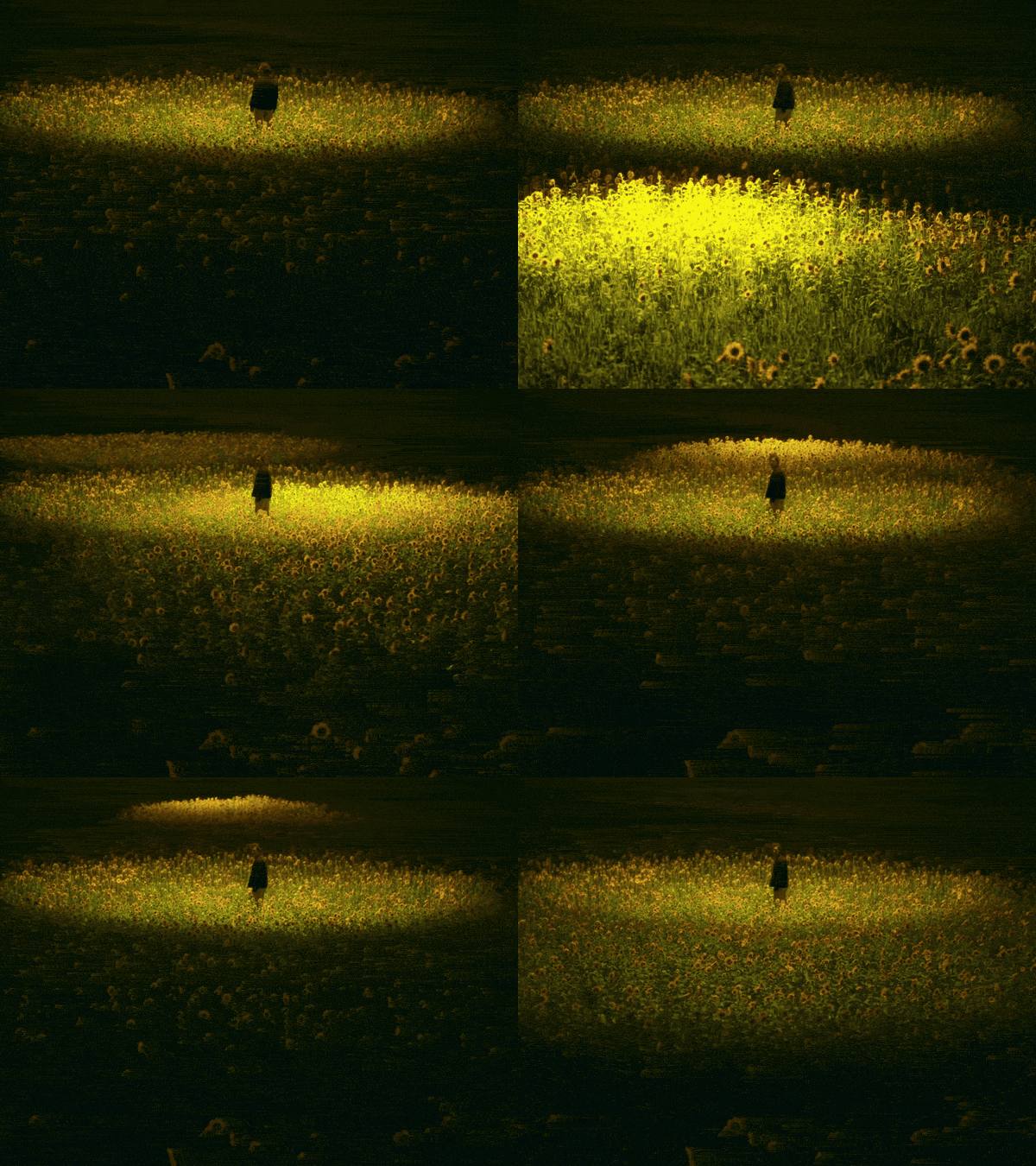
So before you touch a setting, look at the footage. Flat colour and a still camera will forgive almost anything. Skies, smoke, skin in soft light and grain will punish lazy settings.
We exported the same clip 13 ways
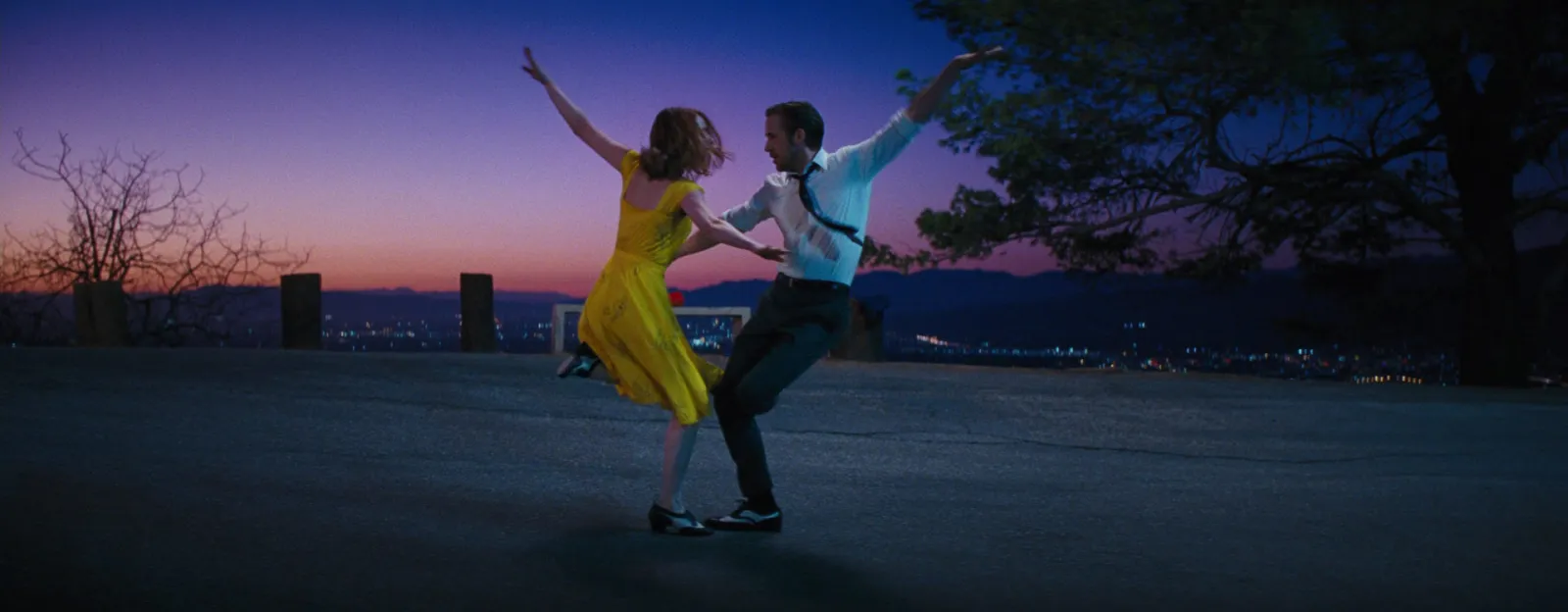
The test clip is 4 seconds of 1080p, 25 fps footage: a sunset hillside with interface cards floating over it, which is to say gradients everywhere. We used FFmpeg 7 with lanczos scaling and changed one thing at a time.
| Width | FPS | Palette and dither | File size |
|---|---|---|---|
| 800 px | 25 | ffmpeg default (single pass) | 5.99 MB, noisy and banded |
| 800 px | 25 | Two-pass, Sierra dither | 15.02 MB |
| 1080 px | 15 | Two-pass, Sierra | 16.47 MB |
| 800 px | 15 | Two-pass, Sierra | 9.19 MB |
| 640 px | 15 | Two-pass, Sierra | 5.97 MB |
| 480 px | 15 | Two-pass, Sierra | 3.44 MB |
| 480 px | 12 | Two-pass, Sierra | 2.85 MB |
| 480 px | 10 | Two-pass, Sierra | 2.41 MB |
| 320 px | 12 | Two-pass, Sierra | 1.32 MB |
| 480 px | 15 | Two-pass, Bayer dither | 1.85 MB |
| 480 px | 15 | Two-pass, no dither | 1.66 MB, visible banding |
| 480 px | 15 | 128 colours, Bayer | 1.49 MB |
| 480 px | 15 | 64 colours, Bayer | 1.18 MB |
What that table is telling you:
- The good-looking GIF can be the big one. ffmpeg's default (one pass, a generic palette) made a 5.99 MB file that looked rough. Same size and frame rate with a proper palette looked far better and weighed 15.02 MB. "Higher quality" and "smaller" pull in opposite directions, so decide which one you need before you start.
- Width costs roughly the square. 480 to 640 px is a third wider and 74% heavier. 1080 px came out nearly five times the size of 480 px.
- Dither choice is a big lever on gradient footage. Same width, same frame rate: Sierra 3.44 MB, Bayer 1.85 MB. On our sunset, Bayer looked nearly as smooth.
- Halving the colours saves less than you'd think. 256 to 128 colours saved about a fifth. 64 saved another fifth, and that's where skies start to stripe and the pinks in our clip went muddy.
Frame rate is gentler than width, too. Dropping from 15 to 10 fps cut a third of the frames but only 30% of the size.
The settings that matter, in order
Width: 480 to 640 px for nearly everything
A GIF in a deck or a Slack thread rarely displays wider than 600 px, and on a phone it's narrower still. 480 px is the sweet spot for decks and moodboards. Go to 640 or 800 only if the GIF will fill a slide on a big screen. 1080 px GIFs exist, but ours was 16.47 MB for four seconds, and at that point you want a video.
Frame rate: 12 to 15 fps
Film runs at 24 or 25. A GIF at 15 still reads as motion; at 12 it starts to look deliberate, a little like stop-motion, which can be charming. Below 10, fast action falls apart.
A nerdy footnote for the people who care (we do). GIF stores frame timing in hundredths of a second, so 15 fps can't be stored exactly. Good encoders alternate 6 and 7 hundredths; ffmpeg did, and our 60 frames still ran exactly 4 seconds. Never go above 50 fps, because many browsers slow very short frame delays down rather than speed them up.
Palette: always two-pass
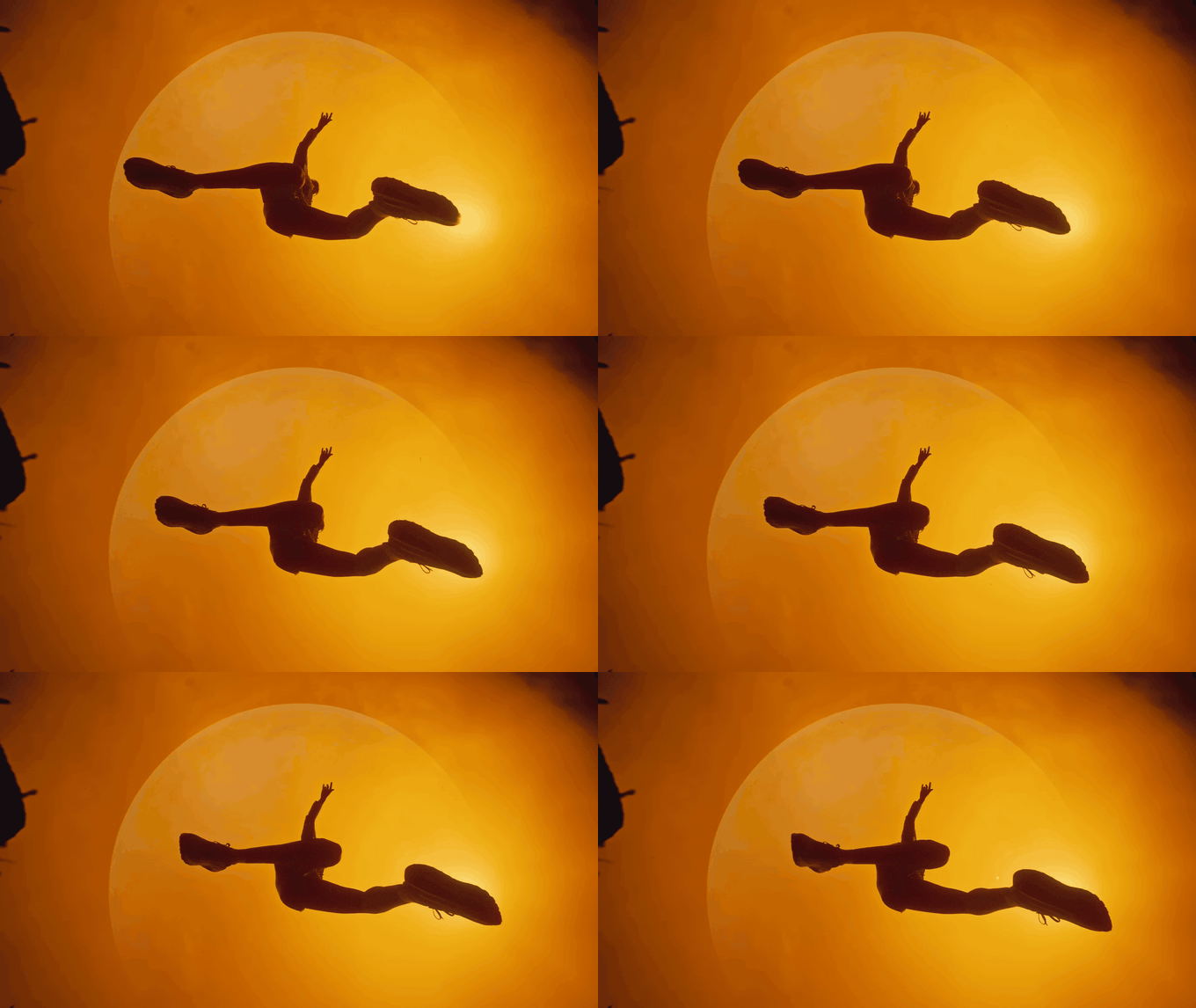
The single most important setting, and the one free converters most often skip. Two-pass means the encoder looks at your clip first, builds the best 256 colours for that footage, then encodes with them. Without it you get a one-size-fits-all palette and the speckled mess on the left of the comparison above.
Dither: match it to the footage
- Gradients, skies, skin: Bayer for a sensible file, Sierra or Floyd-Steinberg if size truly doesn't matter.
- Flat graphics, screen recordings, UI: no dither at all. It just adds noise to areas that were clean.
- Grainy film footage: Bayer, and consider smoothing the grain first (more on that in our guide to reducing GIF file size).
Length: trim like you're paying by the frame
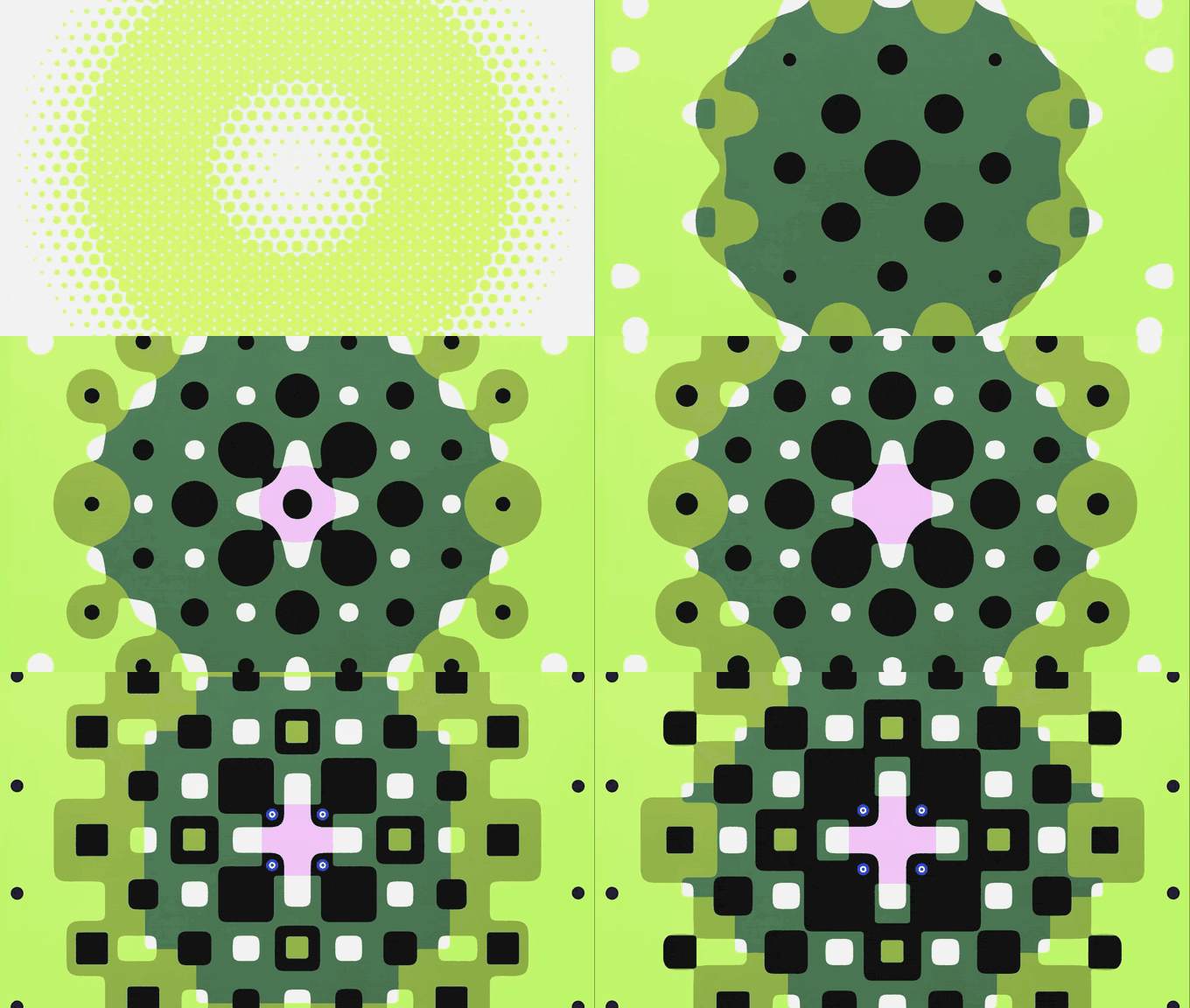
Because you are. Size grows in step with duration, so a 3-second loop of the one perfect moment beats 10 seconds of the scene. Find the loop point, the moment where the end flows back into the start, and the GIF will feel longer than it is. And if the GIF already exists and is simply too heavy, the GIF compressor on this site works through the same levers (width, frames, colours, dither) on the finished file, in your browser.
Four ways to make a high quality GIF
| Tool | What it's good at | Price (as of October 2026) |
|---|---|---|
| Spark Video to GIF | Frame-accurate trims in the browser, nothing uploaded | Free |
| FFmpeg | Full control, batches, crops | Free, open source |
| Gifski | Smooth gradients with very few decisions | Free |
| Photoshop | The best live preview of size and quality | From £21.98 a month (annual plan, billed monthly) |

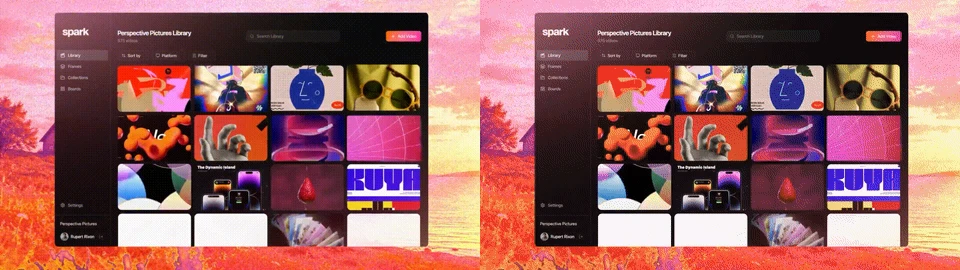
The free converter in your browser
For a good GIF without installing anything, convert it right here in the browser. The tool runs locally, so the file never leaves your computer. It takes videos up to 2 GB with no watermark or sign-up. Trim the clip (up to 30 seconds), then nudge the in and out points one frame at a time with comma and full stop until the loop sits exactly where you want it. Pick a width from 320 to 1080 px and a frame rate from 10 to 24 fps, and choose Small, Balanced or Best.
Those presets map onto the table above. Small is 128 colours without dithering. Balanced is one 256-colour palette shared across the clip with light ordered dithering. Best builds a fresh palette for every frame with error diffusion. It estimates the file size before you commit, which saves a lot of guessing.
ffmpeg, for full control
ffmpeg is free, runs on Mac, Windows and Linux, and does the two-pass palette in one line. This is the exact command we used for the Bayer row of our test:
ffmpeg -ss 12 -t 4 -i input.mp4 -vf "fps=15,scale=480:-1:flags=lanczos,split[a][b];[a]palettegen=stats_mode=diff[p];[b][p]paletteuse=dither=bayer:bayer_scale=3" output.gif-ss 12 -t 4 takes 4 seconds starting 12 seconds in. stats_mode=diff builds the palette from what moves, which helps when the background is still. For the smoothest gradients and a bigger file, swap the last part for paletteuse=dither=sierra2_4a. For flat graphics, use paletteuse=dither=none. If one palette can't cover a clip that changes a lot (a cut from a red interior to a blue exterior, say), give each frame its own:
ffmpeg -ss 12 -t 4 -i input.mp4 -vf "fps=15,scale=480:-1:flags=lanczos,split[a][b];[a]palettegen=stats_mode=single[p];[b][p]paletteuse=new=1" output.gifOn our clip, per-frame palettes came out at 4.69 MB against 3.44 MB for one shared palette, so save it for clips that need it. Installing ffmpeg differs by platform; we've written the steps for Mac and Windows.
Gifski, when gradients matter
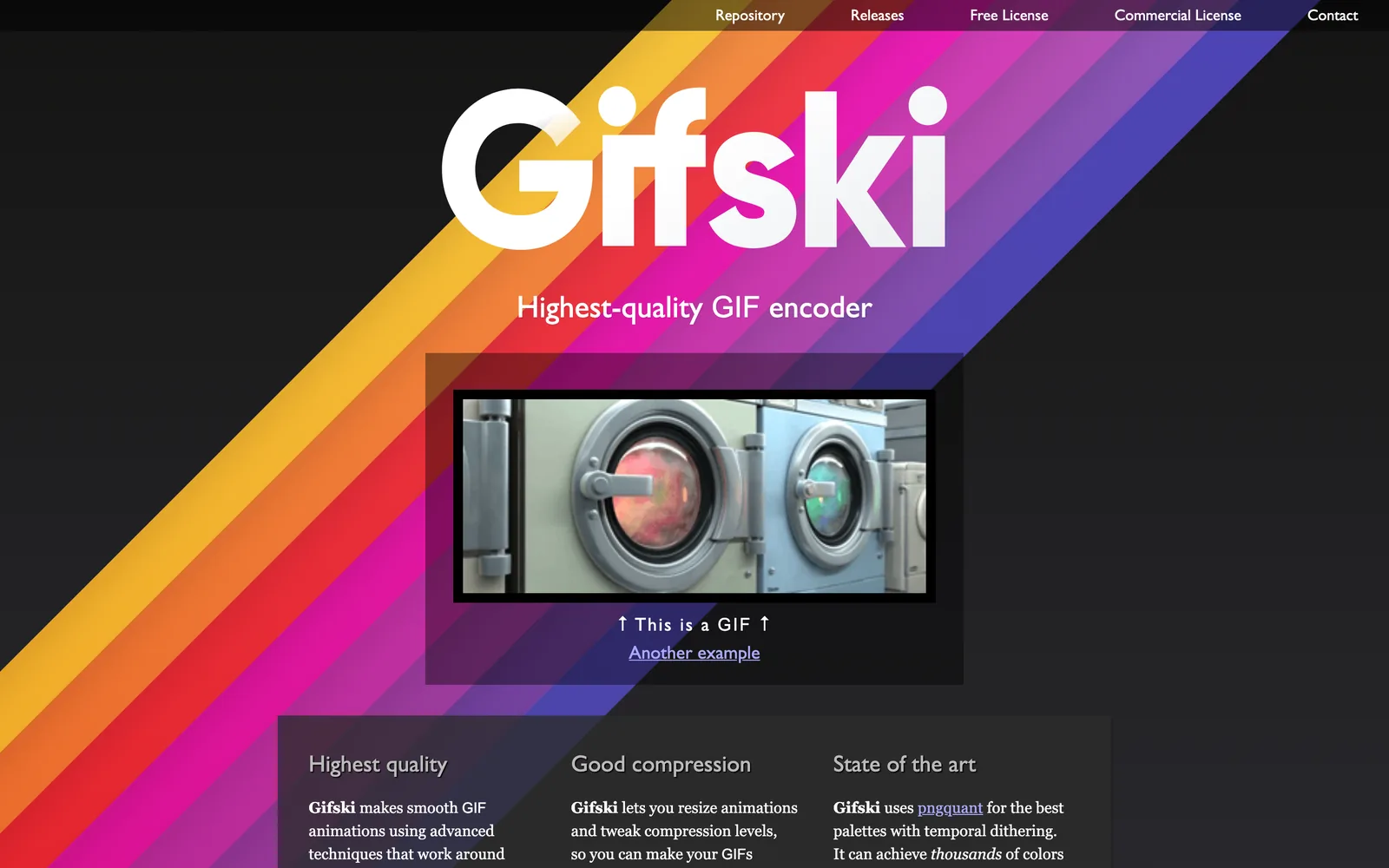
Gifski is a free encoder for Mac and the command line. It dithers across frames rather than one frame at a time, which often looks cleaner on skies and skin, at the cost of fewer knobs. Their own homepage demo is a GIF of laundrette washing machines spinning, which is a nicely smug way of proving the point.
Photoshop, if you already pay for it
Photoshop does a good job and gives you the best preview, but it's the long way round. Go to File > Import > Video Frames to Layers, choose a range (and "Limit To Every 2 Frames" to halve a 25 fps clip to 12.5), and tick Make Frame Animation. Then File > Export > Save for Web (Legacy). Pick GIF, Selective colour reduction, 256 colours, Diffusion or Pattern dither (Pattern is Photoshop's ordered dither), set Looping Options to Forever, and watch the file size in the bottom left as you change the width.
The Lossy slider is handy for trimming size later. Long clips are slow, and Video Frames to Layers stops at 500 frames, so trim first. Editors working in Premiere Pro have a different route, covered in our guide to exporting a GIF from Premiere Pro. Motion designers starting from a comp can follow exporting a GIF from After Effects instead.
And if the video is a reference you've already saved
Most of our GIFs don't start as files at all. They start as an Instagram reel or a YouTube film someone saved for a pitch. (We've covered the platform routes for turning a reel into a GIF and making a GIF from a YouTube video.)
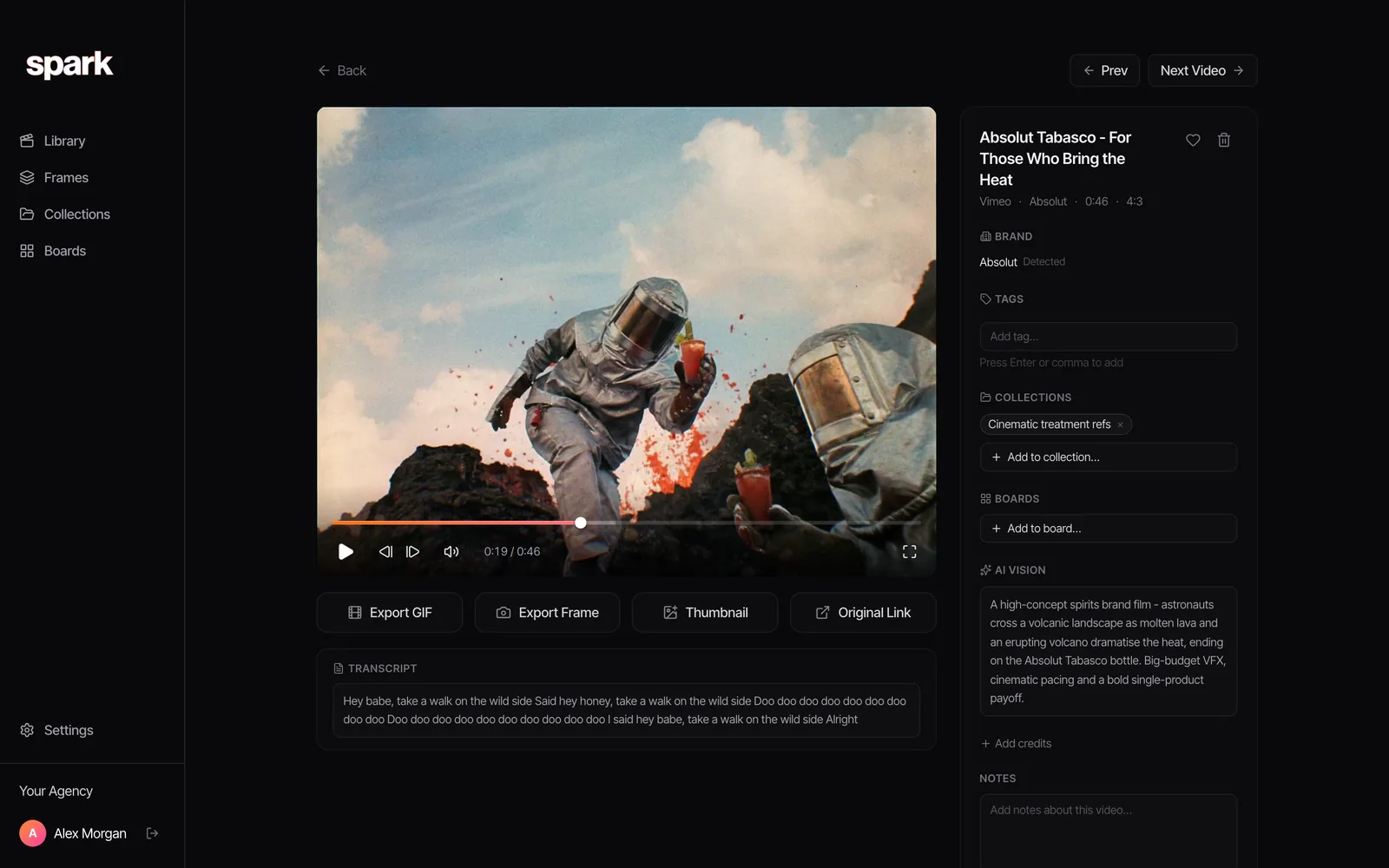
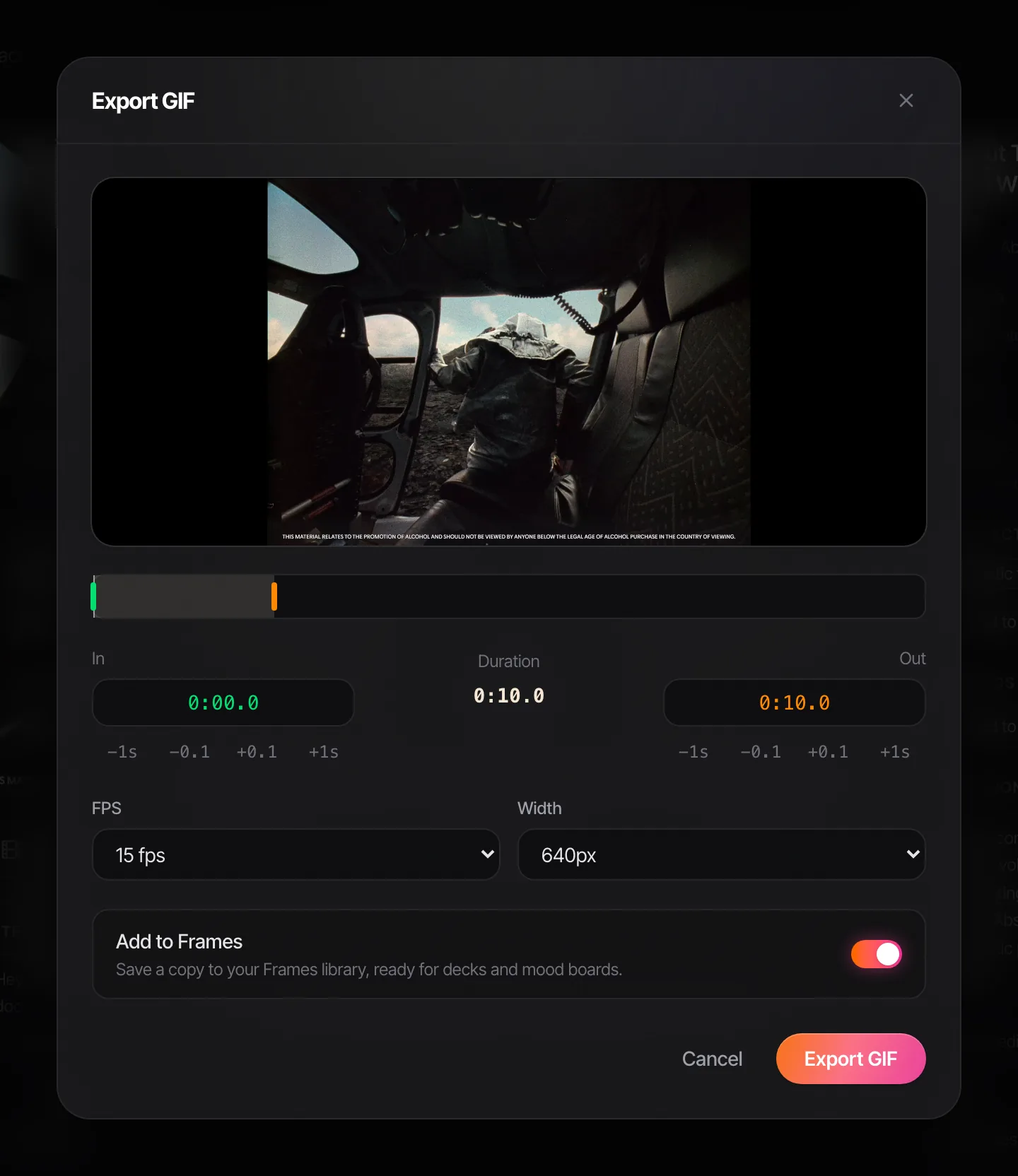
In Spark, open the saved video and click Export GIF. Set the in and out points, nudge either one by a second or a tenth, pick 8 to 24 fps and a width from 320 to 1080 px, and it saves a copy to Frames, ready for the deck. No downloading, no hunting for the file in a folder called refs_misc.
When you shouldn't make a GIF at all
One more row from our test, and it's an awkward one. The same 4 seconds at the same 480 px, saved as an ordinary H.264 MP4, was 0.29 MB. The leanest decent GIF was 1.85 MB. Video is six times smaller and looks better, because it was designed for footage and GIF wasn't.
So use a GIF where video won't play or won't autoplay: email (most mail apps won't play embedded video), Slack emoji, and any moodboard tool, website builder or form field that only takes images. If the clip is going into Keynote or PowerPoint and you control the laptop it plays on, a muted, looping MP4 usually looks better and keeps the deck light. When it has to be a GIF, there are a few playback traps, which our guide to putting GIFs into PowerPoint walks through.
Our own rule is blunt. If it's going in an email, or a deck the client will flick through on their phone, it's a GIF. If it's playing on the screen in the room, it's an MP4.
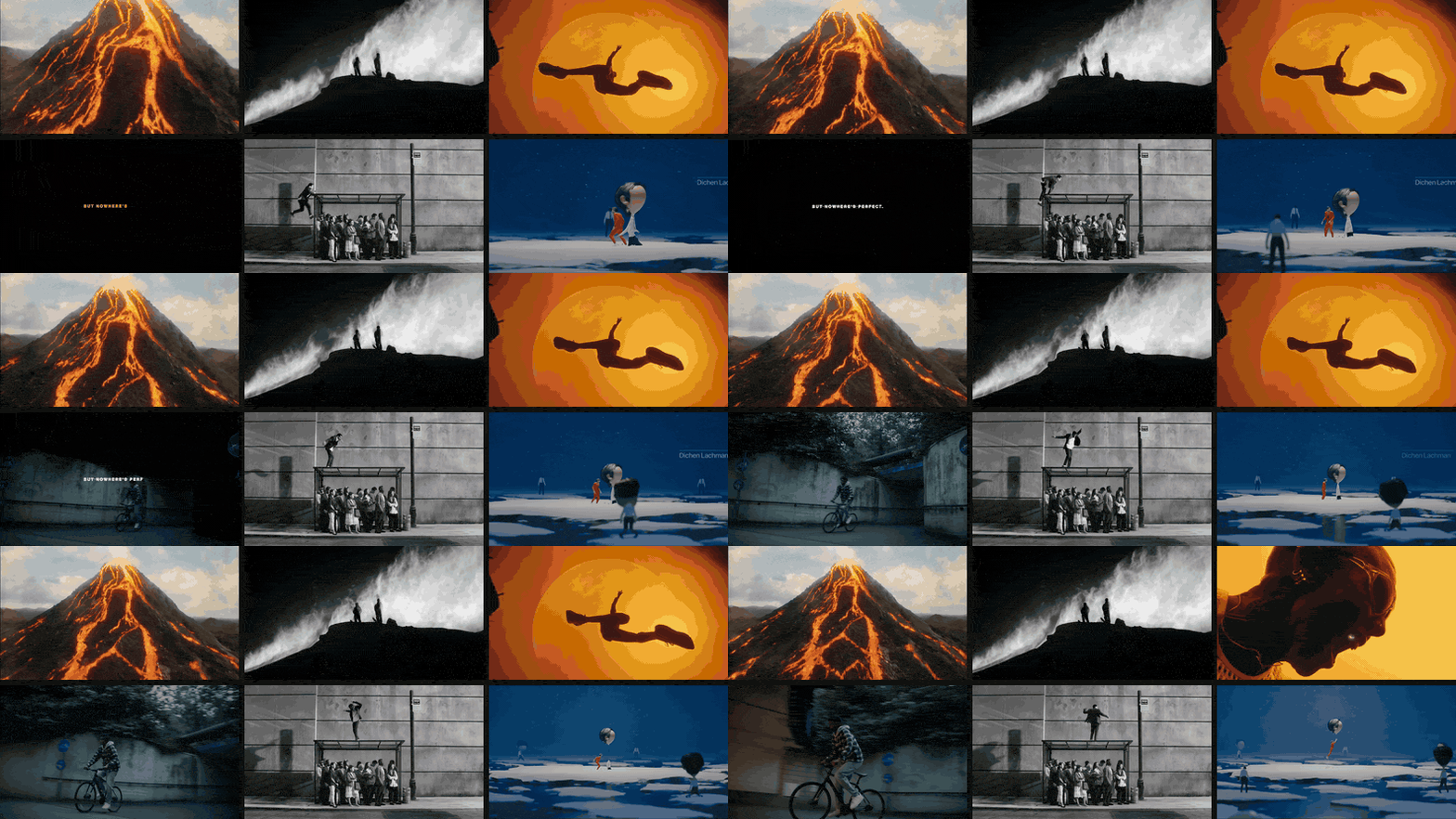
Moodboards are where GIFs still win outright, because a board of six clips playing at once does something a row of MP4 thumbnails can't. The moodboard tool we built lays them out as a deck, and they keep moving in the .pptx. More on that in how to create a video moodboard.
FAQs
What is the best frame rate for a GIF?
12 to 15 fps for footage. It halves the frames of a 25 fps source while still reading as smooth motion. Go to 20 or 24 only for fast action where smoothness matters more than file size, and avoid anything above 50 fps because many browsers slow it down.
What resolution should a GIF be?
480 px wide for decks, moodboards and messages, 640 to 800 px if it needs to fill a slide on a big screen. File size grows with roughly the square of the width, so 640 px is about 75% heavier than 480 px. Very wide GIFs are better as video.
Why does my GIF look grainy or dotty?
That's dithering: the encoder scattering pixels to fake colours that aren't in its 256-colour palette. It looks worst when the palette is generic, so use a two-pass palette built from your clip. If the dots crawl, switch to ordered (Bayer) dithering, or no dithering for flat graphics.
Can a GIF be HD or 4K?
Technically yes, practically no. Our 1080 px test GIF of a 4-second clip was 16.47 MB, and a 4K frame has more than 12 times the pixels of that. If you need HD motion, use an MP4.
How do I convert a video to a GIF without a watermark?
Use ffmpeg, Gifski, Photoshop, or a free converter that doesn't stamp one on, like our video to GIF tool, which runs in your browser so the video isn't uploaded anywhere. Plenty of online converters add a watermark unless you pay, so check the preview first.
Is it better to use MP4 or GIF?
MP4 whenever the place you're putting it plays video: it was six times smaller than our leanest decent GIF and looked better. GIF wins where video won't play or autoplay, like email, image-only tools and Slack emoji.
Keep reading
All articles
How to Convert MP4 to GIF on Mac
QuickTime won't do it and Preview won't either. Here are the five free routes that do, from a Finder right-click to ffmpeg, and when each one makes sense.
How to Insert GIFs into PowerPoint Without Playback Problems
Putting a GIF on a slide takes ten seconds. Working out why it froze in front of the client takes longer, so here are the actual causes, the fixes, and our measured file sizes.
How to Make a GIF from a YouTube Video: Step-by-Step Guide
YouTube has no GIF button. Here are the routes that work, how to land on the exact frame, and the settings that stop your GIF looking like a fax.