How to Make a Moodboard in Google Slides
Google Slides makes the board that lives at one link. The client comments on frame six, the DoP opens it on a phone, and nobody asks which version is final.
By the Spark team ·

A moodboard in Google Slides comes down to a handful of moves. Start a blank presentation, set the slide to Blank with Slide > Apply layout, turn on guides with View > Guides > Show guides, insert your references with Insert > Image > Upload from computer and crop them into a grid. Use GIFs for anything that moves, label every frame, and share it as a view or comment link. Making more than one board? Build the grid once as image placeholders in Slide > Edit theme.
Slides isn't the prettiest moodboard tool or the most powerful. We still reach for it more than anything else when a client runs on Google Drive, for one reason: the board lives at one link. The client comments on frame six from their phone, the DoP opens the same version at the recce, and "moodboard_v4_FINAL_actual.pdf" never gets made. Menu names below are as Slides looks in October 2026.
Before you open Slides
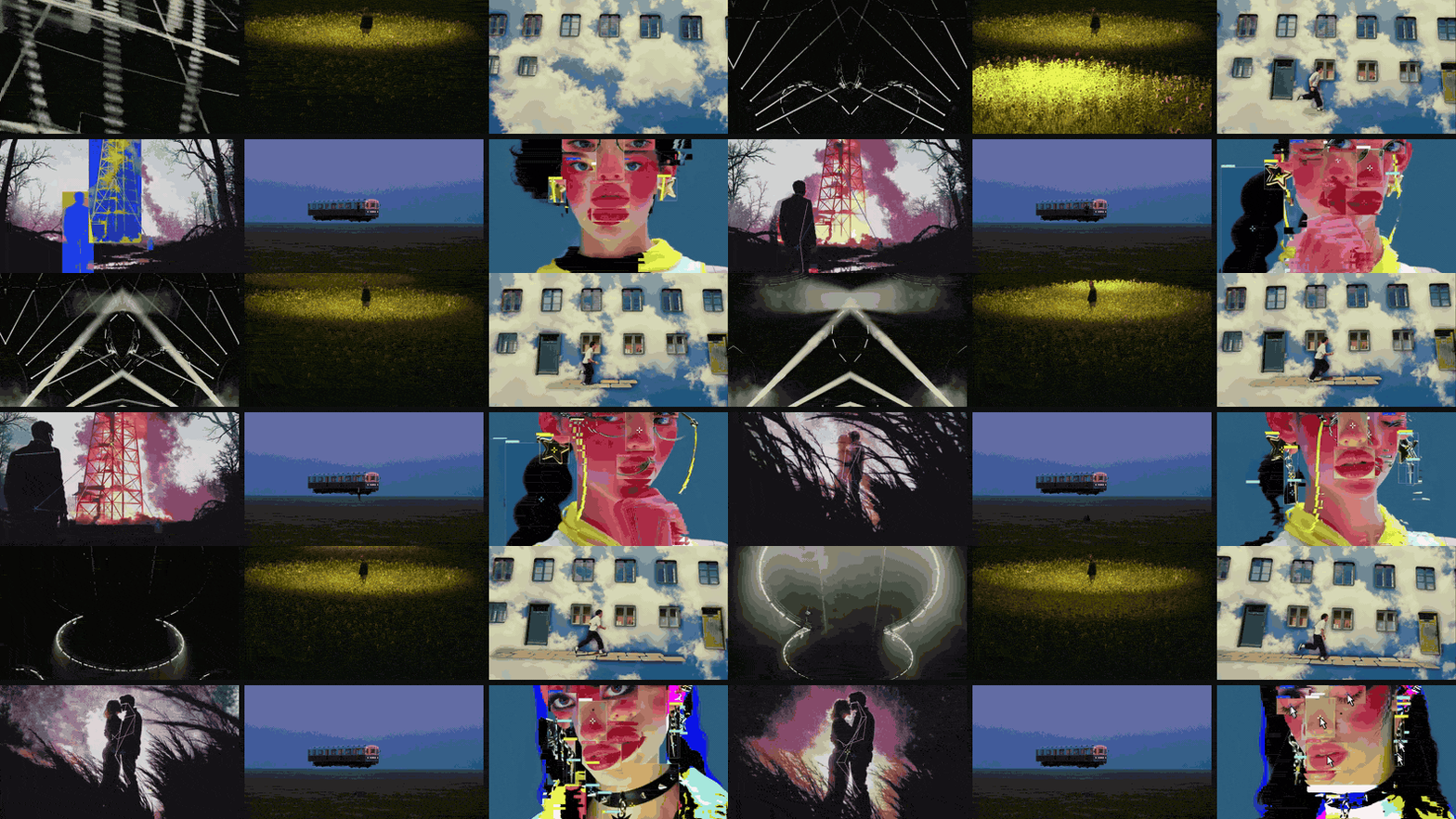
Choosing fifteen to thirty references that each make a decision, and writing down why, is the real work, and it's the same in every app. Our guide to making a moodboard for a video project covers that section by section.
One bit of Slides prep: keep stills as JPG or PNG and anything that moves as a GIF. Those are the formats Slides handles without fuss, and each image must be under 50 MB.
Step 1: a blank, correctly sized slide
Go to slides.new. Then:
- Slide > Apply layout > Blank to clear the title boxes.
- Slide > Change background for a dark board. Dark grey, not black. It makes film stills look richer and swallows the gaps.
- Leave File > Page setup on Widescreen 16:9. It's the shape of every screen the board will be seen on.
Step 2: build the grid once, in the theme
One-off board? Skip to step 3. A deck with several boards (tone, light, wardrobe, locations)? Do this. It saves an hour of nudging.
- Slide > Edit theme opens the theme builder, with the master and its layouts down the left.
- Pick a layout you don't need, right-click it, choose Rename and call it "Moodboard grid".
- Delete the text boxes on it.
- From the Insert menu, add an image placeholder and draw it where your hero goes. One per slot.
- Close the theme builder with the X at the top right.
Now Slide > Apply layout > Moodboard grid gives you a board of empty image slots. Click one, choose where the picture comes from, and it drops into the box. Every board in the deck shares the same grid and the same gaps.
The layout we use most on 16:9: a hero across the left 60%, two supporting frames stacked on the right, three details along the bottom, and a thin band underneath for labels.
Step 3: crop and mask
Double-click an image to crop it. Drag the black handles to set the edges, drag the picture to choose what shows, press Enter.
To fit a picture into a shape, select it, click the small arrow next to the crop icon (Mask image) and pick one. A circle for a casting face. A rounded rectangle if the grid feels hard. Double-click to reposition inside the mask.
For exact sizes: right-click, Format options > Size & rotation, tick Lock aspect ratio, type a width. Every frame in a row matches.
Step 4: line everything up
Slides snaps to other objects as you drag (the red lines), which covers most of it. For the rest:
- View > Guides > Show guides, then View > Guides > Add vertical guide, and drag the guides to your margins.
- Select a row and use Arrange > Distribute > Horizontally to even the gaps.
- Arrange > Align > Top to line up a row.
- View > Snap to > Grid for a stricter grid.
Step 5: make it move (GIFs, not video)
This is where Slides parts company with PowerPoint and Keynote, and it matters a lot for film references.
| What you insert | Loops on the board? | Who can see it play |
|---|---|---|
| A GIF (Insert > Image) | Yes, as many times as the file says, which is usually forever | Anyone who can open the deck |
| A Google Drive video (Insert > Video) | No loop setting in Google's help | Only people with access to that Drive file |
| YouTube A video | No loop setting | Anyone, while the video stays public |
| An MP4 from your computer | Can't be inserted directly |

So GIFs it is. A Drive video in a client deck tends to show up as a "request access" box in the middle of your pitch. We have seen that happen, and the room goes very quiet.

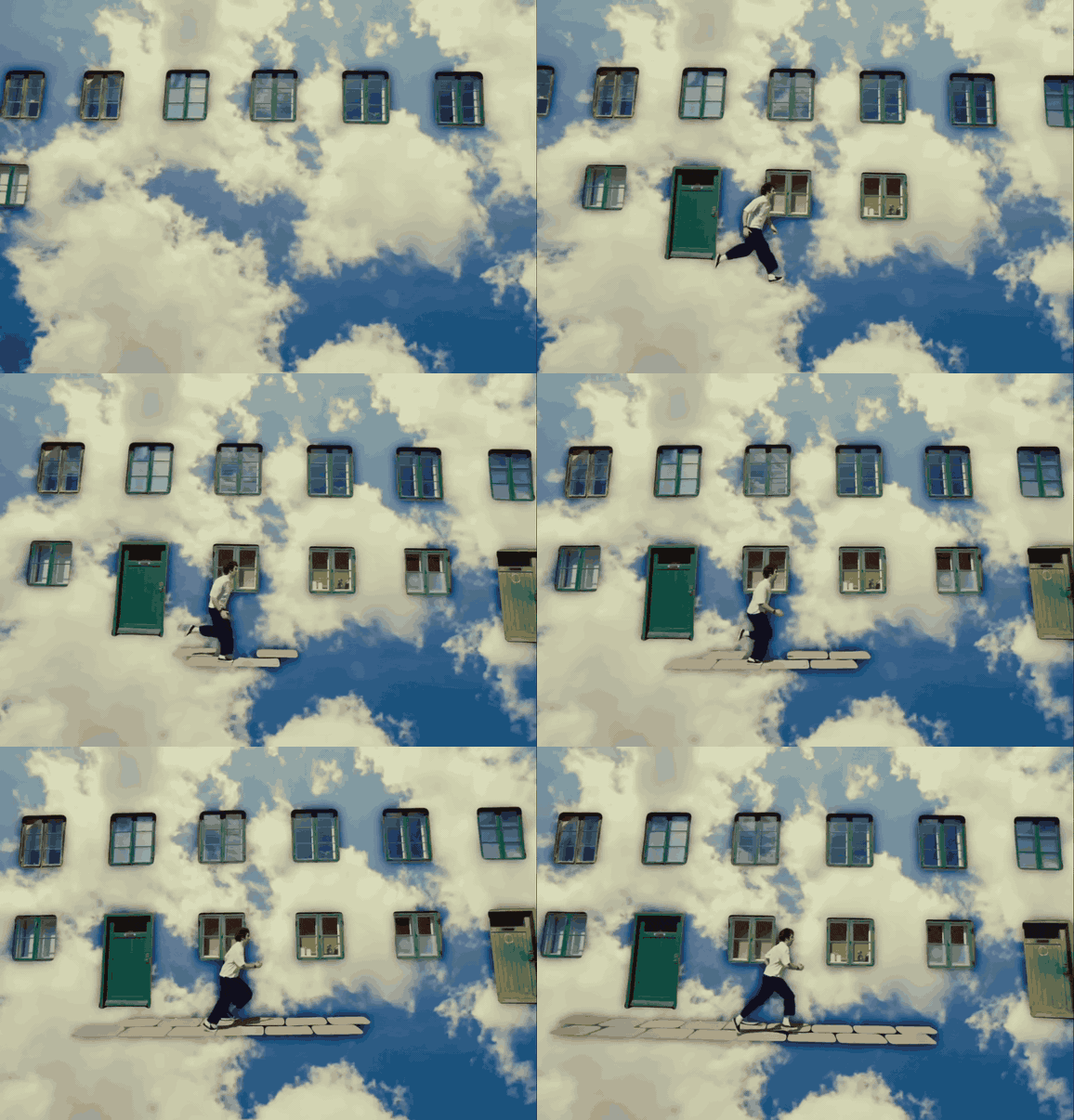
Keep GIFs small: 480 px wide at 12 to 15 fps does the job. Video to GIF trims a clip to the exact frame in your browser, and the GIF compressor shrinks one that's too heavy without a trip back to the source. Our guide to creating a video moodboard covers trimming each clip to the moment that matters.
Step 6: colours and labels
Draw a row of squares (Insert > Shape > Shapes > Rectangle) along the bottom. Click the fill bucket, then the + under Custom, and paste a hex code. Need hex codes from a reference? Drop an image or a frame of video into our palette picker.
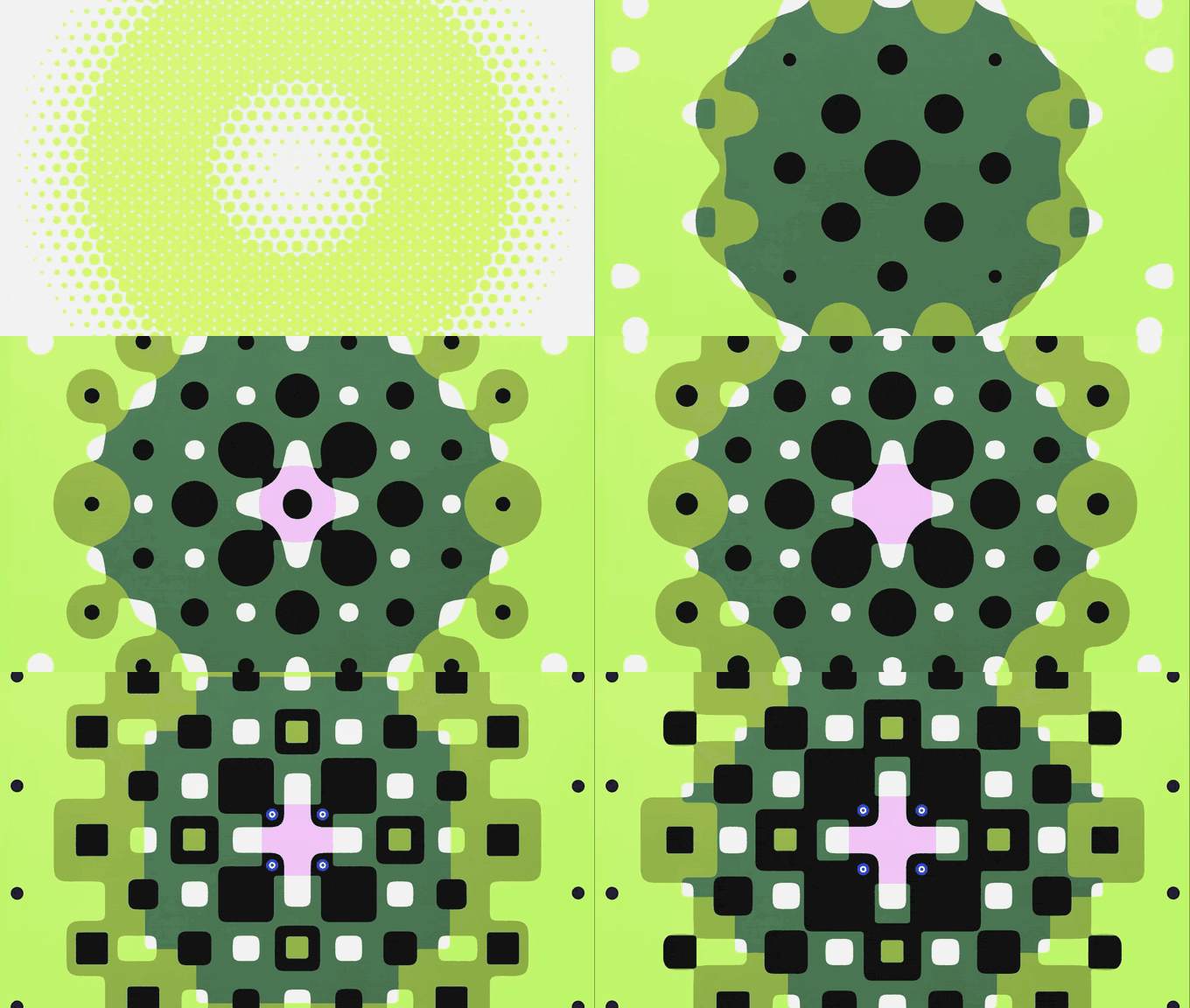
Then a short label under every frame, all in one small style. "This light, golden hour only." "White linen, nothing synthetic." "Not this. Too saturated." Labels turn a collage into a brief.
Step 7: share it like a living document
This is what Slides is for.
Comments for client rounds
Click Share, set General access to Anyone with the link (or add the client's email) and choose Commenter. Now they select a frame and comment on it ("love this, warmer?") instead of writing an essay about "the third one down on the left". Reply in the thread and resolve it when it's sorted.
Version history for "what did we send?"
Before each round: File > Version history > Name current version, "Round 1 sent". When the client decides they preferred the old hero, you find it in ten seconds.
A board that plays itself
For a production meeting or the TV in reception: File > Share > Publish to web. On the Link tab set Auto-advance slides (every 5 or 10 seconds), tick Start slideshow as soon as the player loads and Restart the slideshow after the last slide, then Publish. The link plays your boards on a loop, GIFs moving, no editing controls. Anyone with the link can see it, so keep anything under NDA off it.
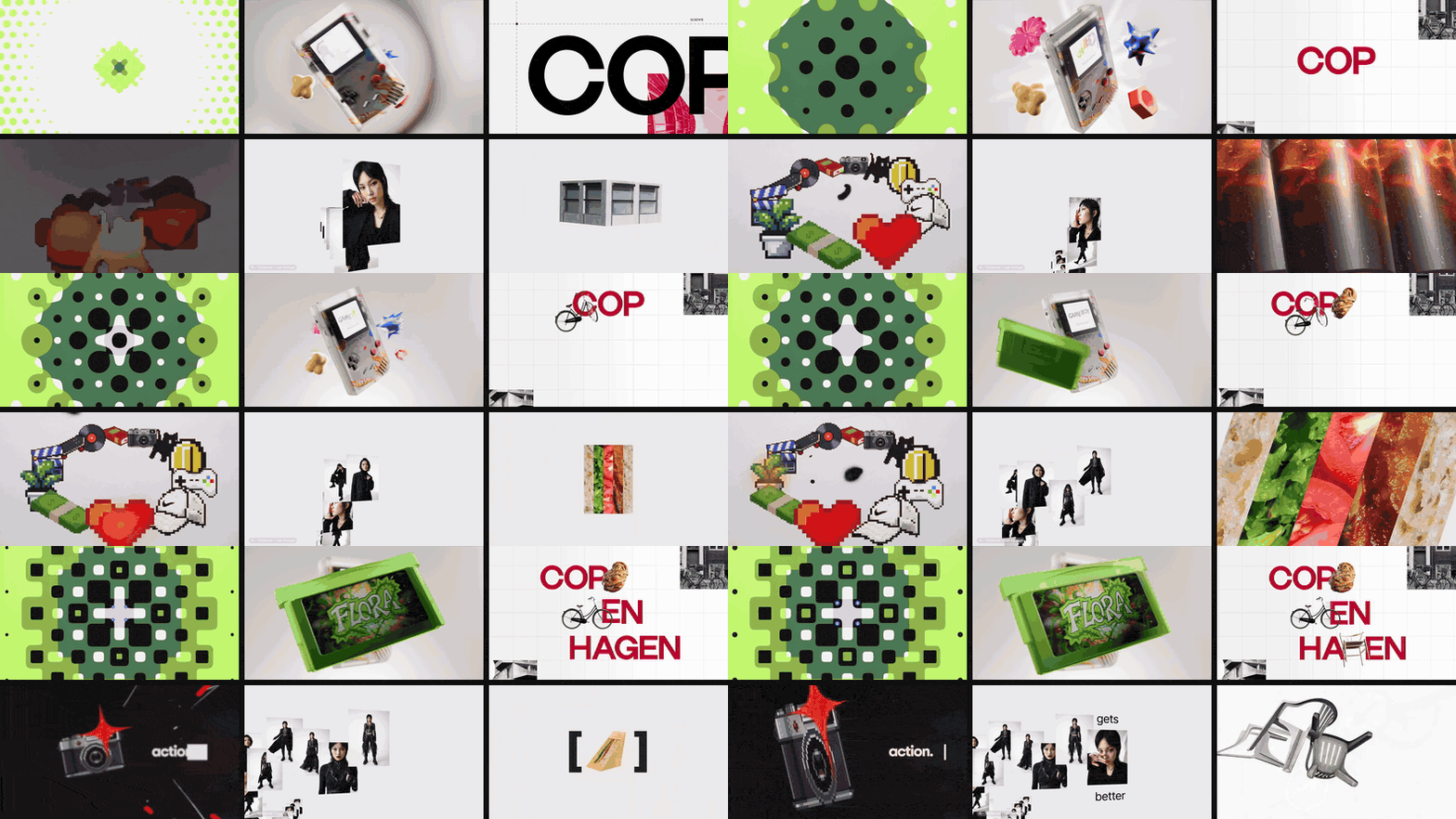
When they want a file
File > Download > PDF document for a file that travels, with the usual catch: every GIF becomes a still, so check each one's first frame is a good picture. File > Download > Microsoft PowerPoint (.pptx) if the agency builds treatments in Office or Keynote. If the board is moving to PowerPoint for good, our guide to making a moodboard in PowerPoint picks up from that file.
Starting from a .pptx instead
You don't have to build the grid in Slides. A free layout tool on this site lays your images and GIFs out in the browser, with eight layouts and a shuffle button, and nothing gets uploaded. It exports a .pptx with the GIFs embedded as GIFs.
To bring it into Slides: File > Import slides, the Upload tab, choose the file, tick the slides and click Import slides. Tick Keep original theme to keep the layout. Or upload the .pptx to Drive, open it with Google Slides, and File > Save as Google Slides. Fonts Google doesn't have get swapped, so set your labels in a Google font once you're in.
Slides next to the alternatives
| App | Best moodboard trick | Price (as of October 2026) |
|---|---|---|
| Google Slides | Comments on a single frame, one live link | Free with a Google account; Workspace from £5.90 per user a month |
| Canva | Looks finished fastest | Free; Pro £100 a year |
| Keynote | Masks, looping clips, Magic Move | Free on Apple devices |
| PowerPoint | Picture placeholders in the Slide Master | Free on the web; Microsoft 365 Personal from £8.49 a month |
| Spark | Builds the board from your saved references and sends it to Slides | Free plan; Creator from £16 a month |




If the client lives in Canva instead, our Canva moodboard guide covers that route.
Getting references in without the screenshot dance
Everything above assumes your references are already files. For a video board they usually aren't. They're reels, TikToks, Vimeo links and ads, and each one means downloading or screen recording, trimming, converting to a GIF and uploading. Twelve clips, most of an afternoon.
Spark is the desktop app we built to do the collecting. Paste a link (Instagram reels can also arrive by DM) and it keeps the video itself. Export a GIF of the exact seconds you need. Gather the references on a board or in a collection, and Create Moodboard lays them out and builds the deck in your own Google account, GIFs still moving.
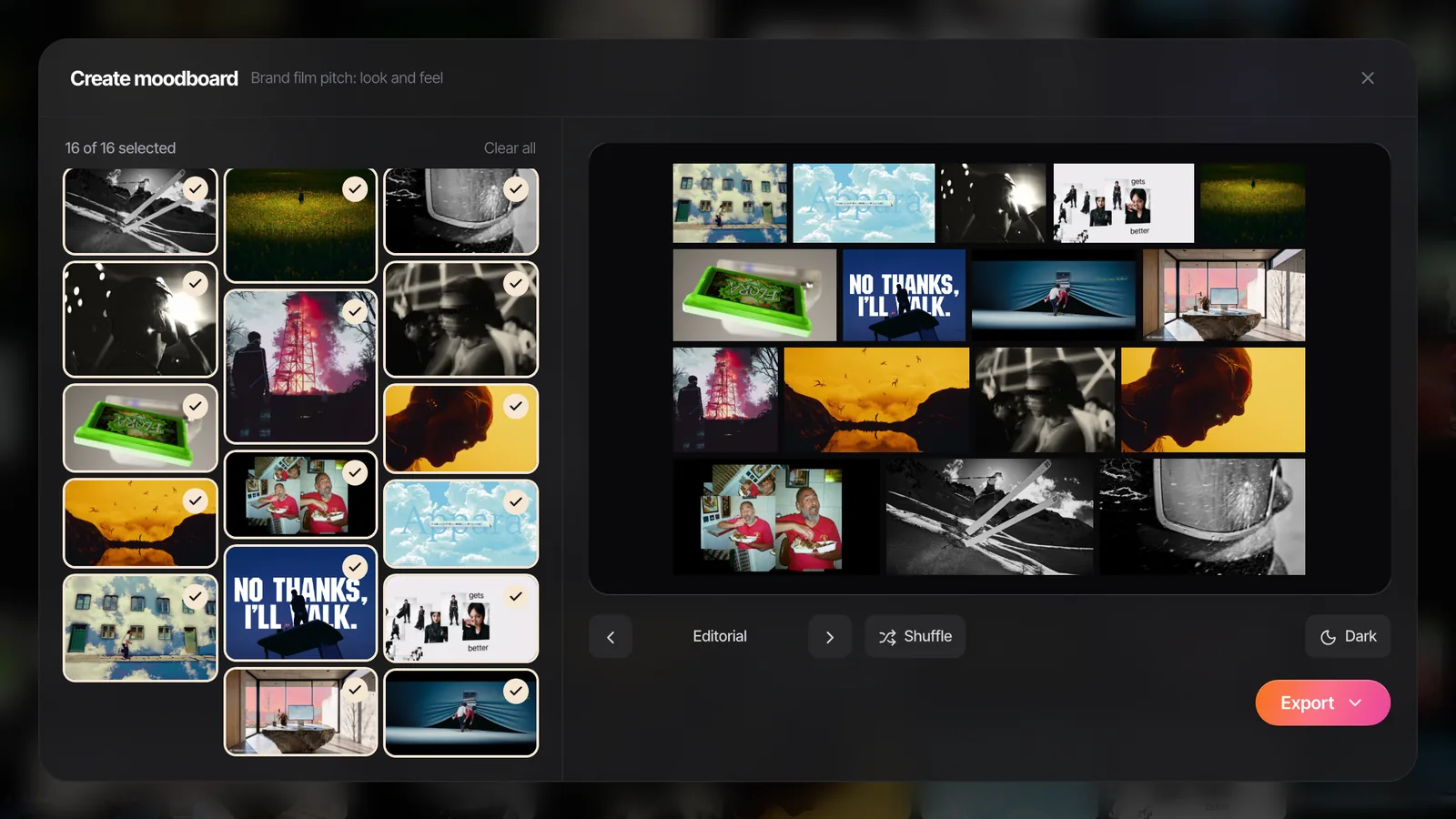
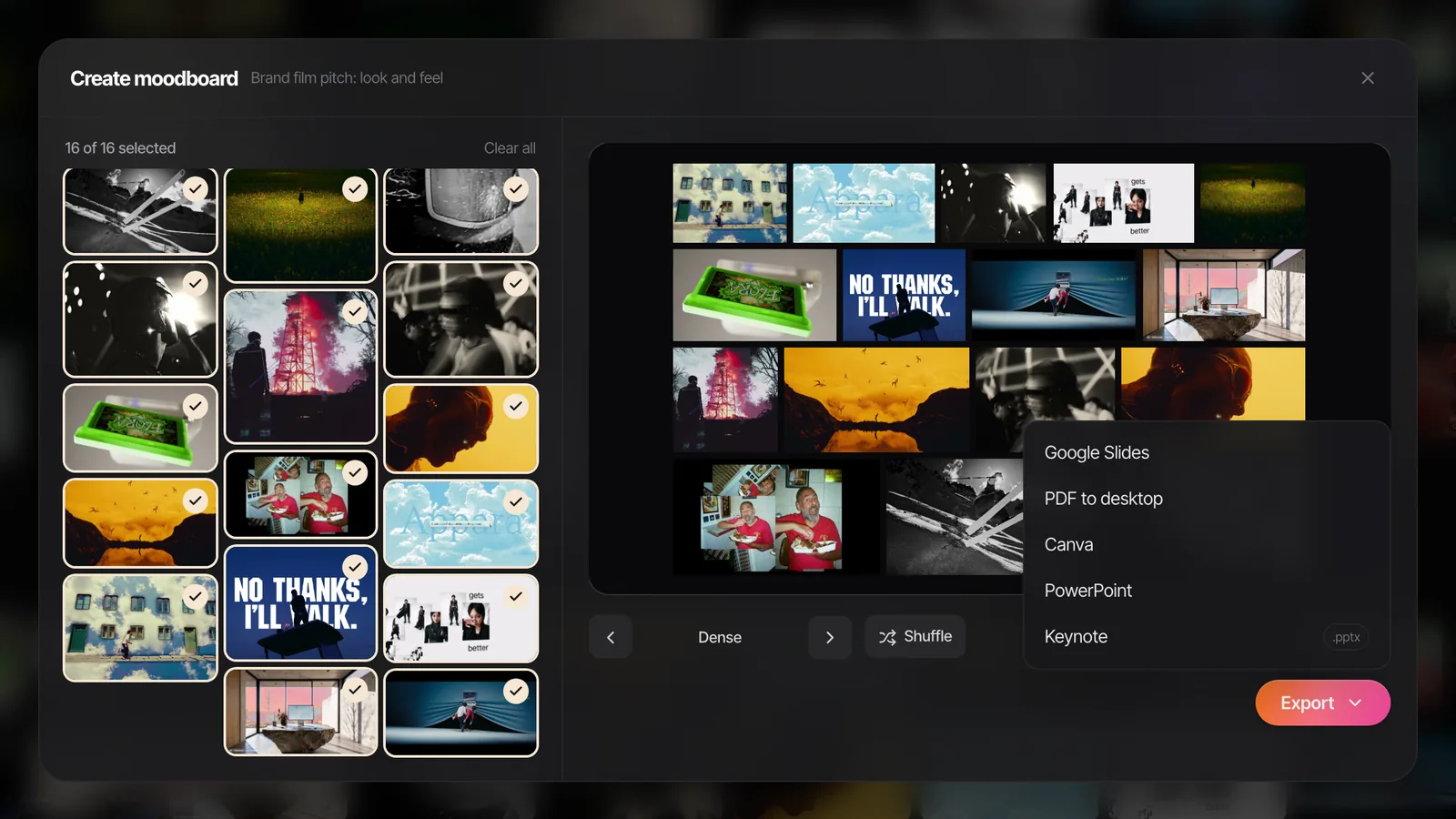
The references stay in Spark after the deck goes out. So round two, when the client comments "more like frame six?", means opening the collection again, not restarting the hunt.
FAQs
Does Google Slides have a moodboard template?
Slides' own gallery has nothing film shaped, though plenty of free third party templates exist. It's quicker to build a grid of image placeholders in Slide > Edit theme, which then works for every board in the deck.
Can you put GIFs in Google Slides?
Yes. Use Insert > Image > Upload from computer or By URL, or search with Insert > Image > GIFs and stickers. GIFs loop in the editor and when you present, which makes them the easiest way to show movement on a Slides moodboard.
Can Google Slides loop a video?
Google's help lists three playback options under Format options (on click, automatically and manual) and no loop setting. For a looping reference, use a short GIF. Videos can only come from YouTube, a URL or Google Drive, not straight from your computer.
How do I share a Google Slides moodboard with a client?
Click Share, set General access to Anyone with the link and choose Viewer or Commenter. Commenter lets them leave notes on individual frames. For a version that plays itself, use File > Share > Publish to web with auto-advance and restart on.
Why won't my video play in a shared Google Slides deck?
Drive videos only play for people who have access to that Drive file. Share the video file too, or swap it for a GIF, which plays for anyone who can open the deck.
Can I turn a Google Slides moodboard into a PDF?
Yes, with File > Download > PDF document. GIFs and videos become still frames, so check the first frame of each GIF is a good picture before you send it.
Keep reading
All articles
How to Create a Moodboard in Canva
Canva gets a good-looking moodboard in front of a client in twenty minutes. Here's the route we use, video included, and the bits it quietly gets wrong for film references.

How to Make a Moodboard for a Video Project
Twenty well-chosen frames with a line of explanation under each will do more for your shoot than two hundred beautiful pins. Here's how to build that board, section by section.
How to Create a Video Moodboard with Moving References
A still can show what a shot looks like, not how the camera got there. How to build a moodboard that moves, and make sure it still plays on the client's laptop.