How to Create a Moodboard in Canva
Canva gets a good-looking moodboard in front of a client in twenty minutes. Here's the route we use, video included, and the bits it quietly gets wrong for film references.
By the Spark team ·

To make a moodboard in Canva, search "Mood Board" on the Canva home page, open a template (or a blank presentation), add a grid from Elements > Grids, upload your references through Uploads and drag them into the cells. Then hit Share and send a view-only link. Once the references are ready, a decent board takes about twenty minutes.
We use Canva at Perspective Pictures when a client is going to open the board on their phone between meetings and it needs to look finished. We don't use it to keep references, and the second half of this guide explains why. Menu names are as Canva's editor looks in October 2026.
Before you open Canva
The board is the easy bit. The hard bit is having twelve to twenty references that each earn their place, and knowing why each one is there. This one for the light. That one for the wardrobe. That one because the camera never stops moving.
If you haven't done that thinking yet, our producer's guide to making a moodboard for a video project covers what a film board needs to say. Fashion boards split differently, into mood, styling and casting, and making a fashion campaign moodboard walks through those. Here we're assuming you have the references and need them on a page.
Put them in one folder first: stills as JPG or PNG, clips as MP4. The upload becomes one drag instead of twenty.
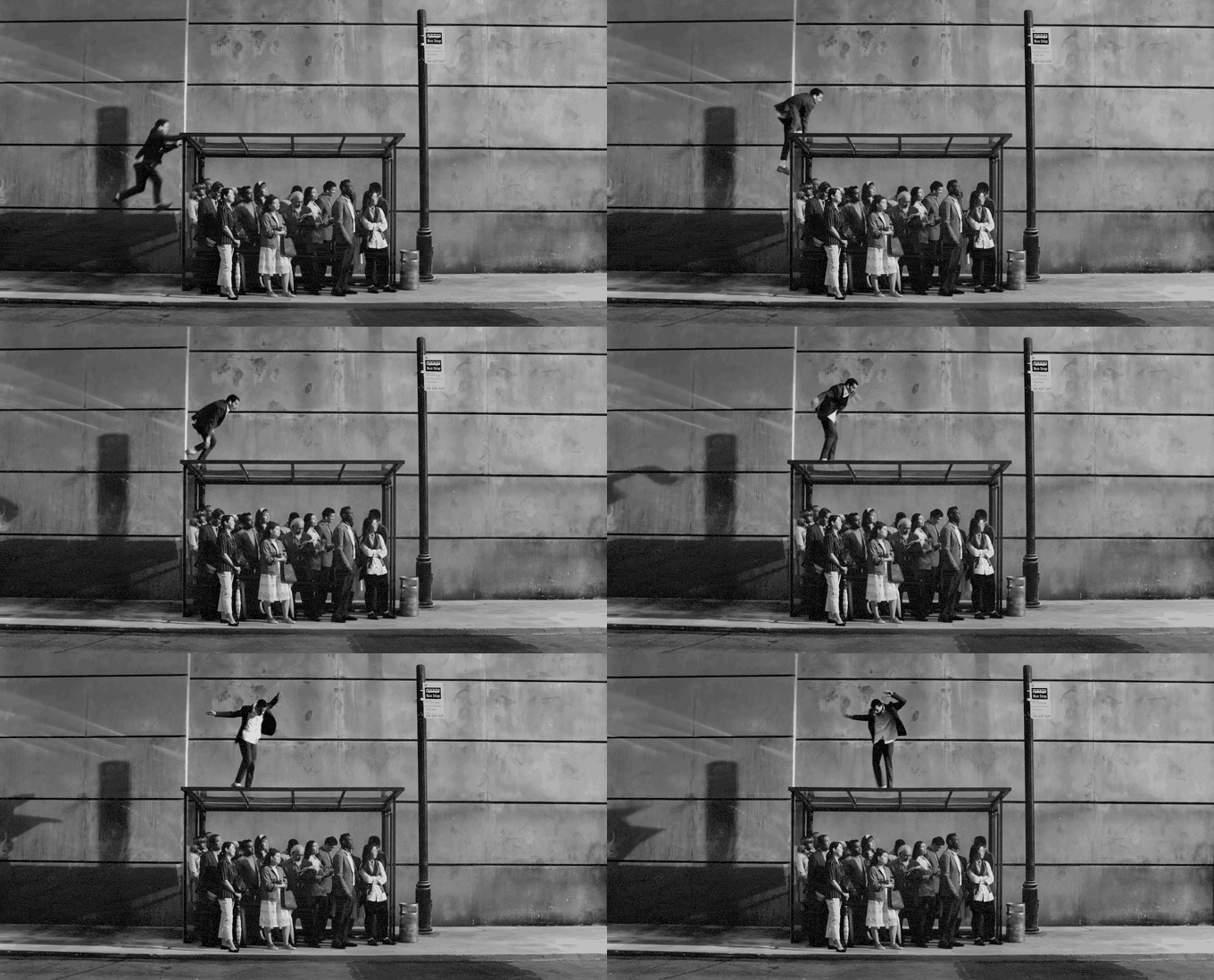
This is the kind of thing we're building. Six references, all moving, each one there for a reason:

Step by step: building the board
1. Pick a starting point
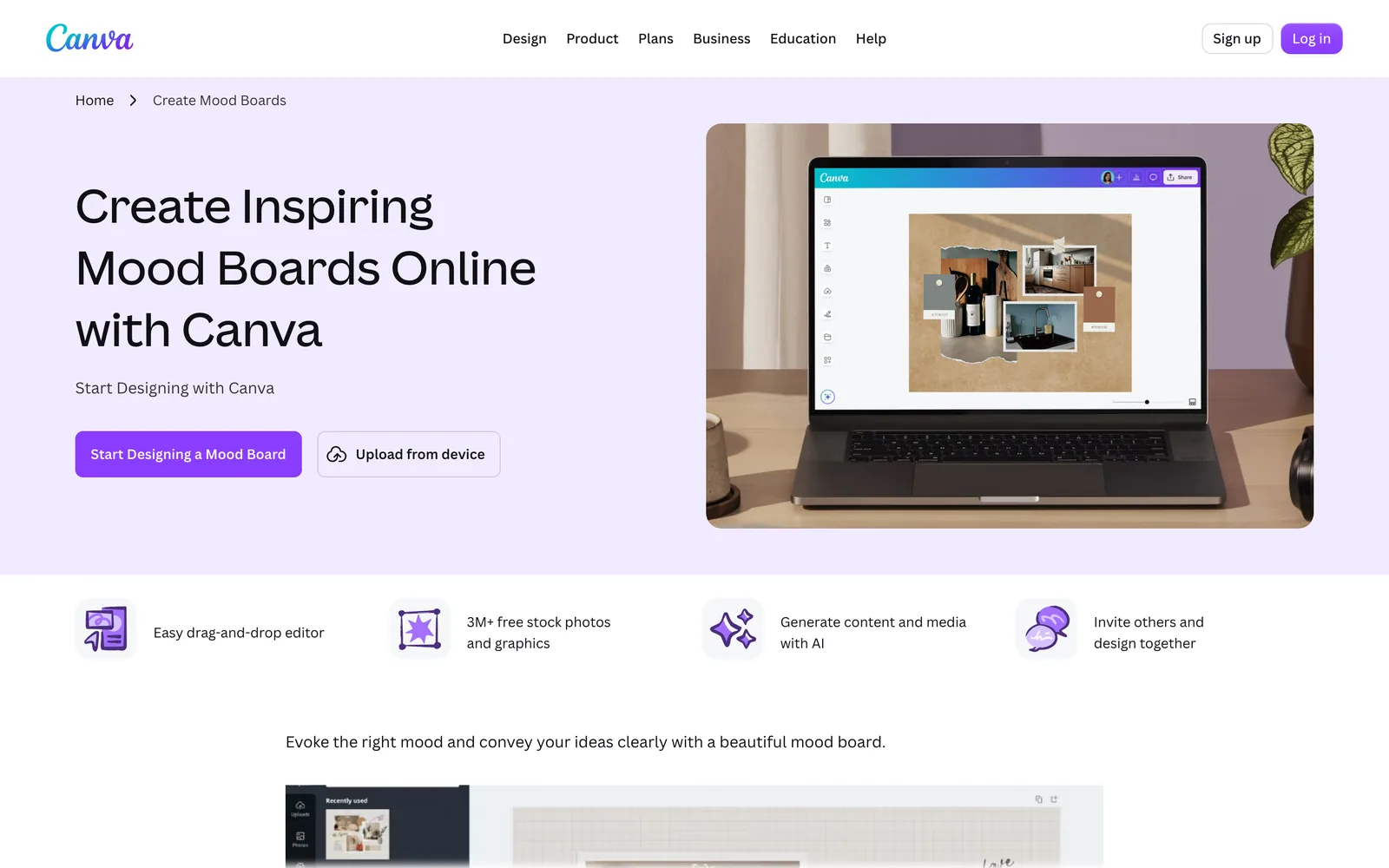
On the Canva home page, type Mood Board into the search bar and pick a template whose layout you like. Ignore its colours and fonts; you'll change them. Click Customize this template.
Our advice for client work is different, though. Start with a blank Presentation (16:9). A lot of the mood board templates are square or portrait pages, which look cramped on a laptop and silly on a meeting room TV. A 16:9 presentation is the shape of the screen the board will be shown on, it can grow to several pages (tone, light, casting, locations), and Canva's Present button works on it properly. If you really want one giant canvas, right-click the page and choose Expand to whiteboard.
2. Lay down a grid
In the side panel, click Elements, scroll to Browse categories and choose Grids. Click one to add it to the page. A grid is a set of image slots that snap together, so the gaps stay even without fiddling.
Three or four big slots beat twelve small ones. Clients look at the biggest picture first, so make the biggest picture the one that sums up the film.
For a more designed look (a circle here, a torn paper edge there), Elements > Frames works the same way: a single shaped slot you drop an image into.
Don't fancy building the grid at all? Our layout tool puts your images and GIFs into eight layouts, and downloads a .pptx. Drag that onto the Canva home page and Canva turns it into an editable presentation, so you can skip to step 5.
3. Upload your references
Click Uploads, then Upload files, or drag the files from Finder or File Explorer onto the panel. On desktop, the small icon next to Upload files also offers Upload folder.
The limits: images up to 50 MB, videos up to 1 GB each (MP4, MOV, WEBM and a few others). 4K video is stored at 1080p, which is plenty for a moodboard.
4. Drop them in, and crop like you mean it
Drag each upload onto a grid cell until it snaps in. Double-click to reposition the picture inside its cell, then Done. To swap one, drag another upload onto the same cell.
Crop with intent. A reference that's on the board for its framing should keep its framing. One that's there for a colour can be cropped to almost nothing but the colour. A full frame with the detail you care about tucked in a corner makes the client guess, and they'll guess wrong.


5. Add video clips (Canva is better at this than people think)
Upload an MP4 and drop it into a grid cell like any image. Select it, click Edit in the floating toolbar, and under Playback turn on Play automatically and Play on repeat. Now it loops when you present, and the board shows camera movement and pace, which no still can.
Trim every clip to the three or four seconds that matter. Nobody watches a 40 second reference on a moodboard. We'd rather show the moment the lava breaks in Absolut Tabasco's launch film on a loop than the whole spot once.

Canva treats uploaded GIFs as video, so a GIF you've already made drops in and loops the same way. Our converter trims to the exact frame, and the GIF compressor shrinks anything too heavy.
What you can't do is paste an Instagram reel or a TikTok link and have it play. Canva's Embeds app (under Apps) takes YouTube links, but embeds depend on the original staying online and can break downloads. For a reference that matters, put the actual clip on the board. Our guide to creating a video moodboard goes further into motion, file sizes and playback.
6. Pull a palette from the references
Draw a row of squares from Elements > Shapes, select one, click its colour tile and use Pick a color (the eyedropper) to sample straight from a reference on the page. Canva's help says the eyedropper works in Chrome, Edge and the desktop app, so don't panic when it's missing in Safari.
Sample from the reference, never from memory. The blue of that Darjeeling train at the top of this page is not the blue you'd pick by eye.
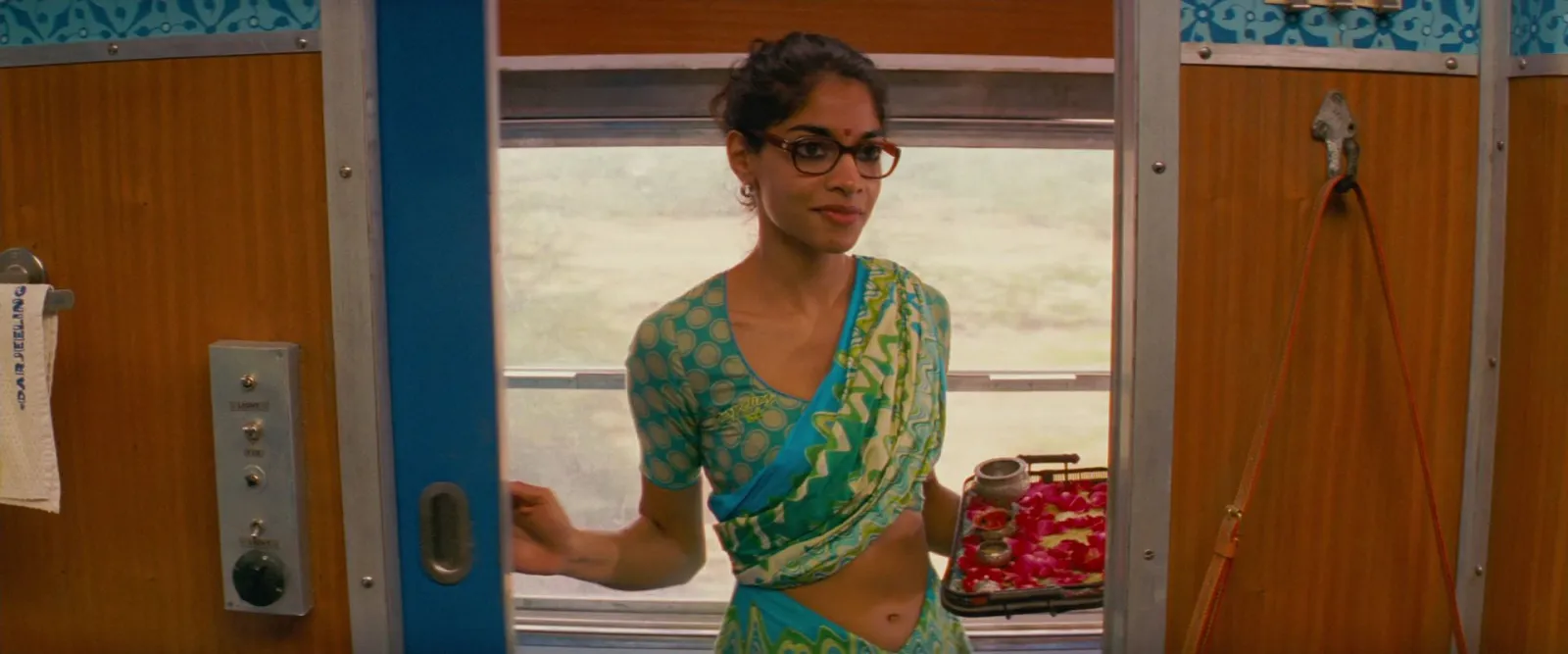
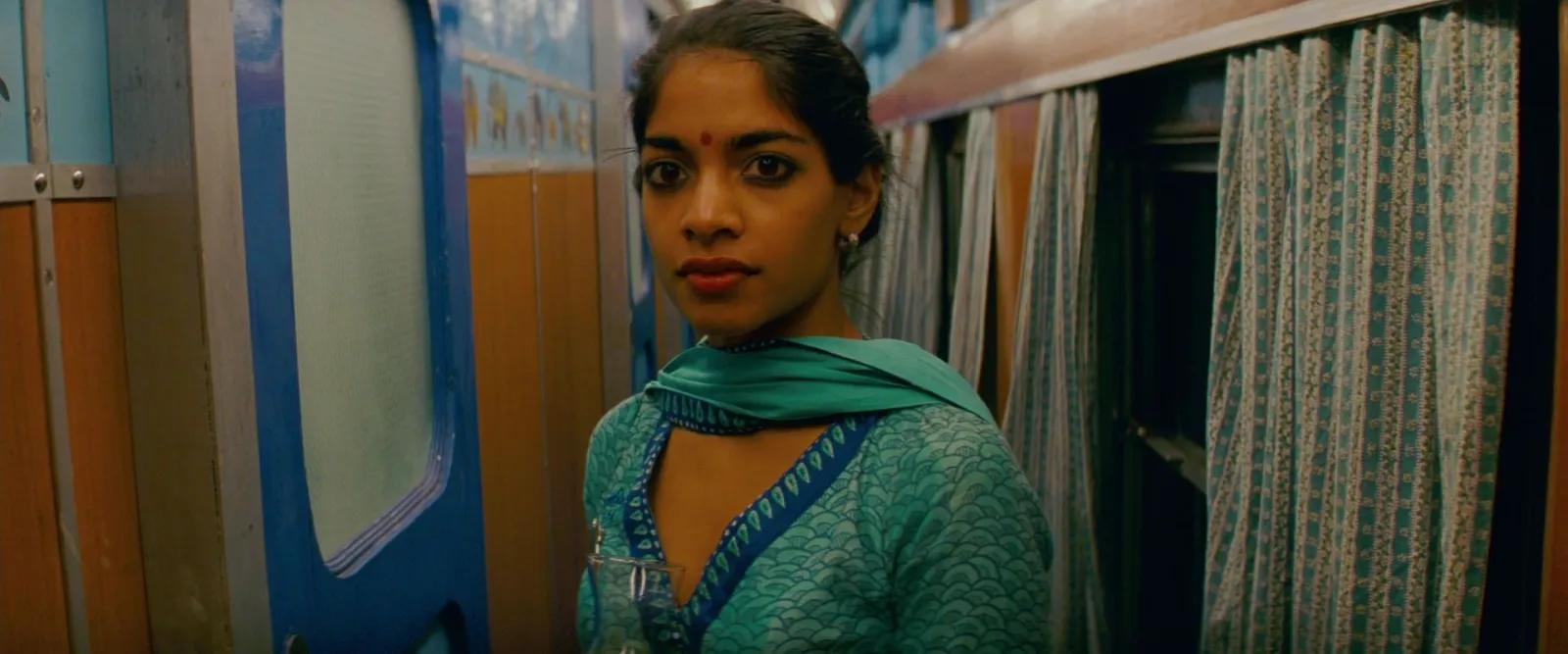
Canva has its own colour palette generator for a single image. For a frame from a video, the palette tool we built takes a clip, lets you scrub to the frame and gives you hex codes to paste into Canva.
7. Label everything
A word or two under each reference. "Light." "Wardrobe." "This edit rhythm." "The casting, not the location." Small, consistent, out of the way. It's the difference between a moodboard and a pretty collage, and it stops a client asking "so you want it to look like a train?"
Credit the work too (film, director and DoP, or brand and production company for an ad). Canva won't do it for you. A DoP will notice.
8. Share it
Click Share. Under Access level choose Anyone with the link, set it to can view (or can comment if you want notes back) and click Copy link. Then open that link on your own phone before you send it. Check the clips play and the labels are readable. The client will be looking at it in a taxi.
For a pitch meeting, Present > Present full screen. If someone insists on a PDF, Canva's own help is clear that PDFs don't support video: every clip becomes a still. Download as MP4 if the file has to move (the free plan exports MP4 at up to 1080p).
Canva next to the other options
Canva wins on speed and on looking finished. Here's how it sits against the apps we cover in the rest of this series, with prices checked on each vendor's site.
| App | Where it shines for moodboards | Clips loop? | Price (as of October 2026) |
|---|---|---|---|
| Canva | A polished board shared as a link | Yes, with Play on repeat | Free; Pro £100 a year |
| Google Slides | Client comments on individual frames | GIFs only | Free with a Google account |
| Keynote | The best looking board on a Mac | Yes, including back and forth | Free on Apple devices |
| PowerPoint | Treatments built in agency templates | Yes, Loop until Stopped | Free on the web; Microsoft 365 Personal from £8.49 a month |
| Spark | Keeping the references and building the board from them | Yes, GIFs stay animated in the Canva export | Free plan; Creator from £16 a month |



Step by step versions: Google Slides, Keynote and PowerPoint.
Where Canva falls short for film references
Nothing goes wrong on the board itself. It goes wrong before and after.
Getting references in is manual. Canva can't save a reel, a TikTok or a Vimeo link. Every moving reference has to be downloaded or screen recorded, trimmed and uploaded first. For a board of fifteen clips that's most of an afternoon, and we've lost more of those afternoons than we'd like to admit.
The source disappears. Once a clip is on the board, Canva has no idea where it came from. Six weeks later the client asks for "that ad with the blue train" and you're scrolling a camera roll.
Nothing is searchable. Every board is a dead end. The great reference you found for this pitch is locked in this design, and you'll go hunting for it again on the next one.

Frames from video are your job. Want the exact frame where the light hits? That's scrubbing, screenshotting and cropping out player controls.
Working only from stills already on your drive? Just use Canva. You don't need anything else.
Getting references out of Spark and into Canva
This is the part where we talk about our own app, because it fixes exactly the "before" problem. Spark is a desktop app for saving and organising video references. Paste a link, or send a reel to @sparkreferences in an Instagram DM, and it keeps the clip and where it came from.
From any saved video, Export Frame pulls the exact still and Export GIF cuts a loop: set the in and out points, nudge them, pick a frame rate and width. Both land in Frames, which ends up being a ready made folder of moodboard material.
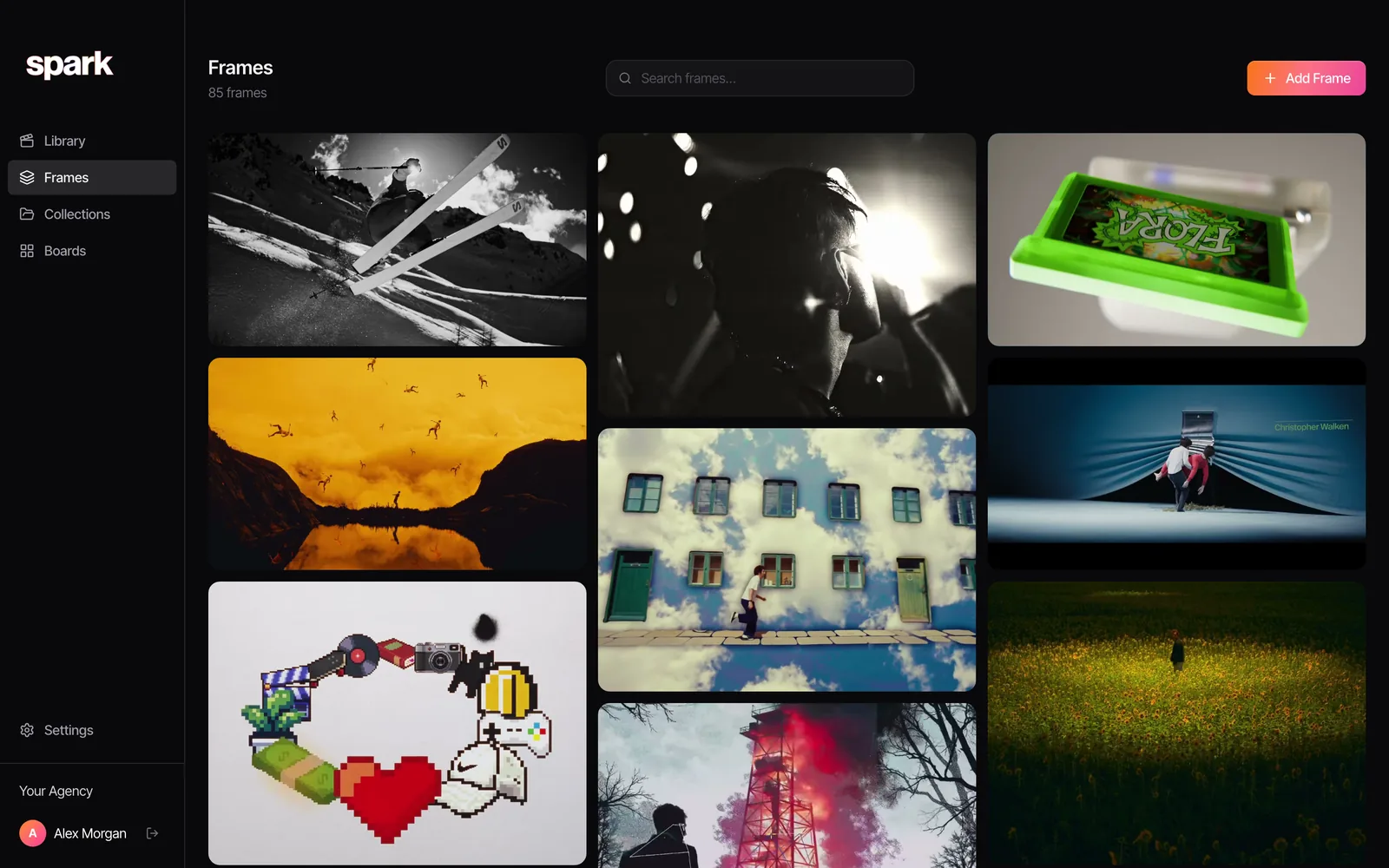
The quicker route skips Canva's Uploads panel altogether. Gather the references on a board or in a collection, click Create Moodboard, pick a layout and choose Canva. Spark sends the board to your Canva account as an editable design, ready for steps 6 to 8 above. GIFs arrive animated, so there's nothing to redo from step 5.
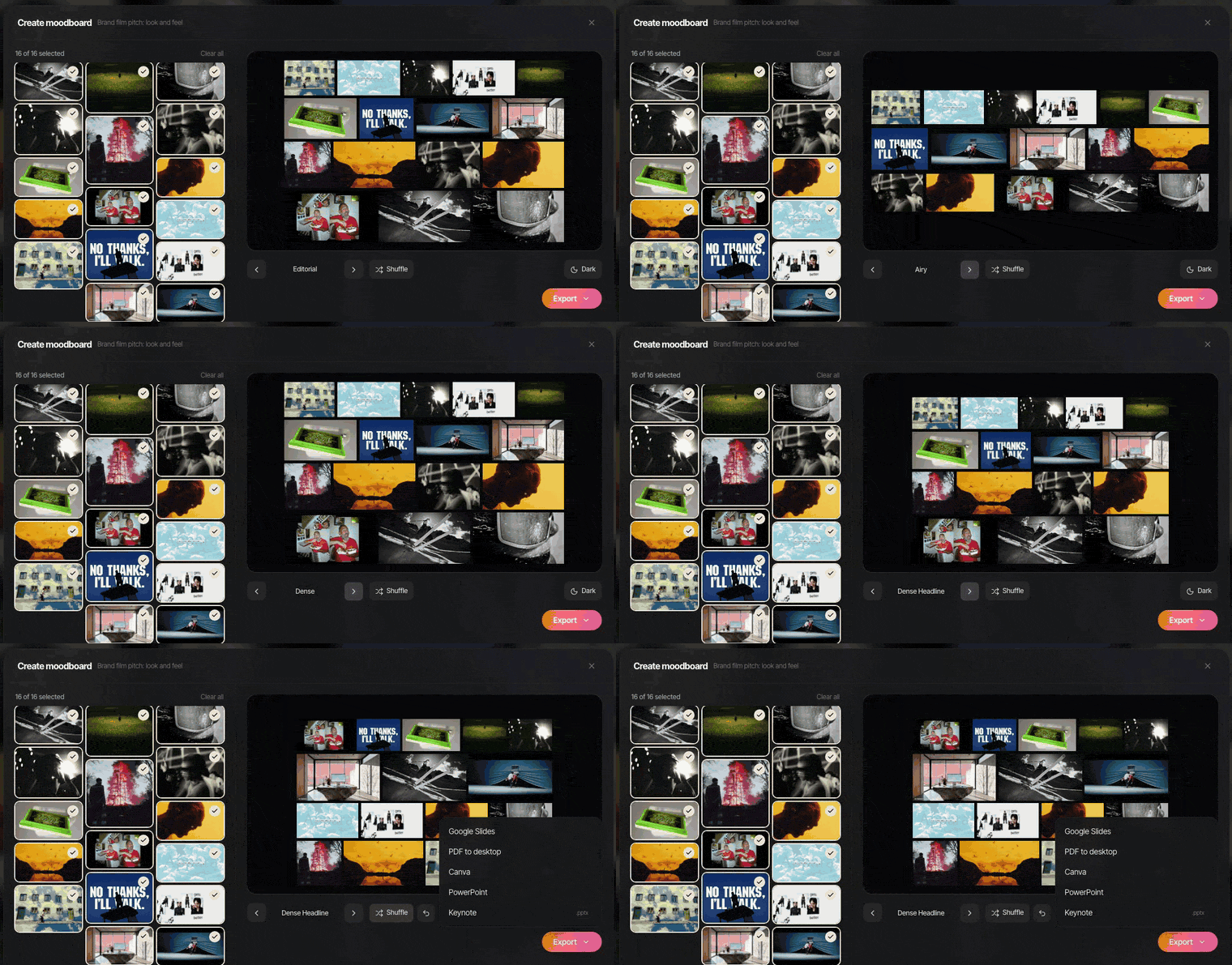
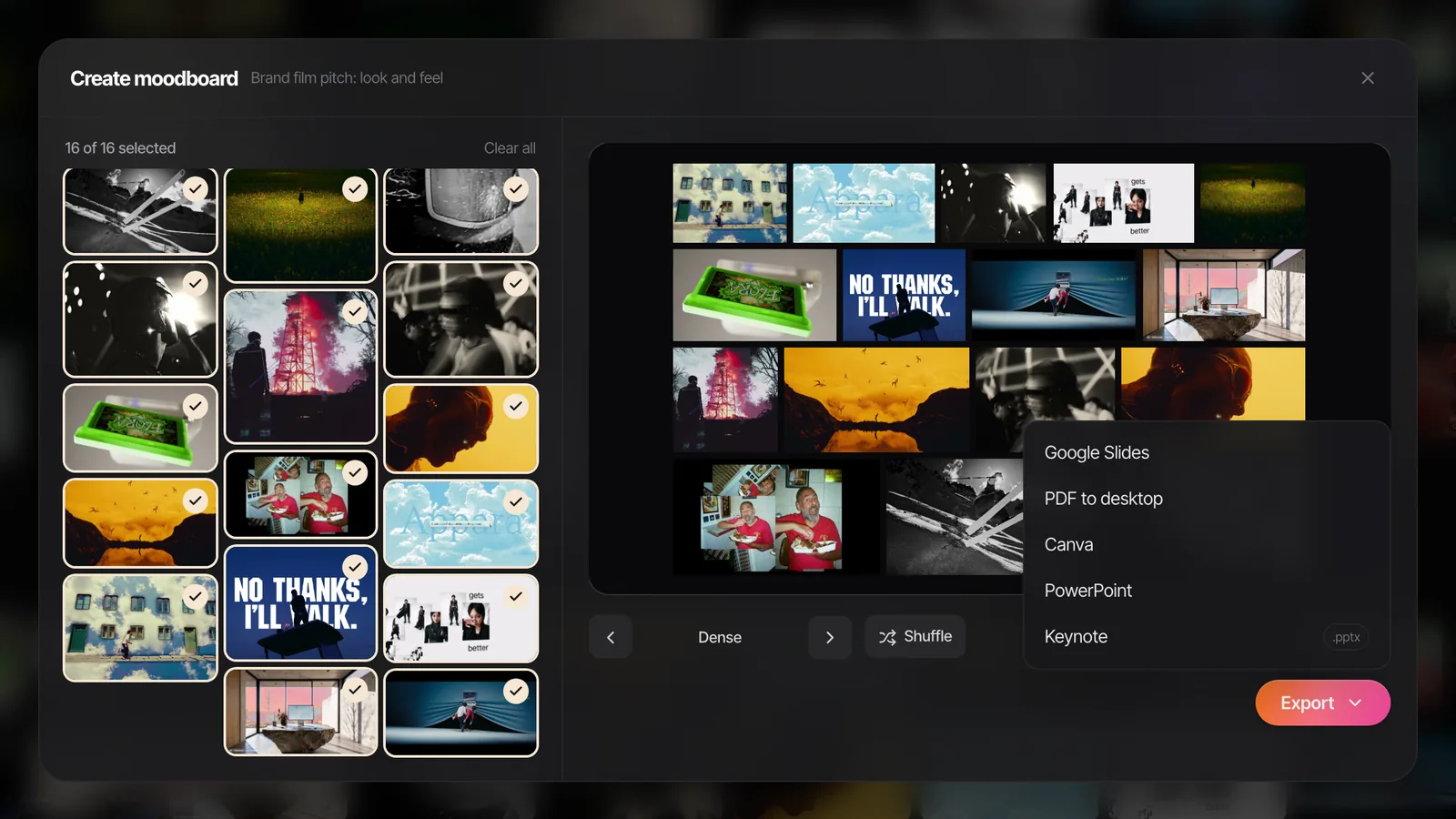
That's how we do it at Perspective Pictures. References live in Spark. When a client wants something glossy and on brand, the board goes to Canva for the final dressing. For a wider look at the options, see our best moodboard tools for creative directors.
FAQs
Is Canva free for making moodboards?
Yes. Everything above works on the free plan, including grids, frames, video uploads, share links and MP4 export at up to 1080p. Pro (£100 a year in the UK as of October 2026) adds things like background removal and more storage, none of which a moodboard needs.
Can you add videos to a Canva moodboard?
Yes. Upload an MP4 or MOV (up to 1 GB), drop it into a grid cell or frame, then select it, click Edit and turn on Play automatically and Play on repeat under Playback. The clips loop when you present. They won't move in a PDF.
Do GIFs move in Canva?
Canva treats uploaded GIFs as video, so they play on the board and in Present mode. Download the board as a PDF or PNG and they freeze on one frame. Export as MP4 if the board needs to move outside Canva.
What size should a moodboard be in Canva?
For anything a client sees on a screen, a 16:9 presentation (1920 by 1080 pixels). It fills a laptop or a meeting room TV, it can have several pages, and Present mode works properly. Square and portrait templates suit Instagram or Pinterest better.
How do I share a Canva moodboard with a client?
Click Share, set Access level to Anyone with the link, choose can view or can comment, and copy the link. Open it on your phone first to check it reads at that size. For a public link you can revoke later, use Share > Public view link.
Why does my Canva moodboard lose its videos when I download it?
You've almost certainly downloaded a PDF. Canva's PDFs can't hold video or animation, so each clip becomes a still. Download an MP4 instead, or send the view link.
Keep reading
All articles
How to Make a Moodboard in Google Slides
Google Slides makes the board that lives at one link. The client comments on frame six, the DoP opens it on a phone, and nobody asks which version is final.

How to Make a Moodboard for a Video Project
Twenty well-chosen frames with a line of explanation under each will do more for your shoot than two hundred beautiful pins. Here's how to build that board, section by section.
How to Create a Video Moodboard with Moving References
A still can show what a shot looks like, not how the camera got there. How to build a moodboard that moves, and make sure it still plays on the client's laptop.