Best Moodboard Tools for Creative Directors in 2026
Most moodboard roundups are written for interior designers. This one is for people who pitch films and ads, collect references from reels and need the board to play on a client's laptop.
By the Spark team ·
For most creative directors, the best moodboard tool is two tools: one to collect references and one to present them. Milanote is the best all-rounder for planning a project visually with notes. Keynote or Google Slides is still where the board gets shown to a client. Canva, Figma and Miro are good if your team already lives in them, and PureRef is the one nobody talks about that everyone with a second monitor should own.
If the references are mostly video (reels, TikToks, ads, music videos), add Spark for the collecting half. We make it, so that's the last thing we'll say about it until its own section.
That's the short answer. Below is how each tool holds up against a creative director's actual job, which is less "make something pretty" and more "get a nervous client to say yes before the budget moves to next quarter". We've kept this list short on purpose. Seven tools, plus a handful of free ones that fill the gaps.
The short list
| Tool | Best for | Price (as of October 2026) |
|---|---|---|
| Milanote | Planning a project in notes and pictures | Free for 100 notes, images or links; $9.99 a month billed yearly |
| Keynote | Presenting the final board, with loops | Free on Mac, iPad and iPhone |
| Google Slides | Boards for clients who live in Google | Free with a Google account |
| PowerPoint | Clients who only open a .pptx | Free on the web; Microsoft 365 Personal £84.99 a year |
| Canva | A polished one-pager by lunch | Free; Pro £100 a year |
 Figma and FigJam Figma and FigJam | Boards that turn into design work | Free Starter plan; paid seats from $3 a month |
| Miro | Workshops with a dozen people | Free for 3 boards; Starter $8 per member a month billed yearly |
| PureRef | Keeping the board on screen while you work | Pay what you want for personal use |
| Spark | Collecting and searching video references | Free for 15 videos and 30 frames; Creator £16 a month; Studio £23 per user a month |





Prices checked on each vendor's own page in October 2026. They move, so look again before you buy.
What a creative director needs from a moodboard tool
Every tool on this list can put pictures in a grid. What separates them for a CD:
- Collecting video. A lot of today's references are reels, ads and music videos. Can the tool keep them playing, or does it store a link that breaks when the account goes private?
- Pulling the moment. A frame or a GIF from the exact second you mean, without screen grabbing.
- Presenting. It has to look good, export cleanly to a deck or PDF, and survive being opened on a phone.
- Working with others. Producers, designers, DoPs, sometimes the client.
No single tool wins all four. That's why the answer is usually two.
1. Milanote: the best all-rounder for visual planning
Milanote is a freeform canvas where notes, images, links, files, to-do lists and colour swatches sit together. It has templates for moodboards, storyboards and shot lists, a web clipper, desktop and mobile apps, and shared boards your team can edit and comment on. For a CD who thinks by writing next to pictures, it's lovely.
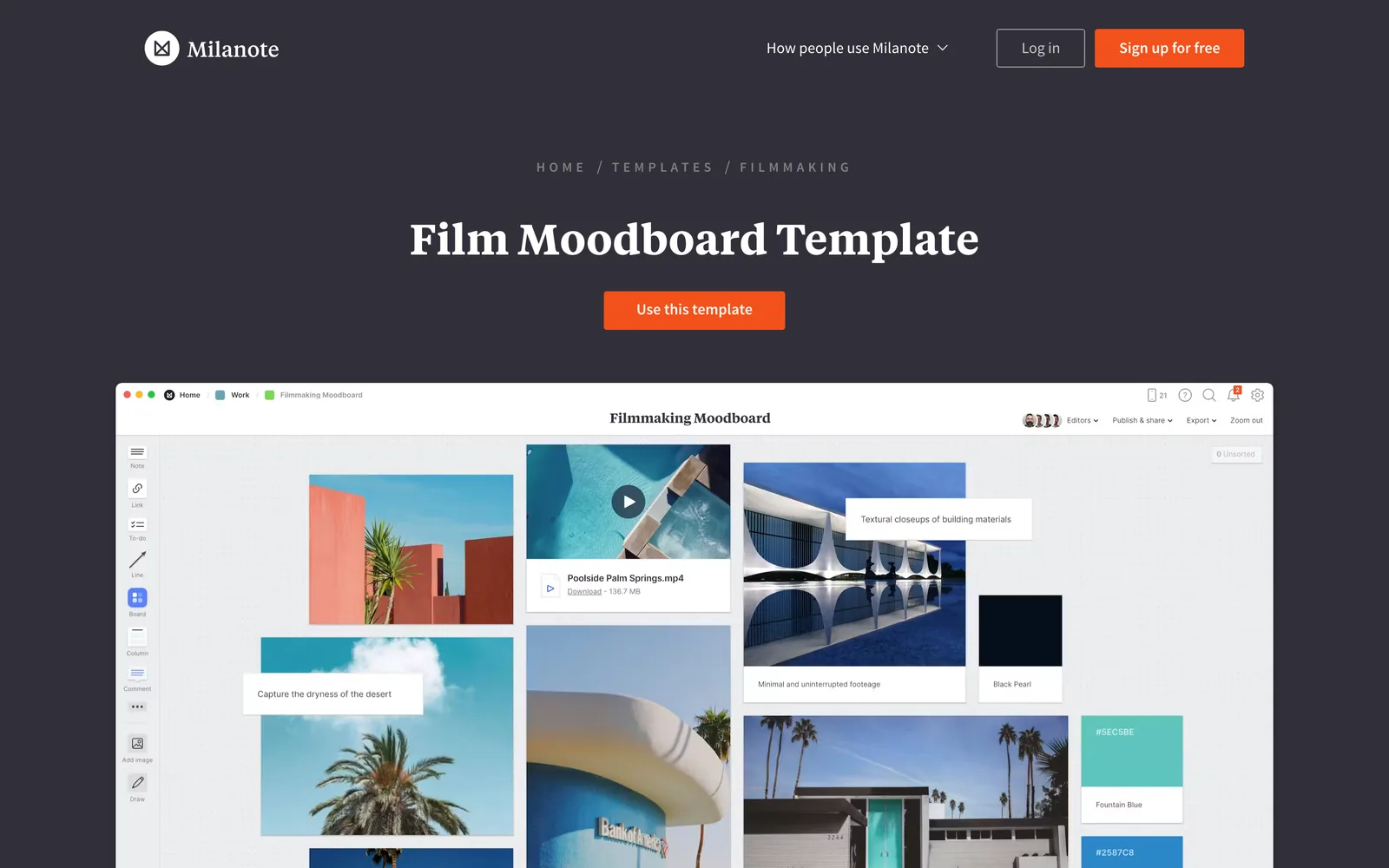
It's better at video than people expect. Uploaded videos can autoplay when the board opens, and loop, and YouTube and Vimeo links embed and play. Where it's weaker: Instagram and TikTok aren't on its list of embeddable video sources, there's no way to search inside what a video shows or says, and PDF and PNG exports come out as a single page.
Pick it if your moodboard is part of a bigger planning document with notes, scripts and tasks. Free for 100 notes, images or links and 10 uploads; $9.99 a month billed yearly ($12.50 monthly); Team $49 a month. If you're outgrowing it, Milanote alternatives for film and video people is sorted by the reason you're leaving.
2. Keynote, Google Slides and PowerPoint: where the board gets shown
Unfashionable, and still where most moodboards end up, because the treatment is a deck.
Keynote gives you the most control over type and layout, plays looping movies and GIFs smoothly, and costs nothing on a Mac. Google Slides is the safest bet for clients in Google Workspace; it plays GIFs inserted as images, and video from YouTube or Drive. PowerPoint does the job for clients who'll only open a .pptx, free in a browser or £84.99 a year with Microsoft 365 Personal.
They're poor at collecting. Building a library of 400 references in a slide deck is misery. Use them for the final, edited board, and see our guide to building a video moodboard for the playback settings that stop clips freezing.
The fiddly part is laying out the grid slide by slide. That's the job of the moodboard maker we built: drop in stills and GIFs, pick from eight layouts, and export a .pptx that opens in all three (or a PDF or PNG). GIFs stay moving in the .pptx. It runs in the browser, with no upload and no sign-up.
3. Canva: the fastest route to polished
Canva makes a good-looking board quickly, with mood board templates, brand kits and video uploads. For a producer who needs a clean one-pager for a client by lunch, it's hard to beat. Free, or Pro at £100 a year.
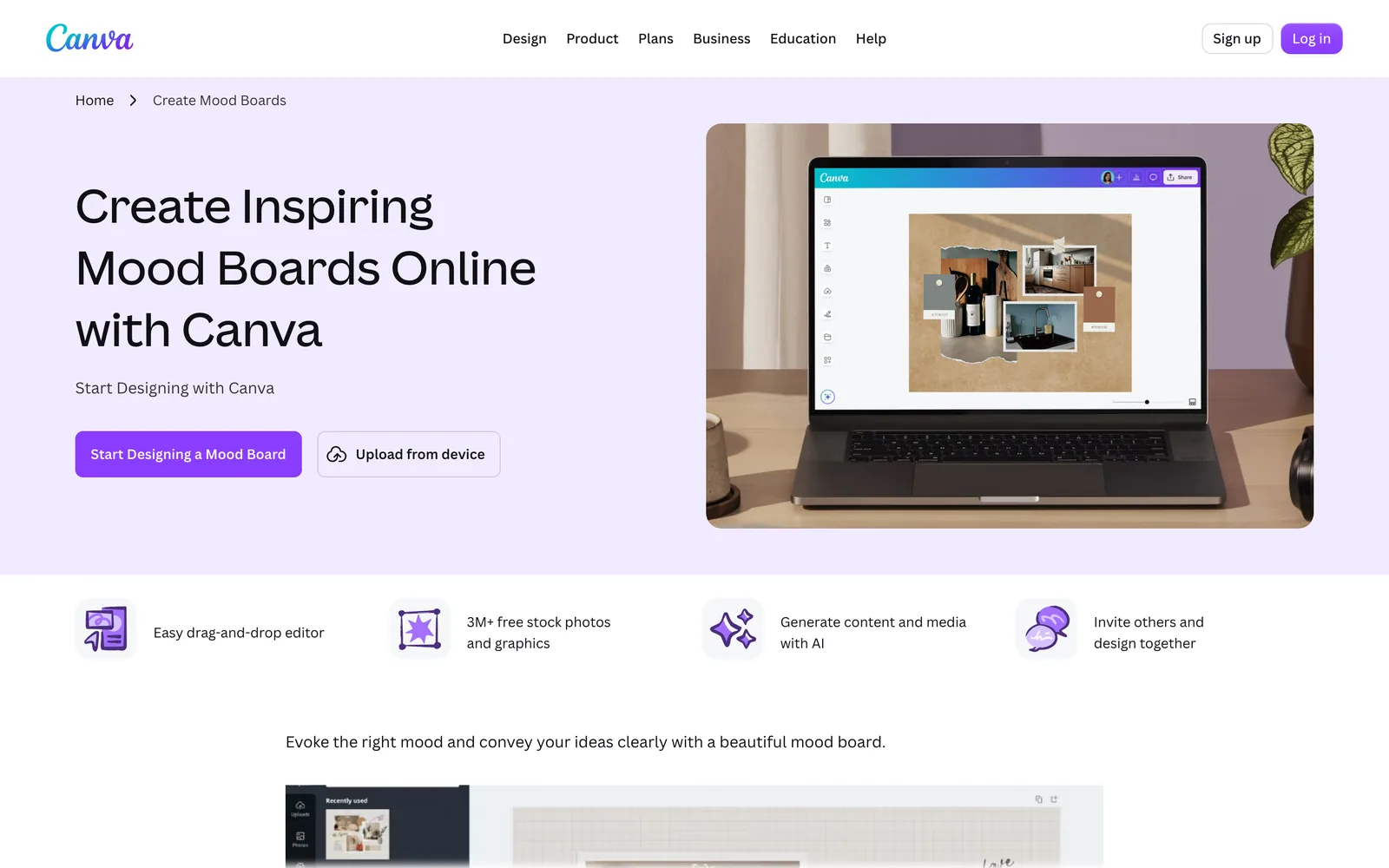
The downside is that Canva boards tend to look like Canva boards. And it's a layout tool rather than a reference library, so you still need somewhere to collect the clips first. Our walkthrough of making a moodboard in Canva covers the grids, the video quirks and the share settings.
4. Figma and FigJam: for design-led teams
If your designers already work in Figma, a moodboard page next to the actual design work is hard to beat. Layout control is excellent, and FigJam is a friendlier whiteboard for messier early thinking, included with every Figma seat. Video uploads (MP4, MOV, WebM) need a paid plan; seats start at $3 a month for a Collab seat and $16 for a Full one.
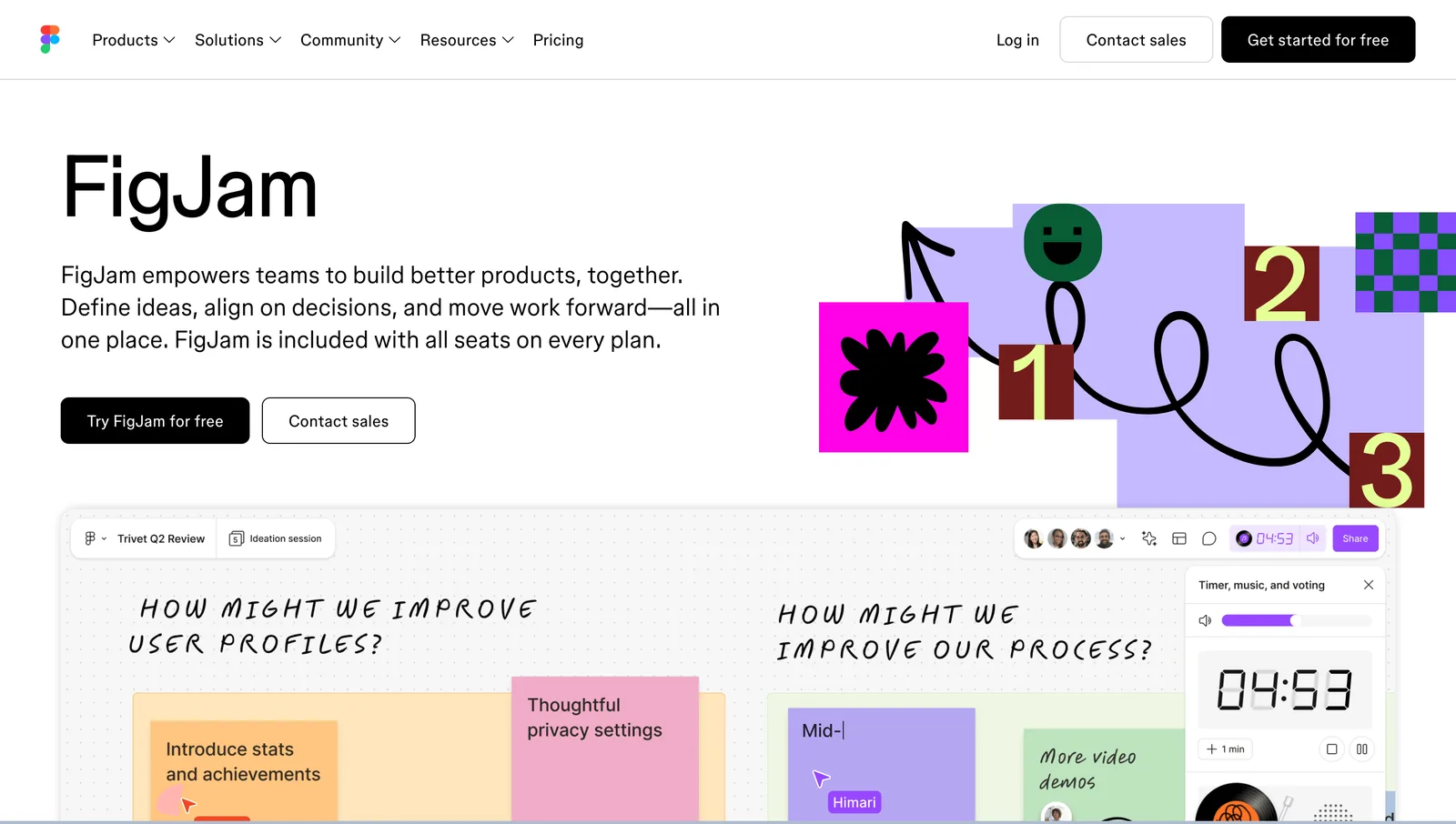
The catch is the audience. Clients and producers who don't use Figma find it fiddly, and it won't save a reel from Instagram. It's a design tool that happens to be good at boards. Pick it if the board is going to turn into design work: titles, packaging, a campaign system.
5. Miro: for workshops, not pitches
Miro is brilliant for running a session with a dozen people adding sticky notes and references at once. Paid plans support video uploads. For presenting a look to a client it's too busy, and the infinite canvas makes it easy to lose people. Free for 3 boards; Starter is $8 per member a month billed yearly.
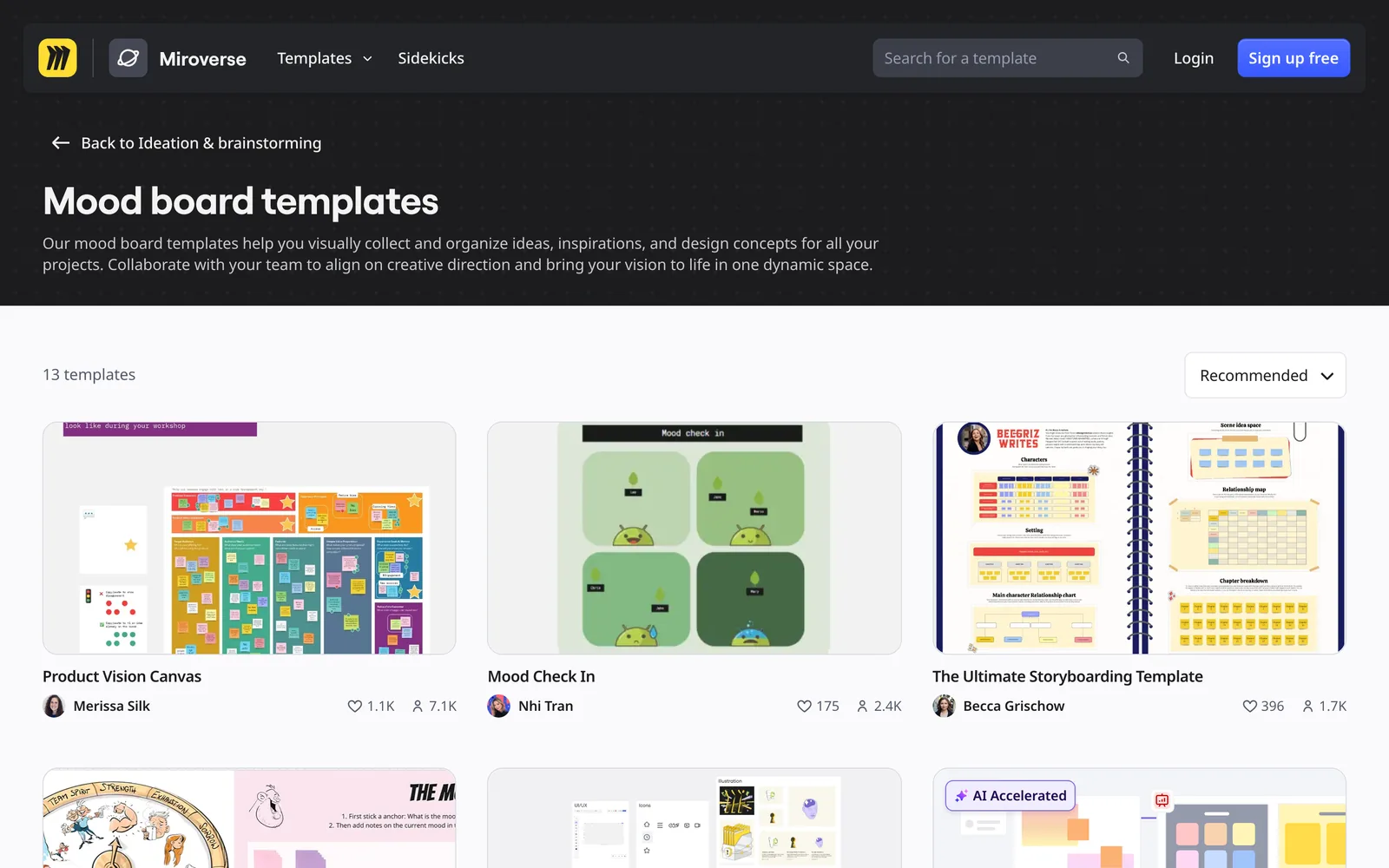
Pick it if you're running a creative workshop with a client or a big internal team.
6. PureRef: the board you keep open while you work
PureRef is the one on this list that isn't for showing anybody. It's a frameless canvas that floats above every other window, so you can keep twenty references in the corner of your screen while you storyboard, write the treatment, light a scene or sit in a grade. Drag images in, scale them, arrange them, save the file.
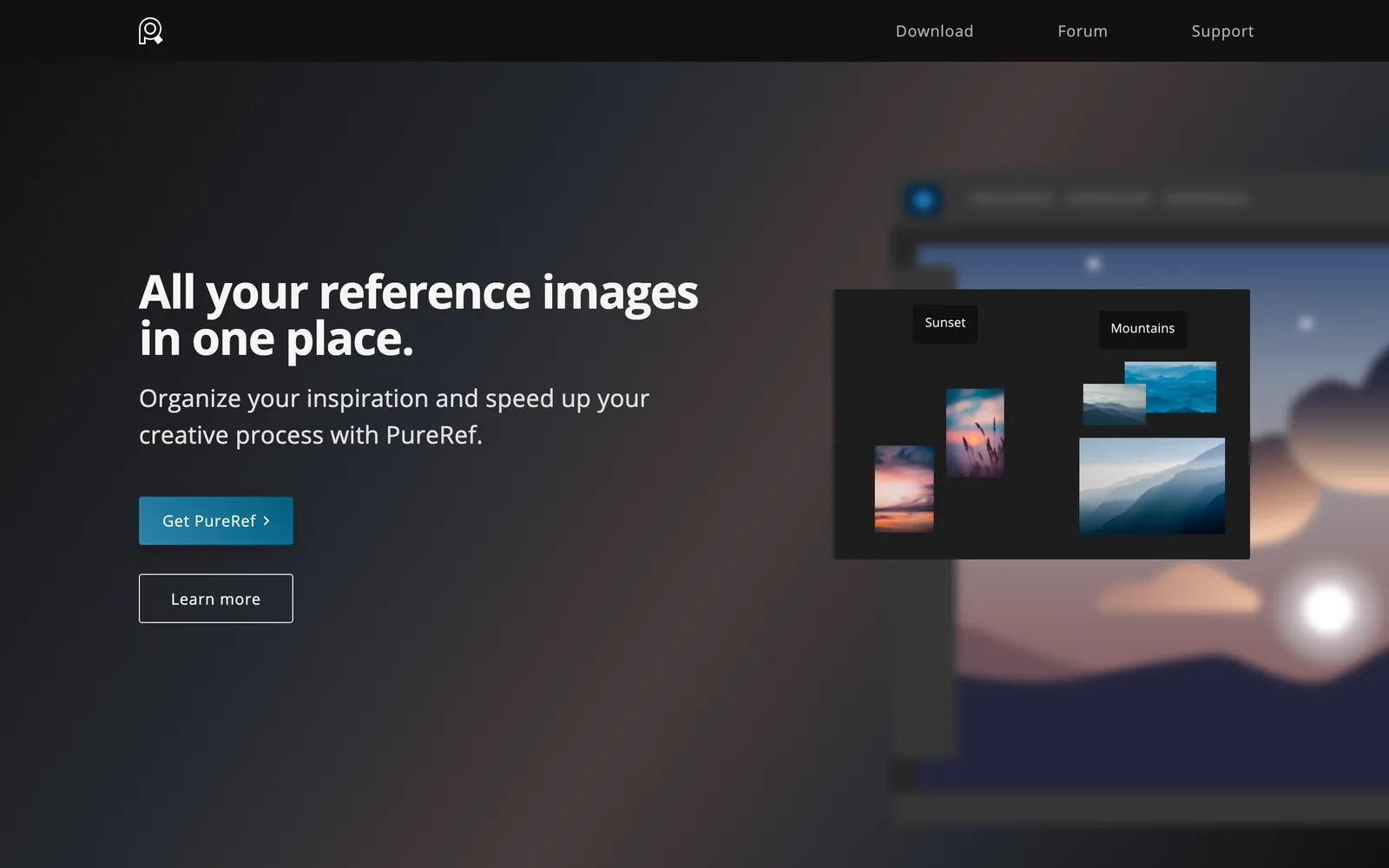
Designers and concept artists have used it for years; production people mostly haven't discovered it. Pay what you want for personal use, with paid licences for studios.
7. Spark: for the references that move
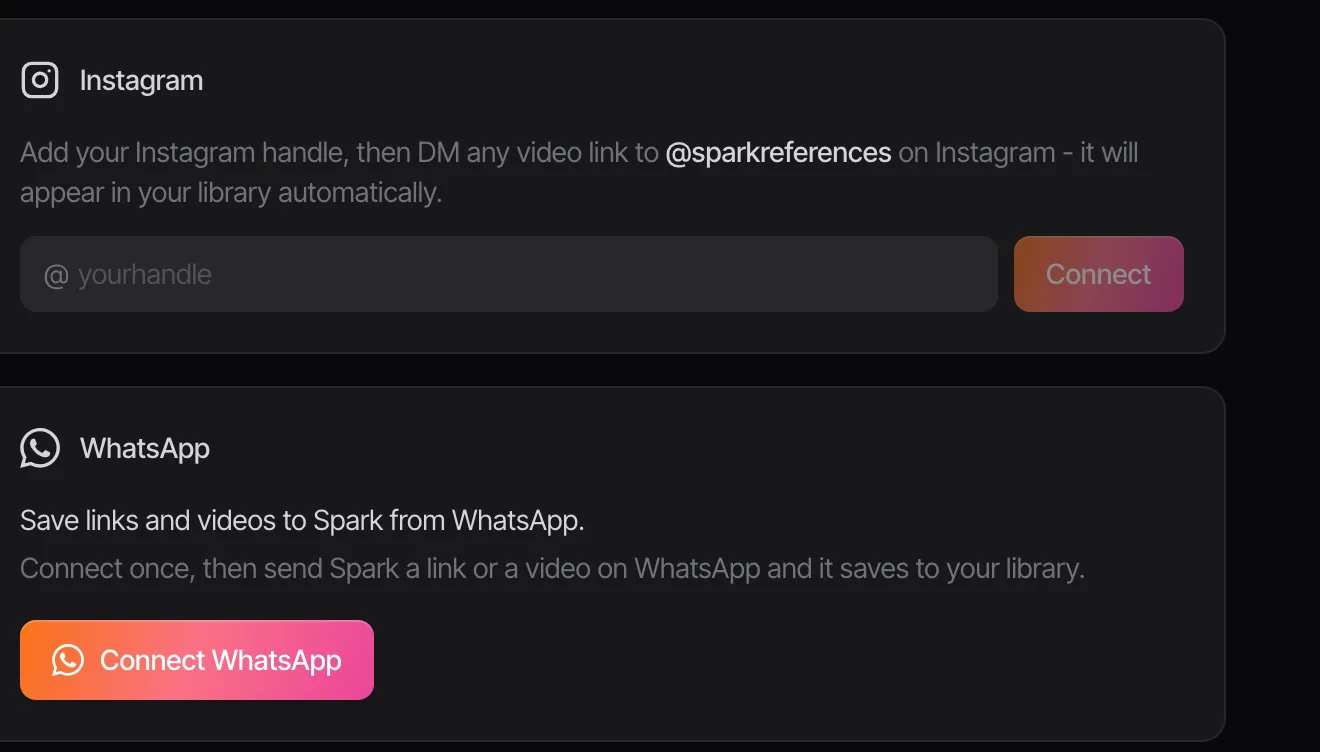
Here's ours. Spark is built for the collecting half of the job, and runs on Mac and Windows. You save references by sending a reel to @sparkreferences on Instagram, pasting a TikTok, YouTube or Vimeo link, right-clicking with the Chrome extension, saving ads from the Meta Ad Library, or recording your screen for anything behind a login. Spark writes an AI description of every video and transcribes the audio, so you can search the whole library for "lava" or for a line someone says.
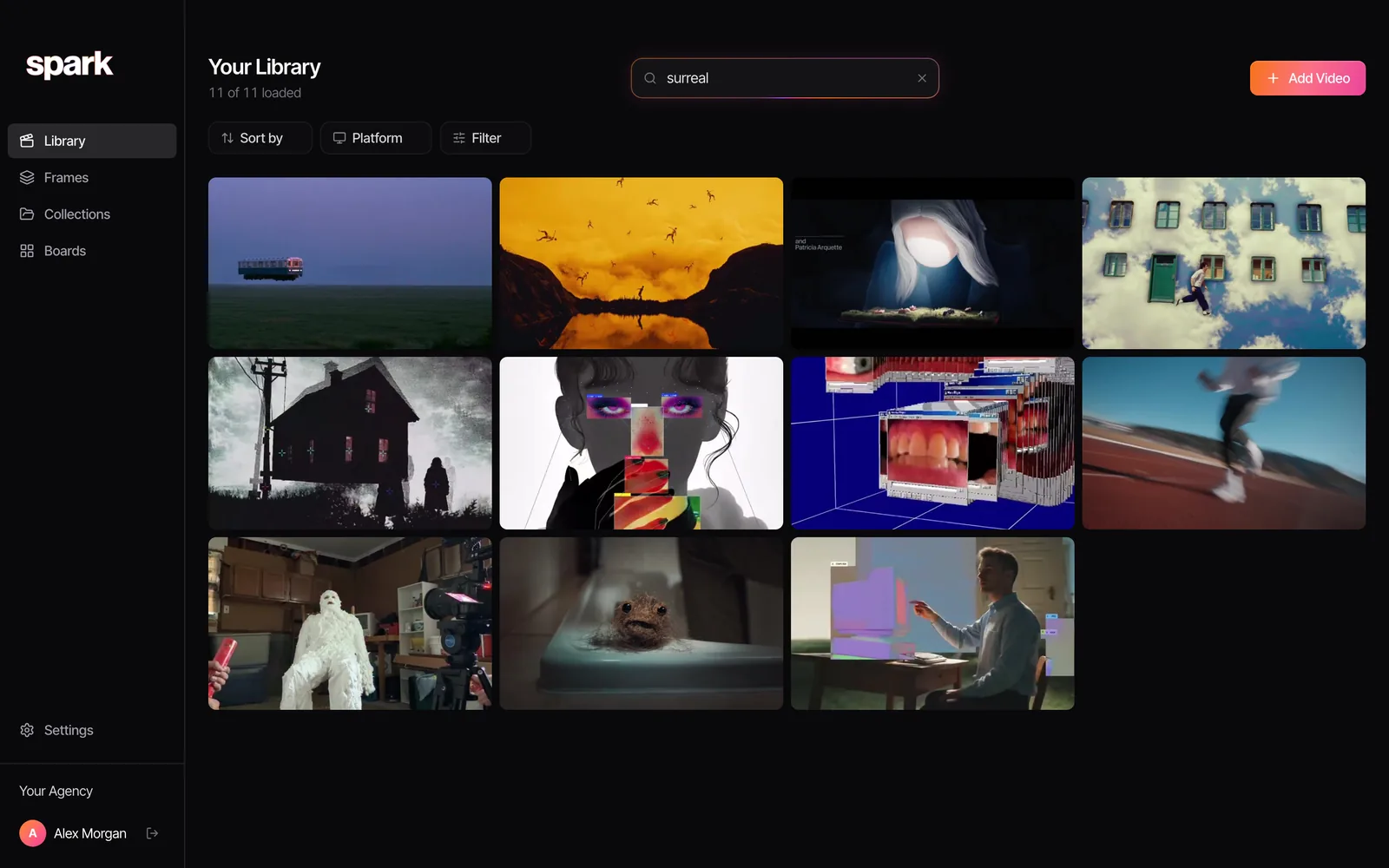
From there you export GIFs or frames from the exact moment you need, group references into collections per client or pitch, and lay them out on boards where the videos play in place.
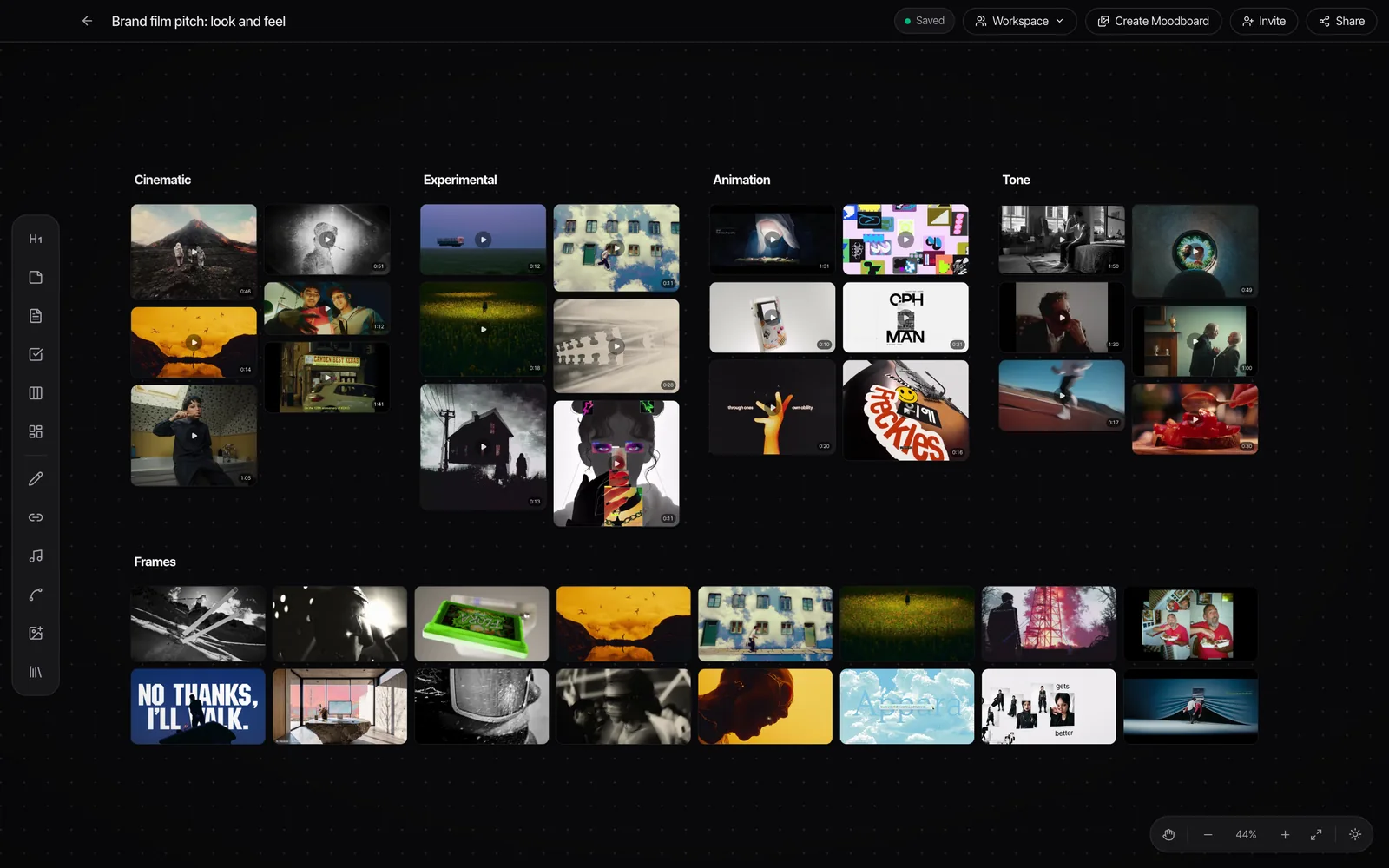
When it's ready, Create Moodboard lays the board out as slides and exports straight to Google Slides, Canva, PowerPoint, Keynote or PDF, with GIFs still moving everywhere except the PDF. So the presenting tool gets a finished first draft rather than a blank page.
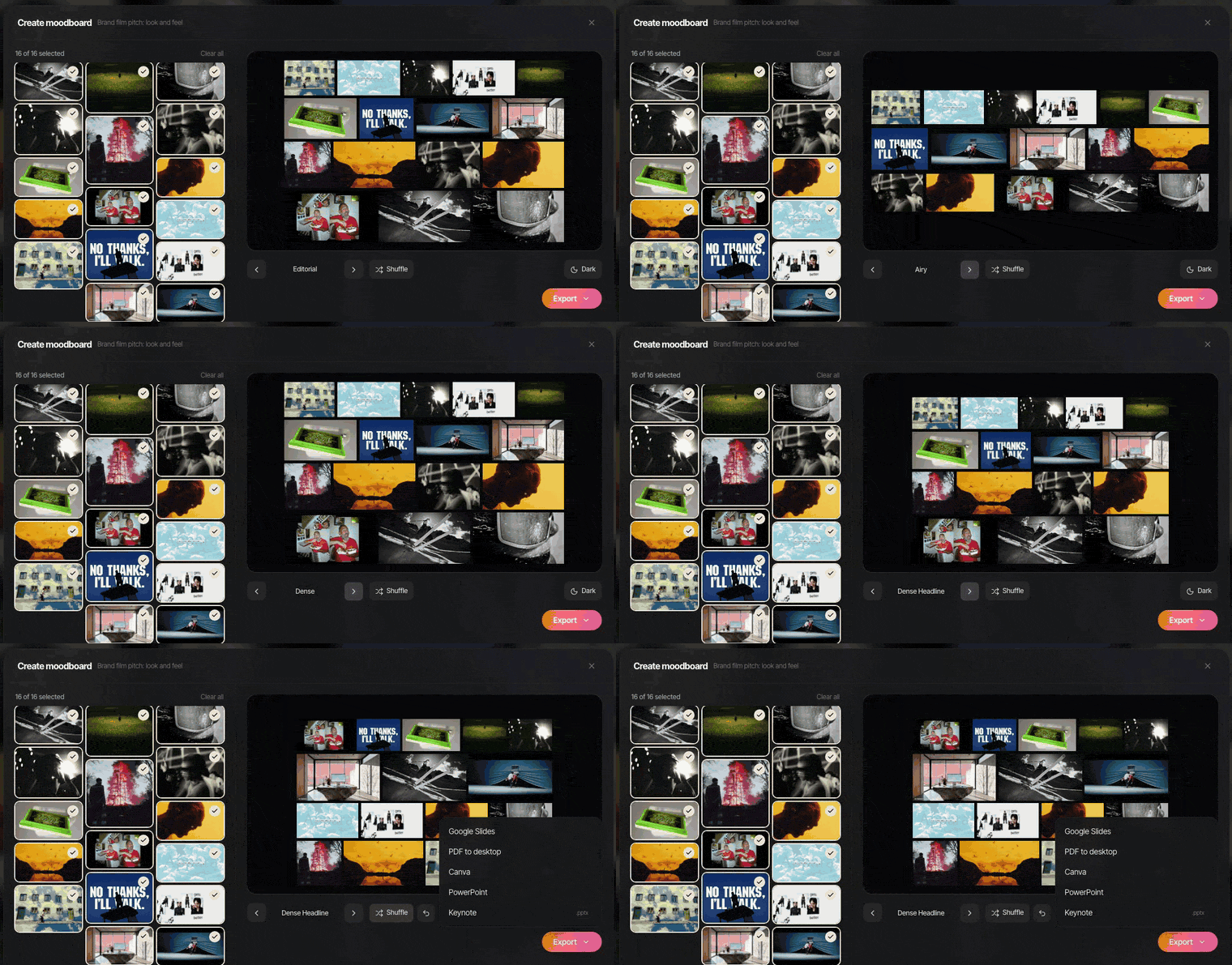
What it isn't: a browser app or a writing-first tool. If your boards are mostly words and to-do lists, Milanote is better.
Where the references come from
None of these build the board, but every CD's board starts in at least one of them.
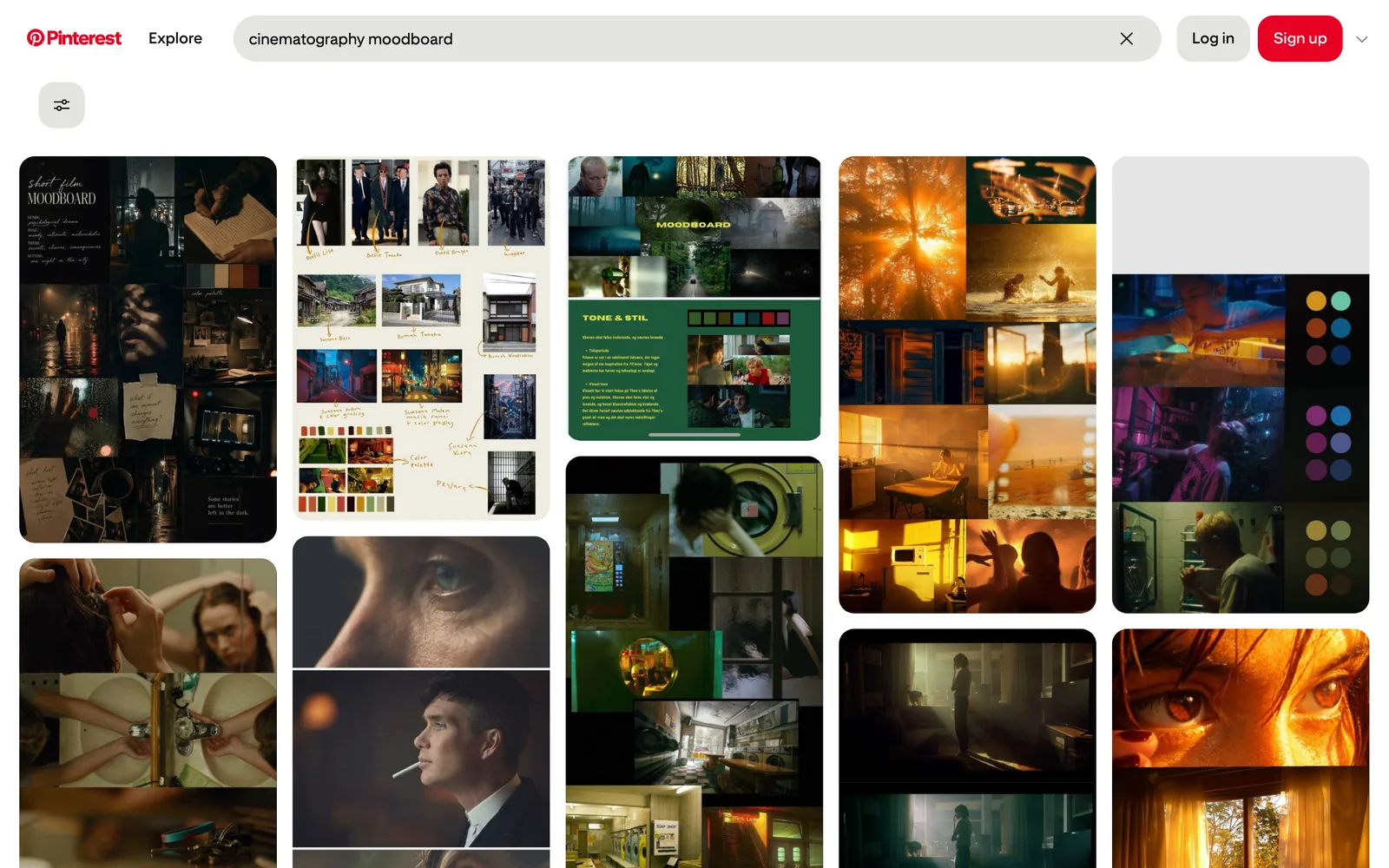
Pinterest is still the best free place to wander, and the recommendations can surprise you. It's increasingly full of ads, shopping pins and AI images, and a reel or TikTok saved to it usually arrives as a still and a link, which we go through in Spark vs Pinterest.
For film stills, FILMGRAB is free, and the paid libraries ShotDeck and Frameset add search by colour, lighting and lens. Frameset also has "Motions", short clips picked out for their camera moves and transitions.
And three free tools of ours that fill the gaps between all of the above: video to GIF for cutting the two seconds you need from a clip, colour palette extractor for pulling hex codes off a frame for the colourist, and the moodboard maker from section two. If you're choosing a discovery feed, Pinterest alternatives for creatives compares the options side by side.
Pairings that hold up
Most CDs end up with two tools. The combinations we see working:
- Milanote on its own if you're a small team, your references are mostly images and YouTube links, and your boards are as much about writing as pictures.
- Pinterest plus Keynote for a still-led board on no budget. Add the free moodboard maker to skip the slide-by-slide layout.
- Spark plus Keynote for a board that's mostly video. Collect and search in Spark, pull GIFs and frames, export the moodboard to Keynote and finish the pages there.
- Spark plus Milanote for the CD who plans in Milanote but is drowning in saved reels. We put the two side by side in Spark vs Milanote.
- Figma or Canva if the board is a step on the way to design work, Miro if it's a workshop, and PureRef open on the second screen whatever else you pick.
No tool on this list does the cutting for you. Making a moodboard for a video project covers that part: the six sections a film board needs, and the one-line note that makes each frame earn its place.
FAQs
What is the best free moodboard tool?
For stills, Milanote's free plan (100 items, 10 uploads) and Canva's free plan are both enough to make a real board, and Keynote and Google Slides are free and where many boards end up anyway. The moodboard maker on our site turns your images and GIFs into a deck, right in the browser. For video references, Spark's free plan holds 15 videos and 30 frames with no card and no time limit.
What do creative directors use for moodboards?
Usually a mix. Many collect references in one place (Pinterest, a stills library, Spark or a camera roll), plan in Milanote or Figma, and present in Keynote or Google Slides. PureRef is common on the second screen during the actual work.
Is Milanote good for video moodboards?
Better than most planning tools. Uploaded videos can autoplay and loop, and YouTube and Vimeo videos embed. It's weaker at saving video from Instagram or TikTok and has no way to search what's inside a video, which is where a dedicated reference tool like Spark helps.
Can I make a moodboard in Figma?
Yes, and design teams often do. Figma gives you precise layout control, and FigJam, included with every seat, is good for looser early boards. Video uploads need a paid plan, and clients who don't use Figma can find it awkward to open and navigate.
What's the difference between PureRef and a moodboard app?
PureRef is a private viewer: a floating canvas that keeps references on screen while you work in another app. A moodboard app like Milanote, Canva or Keynote is for arranging and presenting a board to other people. Many CDs use PureRef while they work and a deck to present.
Is Pinterest good enough for professional moodboards?
For discovery, yes. For client work it has limits: ads and AI images in your feed, weak support for saving video from other platforms, and no way to search what's inside a video. Most professionals use it as a source and keep their working boards elsewhere.
Keep reading
All articles
How to Make a Moodboard for a Video Project
Twenty well-chosen frames with a line of explanation under each will do more for your shoot than two hundred beautiful pins. Here's how to build that board, section by section.
How to Create a Video Moodboard with Moving References
A still can show what a shot looks like, not how the camera got there. How to build a moodboard that moves, and make sure it still plays on the client's laptop.
How to Build a Searchable Creative Inspiration Library
Your references live in nine places and none of them has a decent search bar. This is the four-step system we run at our own production company, in whatever tool you like.