How to Convert MP4 to GIF on Windows
The Photos app won't do it, Clipchamp will (just about), and ScreenToGif is better than its name suggests. Every free route on Windows, tested and ranked.
By the Spark team ·
Windows 11 can convert an MP4 to a GIF without installing anything. Open the video in Clipchamp, which ships with Windows 11, and choose Export > GIF. The catch: it only does clips of 15 seconds or less, and you get no say over frame rate or colours. For a better GIF, use ScreenToGif (free, open source, and it opens video files despite the name) or our browser converter. For exact control, or a whole folder at once, install ffmpeg with one winget command.
The Photos app doesn't export GIFs at all any more. Its old video editor was retired in favour of Clipchamp, which is why so many "right-click and save as GIF" guides from 2021 no longer work.
Spark runs on Windows as well as Mac, and a lot of the people who use it cut on PCs, so this is the Windows 11 version of the advice we give on the Mac. What we'd use, and when, is below. (On a Mac? The Mac version has you covered.)

Which method to use
| Method | Cost (as of October 2026) | Quality | Control | Best for |
|---|---|---|---|---|
| Clipchamp | Free, built into Windows 11; Premium only with Microsoft 365 Personal (£8.49 a month) | Fine | Trim only | A quick GIF under 15 seconds |
| ScreenToGif | Free, open source | Very good | Frame by frame | Editing frames, captions, screen GIFs |
| Spark browser converter | Free, no sign-up | Very good | Width, fps, quality, speed, frame-accurate trim | One-offs, nothing to install |
| FFmpeg | Free, open source | Excellent | Everything | Batches and repeatable settings |
| Snipping Tool | Free, built in | Fine | Low or High | Recording your screen straight to GIF |
| Spark desktop app | Free for 15 videos; GIF export on paid plans from £16 a month | Very good | In and out points, 8 to 24 fps, 320 to 1080 px | GIFs from references you've saved |


The short version: Clipchamp for speed, ScreenToGif or the browser tool for quality, ffmpeg the third time you do the same job.
1. Clipchamp, built into Windows 11
Clipchamp replaced the Photos video editor and comes installed on Windows 11. Windows 10 users can get it from the Microsoft Store. You'll need to sign in with a Microsoft account.
- Open Clipchamp from the Start menu and click Create a new video.
- Drag your MP4 into the media panel, then onto the timeline.
- Trim it to 15 seconds or less by dragging the ends of the clip. The GIF option doesn't appear for anything longer.
- Click Export, top right, and choose GIF.
- Save the file.
Clipchamp picks the GIF settings for you, so there's no trading colour for file size. If an export option shows a diamond, something in the project is a premium asset; delete it (usually a stock clip or an effect) and export again. Fine for a reaction GIF in Teams. For a client deck, keep reading.
Fifteen seconds sounds stingy, but it's five times longer than most GIFs should be. The Severance loop below is a few seconds of red jumpsuits on white ice, and it says everything the title sequence is doing.

2. ScreenToGif, the one people overlook
ScreenToGif has been around for more than a decade and the name sells it short. Yes, it records your screen. It also opens video files and gives you a frame-by-frame editor: delete frames, crop, resize, add text, change the speed, and choose the encoder. Gifski is one of the encoders on offer, and it's a very good one.
Install it from the Microsoft Store, from GitHub, or from a terminal:
winget install --id NickeManarin.ScreenToGif -eThen:
- Open it and click Editor.
- Drag your MP4 into the editor. An import window asks for the range and frame rate. Pick 12 to 15 fps.
- Trim frames off the start and end, and use Image > Resize to bring it down to about 480 px wide.
- Save as, choose GIF and the encoder, save.
Two things to know. Install the current version (2.43 or later): versions up to 2.42.1 had a reported flaw where a rogue DLL in the same folder could be loaded, which matters most for the portable build. And the ScreenToGif website now redirects to N-Studio, the same developer's newer app, which has a free Starter edition and a paid Pro one. The original ScreenToGif is still free on GitHub and in the Store, and for converting a video it's all you need.
3. The free browser converter
Open the GIF maker on this site in Edge or Chrome and drop the video in. It runs in the browser on your PC, so nothing is uploaded, which is handy for footage under NDA. Trim up to 30 seconds, nudge the in and out points with the comma and full stop keys (one frame per press), then choose a width (480 px is a good start), a frame rate and Small, Balanced or Best quality. It shows an estimated size before you convert and there's no watermark.
One Windows quirk. iPhone videos are often HEVC, and some PCs can't decode HEVC until you add Microsoft's HEVC Video Extensions from the Store. If an iPhone clip won't open in the browser, that's almost certainly why. ffmpeg reads them either way.
4. ffmpeg, installed in one line
ffmpeg is free, scriptable and sits under most video apps you've used. On Windows 10 or 11, open PowerShell or Windows Terminal and run:
winget install --id Gyan.FFmpeg -eThat installs the Gyan.dev build. Close the terminal, open a new one so it picks up the new PATH, and check with ffmpeg -version. Then, from the folder your video is in:
ffmpeg -i input.mp4 -vf "fps=15,scale=480:-1:flags=lanczos,split[a][b];[a]palettegen=stats_mode=diff[p];[b][p]paletteuse=dither=bayer:bayer_scale=3" output.gifIt works as written in PowerShell and Command Prompt. The command builds a palette from your clip first and then uses it. Skip that step and ffmpeg falls back on a generic palette, and you get the speckled, banded look on the left:
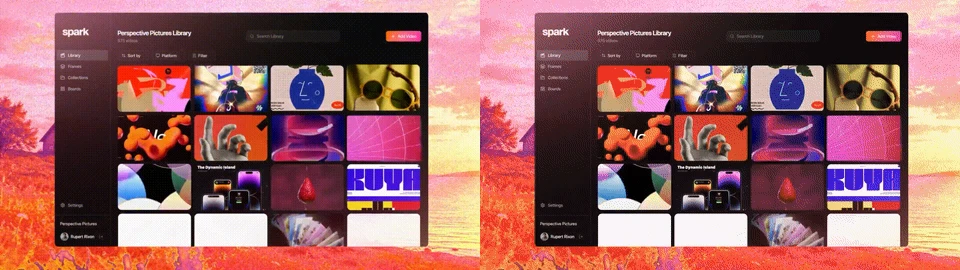
To take a section, add -ss 12 -t 4 before -i: 4 seconds, starting at 12. On a 4-second clip of our own launch film, the command above made a 1.85 MB GIF. Switching the dither to sierra2_4a made it a touch smoother and 3.44 MB. We use Bayer nearly every time. Our guide to making a GIF without losing quality has all 13 versions we tested.
Every MP4 in a folder, in PowerShell:
Get-ChildItem *.mp4 | ForEach-Object { ffmpeg -i $_.FullName -vf "fps=15,scale=480:-1:flags=lanczos,split[a][b];[a]palettegen=stats_mode=diff[p];[b][p]paletteuse=dither=bayer:bayer_scale=3" "$($_.BaseName).gif" }
5. Snipping Tool, for screen recordings
If the GIF is of something on your screen, you may not need a video file at all. Press Windows + Shift + R, select an area and click Start. Microsoft started rolling out a GIF button for these recordings in mid-2025. After you stop, click GIF at the top of the preview (or press Ctrl + G), choose Low (12 fps) or High (24 fps), and export. It only keeps the first 30 seconds. If your Snipping Tool hasn't got the button yet, save the recording as an MP4 and use any method above.
For interface recordings, turn dithering off. Flat buttons and text come out crisper. In ffmpeg, end the command with paletteuse=dither=none; in the browser converter, choose Small.
What about ezgif?
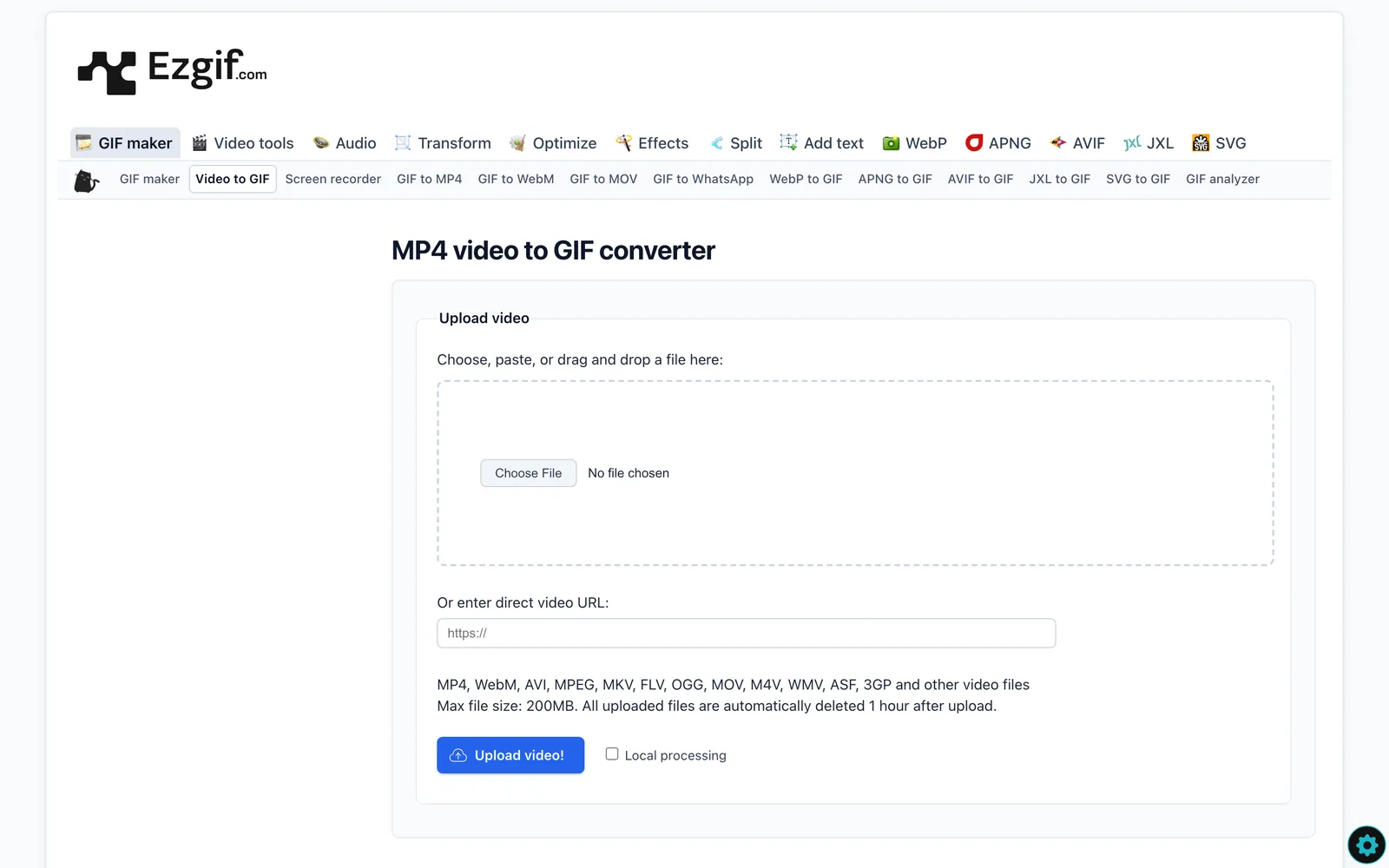
ezgif sits in everybody's bookmarks, and it's free. It uploads your file to convert it, though. For a public trailer, no problem. For a cut the client hasn't approved, we'd rather it stayed on the PC.
When the GIF is still too big
Teams, Slack, email and decks all sulk at big GIFs. Fix it in this order: narrower, shorter, fewer frames. Width matters most because file size grows with roughly the square of it. In our tests, 640 px came out 74% heavier than 480 px.
Content matters almost as much as settings, and you can see it in two loops from our library:
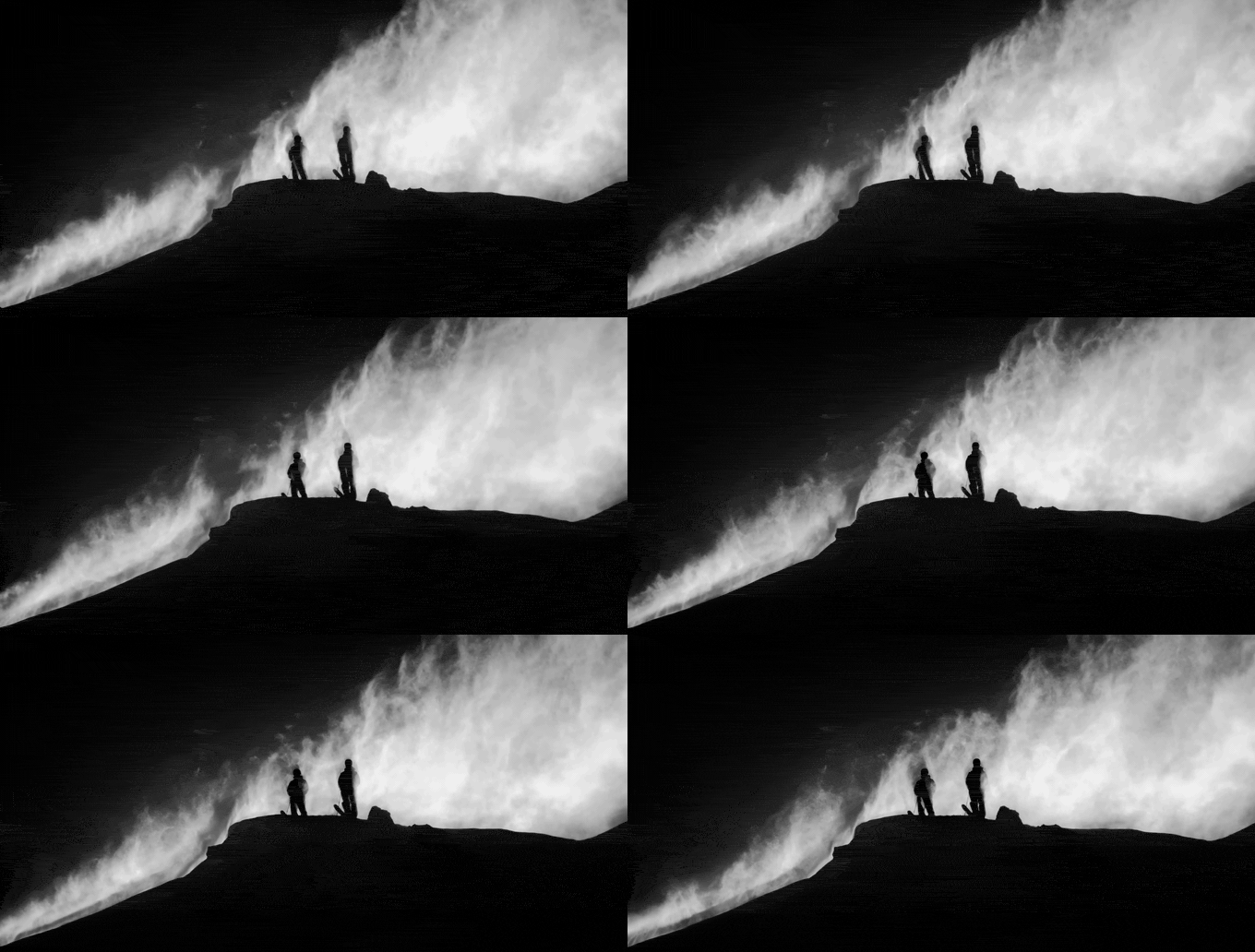
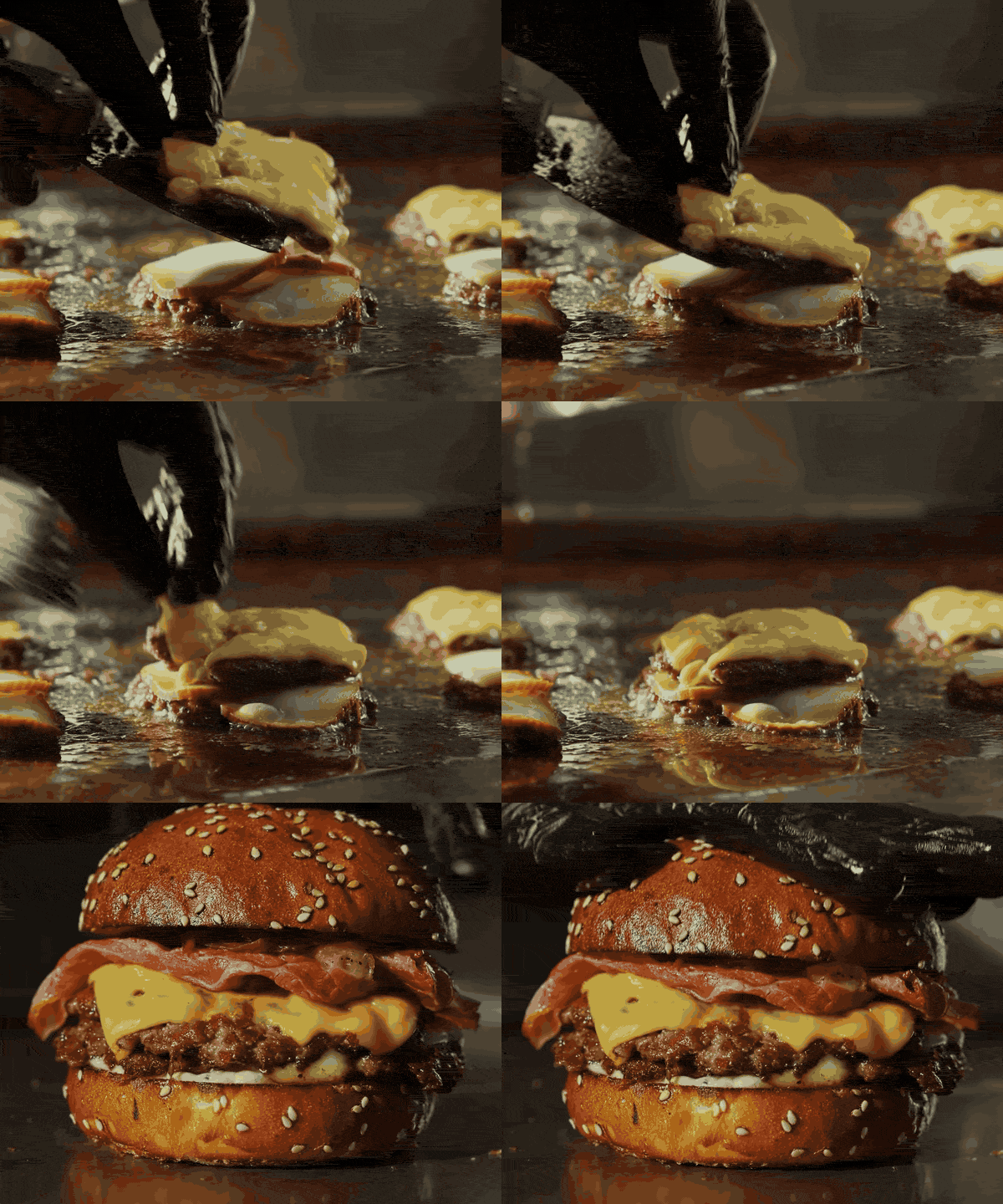
Salomon's black and white ridge is 680 px wide, 10 fps and 1.26 MB, because blowing powder changes every pixel. The Thoth burger is narrower at 600 px, also 10 fps, and still 1.41 MB, because glistening macro food is texture all the way down. Simpler frames compress; busy ones don't, whatever you set. Our GIF compressor can shrink a finished GIF to a target size in the browser, and the guide to reducing GIF file size ranks every fix with measured numbers.
If the video is a reference, not a file
Plenty of the GIFs a production company makes start as someone else's video. The creative director forwards a TikTok, or the client keeps asking for "the blue one" from a Vimeo campaign. On Windows, getting a file out of either usually means a download site with three fake Download buttons, then a converter, then a rummage through Downloads.
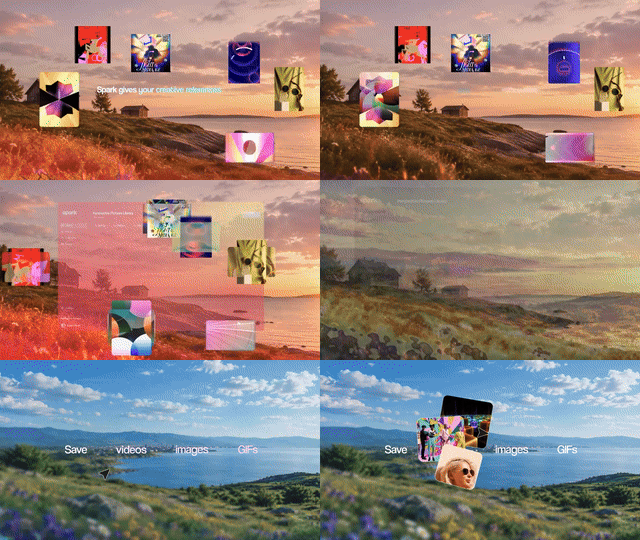
Spark cuts out the first and last of those. It runs on Windows and Mac, saves TikTok, Vimeo and Instagram links into one searchable library, and puts Export GIF on every saved video.
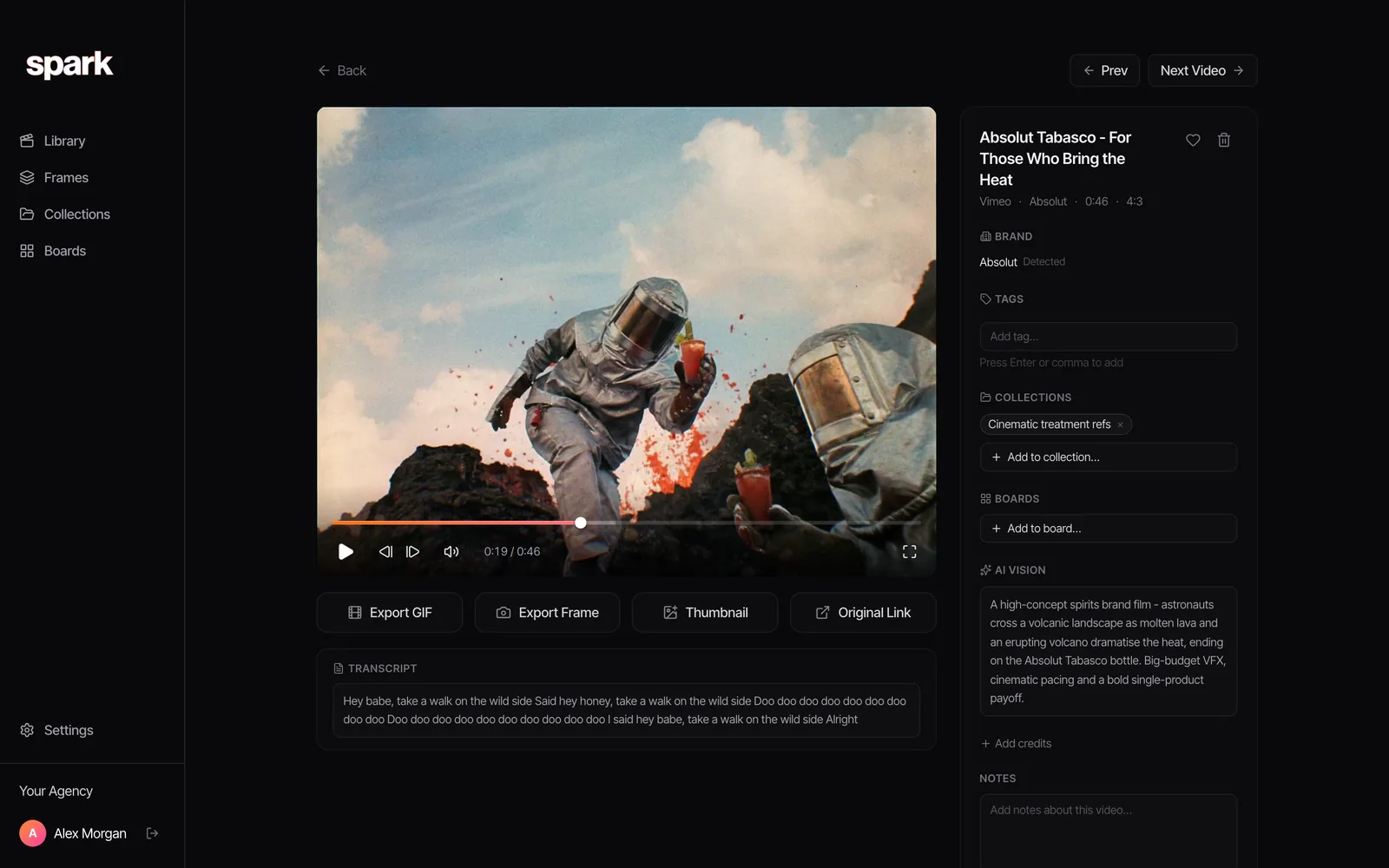
Set the in and out points (they nudge by a second or a tenth), pick 8 to 24 fps and a width from 320 to 1080 px, and the GIF goes into Frames, next to everything else for that pitch.
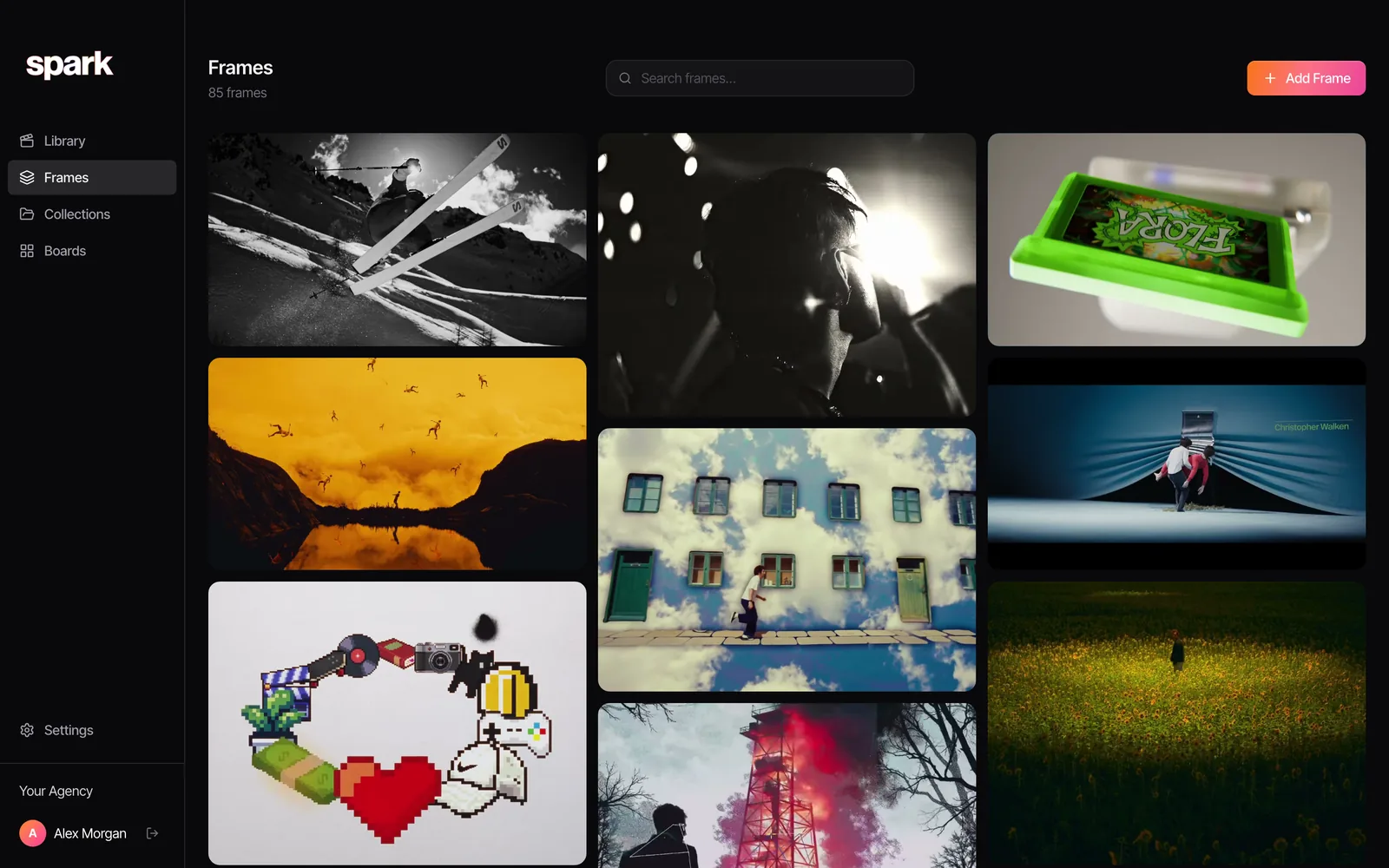
Clipchamp covers the one-off, and ScreenToGif is much better than its name. Spark earns its place when GIFs from references are a weekly job, not a once-a-quarter favour. If those GIFs are going into slides, our guide to inserting GIFs into PowerPoint picks up where this one stops.
FAQs
Does Windows 11 have a built-in GIF maker?
Sort of. Clipchamp, which comes with Windows 11, exports GIFs from videos up to 15 seconds long. Snipping Tool can export screen recordings as GIFs (the first 30 seconds) on versions that have the GIF button. The Photos app can't.
How do I convert a video longer than 15 seconds to a GIF on Windows?
Clipchamp won't, so use ScreenToGif, ffmpeg or a browser converter (ours handles up to 30 seconds per GIF). Think twice, though: a GIF that long will be huge. A short loop of the key moment almost always works better, or a muted MP4 if the destination plays video.
Is ScreenToGif safe?
It's open source, free and widely used. Install the current version from the Microsoft Store, GitHub or winget, because versions up to 2.42.1 had a reported DLL loading vulnerability. Avoid download mirrors that bundle extras. Its website now points to N-Studio, the developer's newer app, but ScreenToGif itself is still free.
What is the best free GIF maker for Windows?
For converting video, ScreenToGif: it opens MP4 files, lets you edit frame by frame and can encode with Gifski. If you'd rather not install anything, use a browser converter that runs locally. For batches, ffmpeg.
How do I make a GIF of my screen on Windows?
Press Windows + Shift + R for a Snipping Tool recording and use its GIF export if your version has it: Low is 12 fps, High is 24 fps. Otherwise record with ScreenToGif's recorder, which saves straight to GIF and lets you trim frames first.
Keep reading
All articles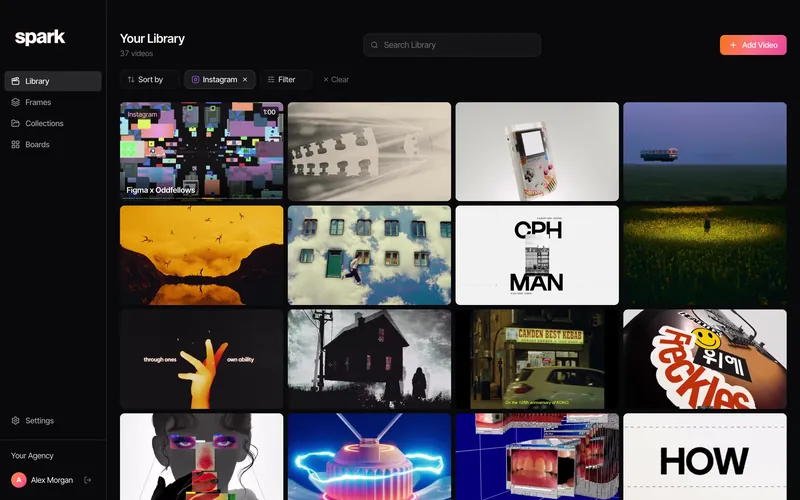
How to Create a GIF from an Instagram Reel
Instagram won't make the GIF for you. Here's how we get the reel, crop it for a horizontal slide and keep the file small, without being a menace about it.

How to Make a GIF from a TikTok Video
TikTok will make you a GIF if the creator allows it. For one that looks good on a slide, you'll want the video, a sensible crop and a GIF that isn't 12 MB. We measured that last bit.
How to Turn a Video into a GIF Without Losing Quality
A GIF can't hold your footage's colours, but it can fool the eye. We exported one clip 13 different ways and measured what each setting really costs.