How to Export a GIF from After Effects
After Effects lost its GIF export years ago. Here's the quick route through Media Encoder, the better one through a PNG sequence, and what a gradient does to the file size.
By the Spark team ·
After Effects can't export a GIF by itself, and hasn't since the 64-bit move back in the CS5 days. So exporting a GIF from After Effects means taking one of three routes. The quick one: Composition > Add to Adobe Media Encoder Queue (Cmd+Opt+M on a Mac, Ctrl+Alt+M on Windows), set the format to Animated GIF, hit the green Start Queue button. The better one: render a PNG sequence, ProRes or H.264 from the Render Queue and convert it with ffmpeg or a converter, which gets you control over colours, dithering and size. And for a short loop you want to fuss over frame by frame, Photoshop.
Which route matters less than what's in the comp. GIF treats a flat-colour animation and a glowing gradient very differently, and we measured how differently further down. If you remember one thing from this page, make it that.
The three routes at a glance
| Route | Cost (as of October 2026) | Control over colours and dither | Best for |
|---|---|---|---|
| Media Encoder, Animated GIF | Included with After Effects (£21.98 a month on the annual plan, billed monthly) | None | A quick review GIF |
| FFmpeg Render Queue, then | Free | Full | Anything a client will see |
| Spark Render Queue, then our browser converter | Free | Quality presets | Good results without a terminal |
| Photoshop Render Queue, then | Separate Adobe app; all apps in Creative Cloud Pro, £66.49 a month | Full, plus locked brand colours | Short loops tuned by hand |

Before you render: build the comp for a GIF
Frame rate: 12.5 or 25, not 24 or 30
GIF stores the delay between frames in hundredths of a second. 25 fps is a clean 4 hundredths, 12.5 fps is 8, 10 fps is 10. 24 and 30 fps can't be stored exactly, so the player rounds frame by frame and smooth motion picks up a faint stutter. We checked the GIFs on this blog: the 15 fps loops alternate between delays of 6 and 7 hundredths, because 6.67 doesn't exist in GIF. You won't notice on footage. You might on a slow, even logo drift.
For most motion graphics, 12.5 fps reads well and halves the frame count. Snappy UI animation or kinetic type might want the full 25.
You don't need to rebuild the comp. In the Render Queue, open Render Settings, set Frame Rate to Use this frame rate and type 12.5. Keyframes live in time, not frames, so a two second move still takes two seconds.
Make the loop actually loop
A GIF loops forever, so the seam shows every couple of seconds, in front of the client, on repeat. Three habits help:
- Make the comp exactly one cycle long, so the frame after the last is identical to the first. If the animation returns to its start pose at 2:00, end the work area on the frame before 2:00, not on it, or you'll get a one frame hitch.
- For anything that cycles (a spinning logo, a pulsing button), keyframe one cycle and add
loopOut("cycle")as an expression.loopOut("pingpong")plays it forward then back. - Preview the work area and let it go round a dozen times. You'll catch on the third pass the hitch you missed on the first.
Flat colour is cheap, gradients are expensive
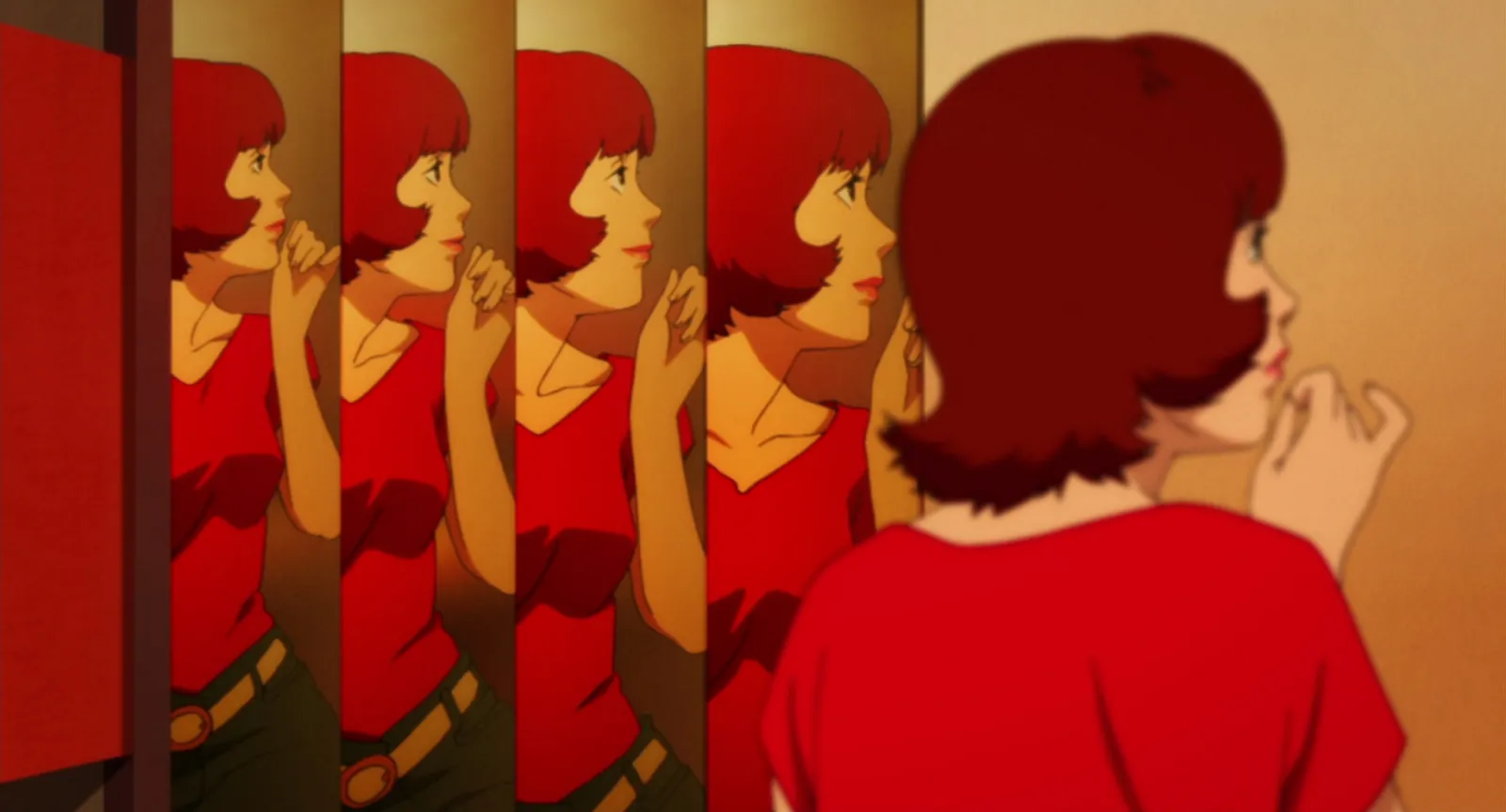
This is the bit nobody tells you. A GIF holds 256 colours per frame, and it compresses by spotting pixels that haven't changed since the last frame. Flat shapes on a flat background tick both boxes. Gradients, glows and anything that drifts in colour break both.
We built a test: the same two shapes sliding across a 1280 x 720 frame for 4 seconds, once on a flat orange background and once on a slowly moving gradient. Each was exported at 480 px and 12 fps with ffmpeg's two-pass palette.
| Background | Dither | GIF size | Same clip as MP4 |
|---|---|---|---|
| Flat orange | None | 0.11 MB | 0.01 MB |
| Flat orange | Bayer | 0.15 MB | |
| Moving gradient | None | 0.72 MB (visible banding) | 0.05 MB |
| Moving gradient | Bayer | 1.25 MB | |
| Moving gradient | Sierra (error diffusion) | 2.03 MB |
Same shapes, same motion, up to nineteen times the file. The smallest gradient version isn't really usable either: with no dither, a smooth blend turns into a contour map. And on flat colour, dither made the file bigger for nothing. It only earns its keep when there's a gradient to hide.
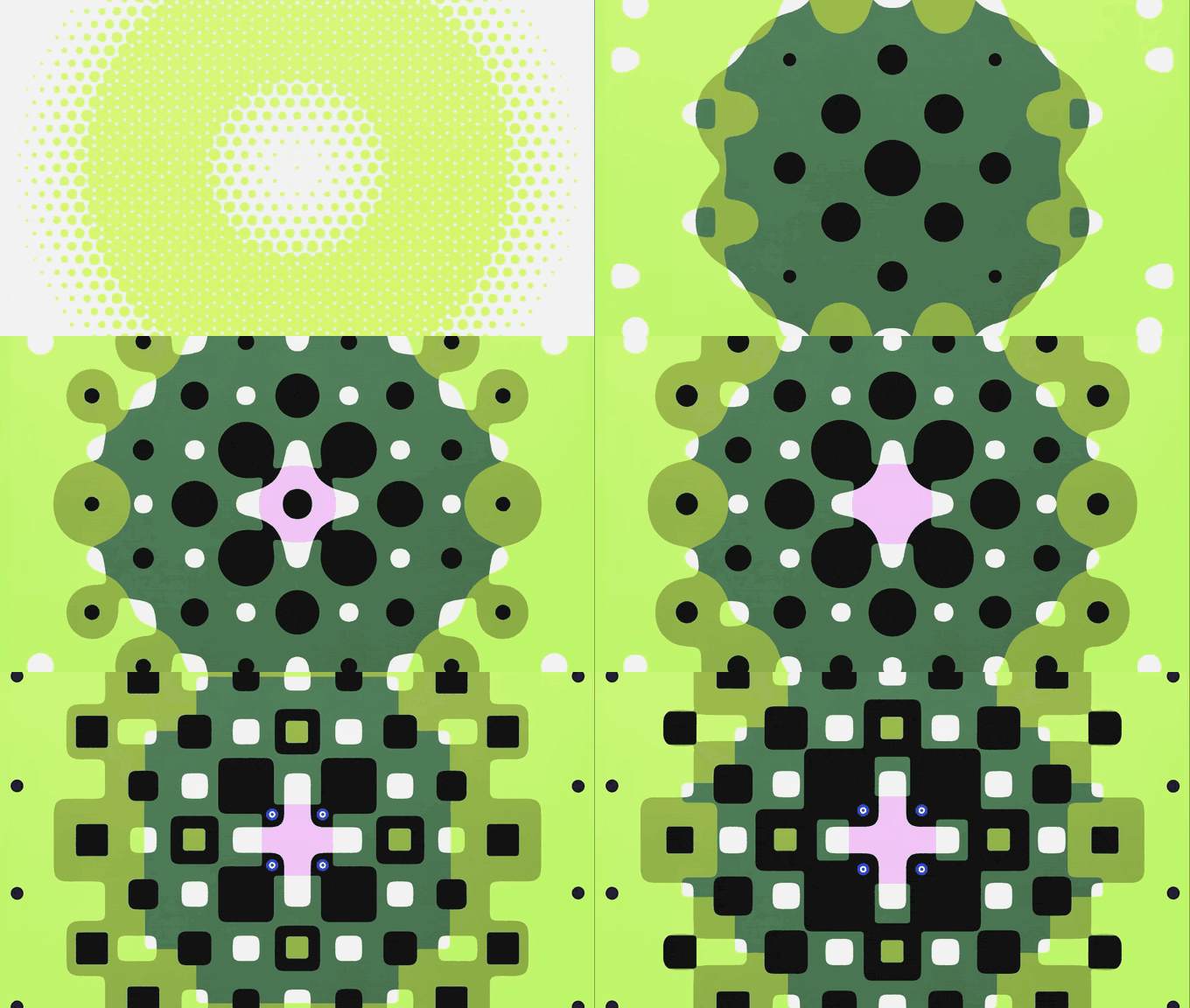
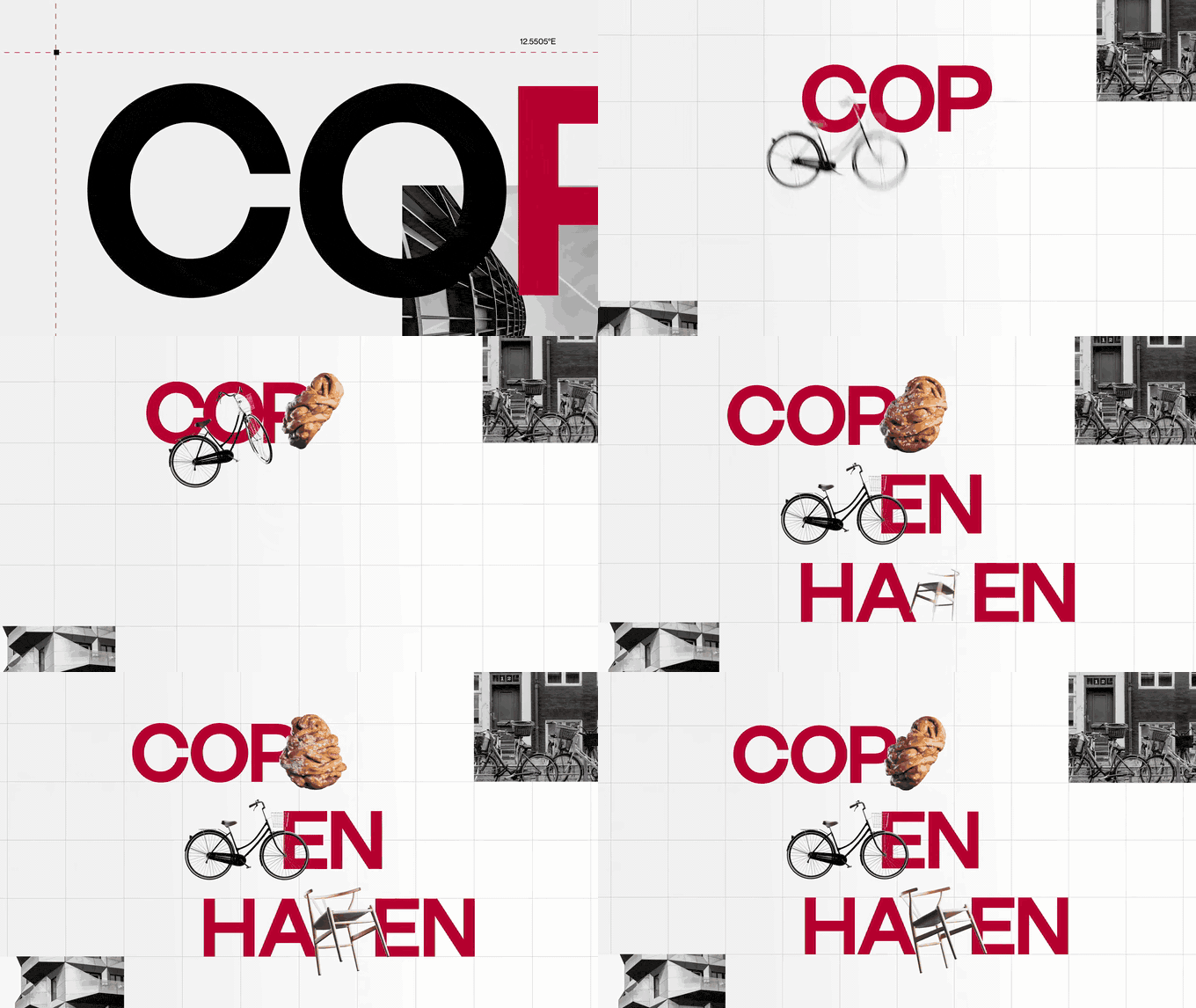
Flat isn't free, mind. Oddfellows' film for Figma is mostly flat greens and pinks, and our three second loop of it is still 1.08 MB at 680 px, because the whole kaleidoscope pulses at once and nearly every pixel changes every frame. Flat colour saves you on the palette. Movement across the frame still costs you on the compression.
So if the GIF matters, design for it. Swap a background gradient for a flat colour or a two-tone split, keep glows tight, and go easy on motion blur, which manufactures in-between colours on every moving edge. Grain and noise are the worst of all.
Route 1: Media Encoder (quick, few controls)
Media Encoder comes with your Creative Cloud apps. If it isn't installed, add it from the Creative Cloud desktop app.
- Select the comp in the Project panel.
- Composition > Add to Adobe Media Encoder Queue, or Cmd+Opt+M (Mac) or Ctrl+Alt+M (Windows).
- Click the Format dropdown on the queue item and choose Animated GIF. Plain GIF gives you a folder of numbered stills, one per frame.
- Click the preset name. Untick Match Source, set the width (480 or 640 px is plenty) and the lowest frame rate that still looks smooth.
- Click the blue Output File path to name it and choose where it goes.
- Press the green Start Queue button.
For a quick review GIF, fine. What's missing is the stuff that matters: no colour count, no dither choice, no lossy compression. Users on Adobe's forums have reported noisy speckles in Media Encoder GIFs that weren't in the comp or in an H.264 of it. If yours comes out speckled, take route 2.
Premiere Pro uses the same encoder with the same quirks, and our guide to exporting a GIF from Premiere Pro covers its strange frame rate menu and the loop problems.
Route 2: render frames, convert with control
Use this route for anything a client will see. Render a clean master once and make as many GIF versions from it as you like.
Render the master
- Select the comp and choose Composition > Add to Render Queue (Cmd+M or Ctrl+M).
- Click Output Module. For ffmpeg or Photoshop, set Format to PNG Sequence, and set Channels to RGB + Alpha if you need transparency. QuickTime in Apple ProRes 422 (or ProRes 4444 with alpha) works too and is tidier than thousands of PNGs.
- Point Output To at a new, empty folder. Ten seconds at 25 fps is 250 PNGs, and you don't want them loose on the desktop.
- Press Render.
Using a browser converter? Set the format to H.264 instead. After Effects has rendered H.264 straight from the Render Queue since version 23.0, the 2023 release, so you don't need Media Encoder for an MP4 any more.
Convert with ffmpeg
From a PNG sequence named the way After Effects names them (Comp 1_00000.png, Comp 1_00001.png and so on):
ffmpeg -framerate 25 -i "Comp 1_%05d.png" -vf "fps=12.5,scale=480:-1:flags=lanczos,split[a][b];[a]palettegen=stats_mode=diff[p];[b][p]paletteuse=dither=bayer:bayer_scale=3" loop.gif-framerate 25 has to match the comp, or the animation plays at the wrong speed. fps=12.5 sets the GIF's rate, 480 its width. From a ProRes file it's simpler:
ffmpeg -i loop.mov -vf "fps=12.5,scale=480:-1:flags=lanczos,split[a][b];[a]palettegen=stats_mode=diff[p];[b][p]paletteuse=dither=bayer:bayer_scale=3" loop.gifFor flat-colour work, change dither=bayer:bayer_scale=3 to dither=none. Our test table shows why.
Transparency
ffmpeg keeps the alpha from a PNG sequence or ProRes 4444, but GIF transparency is all or nothing: each pixel is fully clear or fully solid. Soft edges, drop shadows and anti-aliased type get a crunchy halo. The fix designers have used for decades is to matte it. If you know the GIF will sit on a white slide or a black email, put a solid of that colour behind the animation and render without alpha. It looks transparent, and the edges stay smooth.
Or skip the terminal
Render H.264, drop it into a browser converter like ours, and set width, frame rate and quality there. It runs in your browser, so an unreleased client animation never leaves your machine, and single-frame nudges on the in and out points let you land exactly on the loop point.
Route 3: Photoshop, for loops you want to hand-tune
Slower, but it's the only route that lets you lock specific colours. That matters when a brand orange has to stay that exact orange.
- File > Open, select the first PNG and tick Image Sequence (on a Mac it can hide behind Options). Set the frame rate when asked.
- File > Export > Save for Web (Legacy).
- Choose GIF, set Colors (64 for flat work, 128 to 256 if there's shading) and a dither: No Dither for flat colour, Pattern or Diffusion for gradients.
- In the Color Table, select your brand colours and click the lock icon so they survive.
- Set Looping Options to Forever, check the size estimate bottom left, save.
There are paid plug-ins that export GIFs from inside After Effects, GifGun on aescripts being the best known. Make GIFs every week and it's worth a look. Once a month, the routes above cost nothing.
Settings we'd use for motion graphics
| Where it's going | Width | Frame rate | Dither |
|---|---|---|---|
| Slack or Teams message | 480 px | 12.5 fps | None for flat, Bayer for gradients |
| Email or newsletter | 480 to 600 px | 10 to 12.5 fps | None, and keep it under 1 MB |
| Pitch deck or style frames | 640 px | 12.5 to 25 fps | Bayer |
| A website | Don't. Use an MP4 or a Lottie file |

Over a limit? Our GIF compressor squeezes a finished GIF to a target size without a re-render, and the guide to reducing GIF file size ranks every lever by how much it saved us. For the theory behind palettes and dither, read how to turn a video into a GIF without losing quality.
Where the motion references come in
Most animation starts with someone else's. The title sequence with the ease you can't stop thinking about, the logo sting from a Vimeo reel, the 3D product spin from an Instagram ad. They become GIFs too, in the style frames deck that goes to the client before you've set a single keyframe.
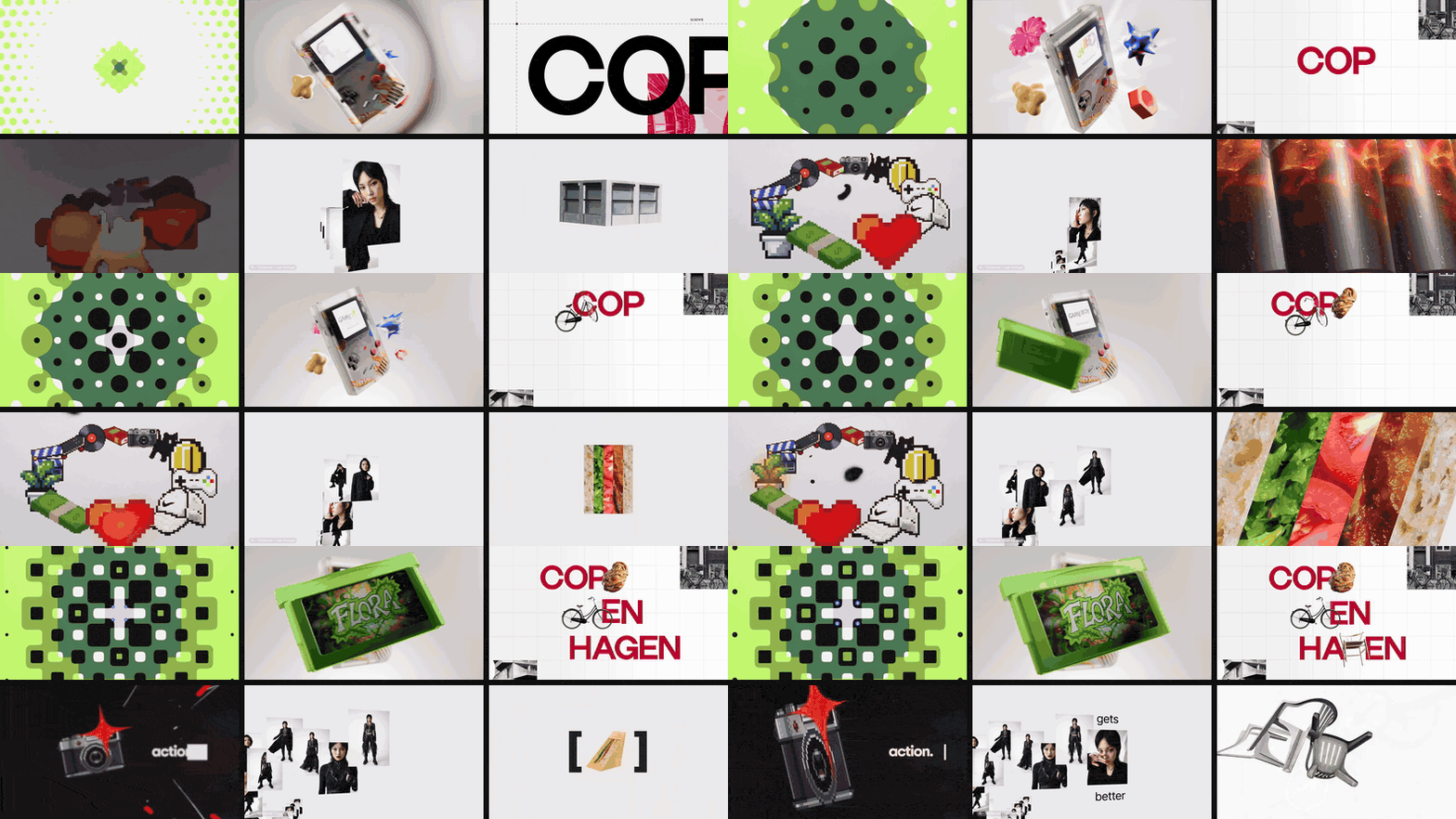
You don't need After Effects for those. We save the reference to Spark from Instagram, Vimeo or YouTube (or catch it with the screen recorder if it lives somewhere that won't save), open it, click Export GIF, trim to the move, and pick a frame rate (8 to 24 fps) and a width (320 to 1080 px). It goes into Frames, next to the stills for the same pitch.
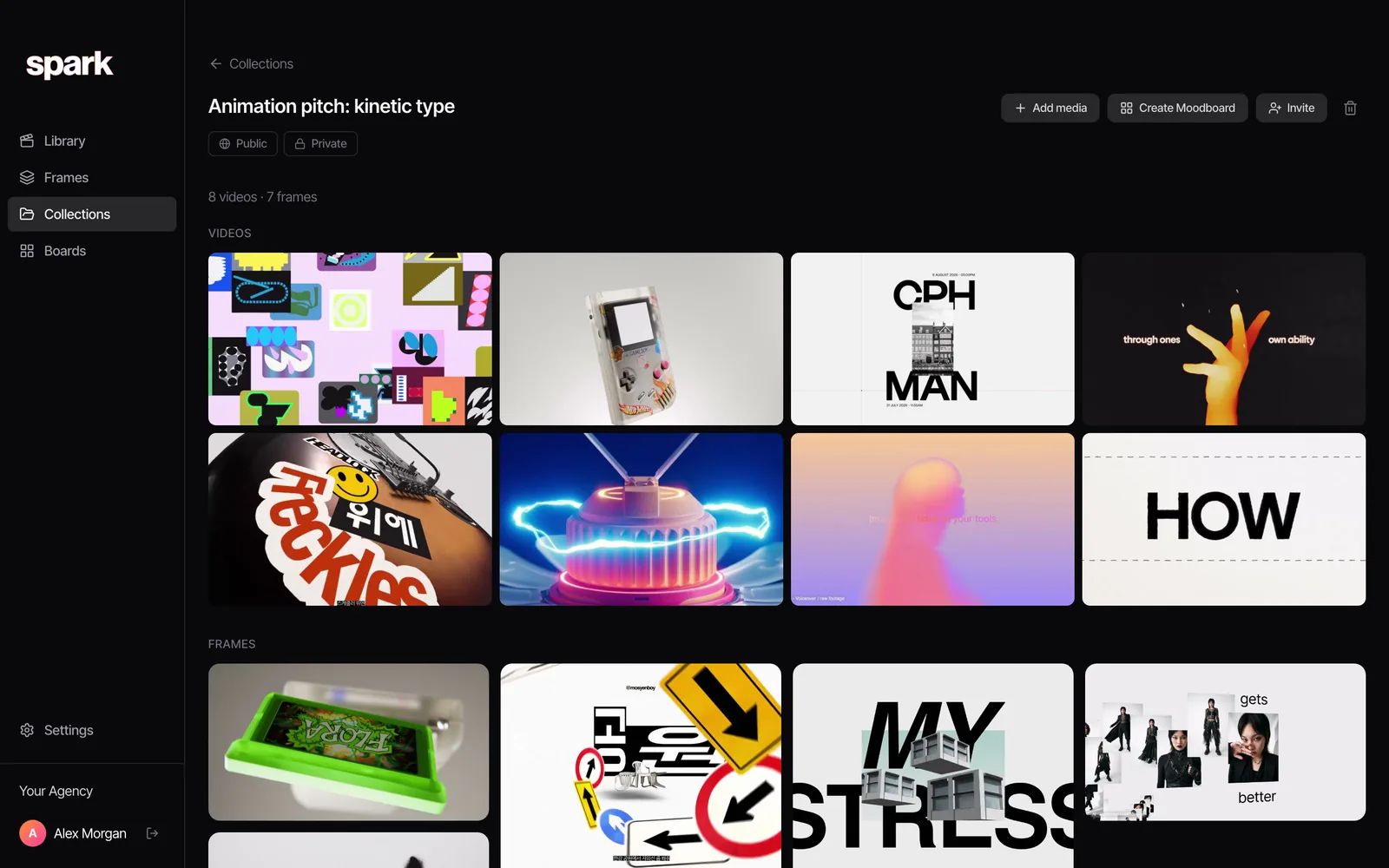
Your own animation still goes through the Render Queue. The twenty references around it shouldn't each need an AE project. If they're heading into a deck, our guide to inserting GIFs into PowerPoint covers what happens to them once they're on a slide.
FAQs
Can After Effects export a GIF directly?
No. After Effects hasn't had a built-in GIF export since the 64-bit releases in the CS5 era. Send the comp to Media Encoder and choose Animated GIF, or render a PNG sequence, ProRes or H.264 file and convert that with ffmpeg, Photoshop or a converter.
Why does my After Effects GIF look grainy or speckled?
Usually dithering: the GIF is faking colours it can't hold by scattering dots of the ones it can. Media Encoder gives you no say in that. Render a master instead and convert with ffmpeg, using dither=none for flat colour or Bayer for gradients, or use Photoshop's Save for Web and pick the dither yourself.
How do I export a transparent GIF from After Effects?
Render a PNG sequence with RGB + Alpha (or ProRes 4444), then convert with ffmpeg or Photoshop, which both keep transparency. GIF pixels are fully clear or fully solid, so soft edges get a halo. If you know the background it will sit on, put a solid of that colour behind the animation and render without alpha instead.
What frame rate should an After Effects GIF be?
12.5 fps for most motion graphics, 25 fps for fast, snappy animation. Both divide cleanly into GIF's hundredths of a second, so they play evenly. Set it in Render Settings with Use this frame rate, or with the fps filter in ffmpeg.
Why is my After Effects GIF so big?
Gradients, glows, grain and motion blur, because they change colour across the frame and between frames. In our test the same animation was 0.11 MB on a flat background and 2.03 MB on a moving gradient. Drop the width, go to 12.5 fps, and redesign the background if you can.
Should I use a GIF or an MP4 for motion graphics?
If the destination plays video, MP4: our gradient test was 0.05 MB as an MP4 against 1.25 MB as a GIF. GIF wins in email, in Slack threads where you want it to play without a click, and anywhere that only takes images. Our GIF vs MP4 for presentations guide has the full breakdown by app.
Keep reading
All articles
How to Export a GIF from Adobe Premiere Pro
Premiere will export a GIF. It just won't give you much say in how. Here's the direct route, its limits, and the workaround most editors use instead.
How to Make a GIF from a Vimeo Video
Vimeo has a GIF maker, but only for your own videos. For the director's reel you actually want to reference, here's how to get the moment out cleanly, without the black bars.
How to Convert MP4 to GIF on Windows
The Photos app won't do it, Clipchamp will (just about), and ScreenToGif is better than its name suggests. Every free route on Windows, tested and ranked.