How to Export a GIF from Adobe Premiere Pro
Premiere will export a GIF. It just won't give you much say in how. Here's the direct route, its limits, and the workaround most editors use instead.
By the Spark team ·
To export a GIF from Premiere Pro, mark in and out points on the timeline, press Cmd+M (Mac) or Ctrl+M (Windows) to open Export, set Format to Animated GIF, untick Match Source and bring the width down to 480 or 640 px, set Range to Source In/Out, and click Export.
Pick Animated GIF, not GIF. Plain GIF gives you a folder with one still per frame. We have all done this, usually when the deck is due in an hour.
That's the direct route and it works. It also hands you a big file and very few controls, which is why plenty of editors skip it, export a ProRes and make the GIF somewhere else. Both routes are below, with the numbers we got when we tried them.
This describes Export mode, which Premiere has used since version 22 (2022) and still uses in the 2025 releases. If Cmd+M opens an old-style Export Settings window, you're on something older than version 22, but the format and settings have the same names.
Two routes, side by side
| Route | Cost (as of October 2026) | Size control | Best for |
|---|---|---|---|
| Premiere's own Animated GIF export | Included with Premiere Pro (£21.98 a month on the annual plan, billed monthly) | Width, frame rate, range | Quick review GIFs |
| Media Encoder queue | Included with Premiere Pro | Same as above | Batching several GIFs while you keep cutting |
| FFmpeg ProRes, then | Free | Everything: colours, dither, palette | GIFs a client will scrutinise |
| Spark H.264, then our browser converter | Free | Width, fps, quality, frame-accurate trim | Good GIFs without a terminal |
| Gifski ProRes, then (Mac) | Free | Width, fps, quality | The cleanest GIF with the least fuss |



Exporting an animated GIF directly from Premiere
- Trim first. In the timeline, press I at the start of the moment and O at the end. Two to four seconds is right for a deck. Six is pushing it.
- Open Export. Cmd+M or Ctrl+M, or click Export in the header.
- Choose the format. In Settings, set Format to Animated GIF. Leave the preset alone.
- Name it. Set File Name and Location. "Lobby push in, 4s, 640" beats "Sequence 01.gif" when you're hunting for it at 11pm.
- Shrink the frame. In the Video section, untick Match Source and set the width to 640 (or 480 for email). Keep width and height linked.
- Lower the frame rate. Pick the lowest rate on the list that still reads as motion. The menu is odd, more on that below.
- Set the range. Under the preview, change Range to Source In/Out. If it says Entire Source, you're about to make a GIF of your whole sequence.
- Check the estimate. Premiere shows an estimated file size near the bottom. If it says 40 MB, believe it, and go back to steps 5 and 6.
- Export.
Several GIFs (one per shot for a treatment, say)? Click Send to Media Encoder instead. It queues them and renders in the background while you carry on cutting. Same encoder, same limits, so don't expect better GIFs, just less waiting.
The settings we'd use
| Use | Width | Frame rate | Length |
|---|---|---|---|
| Pitch deck or treatment | 640 px | 10 to 15 fps (whatever's offered) | 2 to 4 s |
| Email or a client on their phone | 480 px | 10 to 12 fps | 2 to 3 s |
| Slack or a quick review | 480 px | 10 to 15 fps | up to 5 s |
| Website hero | Don't. Use an MP4 |

Why the frame rate menu is strange
People on Adobe's forums have noticed that the Animated GIF frame rates don't match the video ones. In version 25.1, for instance, 30 fps wasn't offered; the nearest choices were 25 and 50. Adobe isn't being awkward for fun. GIF stores the delay between frames in hundredths of a second, so 25 fps (4 hundredths) and 50 fps (2 hundredths) are exact and 30 fps (3.33) can't be. 10, 12.5 and 20 fps divide cleanly too. Anything else gets rounded frame by frame, which is where judder comes from. Even the 15 fps loops on this blog alternate between delays of 6 and 7 hundredths.
The practical upshot: pick the lowest option that keeps the motion alive. And never go above 50, because many browsers treat very short delays as a slow default, and your "smooth" GIF plays in slow motion.
Why Premiere GIFs are so big
Three reasons, worst first.
It defaults to your sequence settings. Leave Match Source ticked and you get a 1920 x 1080 GIF at your sequence frame rate. GIF size grows roughly with the square of the width, and 1920 px is about 16 times the pixels of 480. We exported the same 4-second clip of our launch film with ffmpeg and a tuned two-pass palette. Even at 1080 px and 15 fps it came out at 16.47 MB. At 480 px it was 3.44 MB.
There's almost no compression control. No colour count, no dither choice, no lossy compression. Those are the levers that make GIFs small, and Premiere hides all three.
Length creeps. Five seconds at 25 fps is 125 full frames. GIF compresses between frames far worse than a video codec, so every extra second costs nearly full price.
Premiere quirks worth knowing
GIFs that won't loop. Since at least 2022, people on Adobe's forums have reported Premiere GIFs that play once and stop in some viewers, and no single cause has been pinned down. If yours does it, fix the loop flag with gifsicle (free; brew install gifsicle on a Mac):
gifsicle --loopcount=forever premiere.gif -o looping.gifOr sidestep it: export a video file (route below) and make the GIF in a converter that loops explicitly. ffmpeg loops by default.
Transparency. Adobe added a Transparency option for GIFs (None, Dithered or Hard Edges) in 2022 beta builds, for sequences with alpha. Not everyone sees it in release versions, so check yours before promising a client a transparent logo sting. For animated logos, a WebM or ProRes 4444 is usually the better deliverable anyway.
Colour shifts. GIF has no colour management worth the name. If the grade looks a touch off, that's normal. Check it in a browser, because that's where the client will see it.
The route most editors use: export ProRes, then convert
When a GIF matters (the hero reference in a treatment, a moment for the director's deck), a lot of editors never touch Premiere's GIF export. They export a clean, full quality clip of just the range they want, then make the GIF in something with proper controls. It's what we do.
Step 1: export a mezzanine file
- Set in and out points as before.
- In Export, set Format to QuickTime and choose Apple ProRes 422. On Windows too: Premiere has exported ProRes on Windows since 2019.
- Leave Match Source ticked. You want full quality now and you'll shrink it later.
- Set Range to Source In/Out and export.
ProRes saves you compressing twice, and it's what ffmpeg and Photoshop like best. Using a browser converter? Export a high bitrate H.264 instead, because browsers often can't decode ProRes.
Step 2: convert it
The easy option. Drop the H.264 into our Video to GIF tool. It runs in your browser and nothing is uploaded, which matters for an unreleased cut. Set the trim (comma and full stop nudge it by one frame), width (320 to 1080 px), frame rate (10 to 24 fps) and a quality preset. Clips max out at 30 seconds, which is plenty.
Best results for the size: ffmpeg. This builds a custom palette from your clip and uses Bayer dithering. In our test it came out at about half the size of ffmpeg's error diffusion dither (1.85 MB against 3.44 MB at 480 px and 15 fps), and on a slide you'd struggle to tell them apart:
ffmpeg -i clip.mov -vf "fps=15,scale=640:-1:flags=lanczos,split[a][b];[a]palettegen=stats_mode=diff[p];[b][p]paletteuse=dither=bayer:bayer_scale=3" clip.gifChange 640 for the width and 15 for the frame rate. Our guide to converting MP4 to GIF on a Mac covers installing ffmpeg with Homebrew, and the Windows version does it with winget.
When you need to touch frames: Photoshop. If the GIF needs a text overlay, a crop around a logo or a few frames cut, go File > Import > Video Frames to Layers, make your changes, then File > Export > Save for Web (Legacy). Choose GIF, set the colours (128 is often enough), pick a dither and set Looping Options to Forever. Photoshop has long had a 500 frame limit on that import, about 33 seconds at 15 fps, so it won't bite you for a GIF. Slower than the rest, but it's the only route that lets you fix frame 37 by hand.
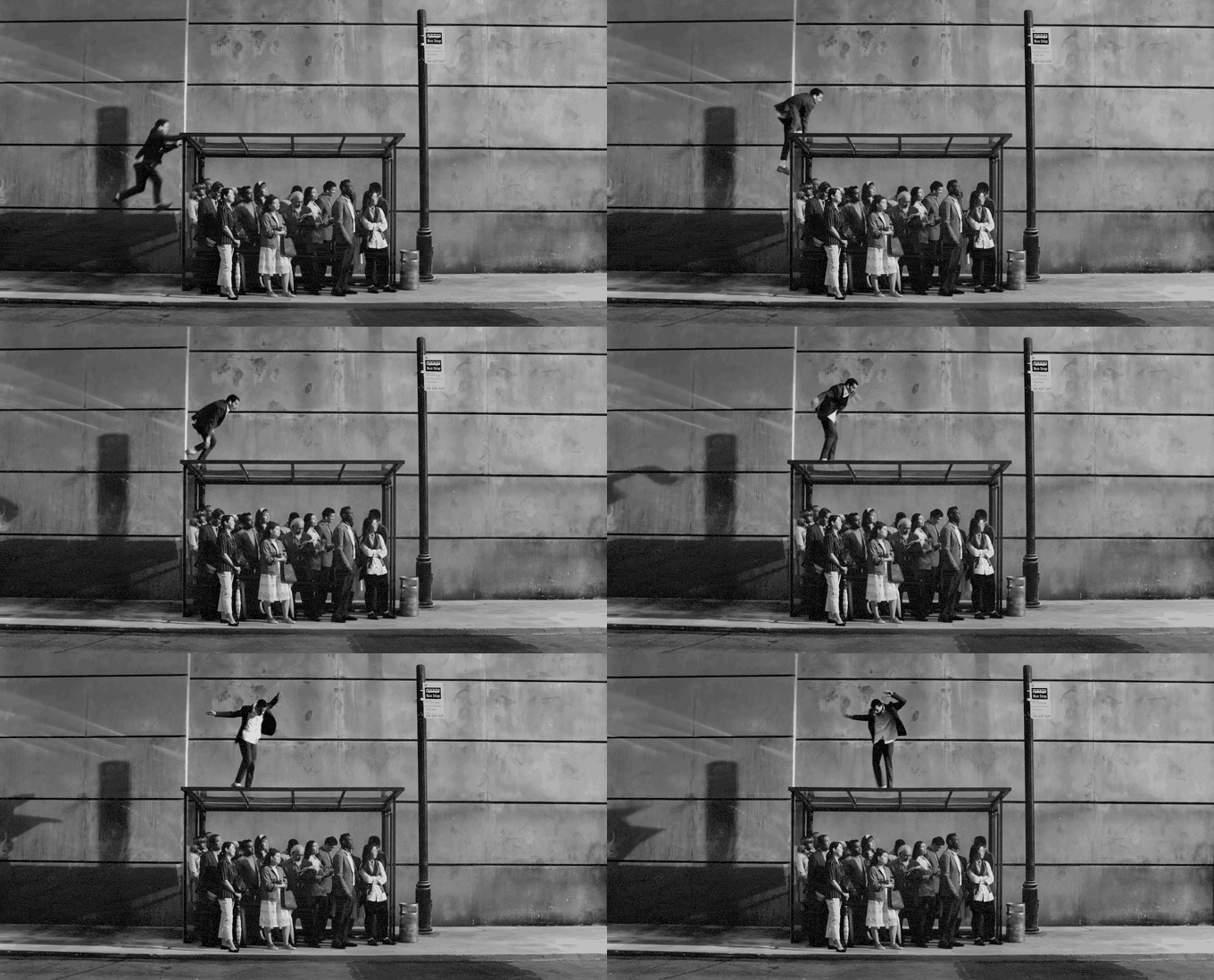
On a Mac: Gifski. A free app that makes clean GIFs with very little fuss. Push the quality slider to the top and files grow fast, so check the size before you email one.
That example is 1.18 MB. The same clip at 800 px and 25 fps with ffmpeg's defaults was 5.99 MB and looked worse. Still over a limit (Slack, Gmail, a client's ancient Keynote)? Our GIF compressor shrinks a finished GIF to a target size, and the guide to shrinking a GIF that's too big has the order to try things in. For the theory, read how to turn a video into a GIF without losing quality.
Premiere's own export or the ProRes route?
Use Premiere's own export when it's a quick review GIF, the clip is short and nobody will scrutinise it. Set width and frame rate properly and it's fine.
Export ProRes and convert when the GIF goes in front of a client, has to stay under an email limit, or has to look like the grade you spent three days on. Two extra minutes, and the difference between a GIF and a good GIF. Motion graphics follow the same split with a twist (flat colour compresses beautifully, gradients don't), which our guide to exporting a GIF from After Effects measures.
Opening Premiere just to GIF someone else's film
A confession. We built Spark at Perspective Pictures partly because we kept opening Premiere to make GIFs of other people's work for treatments: import the downloaded reel, find the moment, set in and out, export, rename. Starting the car to fetch the post.
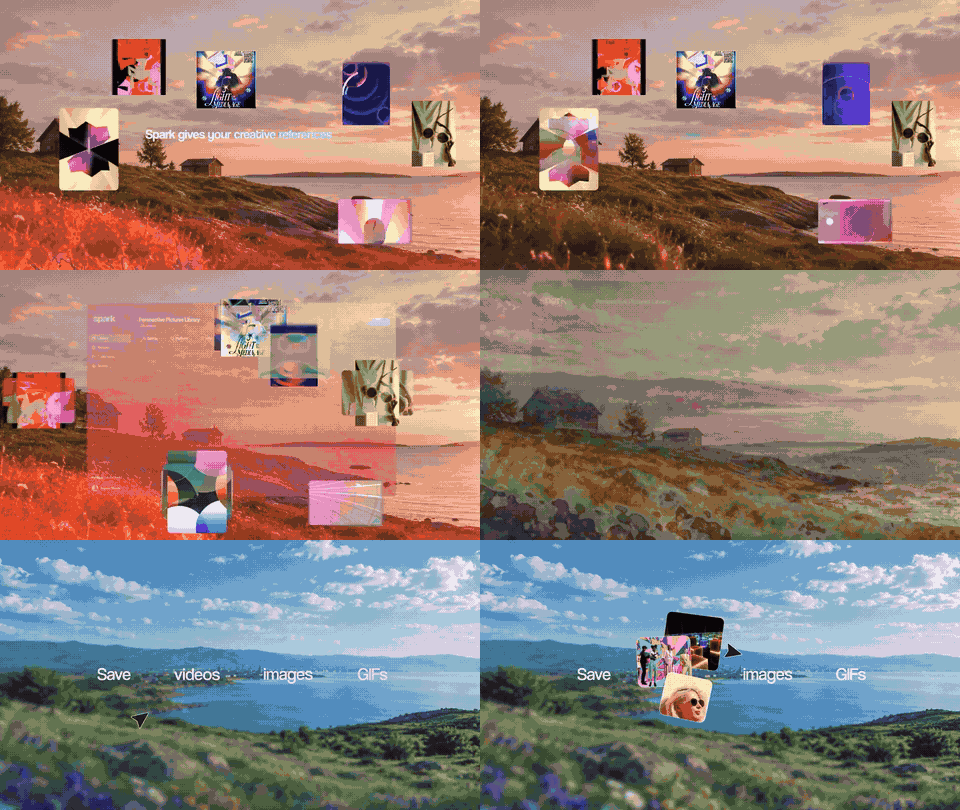
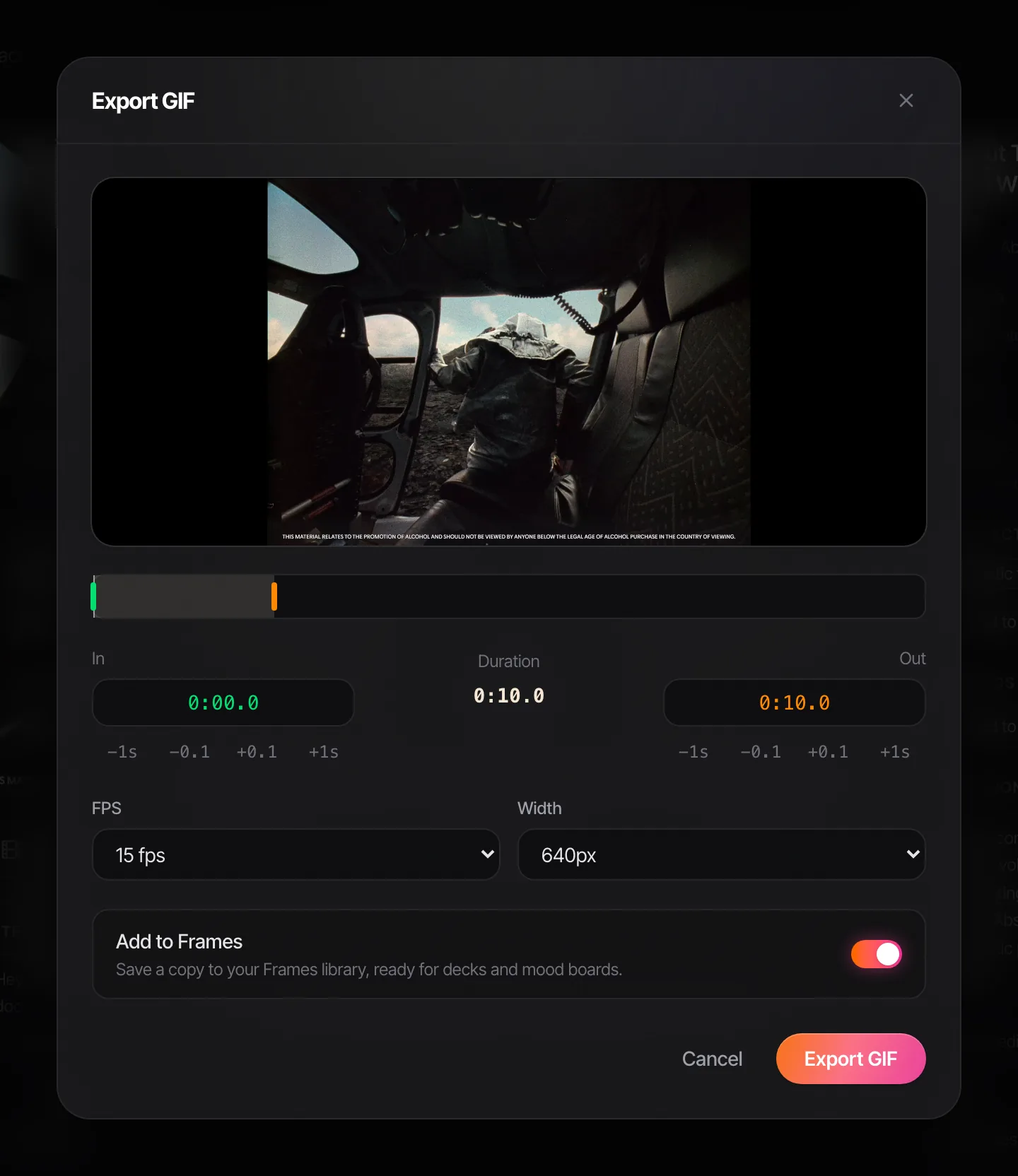
In Spark, the reference is already in your library. Scrub to the moment, step frame by frame if you need to, and click Export GIF.
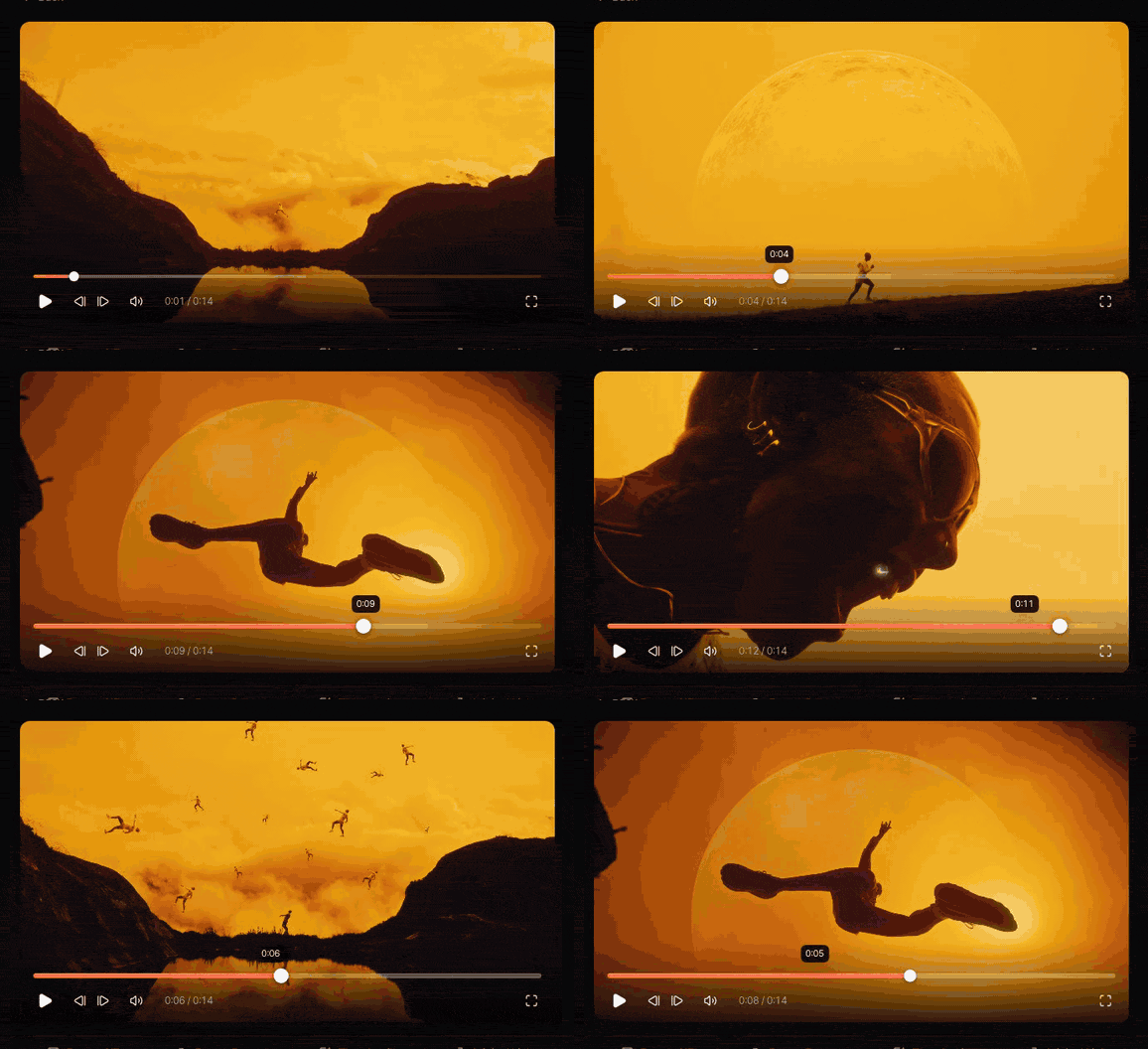
Set in and out (they nudge by a second or a tenth), pick 8 to 24 fps and a width from 320 to 1080 px, and the GIF lands in Frames, ready for the next deck.
For your own cuts, Premiere and a converter are the right tools. For the references around them, save the video once and pull GIFs from it whenever a deck needs one. If those GIFs end up in slides, our guide to inserting GIFs into PowerPoint covers what happens next.
FAQs
Why can't I find Animated GIF in Premiere's export formats?
Open Export mode (Cmd+M or Ctrl+M) and look in the Format dropdown under Settings. It's listed as Animated GIF, separately from GIF. Very old Mac versions of Premiere didn't offer it, so if it's missing, update Premiere or use Send to Media Encoder and pick the format there.
Why does Premiere export a GIF as hundreds of separate files?
You picked GIF instead of Animated GIF. Plain GIF exports each frame as its own still. Switch the format to Animated GIF and export again.
How do I make a Premiere Pro GIF smaller?
Untick Match Source and drop the width to 480 or 640 px, choose a lower frame rate, and shorten the range to two to four seconds. Those are the only size controls Premiere gives you. For more, export ProRes and convert with ffmpeg or a converter that lets you set colours and dither.
Can Premiere Pro export a GIF with a transparent background?
Some versions show a Transparency setting for Animated GIF (None, Dithered or Hard Edges) when the sequence has alpha, but not everyone sees it in release builds. GIF transparency is all or nothing per pixel, so soft edges look rough. A WebM or ProRes 4444 file is usually better for animated logos.
Can I export a GIF from Media Encoder instead?
Yes. Click Send to Media Encoder in Premiere's Export mode, set the format to Animated GIF and start the queue. It's the same encoder, so the GIFs are the same, but it's handy for batching while you keep editing.
What's the best frame rate for a GIF from Premiere?
Between 10 and 15 fps, or the lowest rate on the list that still looks like motion. Rates that divide cleanly into hundredths of a second (10, 12.5, 20, 25) play most evenly. Avoid going above 50 fps, because many browsers slow down GIFs with very short frame delays.
Keep reading
All articles
How to Export a GIF from After Effects
After Effects lost its GIF export years ago. Here's the quick route through Media Encoder, the better one through a PNG sequence, and what a gradient does to the file size.
How to Make a GIF from a Vimeo Video
Vimeo has a GIF maker, but only for your own videos. For the director's reel you actually want to reference, here's how to get the moment out cleanly, without the black bars.
How to Convert MP4 to GIF on Windows
The Photos app won't do it, Clipchamp will (just about), and ScreenToGif is better than its name suggests. Every free route on Windows, tested and ranked.