How to Make a Moodboard in PowerPoint
PowerPoint is better at moodboards than its reputation. The trick is building one layout properly in the Slide Master, then never fighting a crop again.
By the Spark team ·
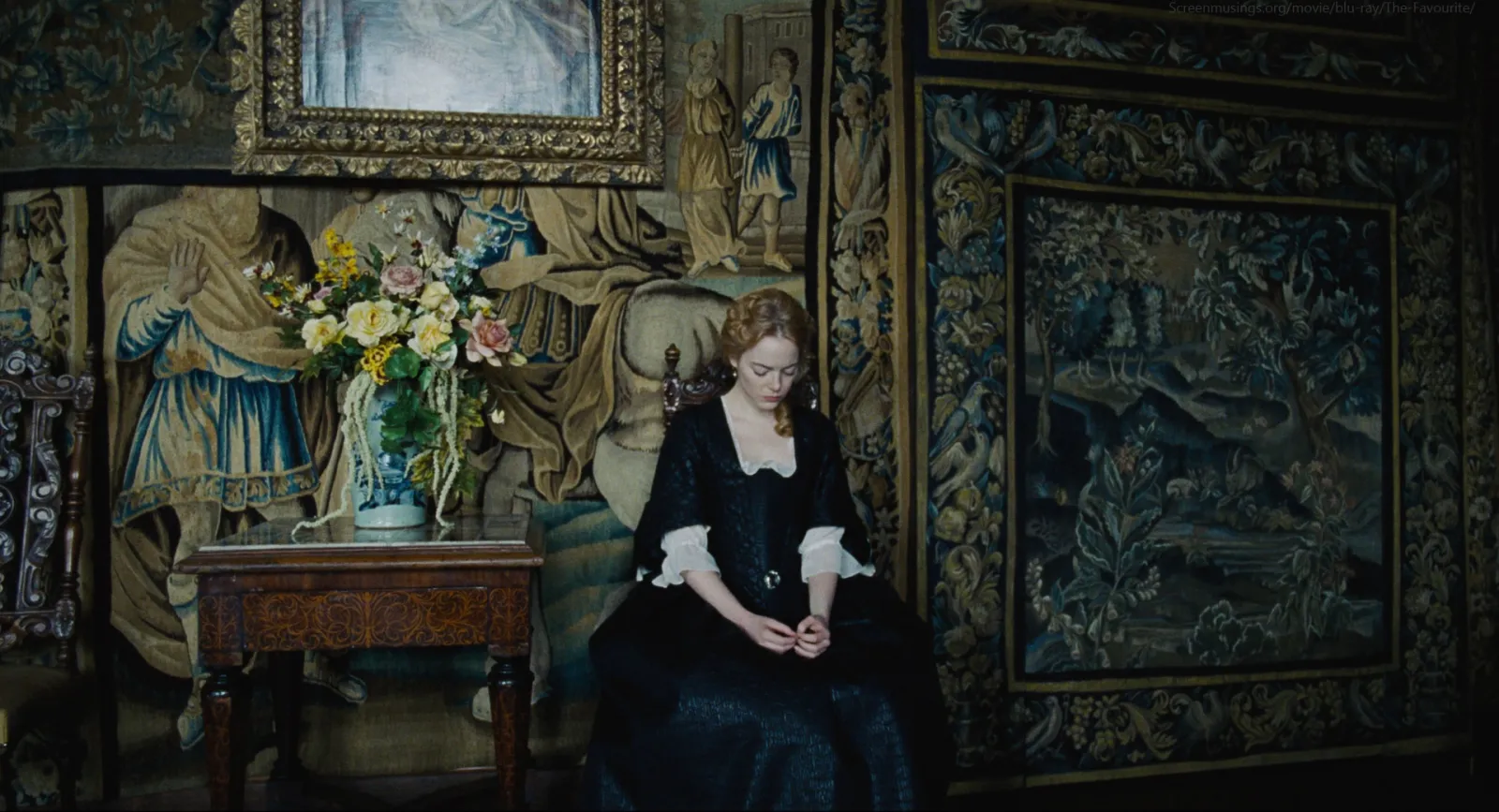
To make a moodboard in PowerPoint, open a blank 16:9 presentation, go to View > Slide Master and build one layout out of picture placeholders: a big hero, a few supporting slots, a strip for colour swatches. Close the master and drop your references into those slots. Each image crops itself to fill its box. Add a one line label under each, sample your swatches with the eyedropper, and export a PDF for the client. Twenty minutes, and the grid never drifts.
Most guides have you dragging pictures around a blank slide. Fine for one board. By the third you're nudging images by eye at 11pm and every gap is slightly different. We've been there. Do the boring setup once and every board after it is drag, drop, done. Menu names are from Microsoft 365 PowerPoint in October 2026; where Windows and Mac differ, you get both.
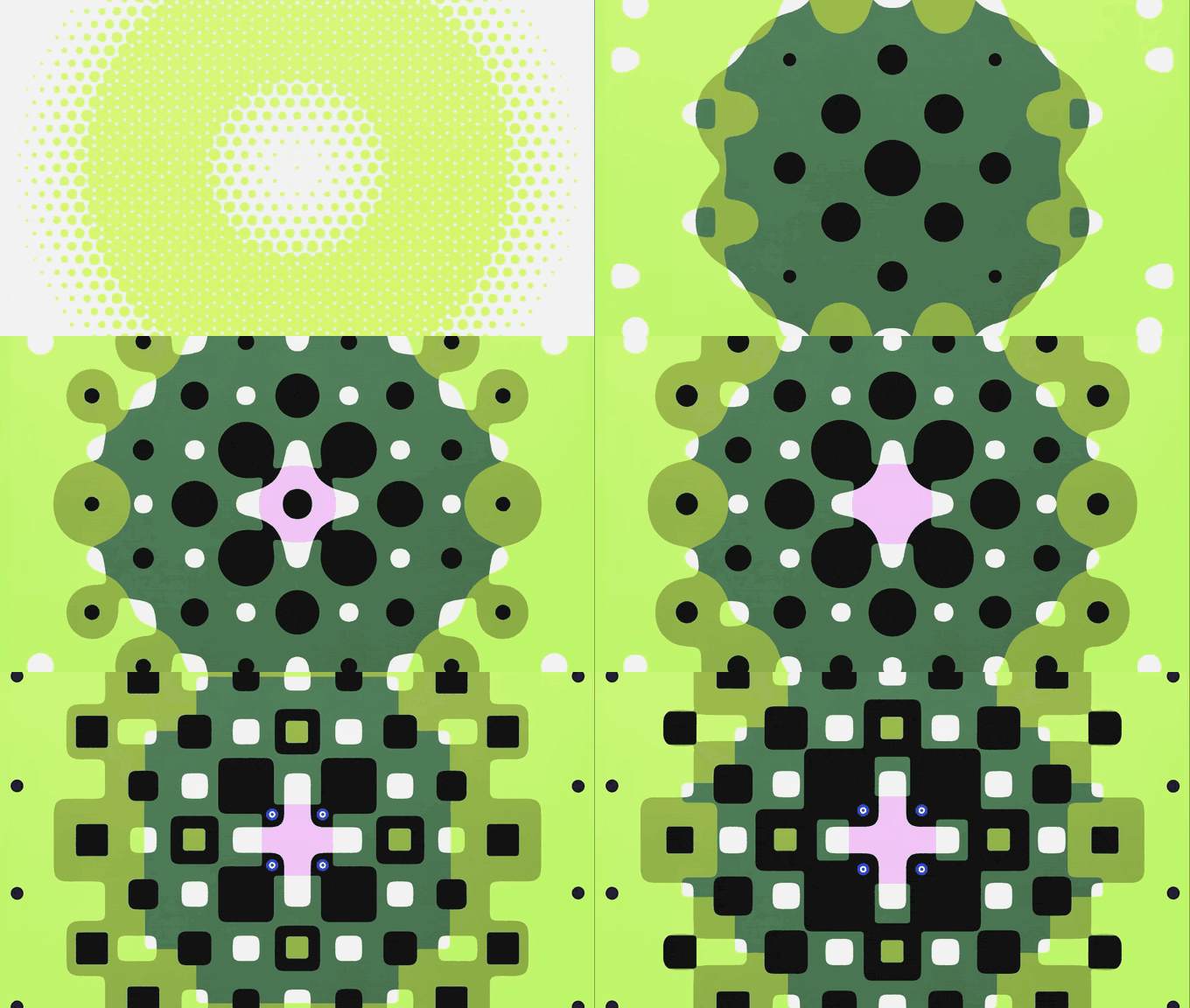
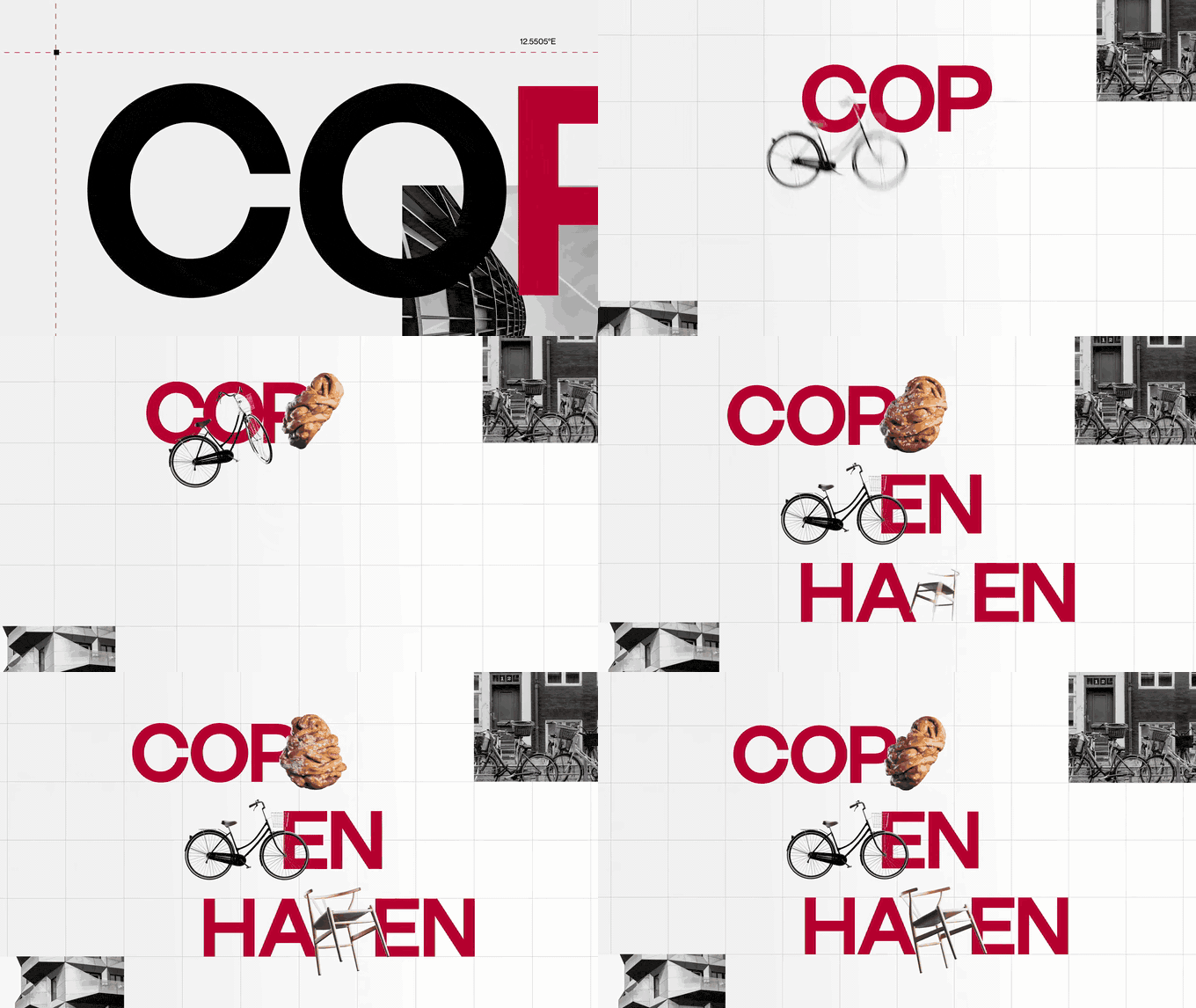

Three references from an animation board, all GIFs, all moving in PowerPoint's Slide Show. PowerPoint's reputation is beige bullet points. It's quietly very good at this.
First, the thinking (which isn't PowerPoint's job)
PowerPoint will happily lay out twenty frames that contradict each other. Deciding what goes on the board, and why, is the hard part in every app. Our producer's guide to making a moodboard for a video project covers it. From here on we assume the references are in a folder.
Step 1: set up the slide
Start a Blank Presentation. The default 16:9 slide (33.867 by 19.05 cm) is the right shape for a laptop, a meeting room TV and a PDF on a phone held sideways. Leave it alone.
For a portrait board for print, change it now, before anything is on the slide: Design > Slide Size > Custom Slide Size on Windows, Design > Slide Size > Page Setup on a Mac. Change it later and PowerPoint asks whether to maximise or scale your content. Both answers are wrong.
Step 2: build a moodboard layout in the Slide Master
This is the step that makes PowerPoint good at moodboards.
- Go to View > Slide Master.
- Click Insert Layout. A new layout appears in the left hand list.
- Untick Title and Footers on the Slide Master tab, so the layout is empty.
- Click Insert Placeholder > Picture and draw a box. That's a picture slot.
- Repeat for every slot in your grid (sizes below).
- Right-click the layout in the list, Rename Layout, call it "Moodboard 1+2+3".
- Click Close Master View.

Now Home > New Slide and pick your layout. Each slot shows a small picture icon. Click it, choose an image, and PowerPoint drops it in cropped to fill the box. No stretching, no wonky gaps.
Why it matters: insert a picture onto a blank slide or a content placeholder and PowerPoint keeps the whole image at its own shape. Insert it into a picture placeholder and it's cropped to the slot. For a grid, that's exactly what you want.
A layout recipe that works
One hero, two supporting frames, three details and five colours, on the standard 16:9 slide with a 1 cm margin and 0.5 cm gaps. Type sizes into Picture Format > Size, and positions into the Format pane's Size & Properties section (on Windows, right-click the placeholder and choose Size and Position).
| Slot | Width | Height | From left | From top |
|---|---|---|---|---|
| Hero | 20 cm | 11.25 cm | 1 cm | 1 cm |
| Support 1 | 11.37 cm | 5.38 cm | 21.5 cm | 1 cm |
| Support 2 | 11.37 cm | 5.38 cm | 21.5 cm | 6.88 cm |
| Details 1 to 3 | 6.33 cm each | 5.3 cm | 1, 7.83 and 14.67 cm | 12.75 cm |
| Swatches (5 squares) | 2.07 cm each | 2.07 cm | from 21.5 cm, 0.25 cm apart | 12.75 cm |
The hero is a true 16:9 box, so a film still sits in it uncropped. The swatches aren't placeholders; you'll draw them as plain squares in step 6.
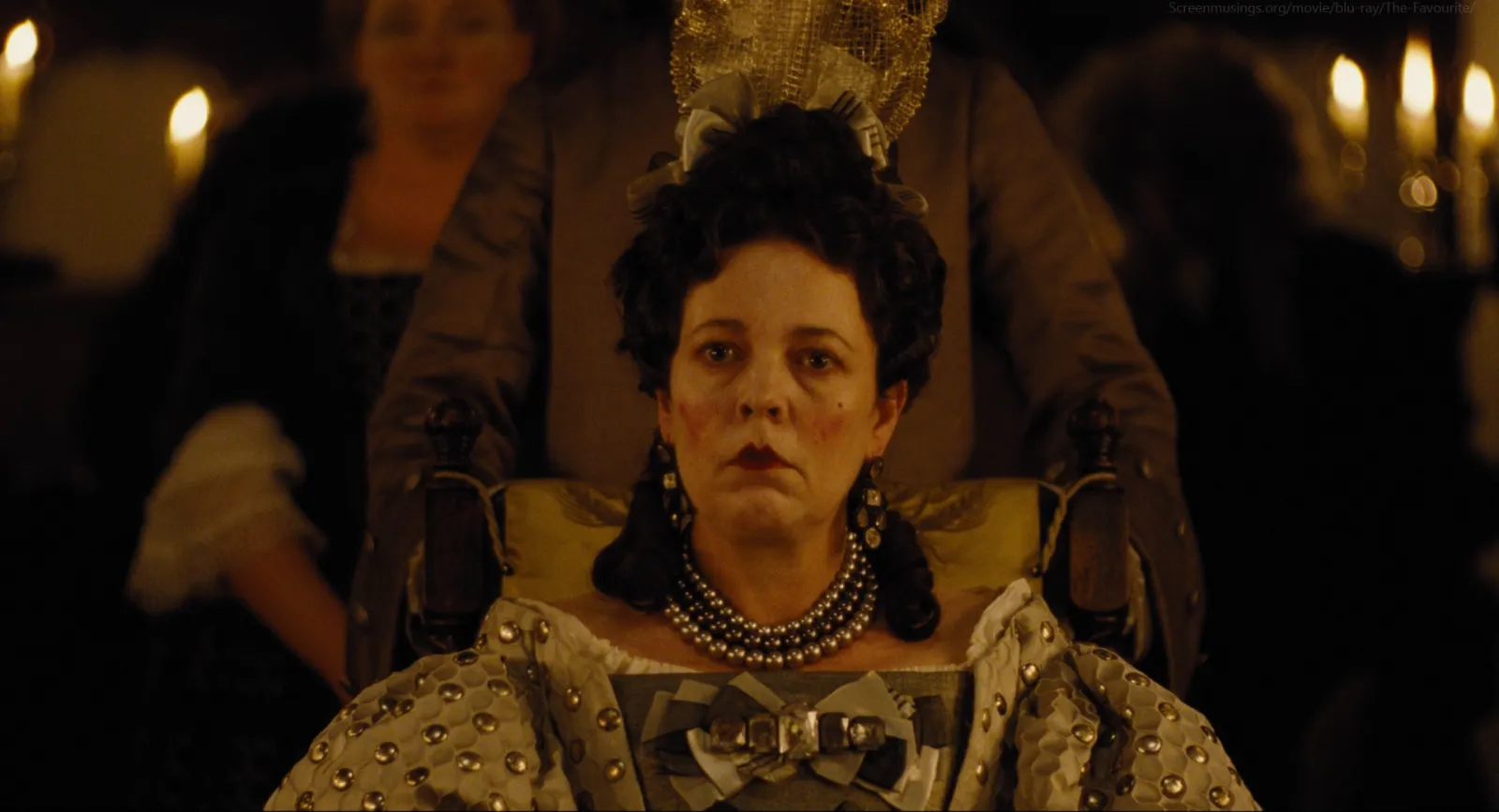
While you're in the master, make two or three more layouts (a four up grid, a single full bleed frame with a caption) and save the file with File > Save As as a PowerPoint Template (.potx). That's your moodboard template for every job from now on.
Step 3: fill it
Drag straight in. Drag a picture from Finder or File Explorer onto an empty picture placeholder and it fills the slot. Miss the box and it lands loose on the slide, so aim.
Photo Album, for a pile of candidates (Windows only). Insert > Photo Album > New Photo Album, click File/Disk, select the whole folder, set Picture layout to 4 pictures and Create. You get a scrappy new presentation with every candidate on it, which is a quick way to decide which twelve of forty survive.
Designer, if your subscription has it. Put up to four photos on a Title or Title and Content slide and click Design > Design Suggestions. It needs a Microsoft 365 subscription on desktop, a built-in theme, an internet connection and nothing else on the slide (one stray text box and it suggests nothing). Handy for a quick slide. You get Designer's idea of what matters, though, not yours.
Step 4: fix the crops with intent
Click an image. Then Picture Format > Crop. Drag the picture itself (not the black handles) inside its slot to choose what shows. Crop > Fill zooms until the slot is covered; Crop > Fit shows the whole image with bars. On a moodboard, almost always Fill.
Crop to the reason the frame is there. On the board for wardrobe? The wardrobe fills the slot. For the green of a lawn? Let the lawn win.

On loose pictures, Crop > Aspect Ratio forces a shape (1:1, 4:5, 16:9) without distorting anything, and Crop > Crop to Shape gives you circles and arches if the brief is the kind that wants arches.
Step 5: keep the grid honest
Placeholders and the dashed red smart guides handle most alignment. For labels, swatches and the odd loose picture:
- View > Guides shows movable guides. On Windows, Ctrl-drag a guide to copy it (let go of the mouse before Ctrl or you'll move the original). Or right-click the slide, Grid and Guides > Add Vertical Guide.
- Select three labels, then Shape Format > Align > Distribute Horizontally and Align Top. Even gaps without counting.
- Home > Arrange > Selection Pane lists everything on the slide. Name things ("hero", "swatch 3") and you'll never click the wrong overlapping picture again.
Step 6: colour swatches from the frames
Draw a square (Insert > Shapes > Rectangle, hold Shift), then Shape Format > Shape Fill > Eyedropper and click the colour in your reference. Sample the picture, not your memory. The gold in that throne room is browner than you think.
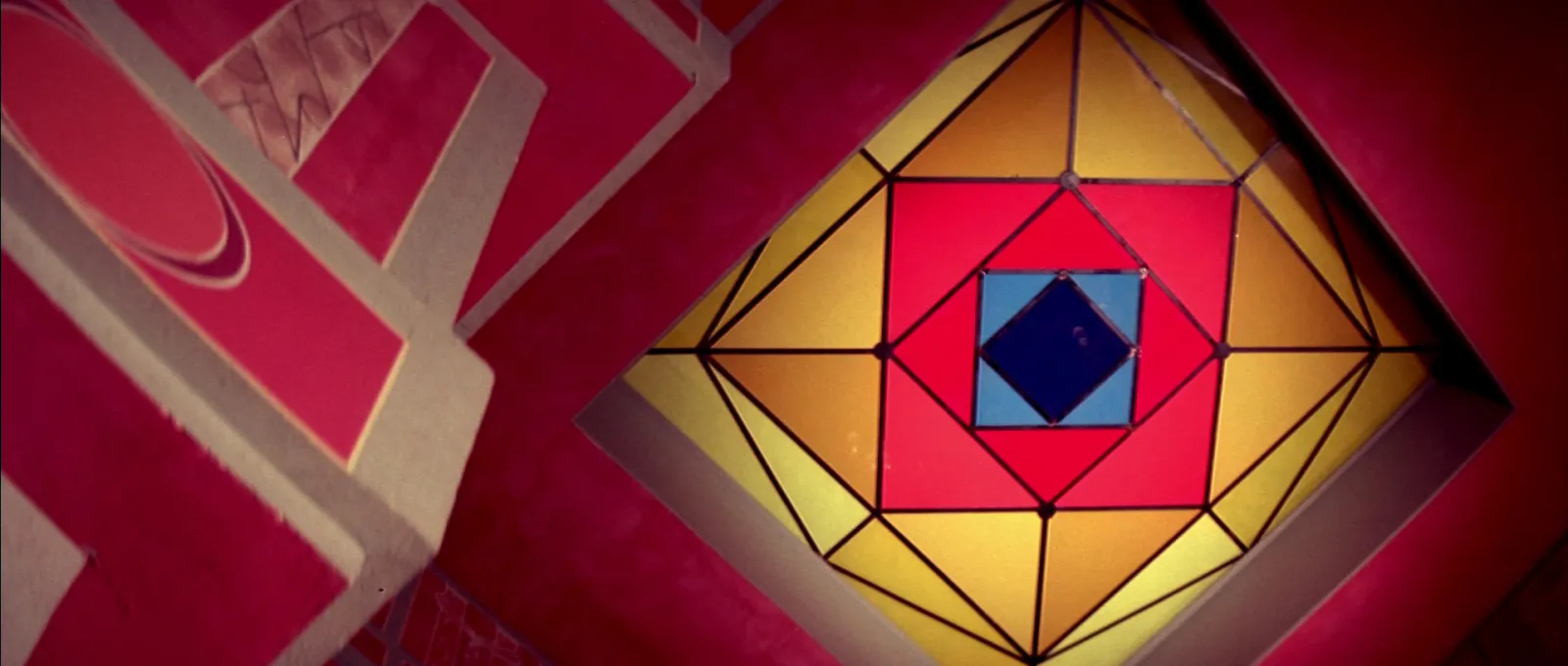
Under each swatch, a text box with the hex code (it's in Shape Fill > More Fill Colours > Custom). Your production designer and colourist will thank you. Or drop a still or a frame of video into a palette extractor we built and paste the hex codes it hands back.
Step 7: add moving references
A still can't show a camera move. PowerPoint handles video well:
- Insert > Video > This Device (Windows) or Insert > Video > Movie from File (Mac).
- On the Playback tab, set Start to Automatically, tick Loop until Stopped, set Volume to Mute.
- Trim Video down to the three seconds that matter.
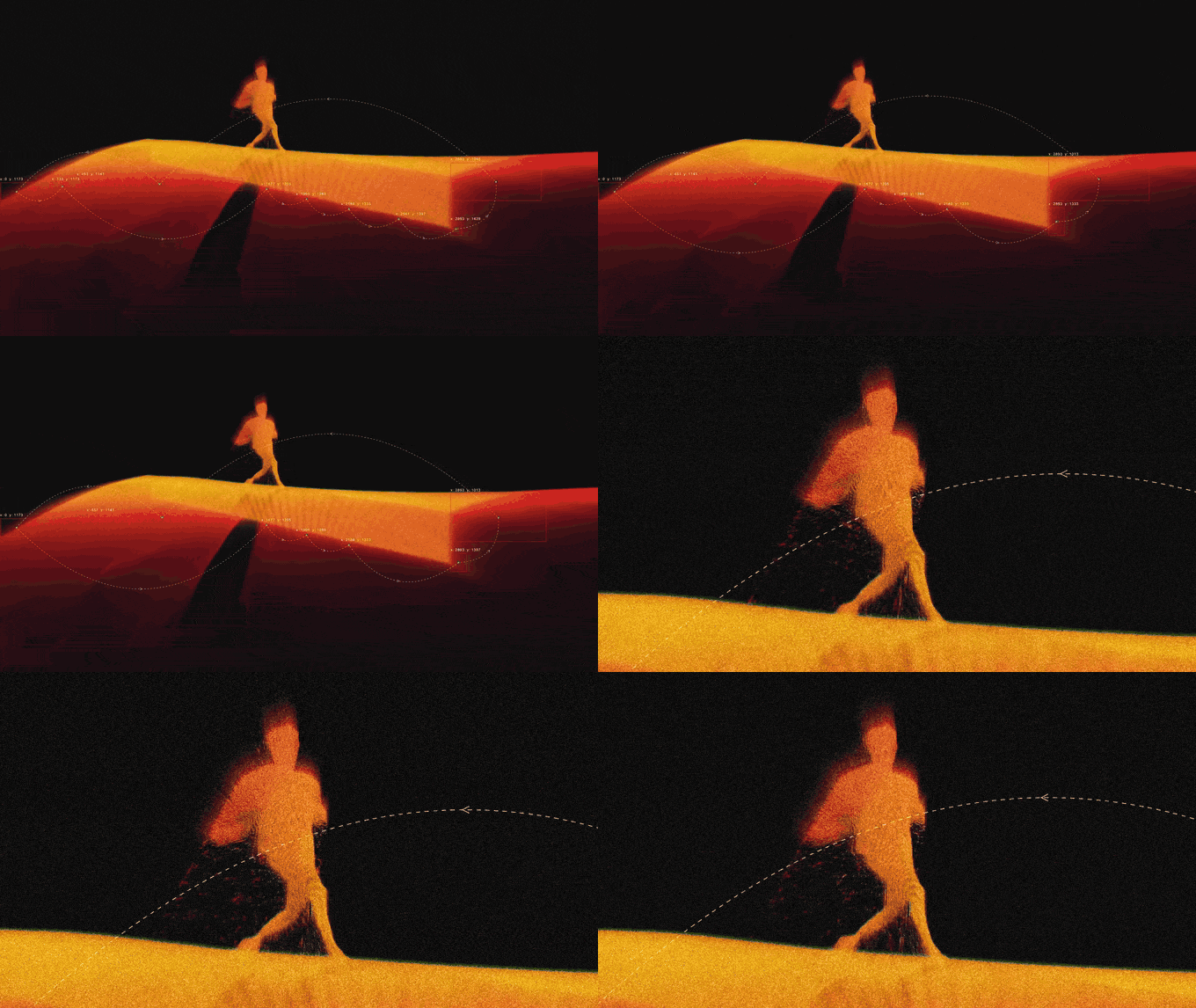
GIFs work too, and animate in the desktop apps as soon as they're on the slide. They're also where PowerPoint's quirks live: play once files, entrance animations that freeze them, PowerPoint for the web. If one sits there not moving, our guide to inserting GIFs into PowerPoint goes through every cause. To make a GIF from a clip in the first place, our browser converter lets you step the in and out points by single frames.
Step 8: label every frame
A text box under or beside each image, one line about the decision it makes. "This light, every interior." "Wardrobe: black only, nothing shiny." "Not this. Too polished." One small, quiet style, copied across with Format Painter, so the board reads as one voice.
Step 9: shrink it and export
Moodboard decks get heavy fast. Click any picture, then Picture Format > Compress Pictures. Untick Apply only to this picture, tick Delete cropped areas of pictures, pick a resolution (220 ppi is plenty for screens). Do it on a copy: deleted crops can't be re-cropped.
Then:
- PDF for the client. File > Export > Create PDF/XPS on Windows, File > Export and choose PDF on a Mac. Videos and GIFs become stills, so check each first frame (or poster frame) is a good picture.
- PNG of one board for Slack or email. File > Export > Change File Type > PNG, then Just This One. Windows exports at a modest resolution by default (Microsoft quotes 96 dpi), fine in a thread and soft on a big screen.
- The .pptx itself when you're presenting from your own laptop and the clips need to move. Heavy GIFs? Our GIF compressor brings them down to size.
Or skip the setup
Rather not build a layout at all? This free moodboard tool does steps 2 to 5 for you. Add images and GIFs, pick one of eight layouts, and export a .pptx that opens in PowerPoint (or Keynote, Google Slides or Canva), or a PDF or PNG. GIFs are embedded as GIFs and play when you present. It runs in your browser and nothing is uploaded.
Open the .pptx and carry on from step 6: swatches, labels, clips.
PowerPoint against the alternatives
| App | Choose it when | Price (as of October 2026) |
|---|---|---|
| PowerPoint | The board lives in a treatment or agency template, or has to be edited on Windows | Free on the web; Microsoft 365 Personal from £8.49 a month or £84.99 a year |
| Keynote | You're presenting from a Mac and want masks and Magic Move | Free on Apple devices |
| Google Slides | The client wants a link to comment on | Free with a Google account |
| Canva | A single polished board, fast | Free; Pro £100 a year |
| Spark | The references are videos you've saved and you want the board built from them | Free plan; Creator from £16 a month |




Our Canva guide and Keynote guide cover the other routes.
Filling the slides with references worth showing
PowerPoint is a fine place to lay out a board and a poor place to keep references. Every image cropped into a slot loses its source and the clip it came from, so the next pitch starts from an empty folder.
Spark is our desktop app for that half of the job. Save the reels, TikToks, YouTube links and ads you find, and each one keeps its source. Pull the exact frame or a short GIF from any saved video, gather them in a collection, and Create Moodboard exports the lot to PowerPoint as a laid out deck, GIFs still animated.
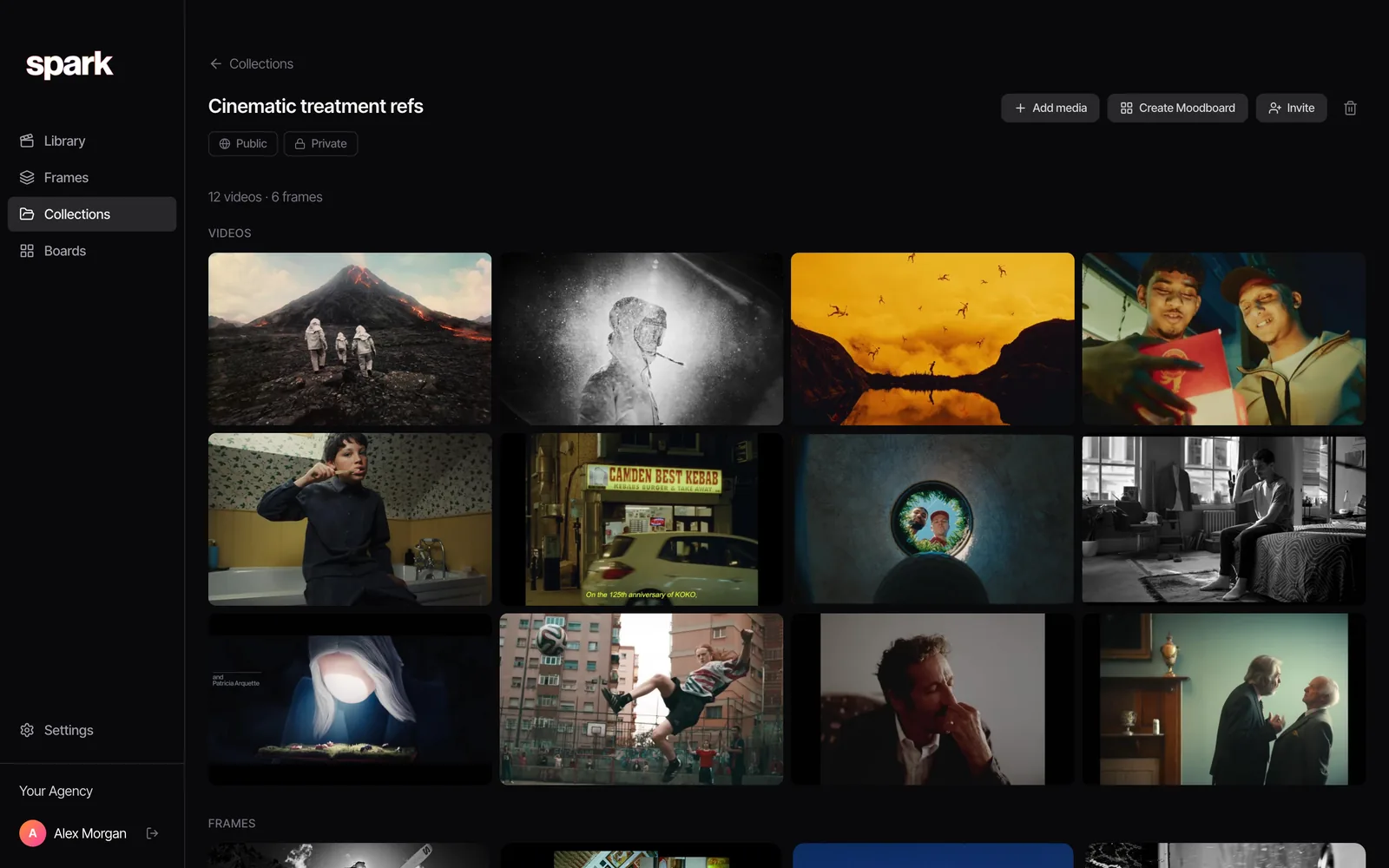
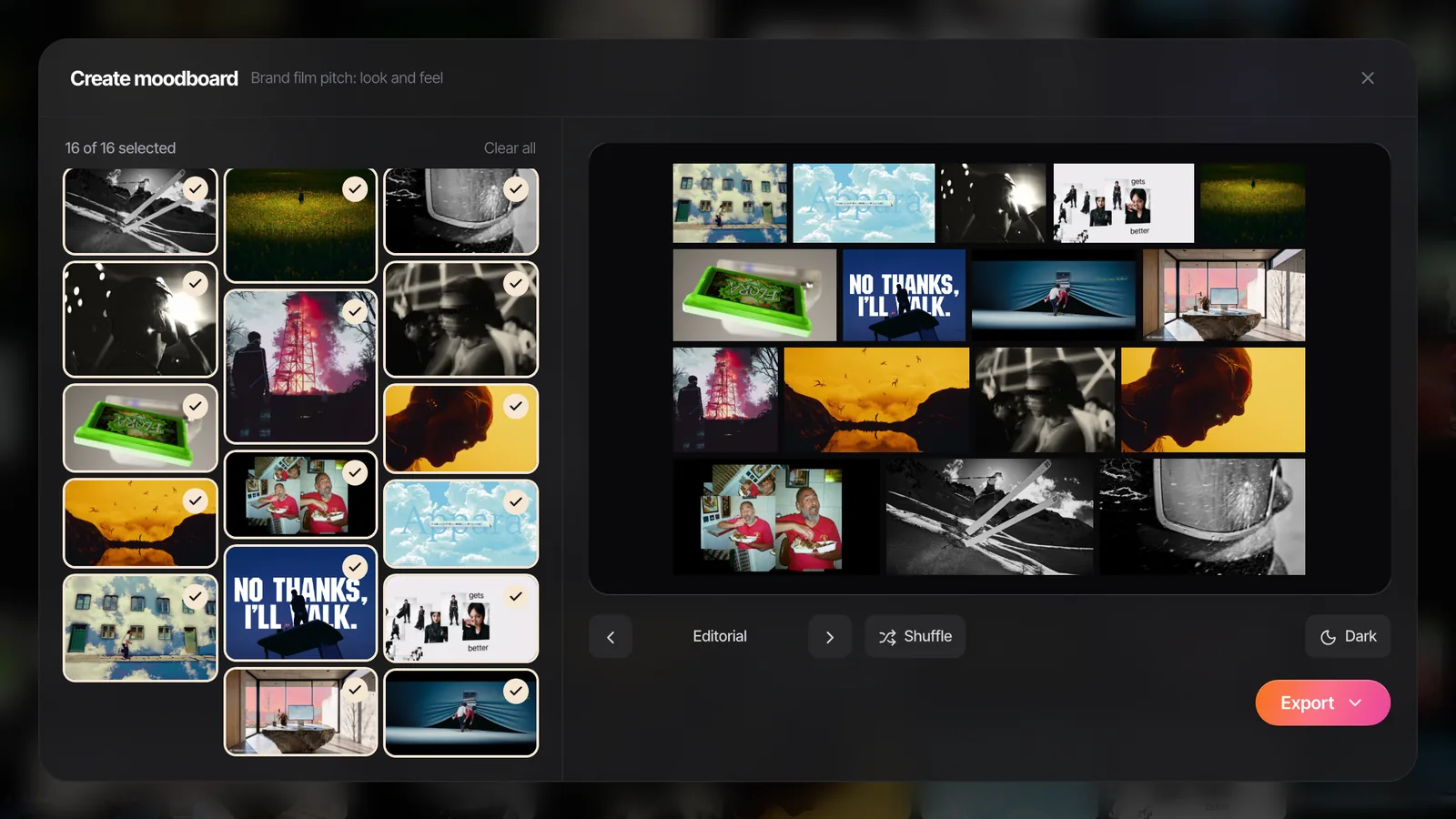
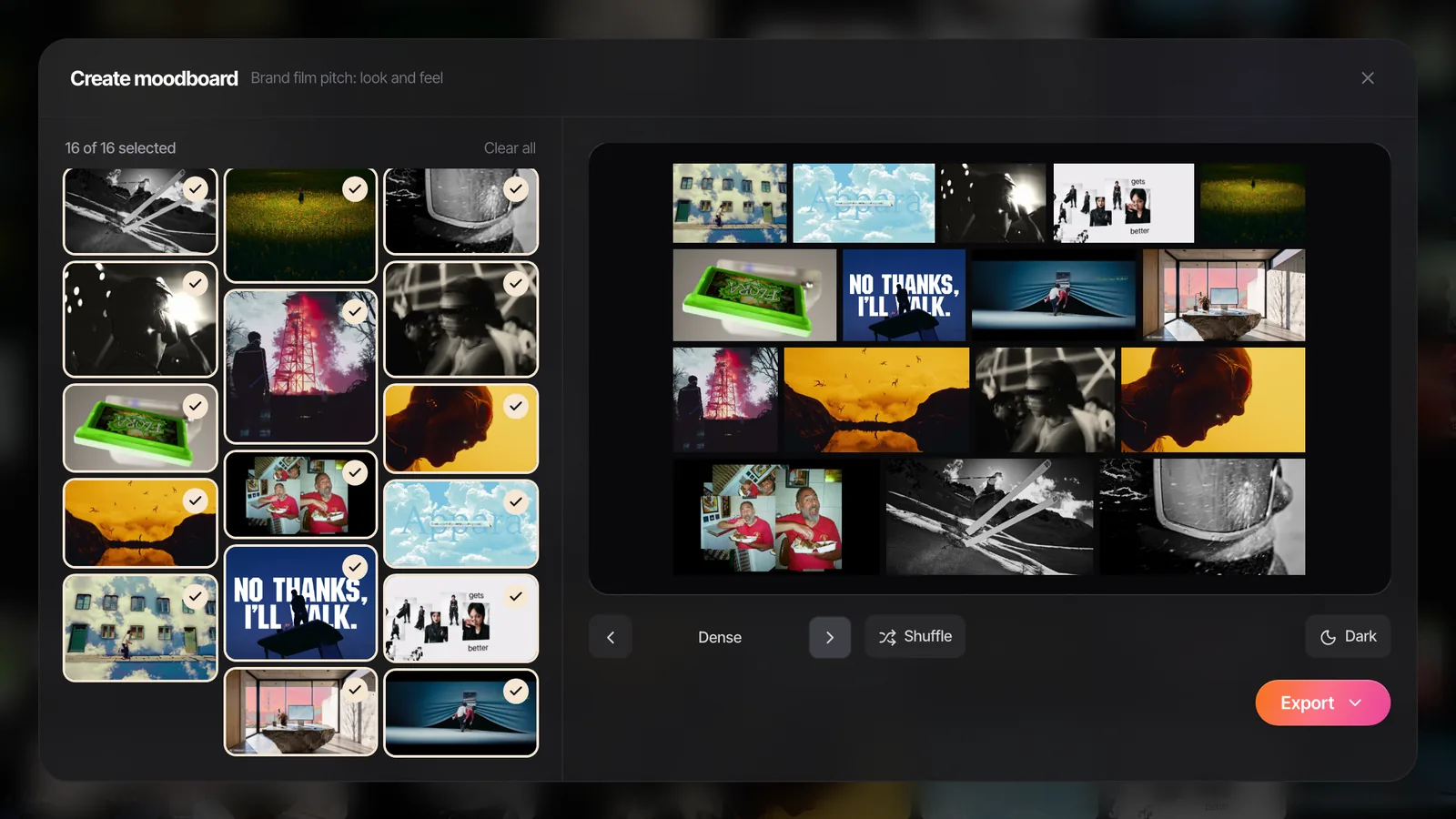
The part we'd point you at first is the library under the export. Next time a client asks for "the one with the green lawn", it's a search, not an archaeological dig through last year's decks.
FAQs
Does PowerPoint have a moodboard template?
Not one built for film or brand work, but you can make your own in a few minutes. Build a layout from picture placeholders in View > Slide Master and save the file as a PowerPoint Template (.potx). Every new board then uses the same grid and every image crops to its slot.
How do I make pictures the same size in PowerPoint?
Use picture placeholders, which crop every image to the slot automatically. For loose pictures, crop each one with Crop > Aspect Ratio first, then type the same width into Picture Format > Size. Cropping to the ratio first stops PowerPoint stretching anything.
Can I put videos in a PowerPoint moodboard?
Yes. Insert an MP4 with Insert > Video, then on the Playback tab set Start to Automatically, tick Loop until Stopped and mute it. Clips play when you present from the desktop app and become stills in a PDF.
Why is my PowerPoint moodboard file so big?
Full resolution stills and uncompressed video add up. Use Picture Format > Compress Pictures on a copy of the deck, applied to all pictures, with cropped areas deleted. On Windows, File > Info > Compress Media shrinks embedded videos too.
How do I save a PowerPoint moodboard as an image?
File > Export > Change File Type > PNG, then Just This One for the current slide. The default resolution on Windows is modest, so for print or a big screen, export a PDF.
Is PowerPoint or Canva better for a moodboard?
Canva is faster for a single polished board shared as a link. PowerPoint is better when the board lives inside a treatment or pitch deck, needs exact sizes, or has to be presented offline from a laptop.
Keep reading
All articles
How to Create a Fashion Campaign Moodboard
Fashion boards fail when one page tries to do everything. Split it into mood, styling, and casting and set, keep the clothes the hero, and the stylist will thank you.
How to Make a Moodboard in Keynote
Keynote is the Mac pitch favourite for a reason. Masks, looping clips and Magic Move make a board that feels like a film. Here's the build, and what breaks on export.

How to Create a Moodboard in Canva
Canva gets a good-looking moodboard in front of a client in twenty minutes. Here's the route we use, video included, and the bits it quietly gets wrong for film references.