How to Make a Moodboard in Keynote
Keynote is the Mac pitch favourite for a reason. Masks, looping clips and Magic Move make a board that feels like a film. Here's the build, and what breaks on export.
By the Spark team ·
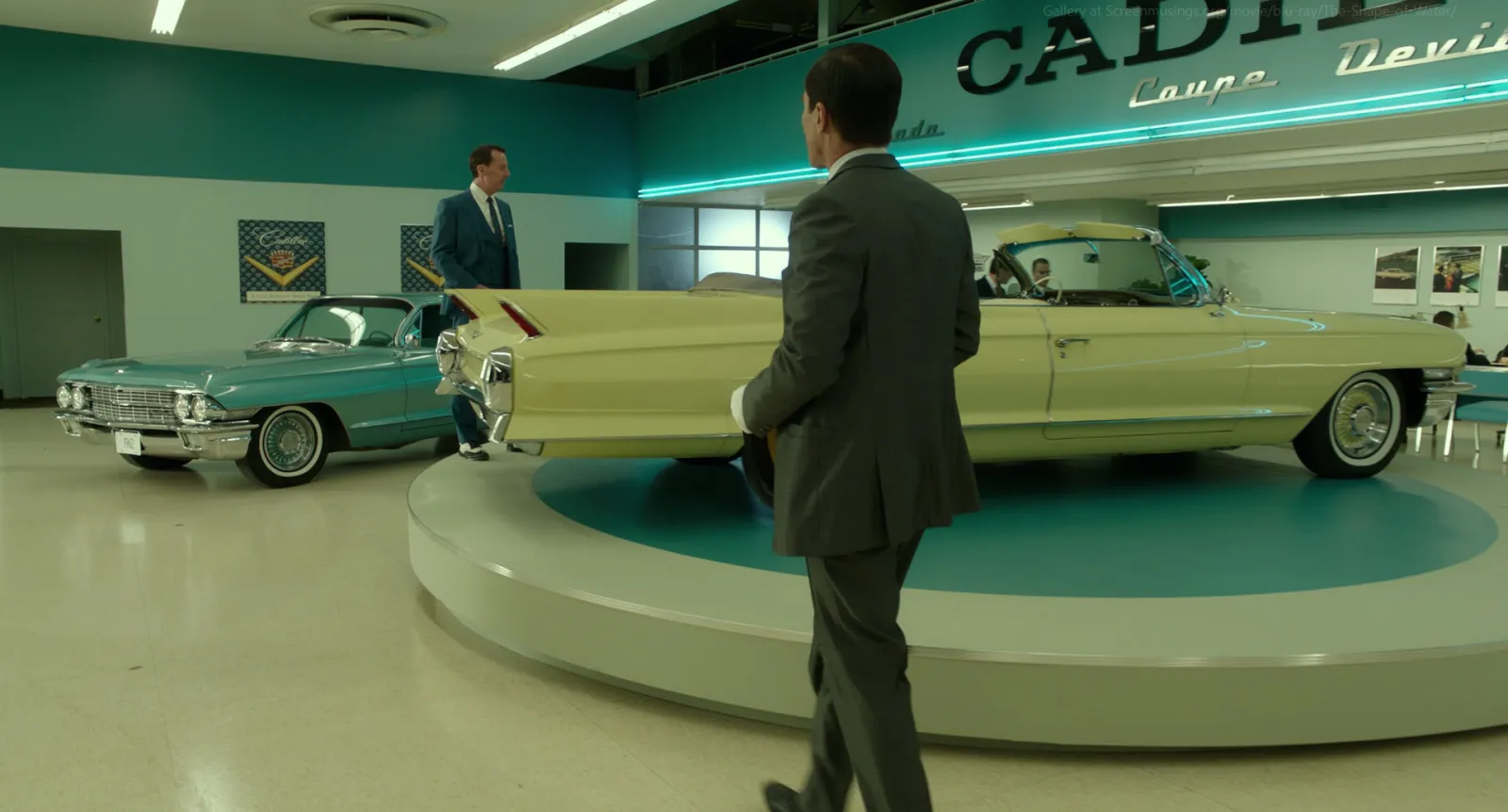
Of the three big deck apps, Keynote makes the best looking moodboard, and the recipe is short. Start a presentation on a dark theme, build one slide layout out of media placeholders (Edit Slide Layouts, then Define as Media Placeholder) and drag your references onto it. Each image masks itself to its box; double-click to reframe. Drop in short clips, set them to loop in the Movie tab, label every frame, and export a PDF for the client. Then, because it's Keynote, use Magic Move to glide from the full board into each hero frame when you present.
On a Mac, a lot of treatments start life in Keynote, ours included, and the reasons are simple. It's free on every Mac, it renders photographs beautifully, it loops video without a fight, and Magic Move makes a board feel like it's moving even when the frames aren't. These steps are for Keynote 15 on macOS, current in October 2026.


The board before the app
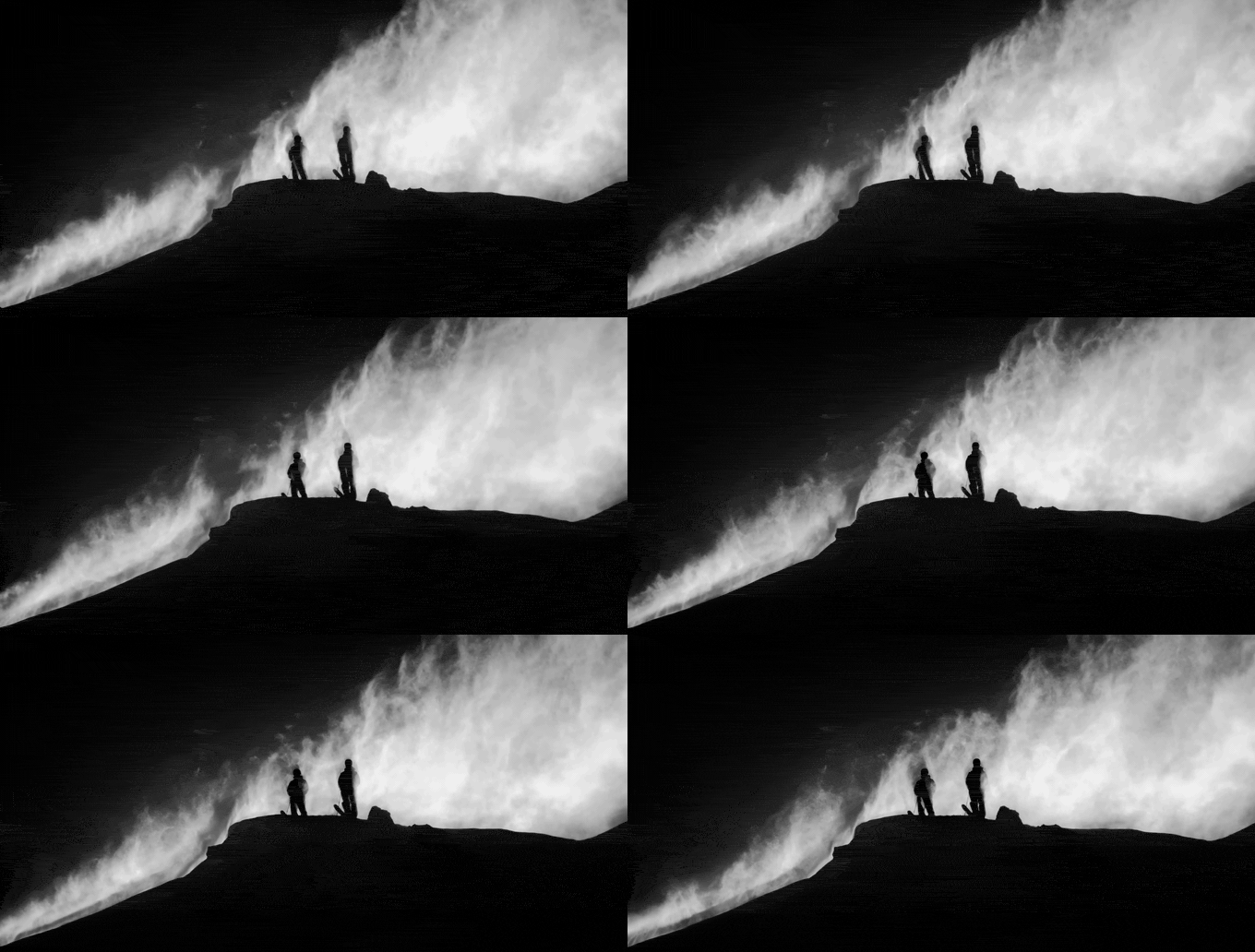
Keynote can make anything look considered, and that's half the danger. Twenty gorgeous frames that disagree with each other are still a bad moodboard. What goes on, how to cut it down, and the note under each frame are in our guide to making a moodboard for a video project. Come back with a folder of references and a reason for each.
Step 1: theme and slide size
Open Keynote, pick Basic Black in the theme chooser and click Create. Dark backgrounds flatter nearly every film still and make the gaps disappear.

Check the shape in the Document sidebar. Slide Size should be Wide (16:9). Want a square board for Instagram or an A4 portrait one for print? Use Custom Slide Size now, before anything's on the slide. Apple won't let you change slide size on a presentation you're collaborating on, so decide early.
Apple's Creator Studio subscription (launched in January 2026) adds premium themes and a library of stock content to Keynote. Nothing here needs it. Plain Keynote does all of it.
Step 2: a layout with media placeholders
For one board you can drag pictures onto a blank slide and arrange them by eye. For a deck of six boards, build the grid once:
- Click View in the toolbar and choose Edit Slide Layouts.
- Select a layout you don't need (or duplicate one) and delete what's on it.
- Drag an image onto the layout and size it where your hero goes.
- With it selected, open the Style tab in the Format sidebar and tick Define as Media Placeholder.
- Repeat for each slot: hero, supporting frames, a strip of details.
- Click Done at the bottom of the window.
Now choose that layout for a new slide and drag a reference onto each placeholder. Keynote masks the image to the box, so nothing stretches. Double-click to move the picture inside its frame, then Done.
Our usual 16:9 layout: a hero across the left 60%, two frames stacked on the right, three small details along the bottom and a thin band underneath for labels.
Step 3: masks and cut-outs
Keynote has the best image tools of the three, and none of them touch the original file.
- Reframe. Double-click an image for the mask controls. Drag to choose what shows, use the slider to scale, click Done.
- Mask with a shape. Format > Image > Mask With Shape and pick one. An oval for a casting head shot. A soft cornered rectangle if the grid feels hard.
- Mask with your own shape. Draw with the pen tool, Shift-click the shape and the image, then Format > Image > Mask with Selection.
- Cut something out. In the Image tab of the Format sidebar, click Remove Background. Drag over a colour to remove more of it, Option-drag to remove it everywhere, Shift-drag to bring it back. Then Done.
Remove Background gets the most use. For a props or wardrobe page you want the coat. The street behind it can go.

Step 4: align and add colour
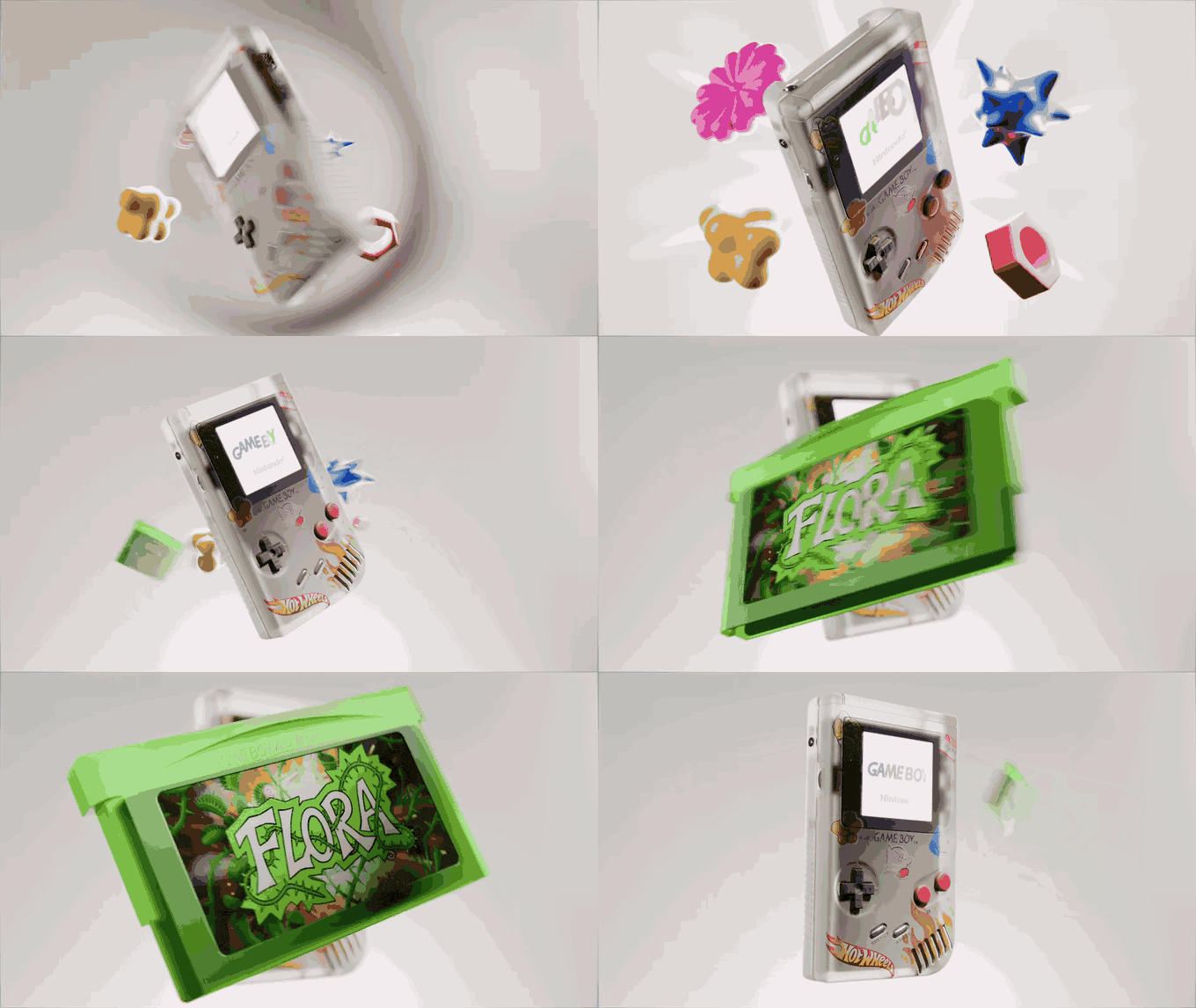
The yellow smart guides appear as you drag and snap to edges, centres and equal spacing. If the spacing guides are off, turn them on in Keynote > Settings > Rulers.
For margins, View > Show Rulers, then drag from a ruler onto the slide to place a guide. Select a row of frames and use Arrange > Align Objects > Top, then Arrange > Distribute Objects > Horizontally.
Swatches go along the bottom. Draw squares from the Shape button, then in Style > Fill click the colour well, hit the magnifier and sample straight from a frame on the slide. The hex code sits in the Colours window under RGB Sliders, ready to paste under each swatch. For a whole palette from a still or a video frame at once, use this palette tool in the browser.
Step 5: clips that loop (Keynote's best trick)
This is where Keynote beats Google Slides and edges PowerPoint. Drag an MP4 or MOV onto a placeholder, select it and open the Movie tab:
- Untick Start movie on click, so it plays as the slide appears.
- Set Repeat to Loop.
- Open Edit Movie and drag the trim sliders to the three or four seconds that matter.
- Drag the Poster Frame slider to a good frame. That's what a PDF will show.
- Turn the volume down unless the sound is the reference.
Then try Loop Back and Forth on a slow camera move. The push-in plays forward, then backward, and a DoP sees the move twice without the jump of a normal loop. On a macro food move it's oddly hypnotic.
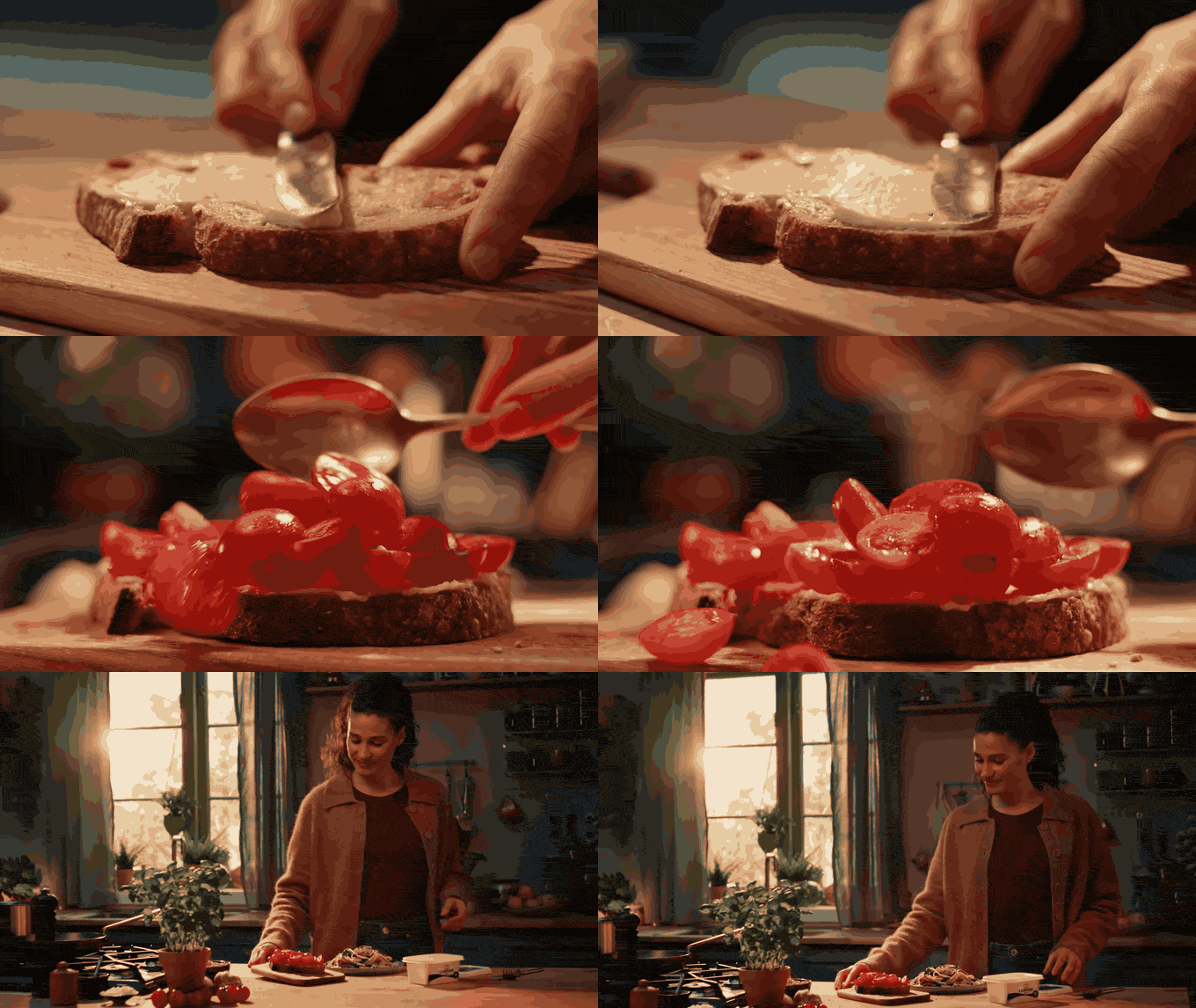
Animated GIFs play too, and recent versions give them movie style controls including Repeat, which rescues GIFs that were made to play once. If you'd rather work that way, cut one in your browser to the exact frame, and our guide to creating a video moodboard covers when GIF or MP4 is the better choice.
Step 6: Magic Move between boards
The Keynote move most moodboard guides skip. Build the full board on one slide. Duplicate it (Command-D). On the copy, make the hero fill the slide and push everything else off the edges. Select the first slide, click Animate, then Add an Effect and choose Magic Move.
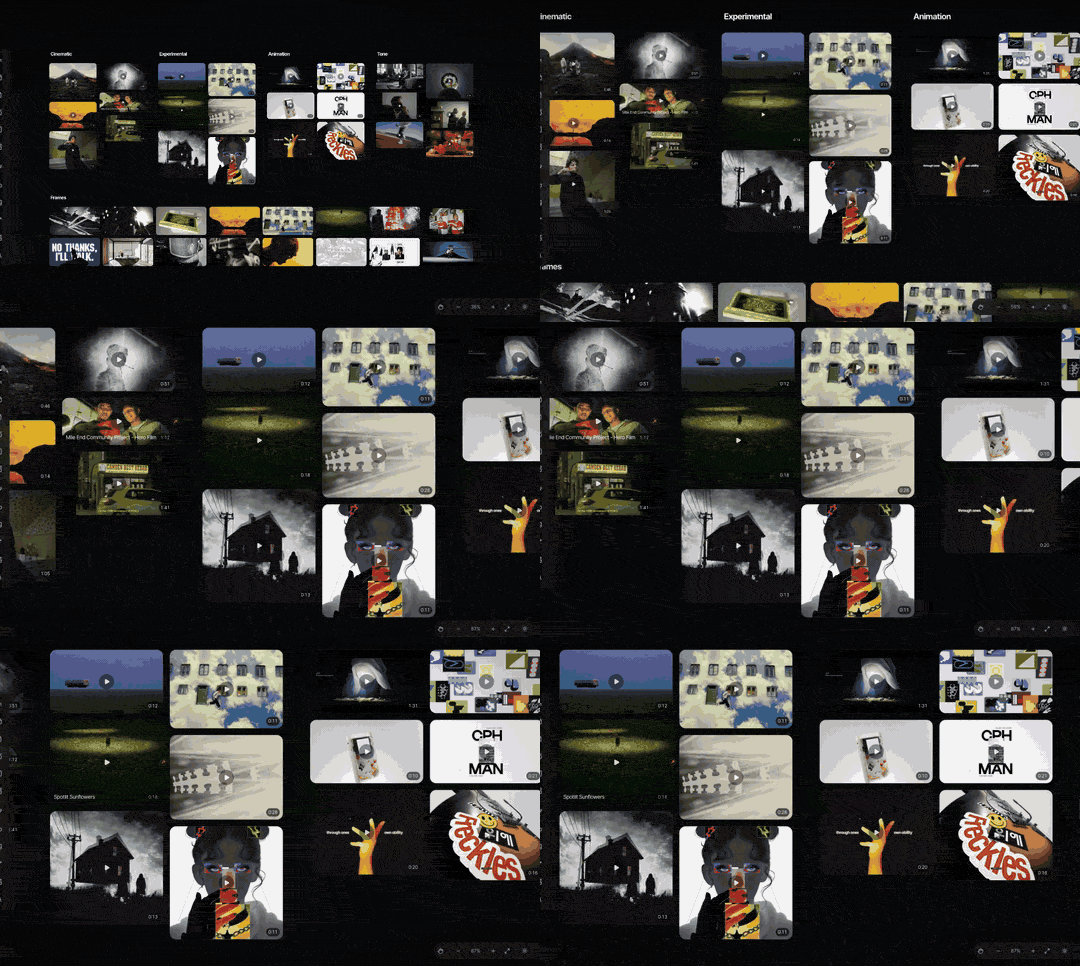
When you present, the board glides into the hero frame as if the camera pushed in on it. Do it for each important frame and the board becomes a guided tour: here's everything, now the light, now the wardrobe. Keep it to about a second. Longer starts to feel like a screensaver.
Step 7: export, and what breaks
Keynote looks after you until the file leaves your Mac. File > Export To gives you:
- PDF for the client. Untick Print each stage of builds so animated builds don't multiply your pages. The Magic Move copies are real slides, so they arrive as full page versions of each hero, which in a PDF is rather nice. Image Quality on Best if it might be printed, Better for email. Clips become their poster frames.
- PowerPoint when the agency works in Office. Test the .pptx in PowerPoint before it goes anywhere. Mac fonts like SF Pro and New York get swapped on Windows, and Magic Move doesn't survive: PowerPoint's nearest thing is Morph, which you'd set up again. Our guide to making a moodboard in PowerPoint covers that side.
- Movie, set to Self-Playing, for a board that plays itself on a phone or a lobby screen, clips and Magic Move intact.
- Animated GIF of a slide range, for a teaser in a Slack thread. Two or three slides, or it'll be enormous. Our GIF compressor will rescue one that is.

Keynote against the other three
| App | Why you'd choose it for a moodboard | Price (as of October 2026) |
|---|---|---|
| Keynote | Masks, Remove Background, back and forth loops, Magic Move | Free on Mac, iPad and iPhone; Apple Creator Studio extras $12.99 a month |
| PowerPoint | The agency's Office templates and Windows editors | Free on the web; Microsoft 365 Personal from £8.49 a month |
| Google Slides | One live link with comments on each frame | Free with a Google account |
| Canva | Something branded and shiny, quickly | Free; Pro £100 a year |
| Spark | Building the board from references you've already saved, exported as a .pptx for Keynote | Free plan; Creator from £16 a month |




If the client wants a link rather than a file, see Google Slides or Canva.
Skip straight to a laid out board
Don't want to build placeholders at all? Let the free maker on this site arrange your images and GIFs in one of eight layouts (Collage, Grid, Columns, Hero, Feature, Filmstrip, Panels, One per slide), and export a .pptx that opens straight in Keynote. GIFs go in as GIFs and play when you present. Nothing is uploaded and there's no sign-up.
Open the .pptx with File > Open and pick up from step 3.
The bit Keynote can't do
Keynote is a great place to present references. It has no idea where they came from. The reel you screen recorded, the Vimeo clip you downloaded, the ad you grabbed from the Meta Ad Library: once it's masked into a placeholder, it's just a picture, and next month you're hunting for it again.
Spark is our desktop app for the collecting side. Paste a link, or forward a reel from Instagram by DM, and each reference remembers its source. Export the exact still or a looping GIF from any saved video, gather them on a board, and Create Moodboard exports a laid out deck for Keynote as a .pptx, with the GIFs still animated. (Google Slides, Canva, PowerPoint and PDF are in the same menu.)
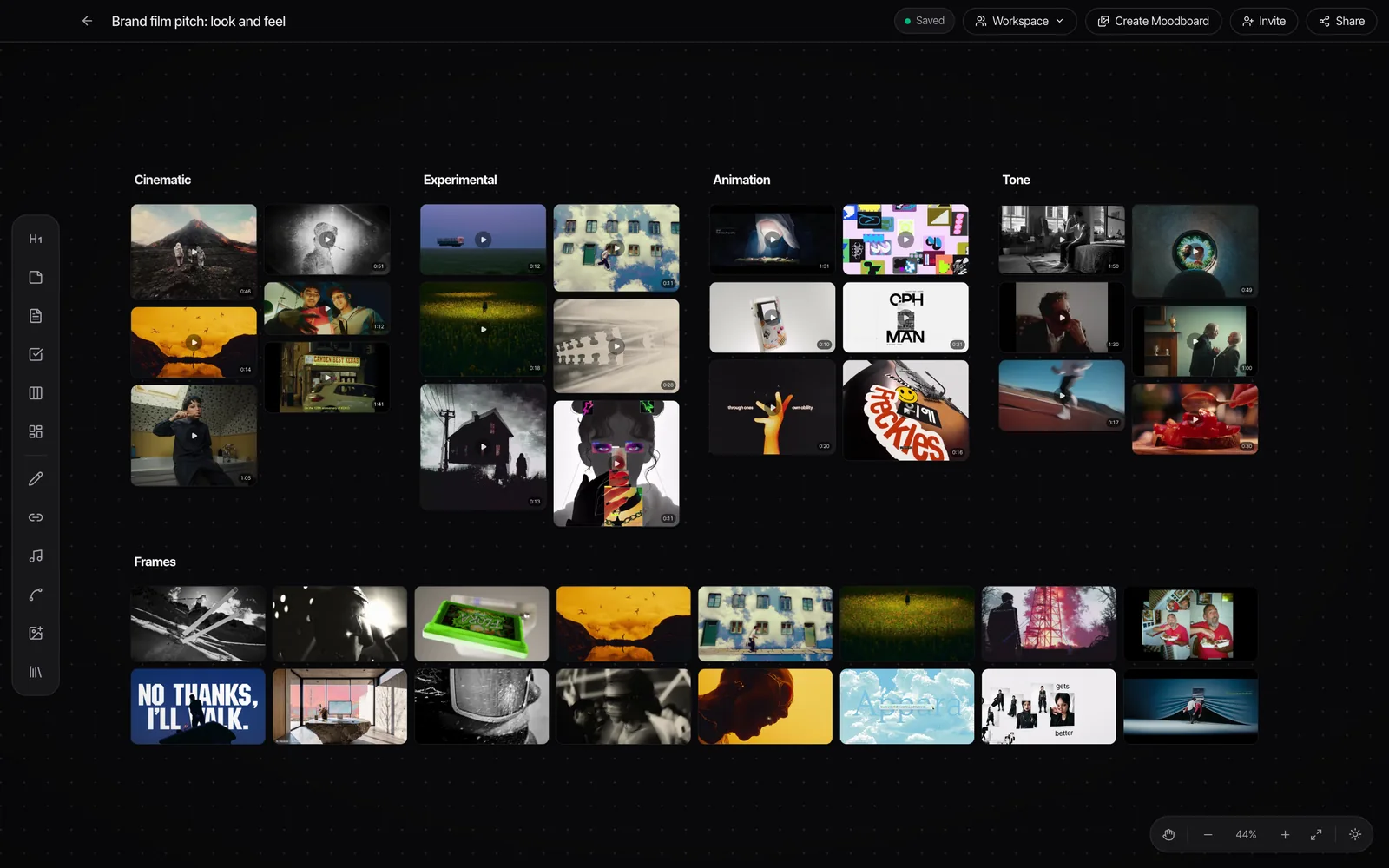
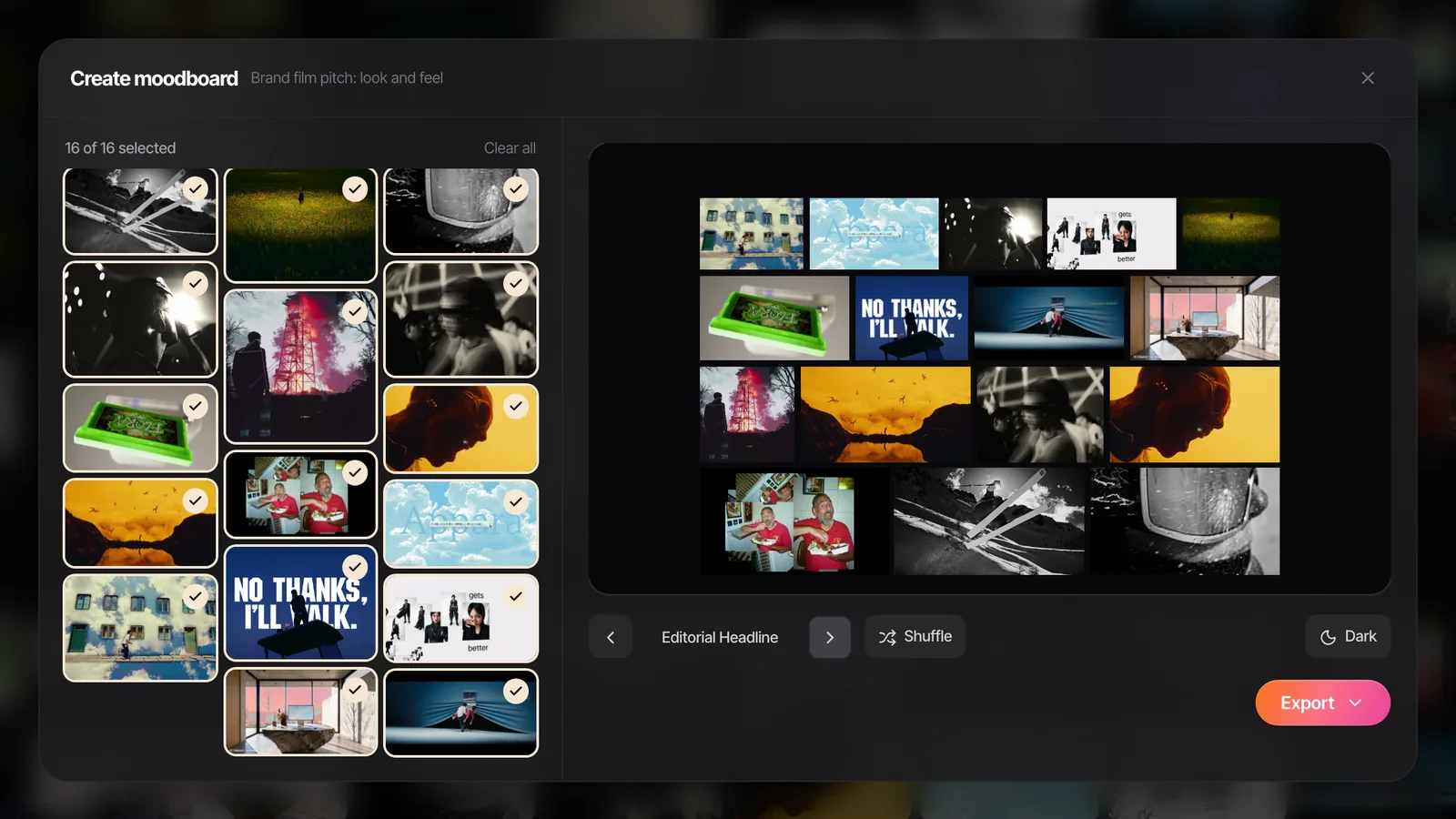
Keynote stays where the board gets presented, and it's very good at that. Spark looks after what Keynote forgets the moment you mask a frame: where it came from, and the clip behind it.
FAQs
Does Keynote have a moodboard template?
Not a dedicated one, but its themes include photo layouts with media placeholders. For a reusable moodboard grid, build your own layout in Edit Slide Layouts, tick Define as Media Placeholder for each slot, and save it with File > Save Theme.
How do I crop a picture into a shape in Keynote?
Select the image and choose Format > Image > Mask With Shape, then pick a shape. Drag the shape's handles to resize it and double-click the image to reposition it inside. Masking never changes the original file.
How do I make a video loop in Keynote?
Select the video, open the Movie tab in the Format sidebar and set Repeat to Loop, or Loop Back and Forth to play it forwards then backwards. Untick Start movie on click so it starts by itself when the slide appears.
Can I send a Keynote moodboard to someone on Windows?
Yes. File > Export To > PDF for a file anyone can open, or File > Export To > PowerPoint for an editable .pptx. Check the PowerPoint version on a PC first, because Apple only fonts and Magic Move don't carry across.
Do GIFs work in Keynote?
Yes. Drag a GIF onto a slide and it animates when you play the presentation. If it only plays once, look for the Repeat setting in the Format sidebar, or re-save the GIF to loop forever. In a PDF export, GIFs become stills.
Is Keynote better than PowerPoint for moodboards?
For presenting on a Mac, usually. Masks, Remove Background, looping clips and Magic Move are all easier in Keynote. PowerPoint wins when people on Windows need to edit the deck, or it lives in an agency's Office templates. Both open the same .pptx.
Keep reading
All articles
How to Create a Fashion Campaign Moodboard
Fashion boards fail when one page tries to do everything. Split it into mood, styling, and casting and set, keep the clothes the hero, and the stylist will thank you.
How to Make a Moodboard in PowerPoint
PowerPoint is better at moodboards than its reputation. The trick is building one layout properly in the Slide Master, then never fighting a crop again.

How to Create a Moodboard in Canva
Canva gets a good-looking moodboard in front of a client in twenty minutes. Here's the route we use, video included, and the bits it quietly gets wrong for film references.