
How to Put a GIF in an Email (Gmail, Outlook and Apple Mail)
A GIF in an email is the one moving image almost every inbox will show you. Get it in the right place, keep it light, and make sure the first frame can stand on its own.
By the Spark team ·

To put a GIF in an email, place it in the body of the message, not just as an attachment, so it plays where the reader is already looking. In Gmail, drag the GIF into the compose window. In classic Outlook for Windows, click in the message and use Insert > Pictures. In Apple Mail, click the attachment button and choose Photos, or drag the file in. Keep the GIF to about 1 MB, which is what Mailchimp recommends for any image, and make sure the first frame works on its own.
That last part is about Outlook. Mailchimp's help says Outlook 2007 and newer show only a GIF's first frame. Microsoft's own help doesn't say either way: we went through every English article in its support sitemaps and found nothing on GIF playback in Outlook. So plan for a still in some inboxes.
Every limit below is from the vendor's own help, checked in October 2026, and the file sizes come from GIFs we made from our own film.
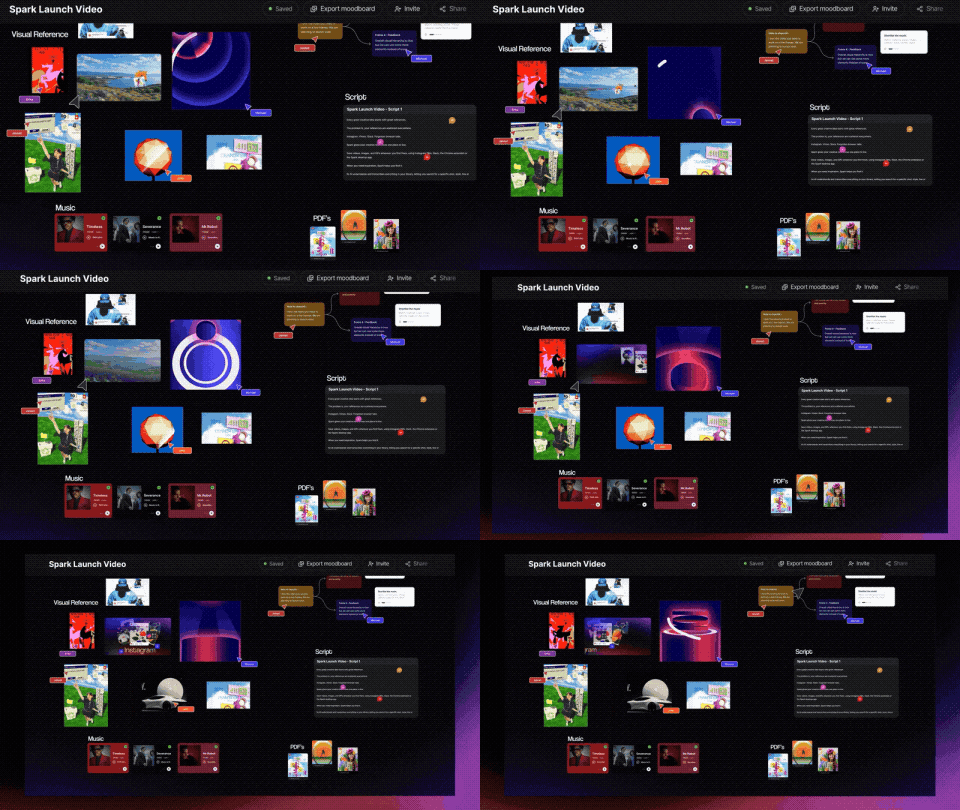
Inline or attached?
An inline GIF sits in the body, between your sentences, and plays as the message opens. An attached GIF sits at the bottom as a file. Some mail apps show a preview of image attachments, but you're relying on the reader's app to do it, and a GIF the reader has to open is easy to miss.
Inline it, and give it a line of text above and below, so the email reads properly even if the GIF never moves.
Gmail
- Click Compose.
- Drag the GIF from your desktop into the body of the message, where you want it.
- Write a line above and below it, then send.
Dragging an image straight into the compose window is the method in Google's own attachments help. The Attach button (the paperclip) adds it as a file instead.
The limit is 25 MB of attachments on a personal Gmail account. Over that, Gmail removes the attachment and adds it as a Google Drive link. On a work or school account, your Google Workspace administrator sets the sending and receiving limits, so they may be lower.

Outlook
Classic Outlook for Windows
- Click in the body of the message.
- Go to Insert > Pictures, in the Illustrations group.
- Pick the GIF.
Dragging the corner handles changes how big the GIF looks, not how big the file is. Microsoft's attachment size help is clear on that. Classic Outlook also has File > Info > Image Attachments > Resize large images when I send this message. Microsoft doesn't say what that does to an animated GIF, so leave it off and size the GIF before it goes in.
New Outlook for Windows
You can insert a picture in the body and change its display size from Picture format > Size, but Microsoft says that doesn't reduce the file size either. Shrink the GIF first.
Does the GIF move?
Microsoft doesn't document which versions of Outlook animate GIFs. Mailchimp's help states that Outlook 2007 and newer don't support animated GIFs and show only the first frame. We'd treat that as the safe assumption for anyone on desktop Outlook, and design for it.
Outlook's size limits
Microsoft gives two figures that don't quite agree. Its Outlook help says Outlook limits internet accounts such as Outlook.com or Gmail to 20 MB, and Exchange work accounts to 10 MB by default, and a Microsoft Learn article gives the same 20 MB default for Outlook 2013 and later. Its Outlook.com page says the attachment limit there is 25 MB, with OneDrive files up to 2 GB. Plan for the lower number.
Make the first frame do the work
If some readers only ever see frame one, frame one is the GIF. Look at it on its own before you send.
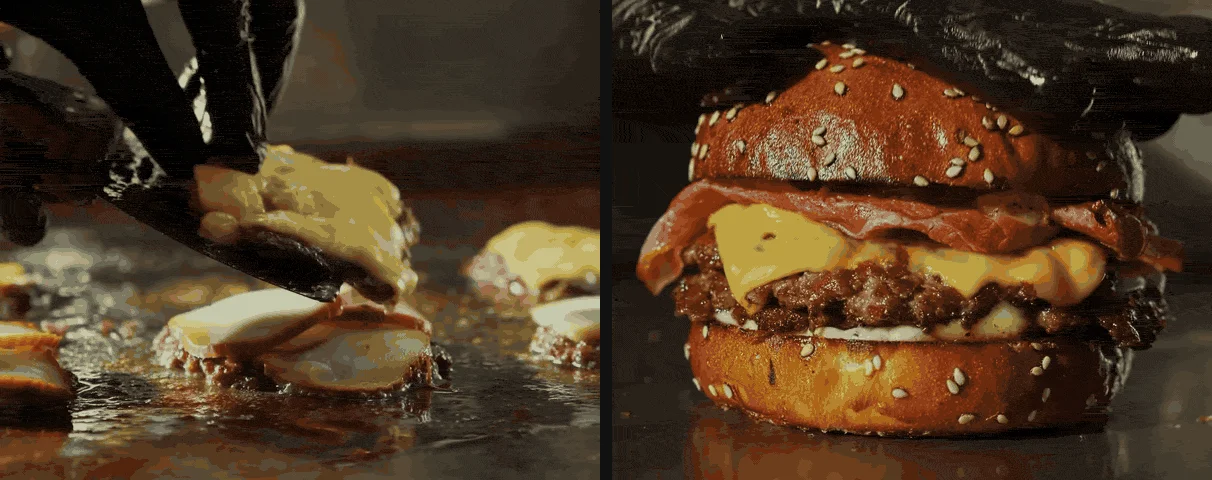
Three fixes, in order of effort:
- Trim the start. Cut the GIF so it opens on the strongest frame. Our free video to GIF converter moves the in point a frame at a time, so you can land on exactly the right one.
- Reverse the idea. If the payoff is at the end, like the burger above, open on the payoff and let the GIF build back to it.
- Say it in text. A line under the GIF, "the full spot is here", with a link, covers every inbox.
A GIF made to loop from its first frame helps too, because there's no jump at the seam to make frame one look like a mistake. Our guide to GIFs that loop without a visible jump shows how.
Apple Mail
- In a new message, click the attachment button in the toolbar.
- Choose Photos to pick from your Photos library, or Attach Files for a file, or drag the GIF from Finder into the message.
Apple's Mail guide says Mail inserts images at their actual size by default, with a size pop-up menu on the right of the message header when other sizes are available. Apple doesn't say what a smaller size does to an animated GIF, so we leave it at actual size and make the GIF the size we want before it goes in.
Big files are Mail Drop's job. If a message is over your email provider's limit, Mail offers Mail Drop, which uploads the attachment to iCloud. Apple's Mail Drop limits allow attachments up to 5 GB, kept for 30 days. That's a download link, though, not a GIF playing in the email. On an iCloud Mail account, Apple's iCloud limits put ordinary messages at 20 MB.

Email marketing: Mailchimp
In Mailchimp, GIFs go in through the content studio like any image, and there's a GIPHY search built in. Its content studio help caps image uploads at 1 MB each, and its image guidelines recommend 1 MB as the maximum for any image. Its email templates are 600 px wide in the legacy builder and 660 px in the new one.
One Mailchimp catch: its GIPHY article says not to edit GIFs in its photo editor if you want them to display as expected. Crop and resize before you upload.
We haven't checked other email platforms for this guide. If you use one, look up its own image size limit and Outlook advice before you build the campaign.
How big should an email GIF be?
First, the hard limits, as each vendor publishes them:
| Sending from | Limit (as of October 2026) | What happens over it |
|---|---|---|
| Gmail Gmail, personal account | 25 MB of attachments | Gmail swaps the file for a Google Drive link |
| Microsoft Outlook Outlook desktop | 20 MB for Outlook.com or Gmail accounts; 10 MB by default for Exchange | An error saying the file is bigger than the server allows |
| Microsoft Outlook Outlook.com | 25 MB; OneDrive files up to 2 GB | Share it from OneDrive instead |
| Apple Mail Apple Mail on iCloud | 20 MB per message | Mail offers Mail Drop: up to 5 GB, kept 30 days |
| Mailchimp | 1 MB per image upload | Mailchimp's advice is to resize to 1 MB or smaller |



Those are limits for attachments and uploads. An inline GIF loads every time someone opens the email, often on a phone, so the real target is much lower. We work to 1 MB, Mailchimp's number, and to a width of 480 to 600 px, inside the width of a typical template.
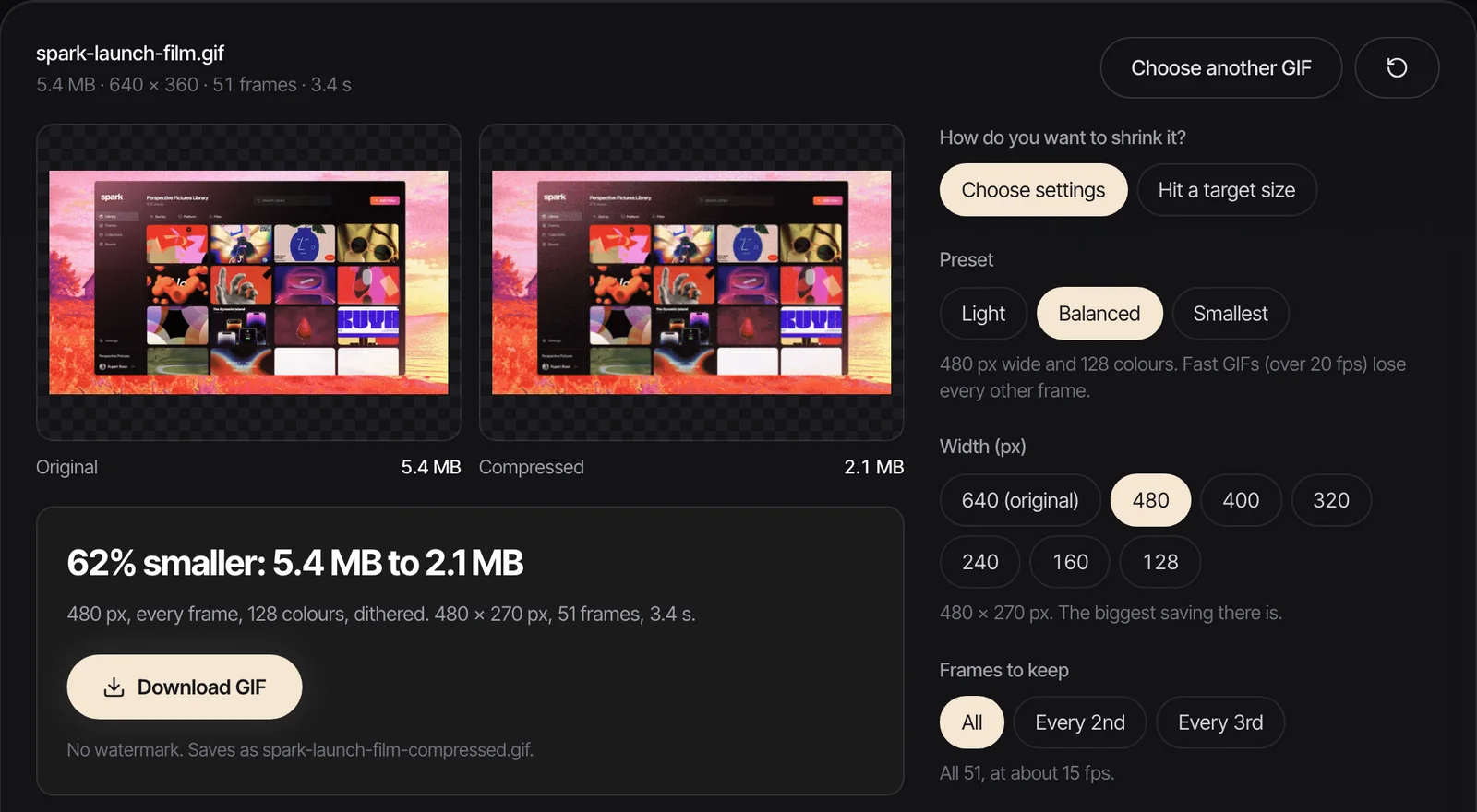
Our free GIF compressor has a Hit a target size mode with 1 MB marked for email. It tries settings until it finds the gentlest that fit, shrinking the width first and giving up colours and frames only when it has to. We ran it on two 800 px GIFs cut from our launch film:
| Clip | Before | What the 1 MB target chose | After |
|---|---|---|---|
| Spark board, interface footage, 2.4 seconds | 4.70 MB | 480 px, 128 colours, every frame | 0.76 MB |
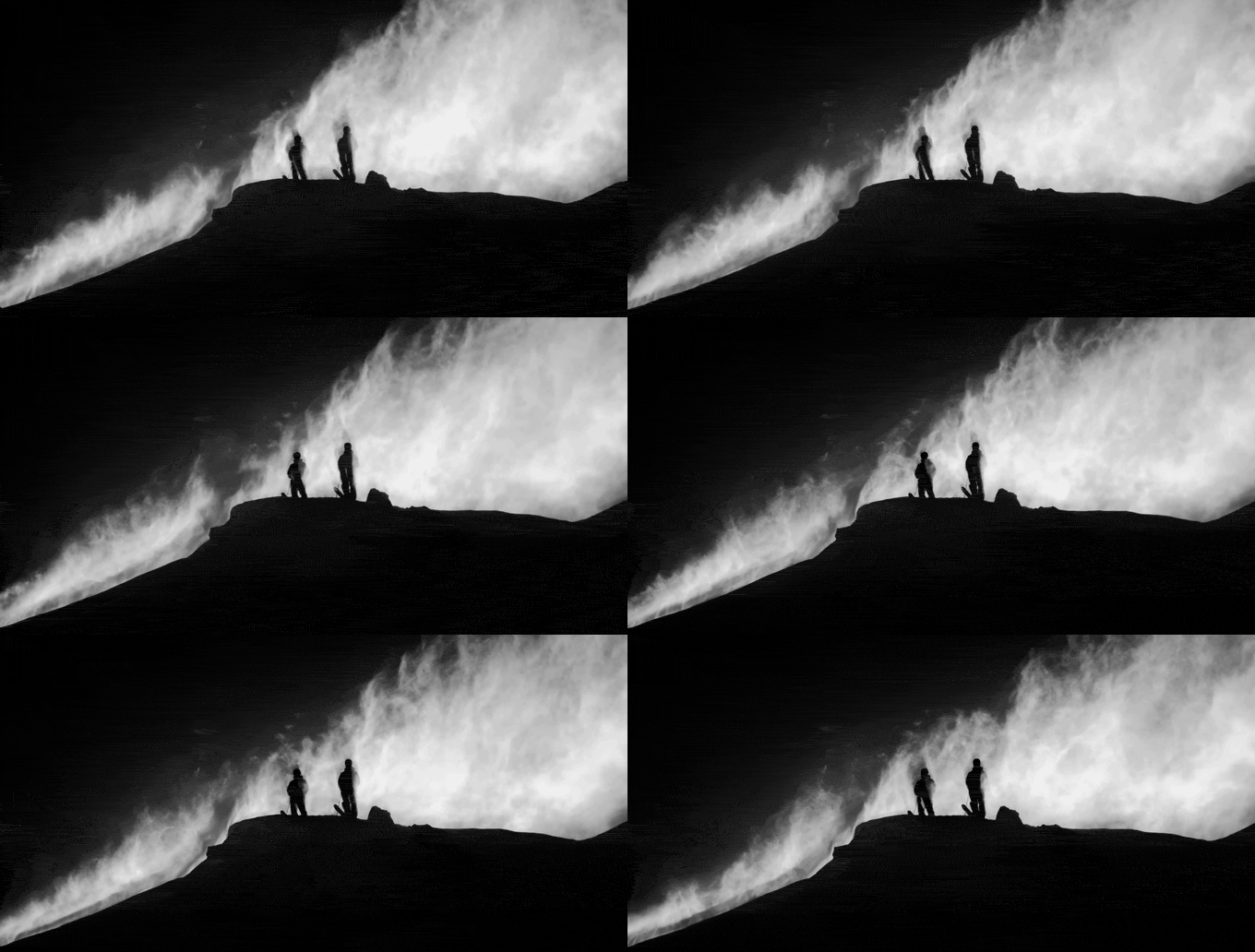
| Sunlit hillside with floating cards, 3 seconds | 5.76 MB | 480 px, 64 colours, every other frame | 0.59 MB |
Same target, same width, different sacrifices. The interface clip kept every frame; the hillside, full of grass and sky, had to give up colours and half its frames to fit. That's typical of footage: busy pictures cost more.

For every lever beyond width, from dithering to frame rate, see our guide to reducing GIF file size. And if your GIF is headed somewhere other than an inbox, GIF size limits has the ceiling for each app.
Making a GIF small enough to send
Start from the video, not from a GIF someone sent you. A GIF squeezed twice looks it. Our video to GIF converter takes MP4, MOV, WebM or M4V, shows an estimated size before converting, and runs in your browser. Set 480 px and 12 to 15 fps for email, and keep it to three or four seconds. For the settings that keep quality up at small sizes, see turning a video into a GIF without losing quality, and for Windows routes, converting MP4 to GIF on Windows.
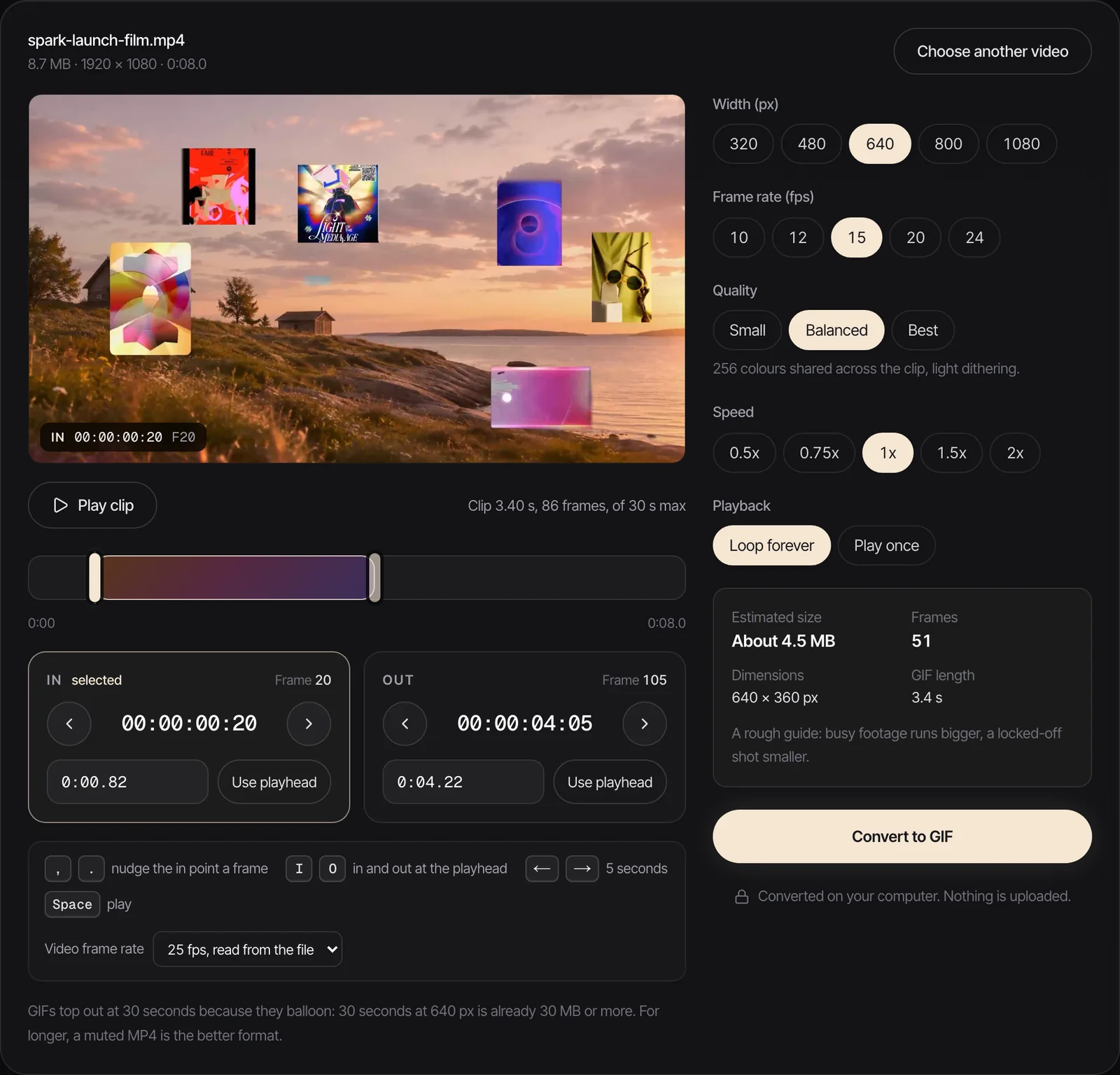
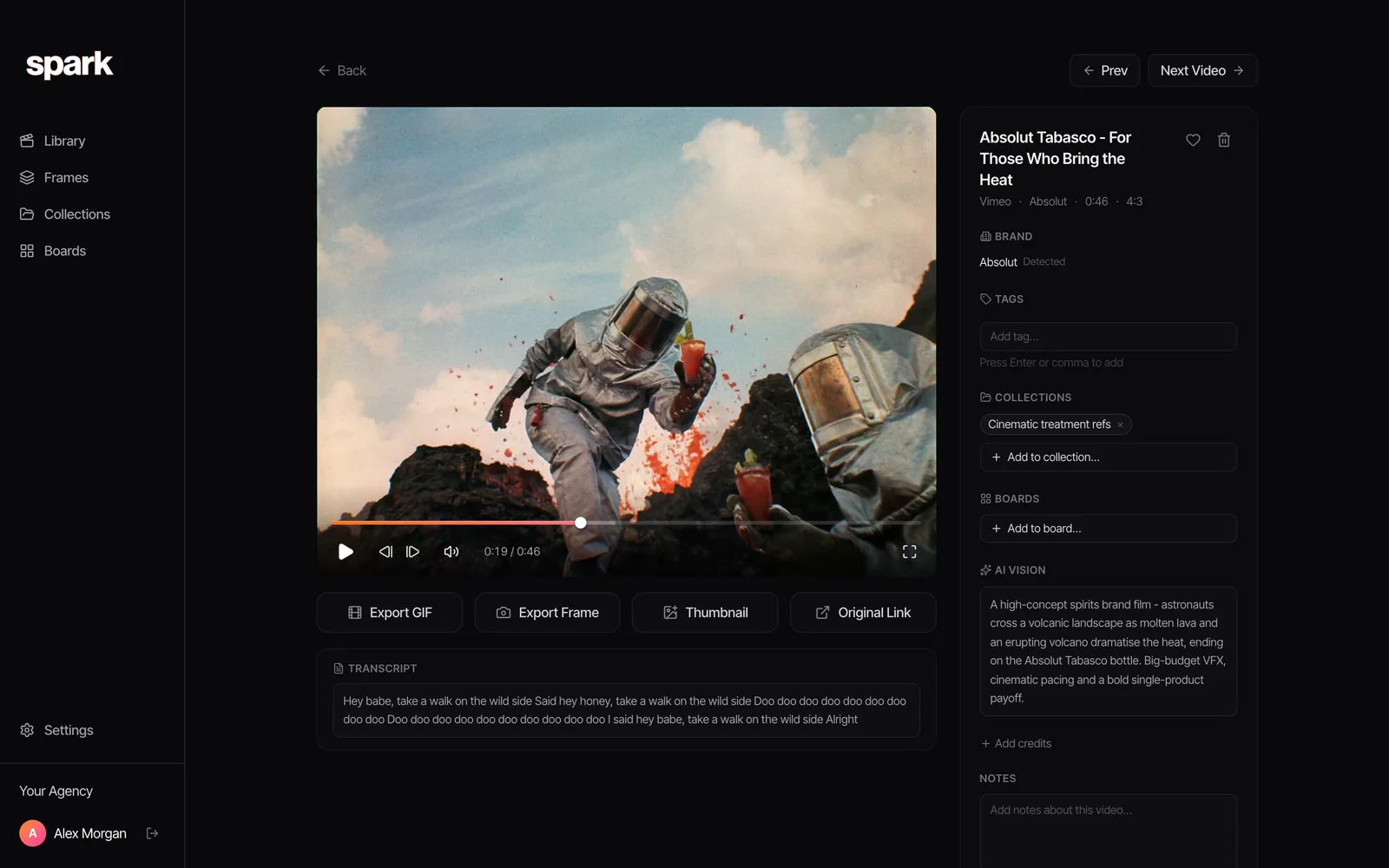
If the clip is a reference you've saved in Spark, there's nothing to download. Open the saved video, click Export GIF, set the in and out points, the frame rate and the width, and the GIF goes to Frames, ready for the email. The original stays in the library, so next time you can cut a different length or a wider version for a deck.
FAQs
How do I put a GIF in the body of an email?
In Gmail, drag the GIF into the compose window. In classic Outlook for Windows, click in the message and use Insert > Pictures. In Apple Mail, click the attachment button and choose Photos or Attach Files, or drag the GIF in. Placed in the body, it plays as the email opens.
Why is my GIF not moving in Outlook?
Microsoft doesn't document GIF playback in Outlook, but Mailchimp's help says Outlook 2007 and newer show only the first frame. Make sure frame one works as a still, and add a line of text or a link so the email reads properly without the motion.
What size should a GIF be for email?
Aim for 1 MB or less and 480 to 600 px wide. Mailchimp recommends 1 MB as the maximum for images and its templates are 600 to 660 px wide. Gmail allows 25 MB of attachments, but that's a ceiling for files, not a sensible size for something that plays in the message.
Can you send a GIF in Gmail?
Yes. Drag it into the compose window to place it in the body, or attach it with the paperclip. Personal Gmail accounts can send up to 25 MB of attachments; above that, Gmail swaps the file for a Google Drive link.
How do I add a GIF in Mailchimp?
Upload it through the content studio or search GIPHY from inside it, then add it to an image block. Mailchimp caps image uploads at 1 MB each and says not to edit GIFs in its photo editor if you want them to display as expected.
Does Apple Mail play GIFs?
Apple's Mail guide doesn't cover GIF playback directly. It does say Mail inserts images at their actual size by default and offers smaller sizes from a pop-up menu, so leave a GIF at actual size and make it the right size before you add it.
Keep reading
All articles
How to Add a GIF to Keynote So It Actually Plays
Keynote is the kindest app to a GIF, right up until the file leaves your Mac. We built a test deck and exported it every way Keynote allows, so you know what arrives where.
How to Use GIFs in Canva (Upload, Animate, Export)
Canva quietly treats a GIF as a video, which is good news once you know where the settings went. Here's every step, with Canva's real limits for Free and Pro.

How to Add a GIF to Google Slides (and Keep It Moving)
Getting a GIF onto a slide takes ten seconds. Knowing what it will do when someone presses Slideshow, or opens the PDF, is the useful bit, so we tested it.