
How to Add a GIF to Keynote So It Actually Plays
Keynote is the kindest app to a GIF, right up until the file leaves your Mac. We built a test deck and exported it every way Keynote allows, so you know what arrives where.
By the Spark team ·

To add a GIF to Keynote on a Mac, drag the .gif from Finder onto the slide or into a media placeholder. Keynote treats an animated GIF as a movie, so select it and open the Movie tab in the Format sidebar: Repeat gives you Loop or Loop Back and Forth, and the Start movie on click checkbox decides whether it waits for a click or plays as the slide appears.
The catch is everything after your Mac. We built a test deck with one GIF cut from our own launch film and exported it to PowerPoint, PDF and a movie, then took each file apart. PowerPoint got the GIF untouched, but not your Keynote loop setting. The PDF got one frozen frame. The movie kept it moving. The detail, and the settings that matter, are below.
We make Spark, and Keynote is where a lot of the moving moodboards made in it get presented, so we've a stake in getting this right.
What we tested, and on which Keynote
Apple's current Keynote for Mac is version 15.4, and its user guide covers movies and exports in detail, and even how to export slides as a GIF, but not what Keynote does with a GIF you add. So we ran the tests ourselves, on a Mac with Keynote 11.2. The menu names below match Apple's current guide. We scripted every step through Keynote's own AppleScript dictionary and logged the results.
The test GIF is three seconds of our launch film: 480 x 270 px, 36 frames at 12 fps, 1.42 MB, set to loop forever.

Step 1: Get the GIF onto the slide
Apple's guide to adding video gives two routes for media files:
- Drag the file from Finder to a media placeholder or anywhere else on the slide.
- Or click the media button in the toolbar, choose Choose Photos or Videos, then drag the file onto a placeholder or the slide.
Dragging is quicker. If you're building a grid, put media placeholders in the layout first (our Keynote moodboard guide shows how), then drop a GIF into each one so every frame lands the same size.
Keynote keeps the file as it is. Apple's guide says Keynote "keeps movies and images in their original format", and in our test the GIF inside the saved .key was the same 1,419,392 bytes we put in, next to a 480 x 270 poster image Keynote made of its first frame.
Step 2: Set how it loops
Here's the useful surprise. When we asked Keynote what was on the slide, the GIF wasn't listed as an image at all. It was a movie, with its repeat setting already on Loop.
So the controls Apple documents for video in its guide to editing video and audio apply to a GIF:
- Select the GIF.
- In the Format sidebar, click the Movie tab.
- Open the Repeat pop-up menu and choose Loop, or Loop Back and Forth to play it forward and then backward.
We also tried a GIF made to play only once, the kind that freezes on its last frame in Google Slides. Keynote set that one to Loop too. So in Keynote it's the Repeat menu you adjust, whatever the file says.

Loop Back and Forth suits slow moves and near still shots: a push in, a drift, steam. It looks odd on anything with a direction people can read, like a runner or a car.
Step 3: Decide when it starts
Apple's page on adding video says two different things: that video plays when you click it by default, and, a few lines later, that it plays when the slide appears. Don't leave it to chance. In the same Movie tab:
- Start movie on click ticked: the GIF waits for a click.
- Start movie on click unticked: it plays as soon as the slide appears.
- Play movie across slides ticked: it carries on playing through the transition to the next slide, if it's on that slide too.
For a moodboard, untick Start movie on click on every GIF. A grid where half the frames wait for a click looks broken. Then press Play and click through every slide before you present, because that's the only check that counts.
What happens to the GIF when you export
Keynote's File > Export To menu lists PDF, PowerPoint, Movie, Animated GIF, Images, HTML and Keynote '09, according to Apple's export guide. We exported our test deck to the three that matter for a GIF and opened each file up:
| Export to | What happened to the GIF in our test |
|---|---|
| PowerPoint (.pptx) | The original GIF, byte for byte: 1,419,392 bytes, 36 frames |
| One still image, frame one of the GIF | |
| Movie | Played and looped for as long as the slide was on screen |
PowerPoint: the file survives, your loop setting doesn't
The .pptx carried the GIF untouched. But Keynote's Repeat menu stayed behind. We set our play once GIF to Loop Back and Forth, exported to PowerPoint, and the GIF inside the .pptx was the original file, still set to play once. PowerPoint has no loop control for GIFs, so it would play once there and stop.
The fix is upstream: make the GIF loop forever in the file before it goes into Keynote, and Keynote's setting becomes a nice extra. Our guide to inserting GIFs into PowerPoint covers what to check on the other side.
PDF: one frame, the first one

The PDF held a single 480 x 270 image, and when we compared it with every frame of the GIF it matched frame one exactly. If the deck has to travel as a PDF, make sure frame one is a good picture: trim the GIF so it starts on the strongest frame, or swap in a still for the PDF copy. And if the GIF is going out in an email rather than a deck, putting a GIF in an email has the Outlook catch.
Movie: it keeps moving
Our exported movie ran 10 seconds, and the GIF played through the whole slide, repeating every three seconds. For a board that plays on a phone or a screen in reception, Movie with Playback set to Self-Playing is the export that keeps every GIF alive. Apple's guide covers the resolution, frame rate and slide timing options in the same window.

Animated GIF: the deck as a GIF
Keynote can also turn slides into a GIF: File > Export To > Animated GIF, pick the slide range, resolution, frame rate and how fast it auto advances. Handy for a teaser in Slack. Keep it to a few slides, and if it comes out heavy, our GIF compressor will bring it down to a target size.
How big should a GIF in Keynote be?
Apple doesn't publish a GIF limit for Keynote. What it does say is that File > Reduce File Size scales images down to the size they're used at and can convert movies to H.264 or HEVC. Apple doesn't say what that does to a GIF, which Keynote stores as a movie. If you use it, use Reduce a Copy and check the GIFs still move.
The better habit is a small GIF in the first place. Our test GIF made a 1.9 MB .key file. Ten like it and the deck is around 15 MB before a single still. Keep GIFs for boxes on a slide at 480 to 640 px wide, and think twice before a GIF fills the screen.
| On a Keynote slide | GIF | MP4 or MOV |
|---|---|---|
| Size, our 3 second test at 800 px | 5.76 MB | 0.32 MB |
| Loops | Yes, with Repeat | Yes, with Repeat |
| Sound | Never | Yes, if you want it |
| Loops if the deck moves to Google Slides | Yes, tested | Google lists no loop option for video |
Inside Keynote, video does everything a GIF does at a fraction of the size, because the same Repeat and Start movie on click controls apply. A GIF earns its place when the deck has to go somewhere video struggles. Our GIF vs MP4 comparison goes through that app by app, and the Google Slides version of this guide covers the deck app where GIFs are the only clips that loop.
Making the GIF on a Mac
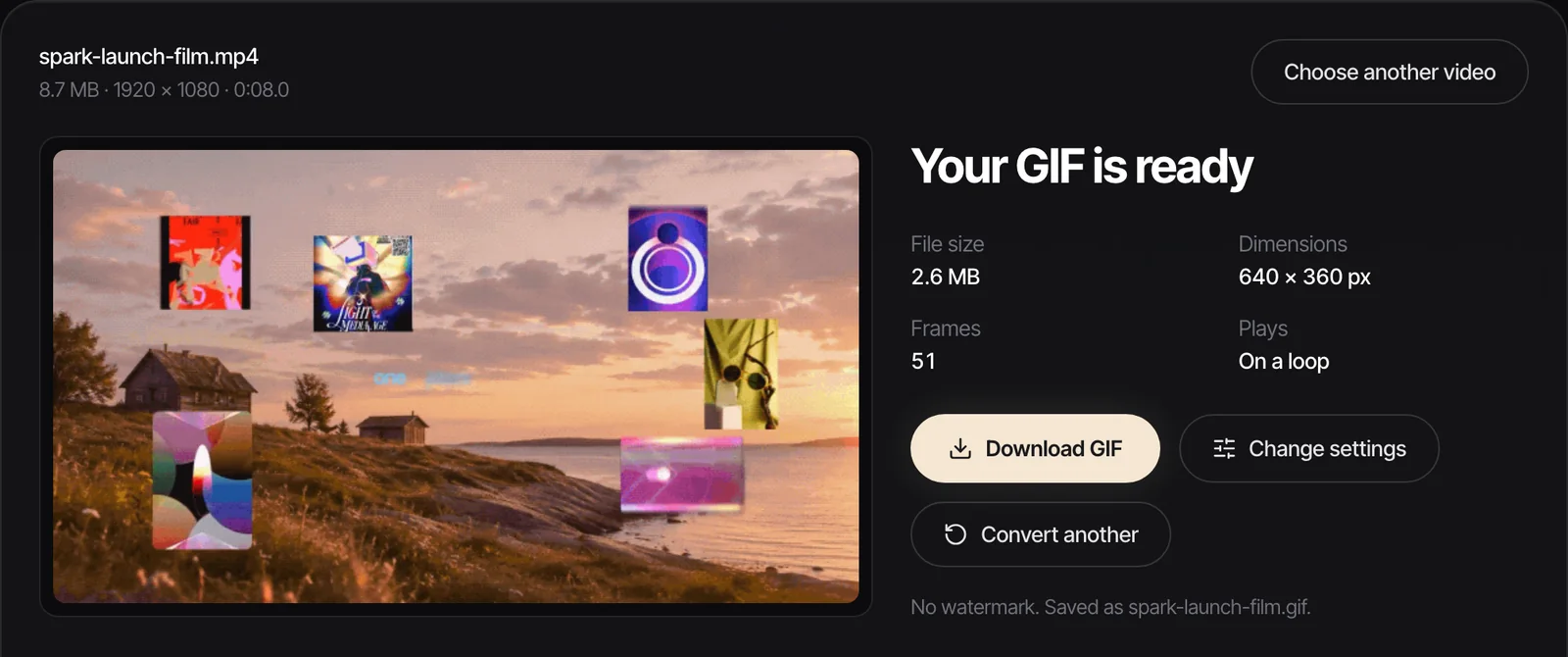
The quickest route we know is the free video to GIF converter on our site: drop in an MP4 or MOV, set in and out points to the frame, pick the width and frame rate, and leave Playback on Loop forever so PowerPoint behaves later. Nothing is uploaded. For every other Mac route, from Gifski to ffmpeg, see converting MP4 to GIF on a Mac.
From a saved reference to a Keynote board
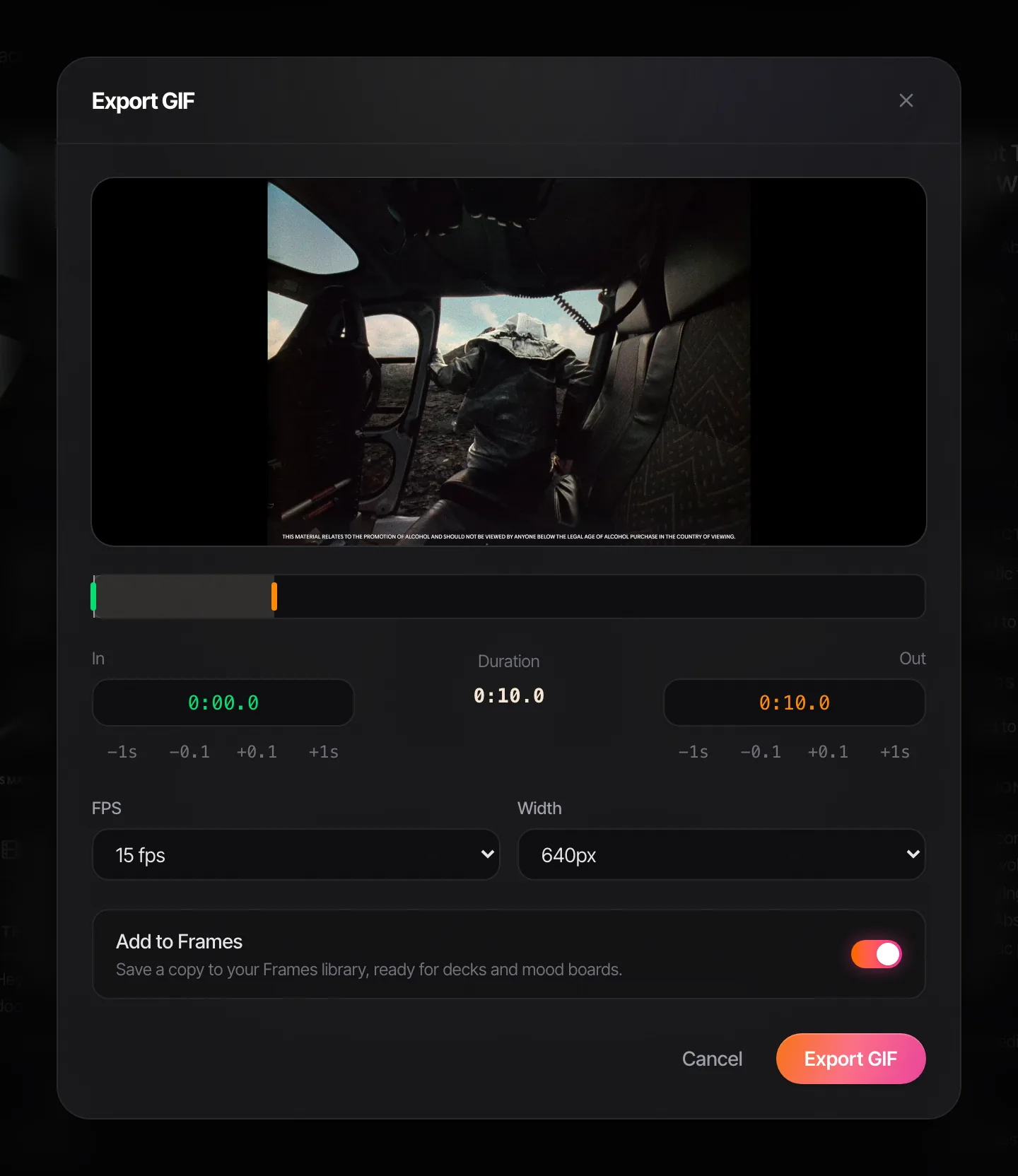
Most GIFs in our decks are references: a camera move from an ad, two seconds of a music video. In Spark we save the video once, then Export GIF cuts the exact seconds, with in and out points you can nudge, a frame rate and a width, and saves the GIF to Frames.
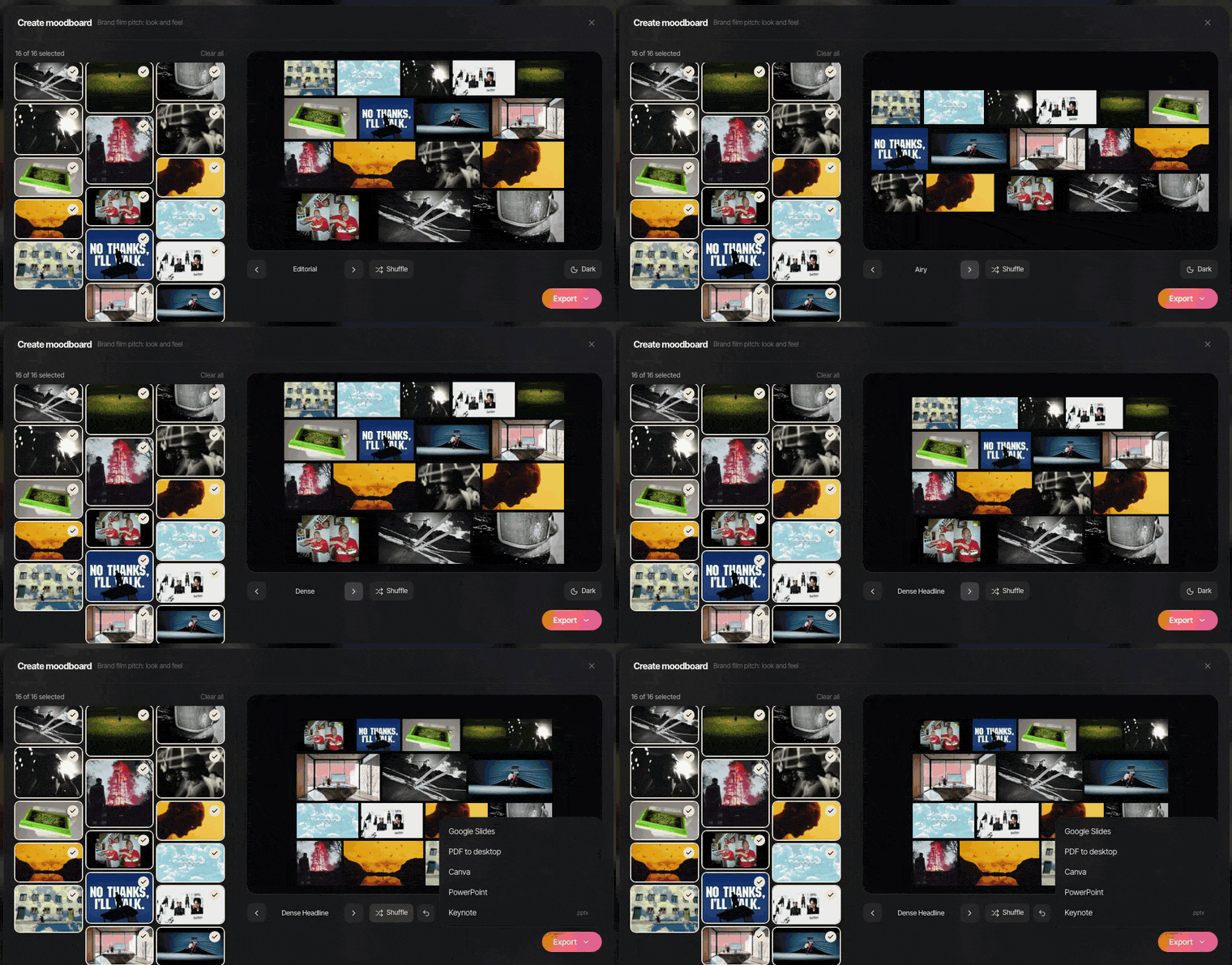
When the board is ready, Create Moodboard lays the frames and GIFs out as slides and exports a .pptx for Keynote, among other formats. Open it in Keynote and the GIFs are still GIFs, still moving. Our guide to presenting a moodboard covers what to do once it's on screen.
FAQs
How do I add a GIF to Keynote?
Drag the GIF from Finder onto the slide or into a media placeholder. You can also click the media button in the toolbar, choose Choose Photos or Videos, and drag it in from there. Keynote treats the GIF as a movie, so its settings live in the Movie tab of the Format sidebar.
Why is my GIF not playing in Keynote?
Check Start movie on click in the Movie tab: if it's ticked, the GIF waits for a click when you present. Untick it to play as the slide appears. If the file is really a WebP or MP4 renamed as .gif, convert it properly.
How do I make a GIF loop in Keynote?
Select it, open Format > Movie and set Repeat to Loop or Loop Back and Forth. In our test, Keynote set even a play once GIF to Loop by default. That setting stays in Keynote, though, so make the GIF loop forever in the file if the deck will be exported to PowerPoint.
Do GIFs keep moving when I export Keynote to PowerPoint?
The GIF file goes into the .pptx unchanged, so it animates in PowerPoint, but Keynote's Repeat setting doesn't go with it. A GIF saved to play once will play once in PowerPoint. Open the .pptx and click through before sending.
What happens to a GIF when I export Keynote to PDF?
It becomes a still. In our test the PDF showed the GIF's first frame and nothing else. Trim the GIF so frame one is a good picture, or export a movie if the motion matters.
Is there a file size limit for GIFs in Keynote?
Apple doesn't publish one. Keynote stores media in its original format, so every GIF adds its full size to the file. Keep GIFs for boxes on a slide around 480 to 640 px wide, and use an MP4 or MOV with Loop for anything that fills the screen.
Keep reading
All articles
How to Put a GIF in an Email (Gmail, Outlook and Apple Mail)
A GIF in an email is the one moving image almost every inbox will show you. Get it in the right place, keep it light, and make sure the first frame can stand on its own.
How to Use GIFs in Canva (Upload, Animate, Export)
Canva quietly treats a GIF as a video, which is good news once you know where the settings went. Here's every step, with Canva's real limits for Free and Pro.

How to Add a GIF to Google Slides (and Keep It Moving)
Getting a GIF onto a slide takes ten seconds. Knowing what it will do when someone presses Slideshow, or opens the PDF, is the useful bit, so we tested it.