
How to Add a GIF to Google Slides (and Keep It Moving)
Getting a GIF onto a slide takes ten seconds. Knowing what it will do when someone presses Slideshow, or opens the PDF, is the useful bit, so we tested it.
By the Spark team ·

To add a GIF to Google Slides, click the slide, go to Insert > Image > Upload from computer and choose the .gif. You can also pull one from Drive & Photos, paste a link with By URL, or search for one under Stock & web. The GIF animates as soon as it lands, in the editor and when you press Slideshow. Google's developer documentation sets the ceiling at 50 MB and 25 megapixels per image.
When a GIF won't move, it's nearly always one of three things: the file was made to play once, it isn't really a GIF, or the deck went out as a PDF. We tested each of those in Slides in October 2026, along with what happens to a GIF when the deck is downloaded as PowerPoint. The results are below.
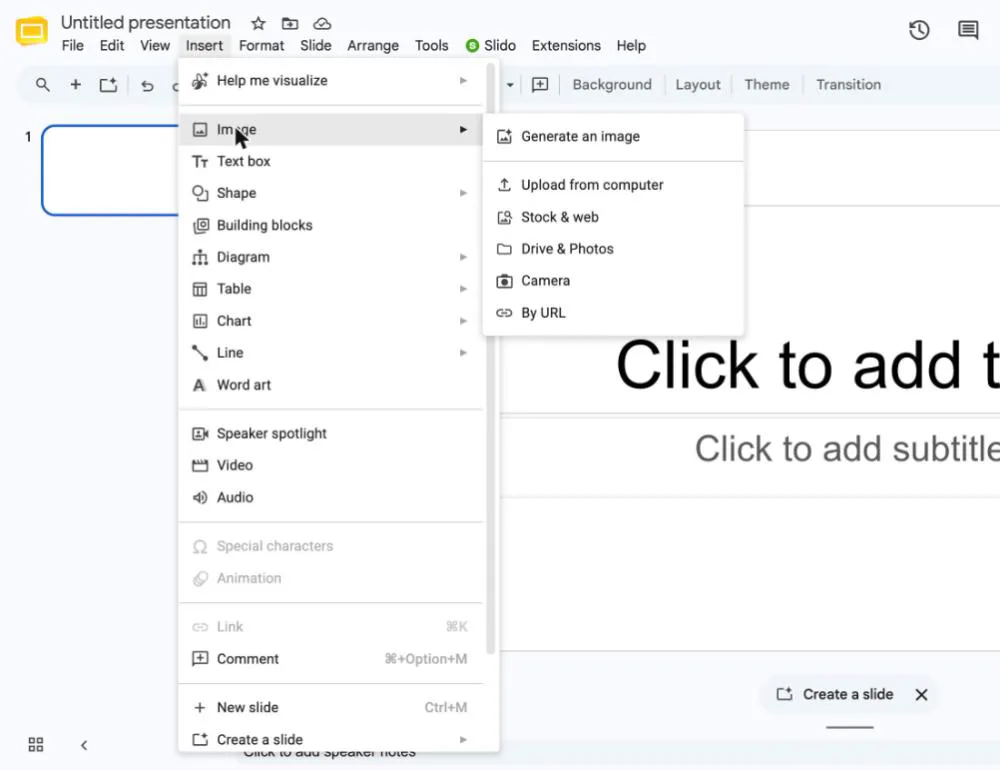
Four ways to get a GIF onto a slide
| Route | Where the GIF comes from | Use it when |
|---|---|---|
| Upload from computer | A .gif on your Mac or PC | You cut the GIF yourself |
| Drive & Photos | Your Google Drive or Google Photos | It already lives in the project folder |
| By URL | A direct link to the .gif file | It's hosted somewhere you trust |
| Stock & web | A search panel with rows of stock images, GIFs and stickers | You want a stock reaction GIF, not a reference |
Upload from computer
- Click the slide you want.
- Go to Insert > Image > Upload from computer.
- Pick the GIF and click Open.
- Drag a corner handle to size it.
Dragging the file from Finder or File Explorer onto the slide does the same job. Google's help lists drag and drop as a way to add images in Slides.
From Google Drive
Insert > Image > Drive & Photos opens a side panel with Google Drive and Google Photos tabs, a search icon and a File type filter. Click the GIF and it goes straight onto the slide. If the team keeps its cut GIFs in the project's Drive folder, this is the quickest route.
By URL
Paste a link that points at the file itself, usually ending in .gif, not at the web page the GIF sits on. Google's help describes By URL as a link to an image or a .gif, and a web page is neither.
Stock & web, the built-in GIF search
Google's help page still describes a separate GIFs and stickers item. In the editor we used in October 2026 it had gone, and the search lives under Insert > Image > Stock & web: a panel with a search box, an All filter, then rows for stock images, GIFs and stickers. Click one and it drops onto the slide.
Those are stock GIFs. Fine for a cheerful slide in an internal deck. For a pitch you almost always want a specific moment from a specific film or ad, and that means cutting the GIF yourself.
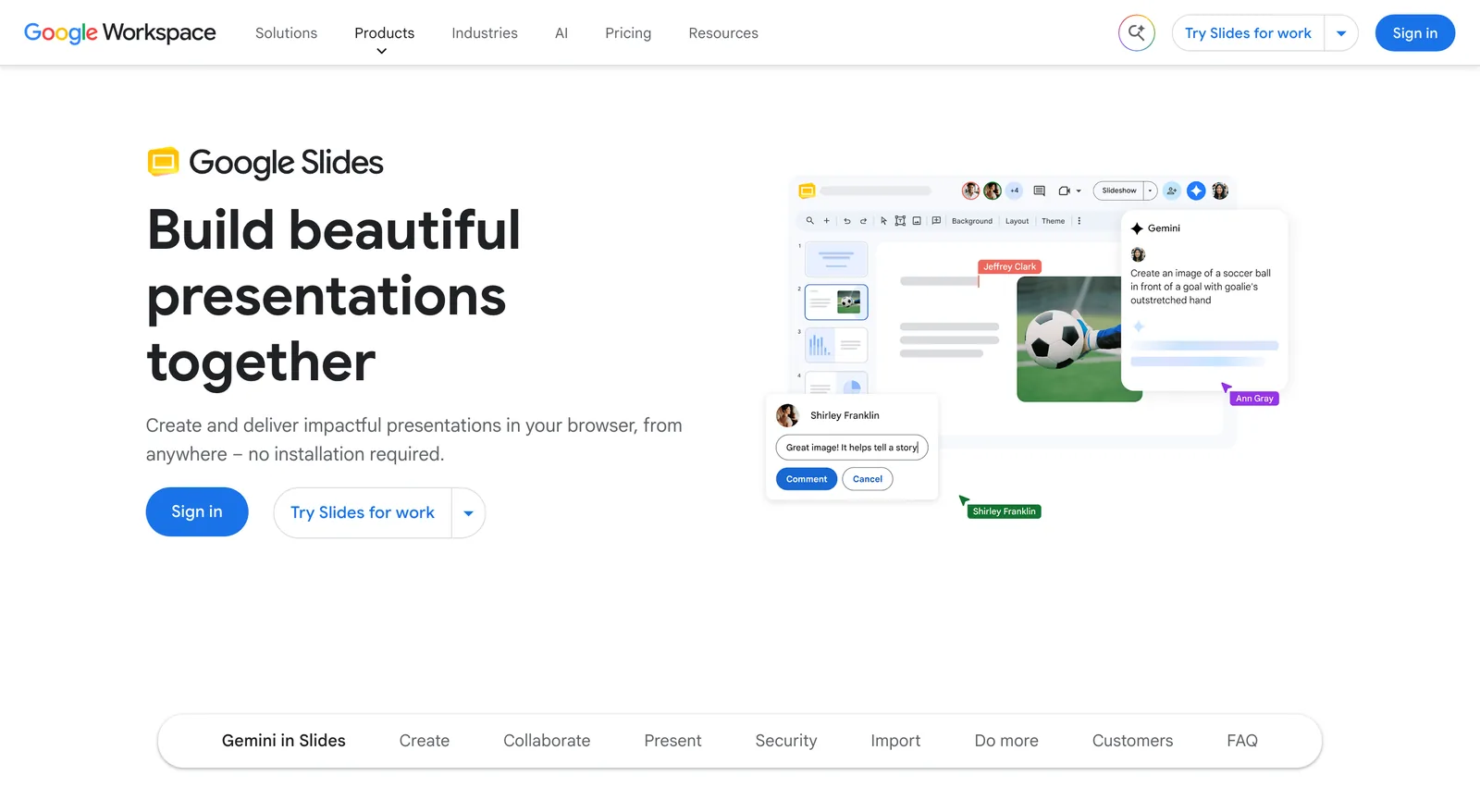
How big can a GIF be in Google Slides?
Google's Slides API guide says images must be under 50 MB, no more than 25 megapixels, and PNG, JPEG or GIF. The editor's own help page doesn't print a limit, so we treat the API figures as the ceiling. Megapixels are width times height, so a 1920 x 1080 GIF is about 2.1 megapixels. You'll hit the 50 MB long before the pixel count.
Can and should are a long way apart, though. Every GIF has to load on every laptop and phone that opens the deck. We cut three seconds of our own launch film into GIFs at four widths, all at 15 fps, to show where the weight comes from:
| Width | Frames | GIF size |
|---|---|---|
| 320 px | 45 | 1.01 MB |
| 480 px | 45 | 2.16 MB |
| 640 px | 45 | 3.77 MB |
| 800 px | 45 | 5.76 MB |
| 800 px as an MP4, for comparison | 75 | 0.32 MB |
Going from 800 to 480 px took 63% off the file. Dropping the 480 px version from 15 to 10 fps took another 22%, down to 1.67 MB. Width first, then frame rate: the same order our guide to reducing GIF file size found, where the rest of the levers are ranked too.

For a box in a grid, 320 to 480 px wide is enough. Half a slide, 640 px. What's in the shot matters too: soft light and fine detail cost far more bytes than flat colour at the same width.


Our full limits table for other places a GIF might travel, from Gmail to Discord, is in GIF size limits.
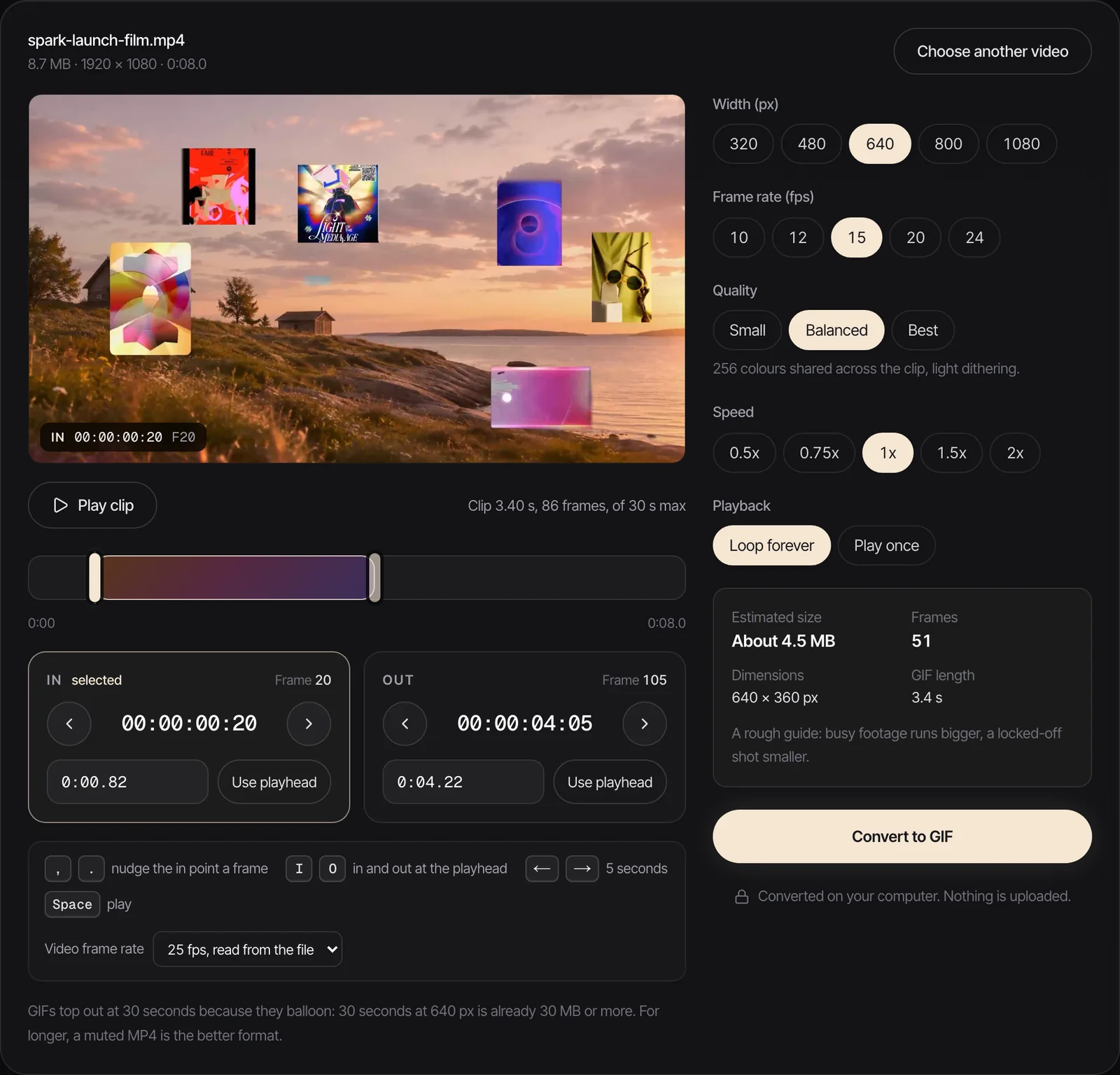
Our free video to GIF converter shows an estimated size before it converts, so you can set the width and frame rate until the number looks sensible. It runs in your browser and nothing is uploaded.
Why your GIF isn't moving in Google Slides
It was made to play once
A GIF carries its own loop count, and Slides has no setting to override it. Google's help lists no loop option for images. We built a tiny GIF set to play once (a white box crossing the frame, ending on solid red) and put it in a deck. In the editor it ran once and then sat on its last frame. Pressing Slideshow played it from the start, once, and it stopped on red again.
So a GIF that plays once looks frozen to anyone who arrives a few seconds late. Re-save it to loop forever. Our converter has a Loop forever or Play once switch, set to loop. For a GIF you already have, gifsicle rewrites the loop count without touching the frames:
gifsicle --loopcount=forever input.gif -o output.gif
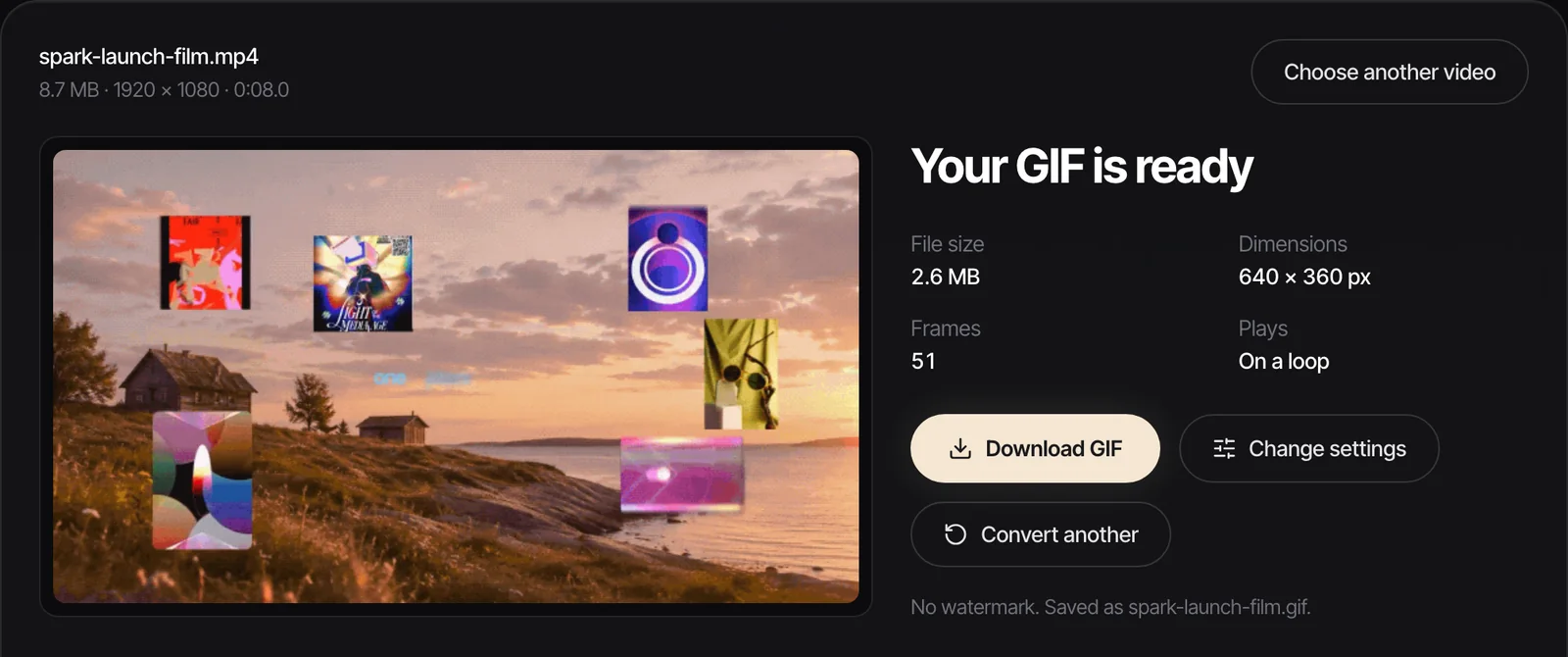
It isn't really a GIF
Saving what looks like a GIF from a website can hand you a WebP or an MP4 instead. Slides takes PNG, JPEG and GIF as pictures, per the API guide above. On a Mac, select the file and press Cmd+I to see its real kind; on Windows, turn on file name extensions in File Explorer. If it's an MP4, convert it properly rather than renaming it.
An animation is hiding it
If you add an object animation to the GIF, Google sets it to Appear (On click) by default, according to its animations help. The GIF is then invisible until you click. Open Insert > Animation (or View > Motion) and either remove it or pick a different start from the second drop-down.
The deck went out as a PDF
A PDF can't hold animation. We downloaded our test deck from Slides as a PDF, and the 32 frame GIF had been replaced by a single 498 x 498 JPEG of one frame. If a PDF has to go, check what that frame shows.
It's a video, not a GIF
Insert > Video takes YouTube, a link or a Google Drive file, and its playback options are Play (on click), which is the default, Play (automatically) and Play (manual). Google lists no loop. Drive videos also bring permissions into it: Google's help describes an access checker that suggests sharing changes for video and audio in a shared deck, because a viewer needs access to the file to play it. For a short reference that should cycle while you talk, a GIF avoids both problems. Our GIF vs MP4 comparison weighs the two across every deck app.
Looping and timing when you present
Each GIF runs on its own clock. Google's help lists no trim, speed or timing controls for pictures, so set all of that in the file before it goes in. Our converter has a Speed setting from 0.5x to 2x, alongside the trim.
Timing matters most when slides advance themselves. In Slideshow, Options > Auto-advance options sets the interval, and File > Share > Publish to web has its own Auto-advance slides choice for a deck that plays at a link, per Google's presenting help. Pick an interval longer than your longest loop. The clip GIFs on this blog run 2 to 3.7 seconds each, so we'd use 5 seconds at least.
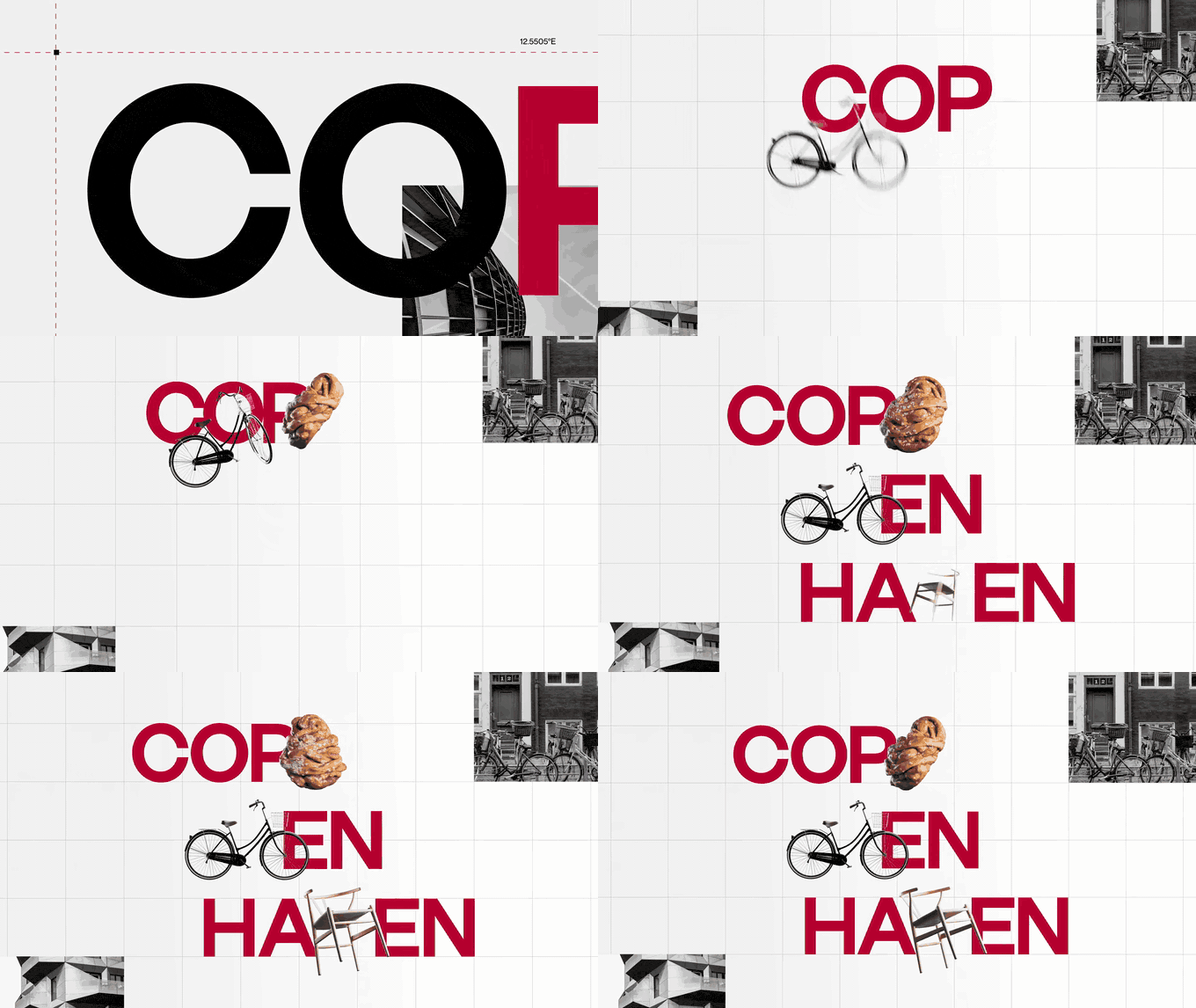
Does the GIF survive when the deck leaves Slides?
Google's help says to use File > Download and choose a file type. It doesn't say what happens to animated GIFs, so we tested it with a GIF from the Stock & web panel:
| Download as | What happened to the GIF |
|---|---|
| PowerPoint (.pptx) | Kept as a GIF: 498 x 498, all 32 frames, still set to loop forever |
| Replaced by one 498 x 498 JPEG, a still |
So when a Slides deck has to go to someone on PowerPoint or Keynote, send the .pptx: the GIFs travel intact. Click through it in their app before it goes anywhere, because fonts and layouts can still shift. Our guides to inserting GIFs into PowerPoint and adding a GIF to Keynote pick up from there.
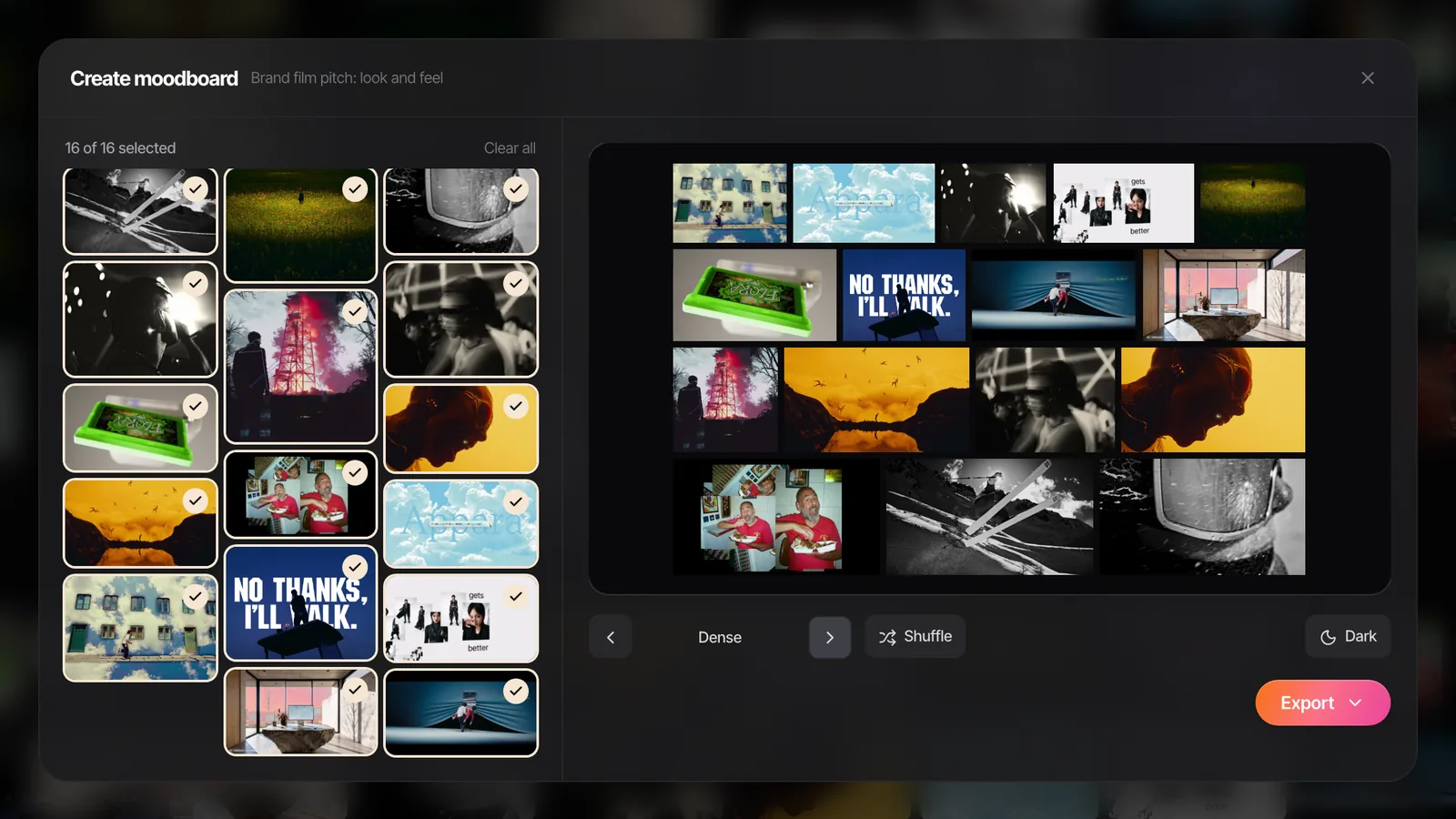
A whole board of moving references
One GIF is easy. Twelve, each cut to the right two seconds of a reel or an ad, is an afternoon of downloading, trimming and uploading.
That's the job we built Spark for. You save references from Instagram, TikTok, YouTube, Vimeo and the rest, and Export GIF cuts the exact seconds you need into Frames. Then Create Moodboard, from a board or a collection, lays the frames and GIFs out as slides with a choice of layouts and a shuffle, and exports to Google Slides, Canva, PowerPoint, Keynote or PDF. In Slides, the GIFs keep moving. Only the PDF freezes them. Building in Canva instead? Using GIFs in Canva covers its upload and download rules.
No Spark? The free moodboard maker lays out your own GIFs and images in the browser and exports a .pptx, with GIFs that play when presenting. Our guide to making a moodboard in Google Slides shows how to bring a .pptx into Slides and build the grid from there.
FAQs
How do I add a GIF to Google Slides?
Click the slide, then go to Insert > Image and choose Upload from computer, Drive & Photos or By URL. To search for one, use Insert > Image > Stock & web, which has a row of GIFs. The GIF plays in the editor and in Slideshow as soon as it's on the slide.
Why is my GIF not moving in Google Slides?
Most often the GIF was saved to play once, so it stops on its last frame; in our test Slides played it once from the start and then held still. Other causes are a WebP or MP4 renamed as .gif, an entrance animation set to appear on click, or a PDF copy of the deck, which can't animate. Re-save the GIF to loop forever and check it in Slideshow.
Can you make a GIF loop in Google Slides?
Not from inside Slides. The loop count is stored in the GIF file, and Google's help lists no loop setting for pictures. Re-export the GIF with looping on, for example with our free converter's Loop forever option or gifsicle --loopcount=forever.
What is the GIF size limit in Google Slides?
Google's Slides API guide says images must be under 50 MB and no more than 25 megapixels, in PNG, JPEG or GIF format. The editor's help page doesn't list a separate limit. For a smooth deck, keep each GIF to a couple of megabytes; 480 px wide is enough for most slots.
Do GIFs still move if I download Google Slides as PowerPoint or PDF?
In our October 2026 test, the PowerPoint download kept the GIF as a looping, 32 frame GIF. The PDF download replaced it with a single JPEG still. Check the .pptx in PowerPoint or Keynote before sending it.
Is there a GIF search in Google Slides?
Yes. In October 2026 it sits under Insert > Image > Stock & web, in a panel with rows for stock images, GIFs and stickers and a search box. Google's help page still calls the older version GIFs and stickers.
Keep reading
All articles
How to Add a GIF to Keynote So It Actually Plays
Keynote is the kindest app to a GIF, right up until the file leaves your Mac. We built a test deck and exported it every way Keynote allows, so you know what arrives where.

How to Put a GIF in an Email (Gmail, Outlook and Apple Mail)
A GIF in an email is the one moving image almost every inbox will show you. Get it in the right place, keep it light, and make sure the first frame can stand on its own.

How to Use GIFs in Canva (Upload, Animate, Export)
Canva quietly treats a GIF as a video, which is good news once you know where the settings went. Here's every step, with Canva's real limits for Free and Pro.