
How to Use GIFs in Canva (Upload, Animate, Export)
Canva quietly treats a GIF as a video, which is good news once you know where the settings went. Here's every step, with Canva's real limits for Free and Pro.
By the Spark team ·
To add a GIF to Canva, open a design, upload the .gif from the upload tab in the editor's side panel, then click it to place it on the page. To search for GIFs instead, open the GIPHY app from Apps in the side panel. Canva lists GIF among its video formats, so an uploaded GIF can be up to 1 GB and gets video controls: select it, click Edit, and under Playback switch on Play automatically and Play on repeat.
To get a moving file back out, use Share > Download and pick GIF or MP4. On Canva Free a GIF download can run up to a minute at 1280 x 720; on Pro and the other paid plans, two minutes at 1920 x 1080. Every limit here comes from Canva's help centre, checked in October 2026, and we link each page.
We make Spark, and plenty of clients would rather get a board in Canva than anywhere else. So it pays to know where Canva keeps the GIF settings.
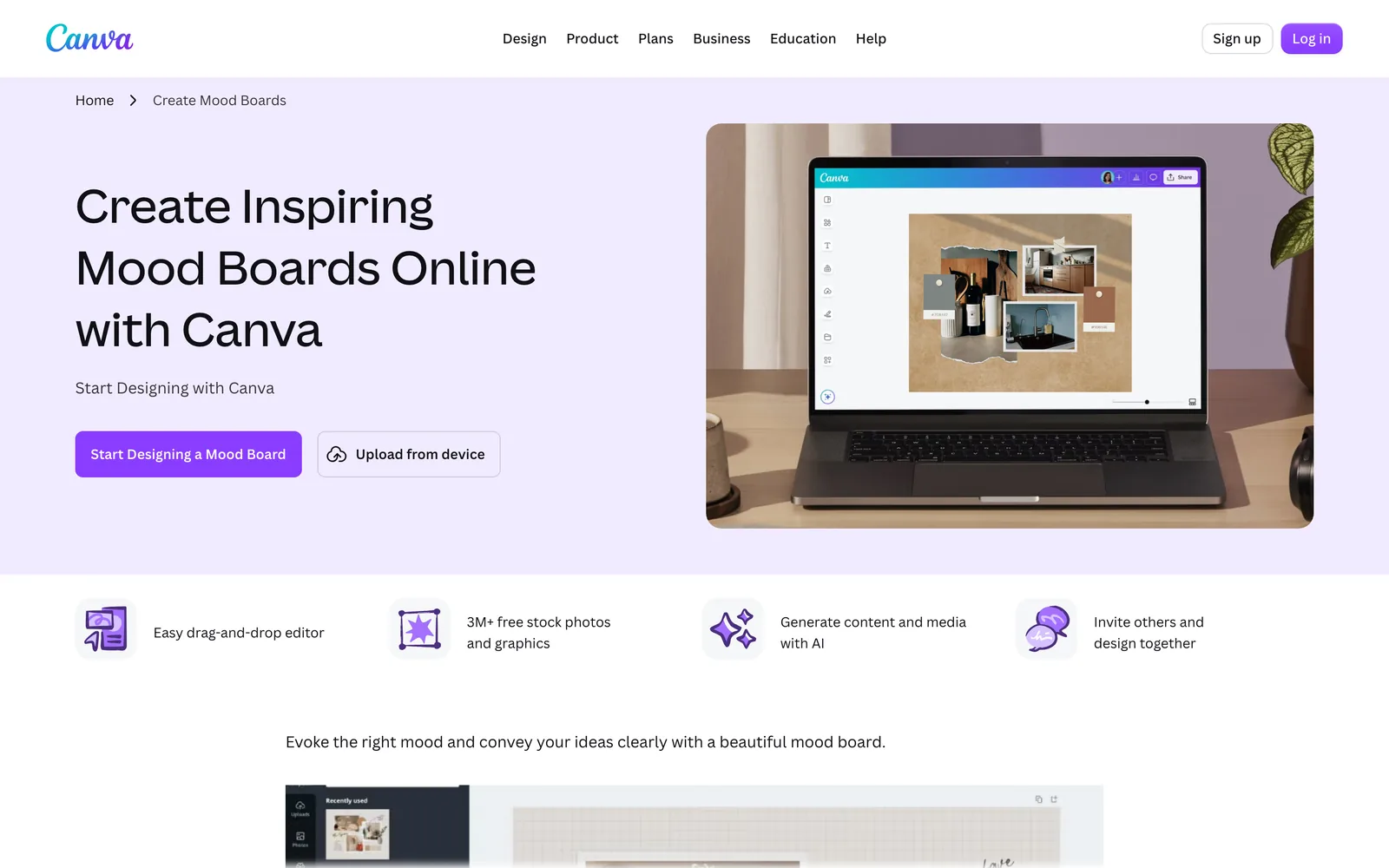
Step 1: Upload the GIF
- Open your design.
- In the side panel, open the upload tab and upload the .gif from your computer.
- Click it in your uploads to add it to the page, then size it.
Canva's upload requirements split images and video, and the GIF sits on the video side:
| What you upload | Formats | Size limit |
|---|---|---|
| Images | JPEG, PNG, HEIC/HEIF, WebP (still only) | Under 50 MB, 250 million pixels at most |
| Video, which includes GIF | MOV, GIF, MP4, MPEG, MKV, WEBM | 1 GB |
| Your total storage | All uploads | Free 5 GB, Pro 100 GB, Business 500 GB per team |
Two things follow from that table. An animated WebP won't move, because Canva only supports still WebP images. Convert it to a GIF or an MP4 first. And at 1 GB per file, the upload limit will never be the problem. The problem is heavy GIFs eating into the 5 GB a free account gets, and weighing down everything you export.
If you upload straight to a folder instead of from inside the editor, Canva accepts JPG, PNG, SVG and GIF there, so a GIF library in a Canva folder is possible.

Step 2: Or find one with the GIPHY app
Canva's apps include GIPHY, listed in the apps marketplace as an app by Canva that adds GIFs to your designs, powered by GIPHY. Open it from Apps in the side panel and search GIPHY's library from there. Its listed permissions say it can add content to your design and upload media to Canva on your behalf.

As with any stock GIF library, it's built for reactions and stickers. For a pitch board you usually need a particular moment from a particular film or ad, which means cutting your own GIF and uploading it.
Step 3: Make it loop and set the speed
Because Canva handles a GIF as a video, its looping lives in the video settings, per Canva's guide to adjusting video playback:
- Select the GIF on the page.
- Click Edit in the toolbar above the editor.
- Scroll the side panel to Playback.
- Switch on Play automatically so it starts without a click when you present.
- Switch on Play on repeat so it loops.
- Under Video speed, set anything from 0.25x to 2x.
Speed is the setting worth knowing about. A GIF cut at full speed can be slowed to half in Canva without re-exporting, which is handy for a camera move you want the client to notice.
One exception from Canva's own page: looping videos aren't available in video designs. In a presentation, a social post or a whiteboard the loop works; in a design made as a video, it doesn't.
Step 4: Animate around it
Canva's Animate button works on the page and on elements, and its help says more animation styles come with the paid plans. Select an element or the page, click Animate in the toolbar, and choose from the Page, Element or Text tabs. Speed presets are Slow, Medium and Fast, or you can set exact durations. Each animation tops out at 10 seconds, and a design can hold 50.
Our rule: animate the type and the layout, never the GIF. A GIF that also flies in is two motions fighting for the same eye.
Step 5: Download as GIF or MP4
Go to Share > Download, choose GIF or MP4 Video as the file type, and pick the pages. Canva's video and GIF download page sets the limits by plan:
| Download | Canva Free | Pro, Teams, Education, Nonprofits |
|---|---|---|
| GIF | Up to 1 minute, 1280 x 720 max | Up to 2 minutes, 1920 x 1080 max |
| MP4 | Up to 30 minutes, 1920 x 1080 max, default quality only | Up to 2 hours, 3840 x 2160 max |
Canva Pro costs £100 a year for one person in the UK, as of October 2026, on Canva's pricing page. For most GIF work, Free's one minute at 1280 x 720 is already more than a GIF should be.
For a GIF, Canva's size control is a scale: 0.2x, 0.4x, 0.6x, 0.8x or 1x, or a size you type. There's a Transparent background toggle, though downloading with a transparent background is one of the options Canva keeps for paid plans. What there isn't is a file size target. Canva's Limit size option only works for PNG and JPG, per its file types page.
So a Canva GIF can come out heavier than the place it's going. Our free GIF compressor has a Hit a target size mode: give it 1 MB for an email or 5 MB for Notion's free plan and it searches for the gentlest settings that fit, shrinking the width first and giving up colours and frames only when it has to. It runs in your browser, so nothing is uploaded. Email is the strictest of those, and putting a GIF in an email goes through Gmail, Outlook and Apple Mail one by one.
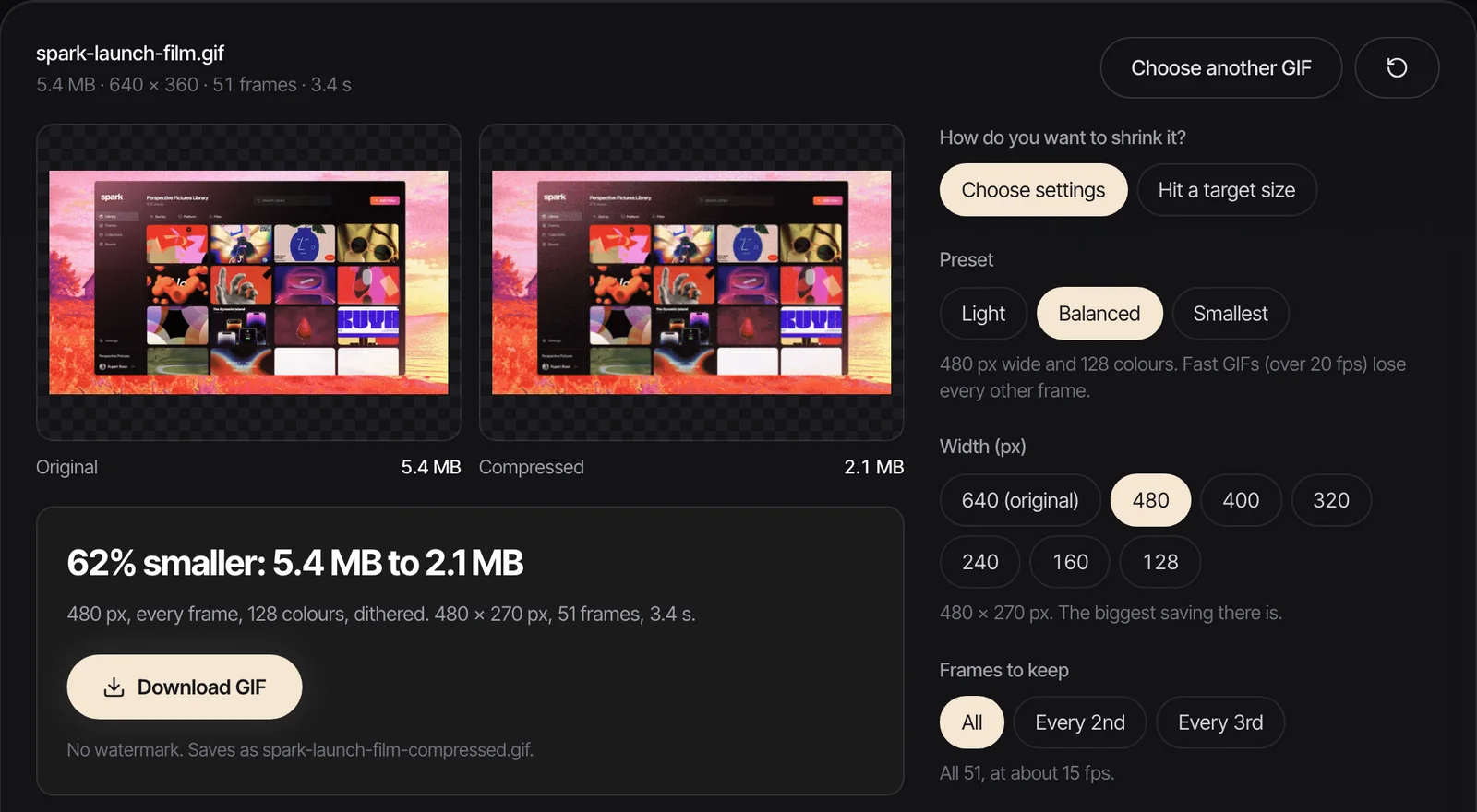
We tested its target mode on a 3 second, 800 px GIF cut from our own launch film, 5.76 MB to start with:
| Target | What the compressor chose | Result |
|---|---|---|
| 5 MB | Same 800 px width, 128 colours | 4.17 MB |
| 1 MB | 480 px, 64 colours, every other frame | 0.59 MB |
| 128 KB | 280 px, 32 colours, every third frame | 0.12 MB |
Where the GIF is going decides how far to push it. Our guide to GIF size limits has each app's ceiling, with sources.
Presenting a design with GIFs
Click Present and choose a mode: Present fullscreen, Presenter View, Present and record or Autoplay, according to Canva's presenting help. GIFs set to Play automatically start with the page; leave it off and they won't start on their own.
If the venue's Wi-Fi is a worry, Canva can present offline: click the cloud icon and choose Make available offline on the device you'll present from. Canva says embedded content, like YouTube videos and Spotify links, won't work offline. Uploaded GIFs aren't embeds, but test the offline copy on that device all the same.

GIFs in Canva Docs and Canva Websites
Canva Docs take the same library as other designs: Canva's Docs help lists photos, videos, audio, stickers and graphics among what you can add, so an uploaded GIF goes in the same way. It doesn't mention GIFs by name, so check the doc in view mode before sharing. If the doc has to leave Canva as a Word file, the same warning as PowerPoint applies: animations may not play in DOCX.
For Canva Websites, Canva's advice for a slow site is to reduce the design's file size and elements. A page of heavy GIFs is the obvious culprit, and the same 1 MB target works well for a hero loop.
A warning before you download as PowerPoint
Canva's file types page is blunt: animations and embedded videos aren't yet supported when you download as PPTX, and they may not play as expected. A GIF that loops happily in Canva can come out of a PowerPoint download not doing what you expect. If the client wants PowerPoint, open the .pptx and check every moving frame. If they just want to watch, send the MP4.
Our guides to inserting GIFs into PowerPoint and GIF vs MP4 for presentations cover what to do on the other side.
Building a Canva moodboard from saved references
Canva is a good place to finish a board and a slow place to start one, because every moving reference has to be found, downloaded, cut and uploaded first. Our Canva moodboard guide covers layout; this is the getting things in part.
In Spark you save the reels, ads and films themselves, then Export GIF cuts the exact seconds you need to Frames. Create Moodboard lays a board or collection out as slides, and its export menu sends it to Canva, Google Slides, PowerPoint, Keynote or PDF. In Canva, the GIFs keep moving; only the PDF freezes them.
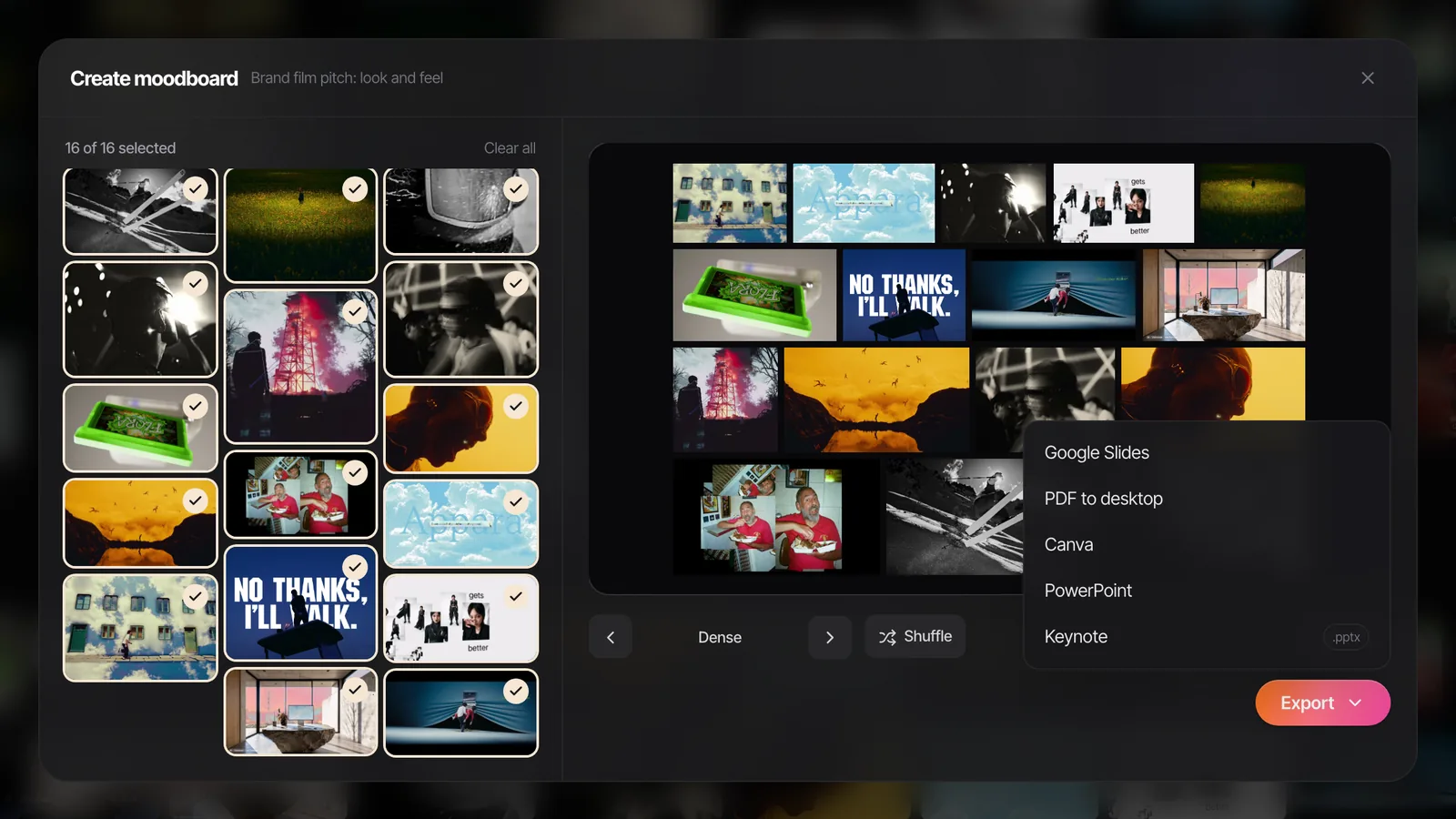
No Spark? The free moodboard maker builds a .pptx from your own images and GIFs in the browser, and Canva imports .pptx files up to 300 MB.
FAQs
How do I add a GIF to Canva?
Open your design, upload the .gif from the upload tab in the side panel, then click it to place it. To search for GIFs, open the GIPHY app from Apps in the side panel. Canva treats GIFs as video, so their settings are under Edit > Playback.
Why is my GIF not moving in Canva?
Check that it's really a GIF: Canva only supports still WebP images, so an animated WebP won't play. Then select it, click Edit, and switch on Play automatically and Play on repeat under Playback. In a video design, Canva says looping isn't available yet.
What is the GIF size limit in Canva?
Canva lists GIF with its video formats, which can be up to 1 GB per file. Free accounts have 5 GB of storage in total and Pro accounts 100 GB, as of October 2026. In practice, keep GIFs to a few megabytes so designs stay quick to edit and share.
Can I download a Canva design as a GIF for free?
Yes. On Canva Free, GIF downloads can be up to 1 minute long and 1280 x 720. Pro, Teams, Education and Nonprofits accounts can download GIFs up to 2 minutes and 1920 x 1080. Use Share > Download and choose GIF.
Is GIPHY built into Canva?
Yes, as an app. The GIPHY app in Canva's apps marketplace is made by Canva and powered by GIPHY, and adds GIFs from GIPHY's library to your design. You open it from Apps in the side panel.
Do GIFs keep moving if I download a Canva presentation as PowerPoint?
Not reliably. Canva's help says animations and embedded videos aren't yet supported in PowerPoint and may not play as expected in a PPTX download. Open the file in PowerPoint and check it, or send an MP4 if the client only needs to watch.
Keep reading
All articles
How to Add a GIF to Keynote So It Actually Plays
Keynote is the kindest app to a GIF, right up until the file leaves your Mac. We built a test deck and exported it every way Keynote allows, so you know what arrives where.

How to Put a GIF in an Email (Gmail, Outlook and Apple Mail)
A GIF in an email is the one moving image almost every inbox will show you. Get it in the right place, keep it light, and make sure the first frame can stand on its own.

How to Add a GIF to Google Slides (and Keep It Moving)
Getting a GIF onto a slide takes ten seconds. Knowing what it will do when someone presses Slideshow, or opens the PDF, is the useful bit, so we tested it.