
How to Organise YouTube Videos for Creative Research
Watch Later is not a research system. Here's the playlist setup we use for YouTube research, the bits YouTube quietly took away, and when it's time for something better.
By the Spark team ·
The quickest way to organise YouTube videos for creative research: stop using Watch Later as a library, make a handful of private playlists named by technique (plus one short-lived playlist per job), save timestamped links to the moment that matters, and keep a one-line log of why you saved each video, because YouTube no longer lets you write a note on a playlist item. Past about a hundred references, or the minute a team needs them, move them somewhere searchable.
That's the short version. The longer one is below, with a naming system that works and a plain list of where YouTube runs out.
Why YouTube is worth the effort
For "how was this made", nothing else comes close. Director commentaries, colourist talks at festivals, VFX breakdowns, title designers walking through their boards, gaffers with thirty years in the job showing you a book light in a hotel room. Some of the most useful lighting references we've ever found were tutorials with a few thousand views, filmed by someone who clearly does this for a living and doesn't care about thumbnails.
Finding them is easy. Keeping them is where it falls apart.
What YouTube gives you
Everything starts with Save under a video. It offers Watch Later, your playlists and New playlist, and each playlist is Private, Unlisted or Public. Liked videos counts as a playlist too, whether you meant it or not, and watch history is the safety net for the thing you forgot to save.
Two features are more useful for research than they look:
- Collaborative playlists. Open a playlist, choose Share, then Invite collaborators. A private playlist has to go unlisted or public first. Anyone you invite can add videos, so it doubles as a free shared reference list for a small team.
- Clips. Many videos have a Clip button that cuts 5 to 60 seconds with its own link, kept under Your clips. Good for pointing at a moment. But clips are public, and they vanish if the original is deleted or made private.
The four ways it lets you down
Nowhere to say why you saved it. YouTube used to let you add private notes to playlist items. It removed them in 2020. So a playlist of forty lighting videos gives you no clue which one has the bounce card trick at 14 minutes.
No search inside a playlist. You can search one video's transcript. You can't ask a playlist "which of these mentions a book light?". You scroll and hope.
Videos disappear. A deleted or privated video stays in your playlist as a blank row with no title or thumbnail. Festival talks get pulled, agencies take down case studies when a client leaves, whole channels go. If you never wrote down what it was, it's gone twice.
It belongs to one Google account. Research on your personal account doesn't reach the company. Research on a work account doesn't leave with you. Neither is ideal, and anyone who has changed jobs knows the feeling.
A playlist system that still makes sense in six months
Split what stays useful forever from what only matters this month.
Evergreen playlists, named by what you'd search for
These are the shelves. Name them by technique, with a short capitalised prefix so they sort together:
| Prefix | What goes in it | Examples |
|---|---|---|
| LIGHT | Lighting setups and tutorials | LIGHT Practicals, LIGHT Night exteriors, LIGHT Soft daylight interiors |
| CAM | Camera movement and framing | CAM Push ins, CAM Oners, CAM Handheld done well |
| EDIT | Cutting, pace, transitions | EDIT Match cuts, EDIT Montage, EDIT Sound led cuts |
| COLOUR | Grades and colourist talks | COLOUR Bleach bypass, COLOUR Skin tones |
| MAKE | How it was made: BTS and breakdowns | MAKE VFX breakdowns, MAKE Title design, MAKE Practical effects |
| WORK | Finished pieces worth studying | WORK Car ads, WORK Music videos, WORK Fashion films |
Keep them private and keep them narrow. "CAM Push ins" is a playlist you'll open. "Camera stuff" is one you'll scroll straight past.
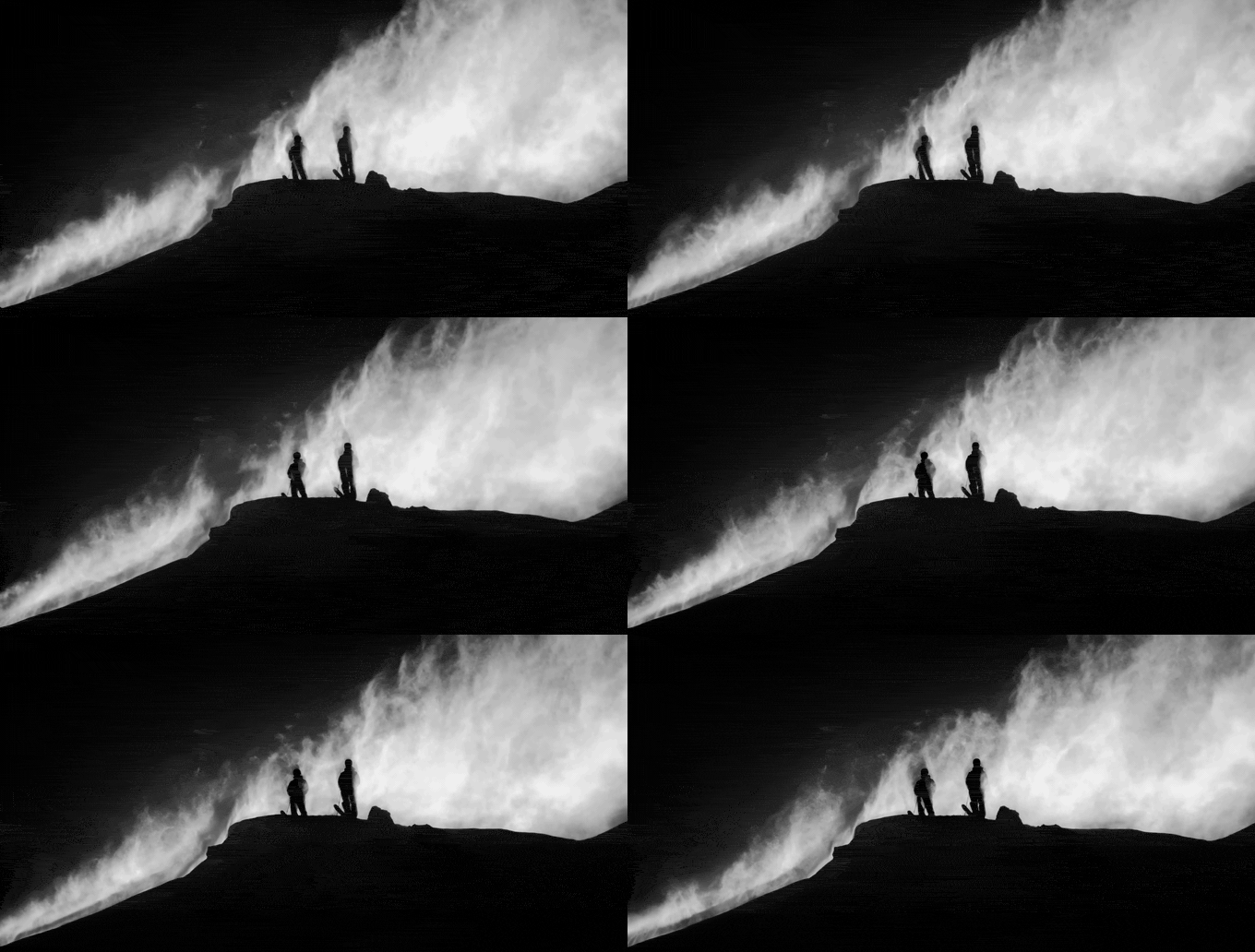
COLOUR is where the split earns its keep. Salomon's Sentry Pro film is black and white, powder blowing against a hard sky. The film goes on WORK. A colourist explaining how far you can push contrast before snow turns to paper goes on COLOUR, and that talk is the one you'll actually reopen.
Project playlists, named to die
One per job, with the client, project and month: "PROJ Dairy pitch Nov 26". Pull into it from your evergreen shelves and new finds. When the job's done, delete it. Anything good is already on a shelf.
Watch Later is an inbox
It's for things you haven't watched yet. Empty it every Friday: keep it on a shelf or bin it. A Watch Later with 900 videos isn't a library, it's guilt with thumbnails.
Save the moment, not the whole video
Half the time the reference is twelve seconds of a 40 minute talk.
- Share, then Start at. Pause, click Share, tick Start at, copy. The link ends in
t=and a number of seconds. - Right-click the player and choose Copy video URL at current time. Same result, one click.
- Chapters, where the creator added them, jump straight to a section from the description.
Since playlists can't hold a timestamp or a note any more, those links need a home. The playlist description works at a push. A proper log works better.
Keep a research log beside the playlists
A spreadsheet in Google Sheets or Airtable, one row per reference, does the job YouTube stopped doing. Ten seconds per save:
| Link (with timestamp) | Title and channel | Why, in five words | Tags | Playlist | Saved |
|---|---|---|---|---|---|
| youtu.be/...?t=754 | A colourist talk | grading skin warm under tungsten | grade, skin, warm | COLOUR Skin tones | 2026-10-20 |
| youtu.be/...?t=96 | A BTS breakdown | rain machine on night exterior | night exterior, rain, practical | MAKE Practical effects | 2026-10-20 |
The "why" column is the one that pays rent. For tags, use a fixed vocabulary rather than whatever word pops into your head; our guide to tagging video references has a starter list you can copy.
Use the transcript to find the line
YouTube's transcript panel is its best research feature and loads of people have never opened it. Under a video, click ...more, scroll down and click Show transcript. A panel opens beside the player with every line and its timestamp. Click a line to jump to it, or search the panel for a word.
Great inside one video. Useless when you can't remember which of forty videos said it. For that problem, and the other routes like Whisper and Descript, see how to search videos by dialogue and transcript.
When you've outgrown playlists
Playlists are enough for one person saving a few videos a week, who mostly needs the whole video back. You'll feel the edges when:
- you pass roughly a hundred references and scrolling stops working;
- the team needs them, and a collaborative playlist on someone's personal account starts to feel like a liability;
- your research isn't only YouTube, and the good stuff is split across Instagram, Vimeo and TikTok;
- videos start disappearing;
- you need the moment in a deck as a still or a GIF, not a link nobody in the meeting will click.
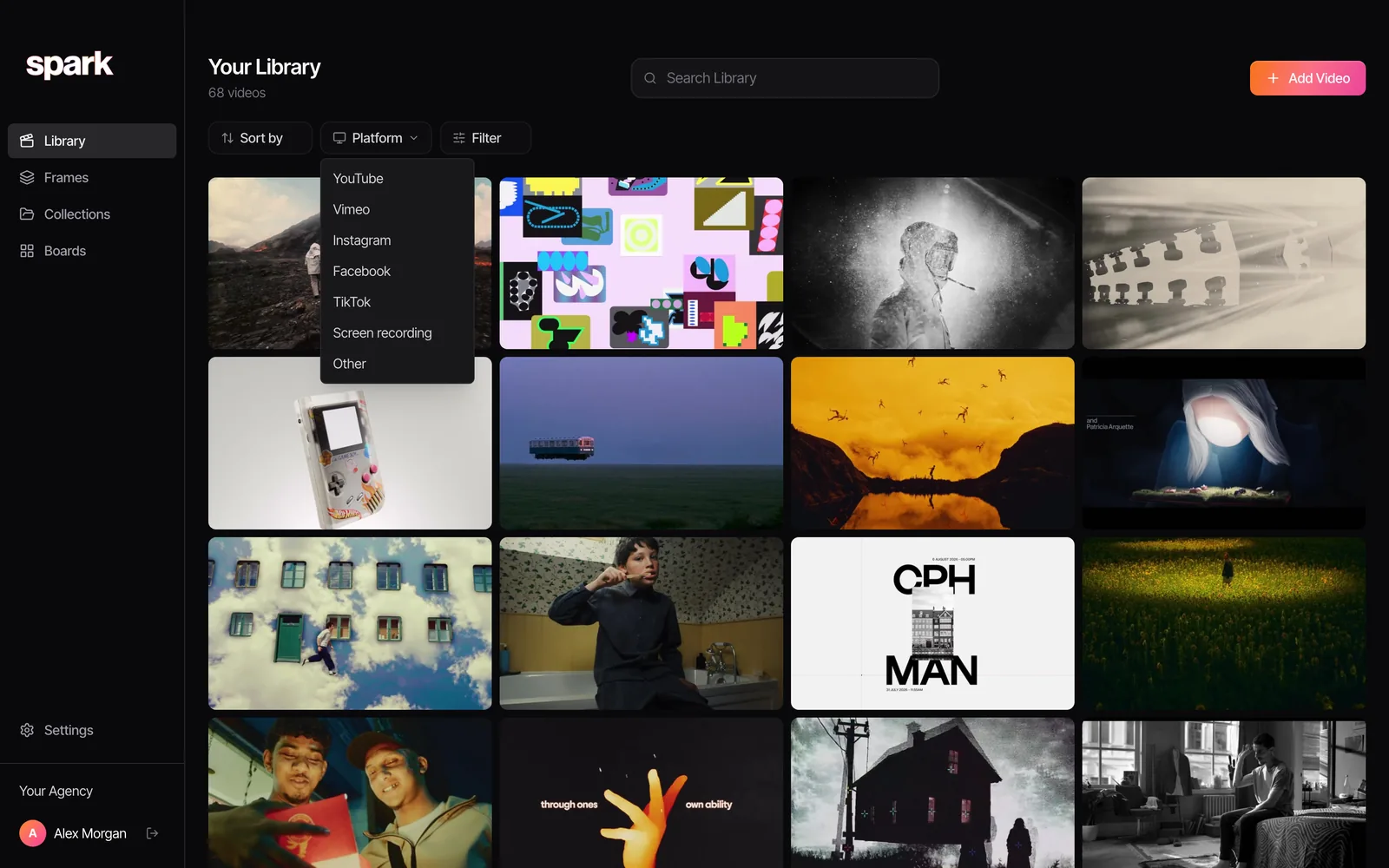
At that point the method in building a searchable creative library takes over: one inbox for every source, one tag list, and a tool that searches inside what you saved. Clips sitting on brand sites and studio portfolios need a different route, covered in saving video references from websites.
When playlists aren't enough: Spark
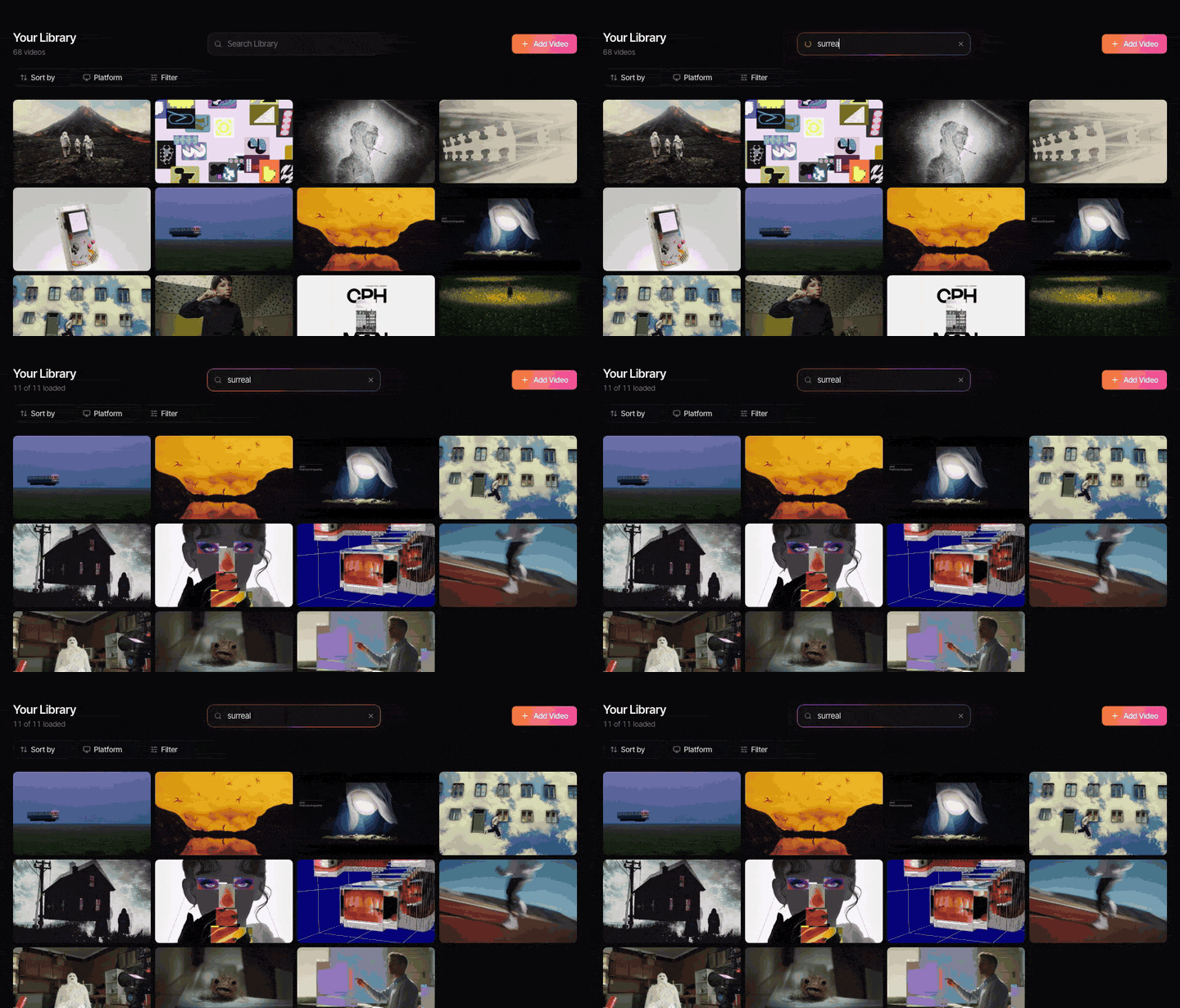
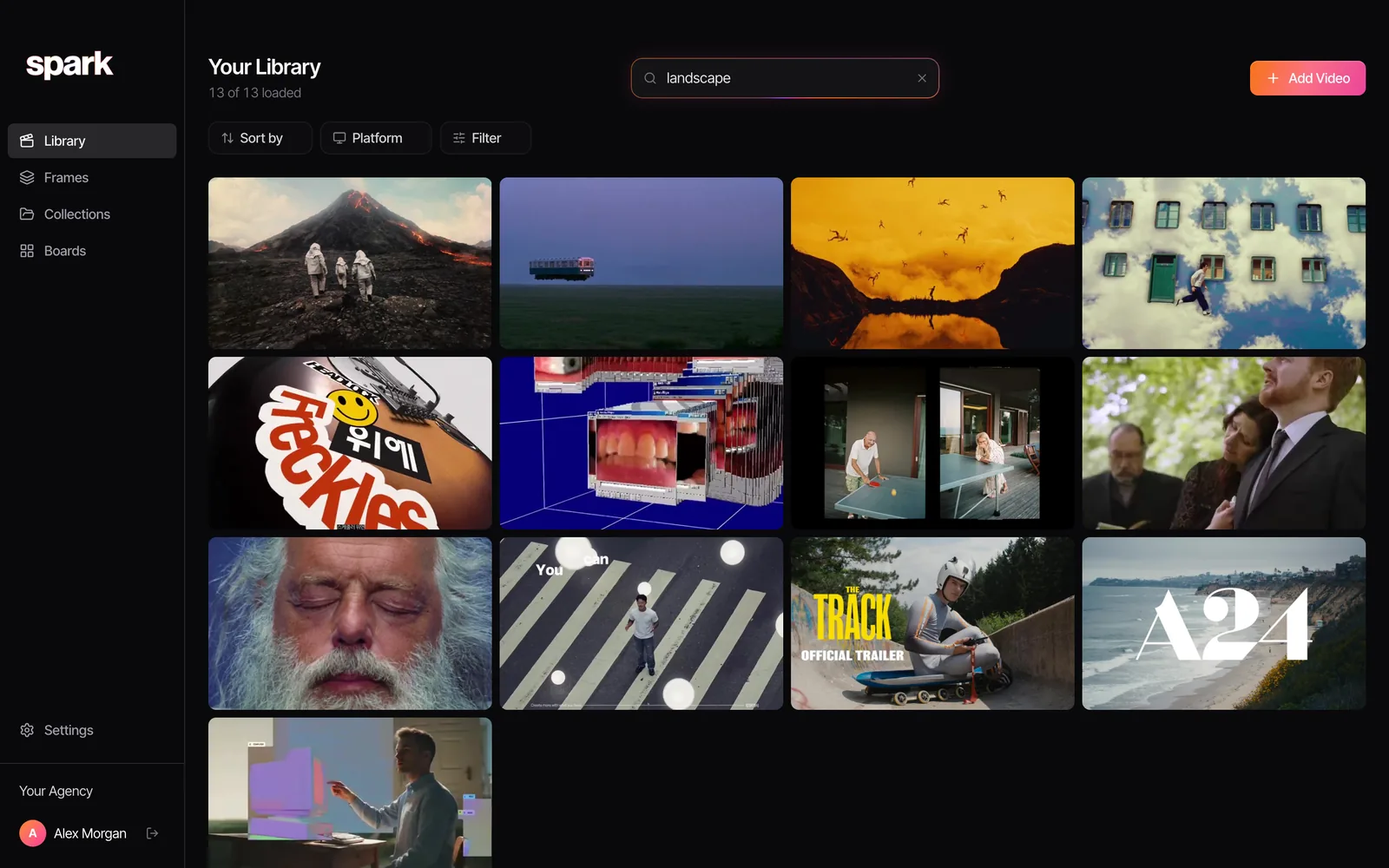
Spark is ours, so read this bit with that in mind. Paste a YouTube link (a normal video, a Short or a youtu.be link) into Spark and it saves the video to your library alongside its YouTube URL. It transcribes the audio and writes an AI description of what's on screen. Then you can search everything for a phrase someone said or something you remember seeing. Transcription and AI descriptions come with Creator and Studio.
The catches, plainly:
- One video per paste. Paste a playlist, channel or search page and Spark tells you to open a single video instead. On the Studio plan, Bulk import will take a whole YouTube playlist (or a Vimeo collection, Slack history, or a spreadsheet of links) and let you pick which videos to keep. It's the sane way to move a set of evergreen playlists across without pasting links for an afternoon.
- It saves the video, not the timestamp. Write "the bounce at 12:34" in the video's Notes box, which is searchable too.
- Desktop first. Spark is a Mac and Windows app. On your phone, keep saving to a playlist and bring things across later, or send links to Spark from WhatsApp.
Where it really earns its keep is the deck. Pick the seconds you want, export a GIF or a frame, and it lands in Frames ready for a slide. If you only need the odd GIF from your own footage, the converter on this site runs in the browser with frame-accurate in and out points; for the YouTube-specific route, read making a GIF from a YouTube video.
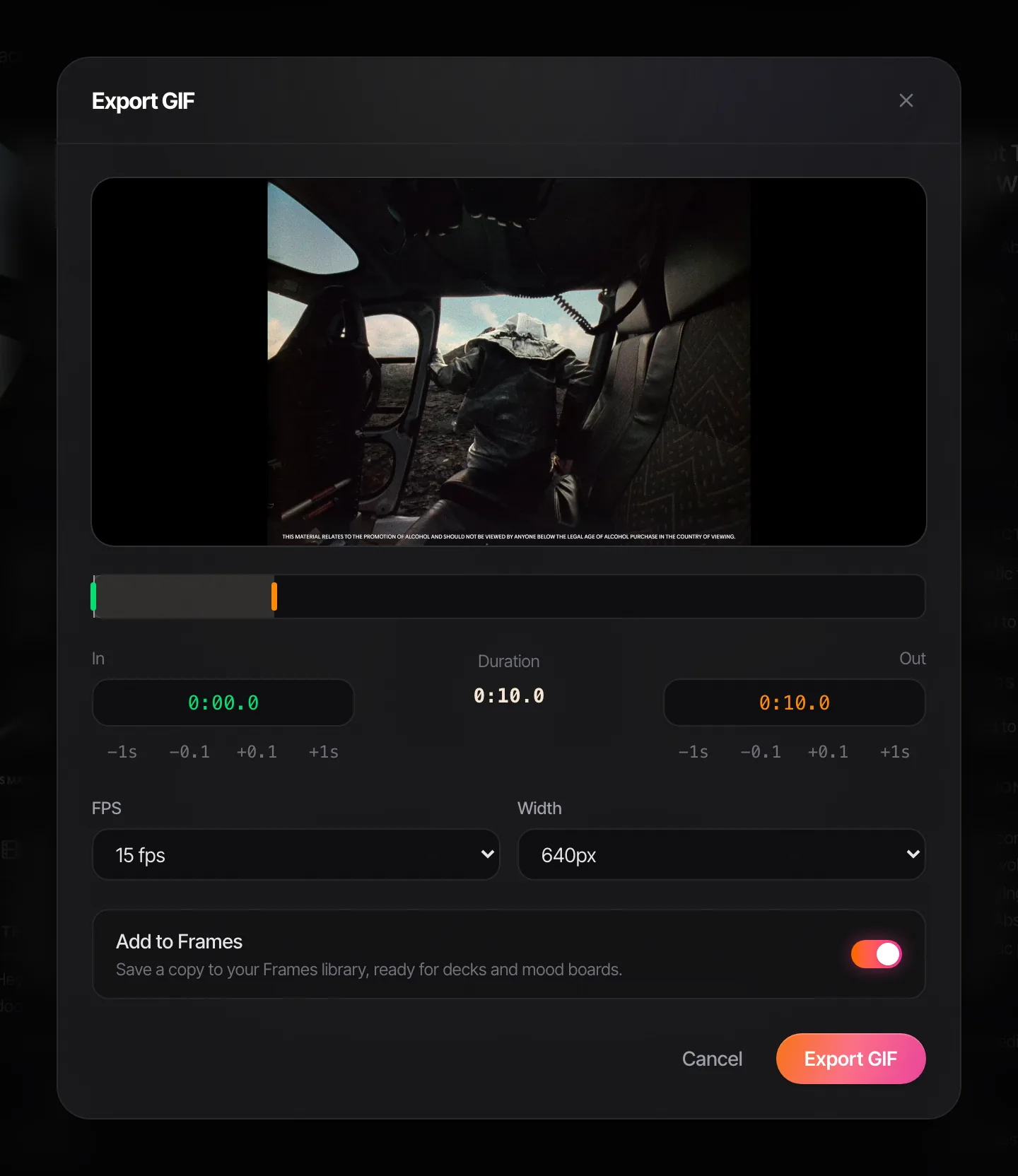
If YouTube is where you research, keep researching there. Private playlists, a prefix system, a log with a "why" column. When the playlists become a pile, or the team needs in, that's the moment to look at Spark.
FAQs
How do I organise YouTube videos into playlists?
Click Save under a video, choose New playlist, name it and set it to Private. For research, make long-lived playlists named by technique with a prefix like LIGHT or EDIT, plus one short-lived playlist per project. Empty Watch Later into those every week.
Can I add notes to videos in a YouTube playlist?
Not any more. YouTube removed private per-video notes from playlists in 2020. Put timestamps and notes in the playlist's description, or keep a spreadsheet with the link, a five-word reason and your tags.
How do I save a YouTube video at a specific time?
Pause on the moment, click Share, tick Start at and copy the link, which then ends in a t= value. You can also right-click the player and choose Copy video URL at current time. Clips work too, but they're public and vanish if the original goes private.
Why do videos disappear from my YouTube playlists?
When the owner deletes a video or makes it private, it stays in your playlist as an entry with no title or thumbnail, and YouTube can't give it back. Writing down the title and why you saved it, or keeping your own copy in a reference library where that's allowed, is the only protection.
Can I search inside a YouTube playlist?
Not by what's said in the videos. You can search one video's transcript through Show transcript, but not a whole playlist. For that you need a tool that transcribes everything you've saved and searches it all at once.
Can I import a whole YouTube playlist into Spark?
On the Studio plan, yes: Bulk import reads a YouTube playlist and lets you choose which videos to keep. On other plans, paste the videos one at a time.
Keep reading
All articles
How to Build a Shared Creative Reference Library for Your Team
A team library fails for different reasons than a personal one. Set up ownership, rules, client separation and a ten-minute weekly habit, and it survives past the first month.
How to Save Video References from Websites
That title sequence on a studio's website isn't a lost cause. Find where the embed really lives, download it if you're allowed, and screen record it properly if you're not.
How to Save and Organise TikTok Videos for Future Projects
TikTok's Favourites are fine for recipes. For a pitch due this week you need collections named by technique, links you can share, and a way out of the app.