
How to Save Video References from Websites
That title sequence on a studio's website isn't a lost cause. Find where the embed really lives, download it if you're allowed, and screen record it properly if you're not.
By the Spark team ·

To save a video from a website as a reference, first check whether it's really a YouTube or Vimeo embed. It usually is, and saving the original link (right-click the player, or click its title) is the cleanest route. If the site offers a download, take it. If the video is self-hosted, streamed or behind a login, screen record it: Shift-Command-5 on a Mac, Windows key + Shift + R in the Windows 11 Snipping Tool. Whatever you end up with, keep the page link and the credits next to the file.
What not to do: paste the URL into the first "free video downloader" that Google offers you. We'll get to why. First, the order to try things in, for the pages this comes up on most weeks: a director's reel, a production company's case film, a brand's campaign page that'll be gone by spring.
A quick word on rights
Saving someone's work as an internal reference for a pitch or a shoot is normal practice. It's still their work. Keep references inside the team, credit the director, brand and agency when you show them, and never republish. Some sites' terms forbid downloading outright, and anything behind DRM (Netflix, most paid streaming) is off limits. Client portals and review links are their own thing: only keep a copy if the client's happy with that. When in doubt, save the link and a still, and ask.
Link or file?
A link is light, credits the source by default, and always shows the latest version. If a director re-grades their reel, your link shows the new grade.
Links also rot, and faster than you'd think. Studios rebuild their sites every couple of years and the old URLs die with them. Vimeo videos go private when a campaign wraps. Agencies pull case studies when they lose the account. Our rule: if a reference is going into a pitch, keep a copy as well as the link, and keep the link with the copy.

Step 1: find out where the video actually lives
Before you reach for a recorder, check for an embed.
YouTube embeds. Right-click on the playing video itself (not the page around it) and YouTube's own menu appears, with Copy video URL at the top and Copy video URL at current time under it. Or click the title in the top corner of the player to open it on YouTube.
Vimeo embeds. Click the title or the Vimeo logo in the player, if they're showing. Some owners hide both. That usually means they'd rather you didn't wander off, and the video may be locked to play only on their site.
Instagram and TikTok embeds. Both carry a link to the original post ("View on Instagram", or the TikTok logo and handle). Open it and save from there.
Can't tell? In Chrome, right-click the page, choose View page source, and search (Command-F or Ctrl-F) for youtube.com/embed, player.vimeo.com or .mp4. A YouTube embed contains the video's ID, the 11 characters after /embed/, and youtube.com/watch?v= plus that ID gets you the watch page.
Step 2: use a download if one's offered
More places hand you the file than you'd expect. Directors and production companies often switch on downloads on their Vimeo pages (look for Download under the player). Brand newsrooms and press rooms tend to have a downloads section with proper files, put there for exactly this. Award sites often link through to the case film.
On a plain, simple site the video might be an ordinary file rather than a stream. Right-click it, and if the browser offers Save video as..., that's the file. If the option isn't there, or what saves won't play, the video is streamed in chunks. Don't go fishing in developer tools for it. If the site didn't offer the file, treat that as the answer and move on to step 3.
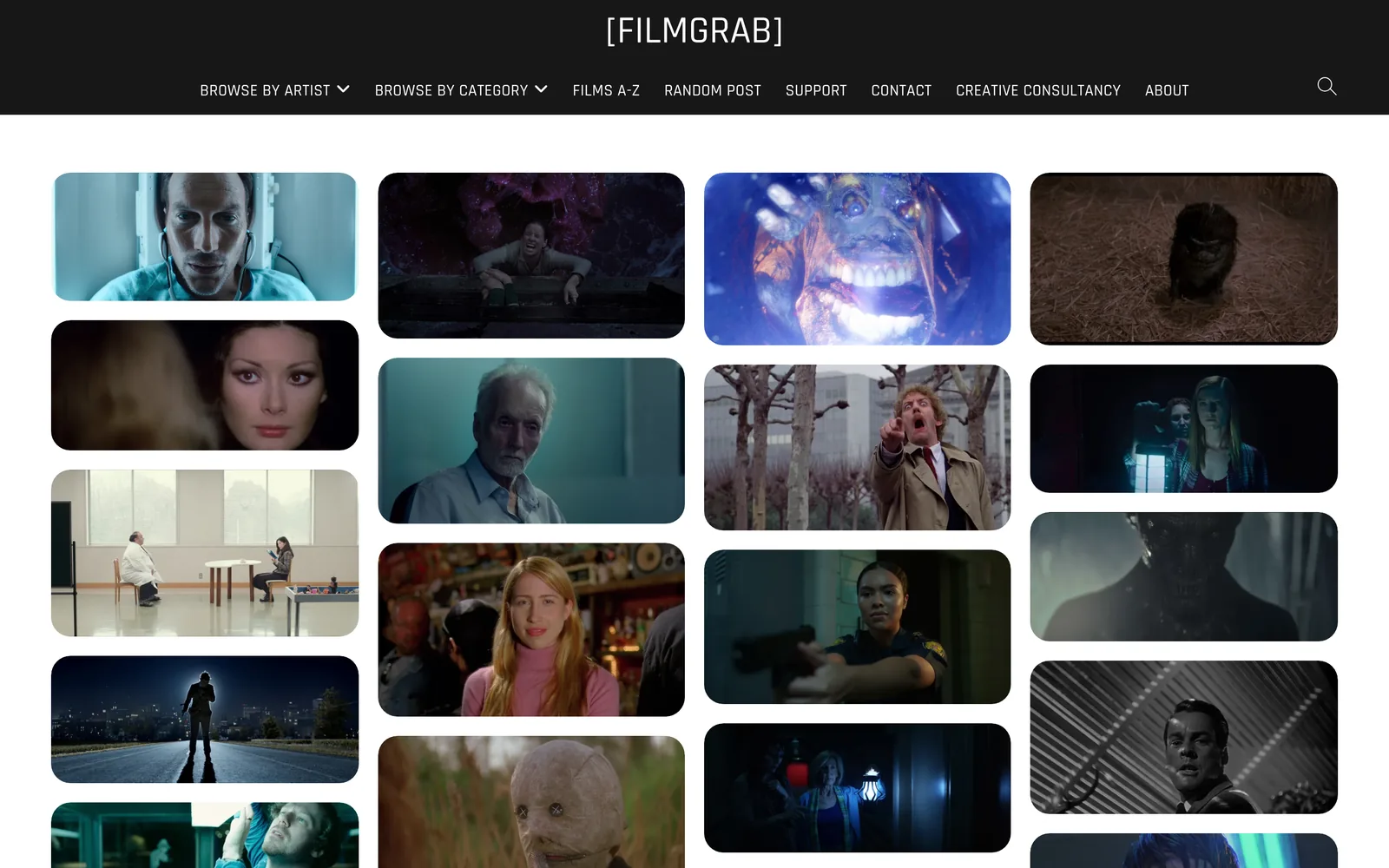
Step 3: screen record when you can't download
Recording is the universal fallback. Done carefully, it's good enough for any reference. For client portals and logged-in pages it's often the only option anyway, since a link is useless to anyone else on the team.
On a Mac
- Press Shift-Command-5 to open the Screenshot toolbar.
- Choose Record Selected Portion and drag the box to the edges of the video, or Record Selected Window.
- Open Options. Set the microphone to None unless you want your own commentary. Apple's guide says Include System Audio arrived in macOS 27 Golden Gate; on anything older, the built-in recorder won't capture the sound the page is playing.
- Click Record, play the video, and stop from the menu bar or with Control-Command-Esc. The file lands on the desktop unless you've changed Save to.
On Windows 11
- Press Windows key + Shift + R to open the Snipping Tool in recording mode.
- Drag a box around the video.
- Check the audio toggles in the toolbar: system audio on, microphone off. If you can't see them, update the Snipping Tool from the Microsoft Store.
- Click Start, play the video, then stop. The recording opens in a preview where you can save it.
Make the recording worth keeping
Four habits, learned the annoying way:
- Max the player's quality first, and let it play through once so it doesn't drop resolution halfway.
- Go full screen if the site allows it. More pixels in, more pixels out.
- Park the cursor off the video and turn on Do Not Disturb, unless you want a Slack notification in your treatment.
- Record a second either side. You can trim. You can't recover a missed first frame.
Dark footage suffers most. A low-light scene gets compressed once by the site and again by the recorder, and the shadows start to band.

If a recording comes out black while you can see the video playing, the site is using DRM to block capture. That's deliberate. Save the link and a note instead.
What about downloader sites and extensions?
We avoid them. The free online downloaders are heavy on ads and redirect pop-ups, and they send your URL (sometimes a client's private review link) to a server you know nothing about. Extensions that promise to grab "any video" usually want permission to read every page you visit. That's a lot of risk for something your operating system already does for free, and plenty of sites forbid downloading anyway. Original link plus a screen recording is the cleaner route.
Step 4: keep the source with the file
Screen Recording 2026-10-20 at 11.42.07.mov is a reference you will never find again. Rename it the moment it's saved: brand or film, then director. Ours look like salomon-sentry-pro_tom-granier.mov. Then put the page link and the full credits in your library's notes, or a text file beside it if your library is a folder.
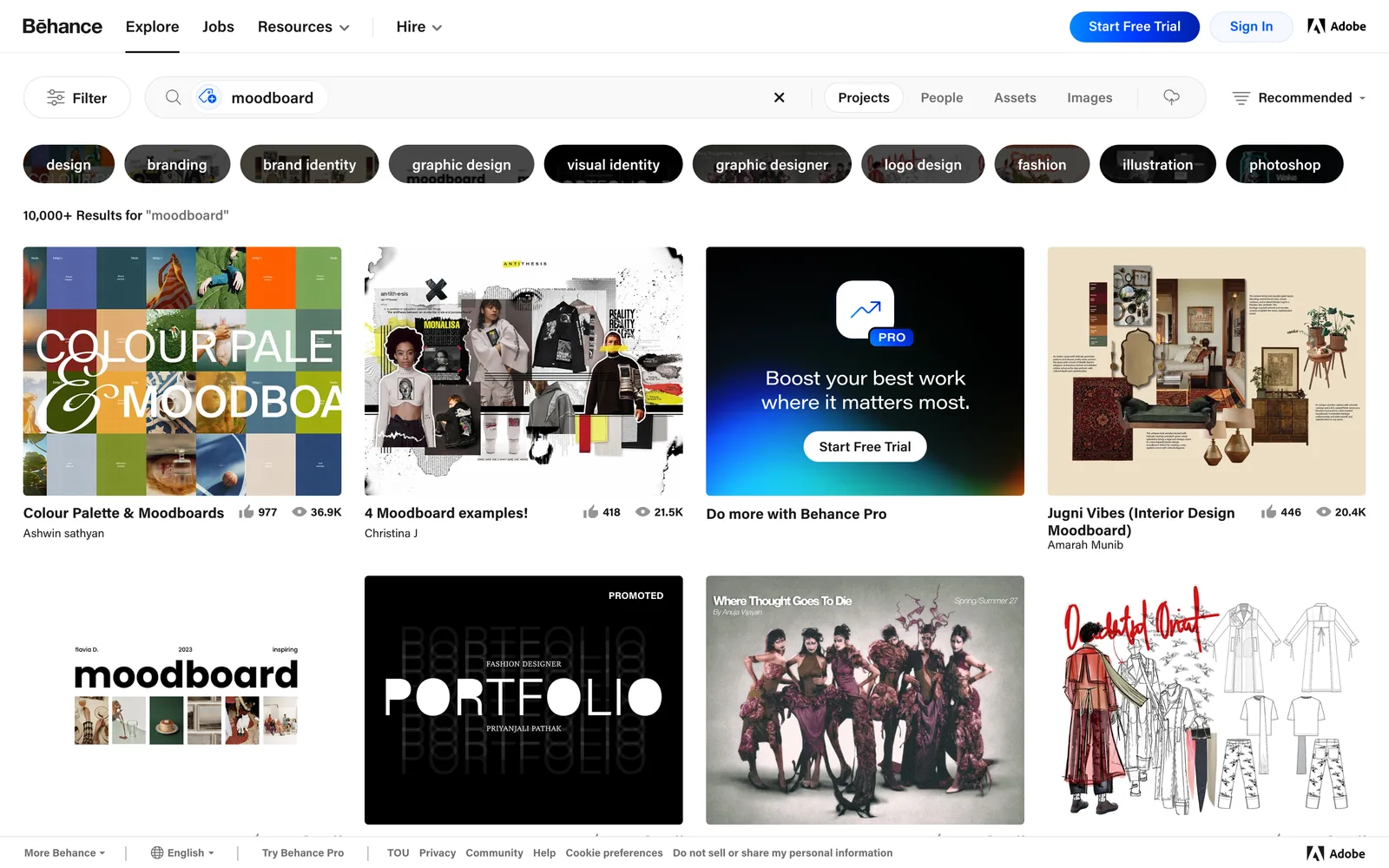
Then tag it like anything else. Our guide to tagging video references has a vocabulary to copy, and the four-habit library system covers the rest. If you're hunting for where to find this kind of work in the first place, we keep a list of the best websites for commercial film inspiration.
Saving from websites with Spark
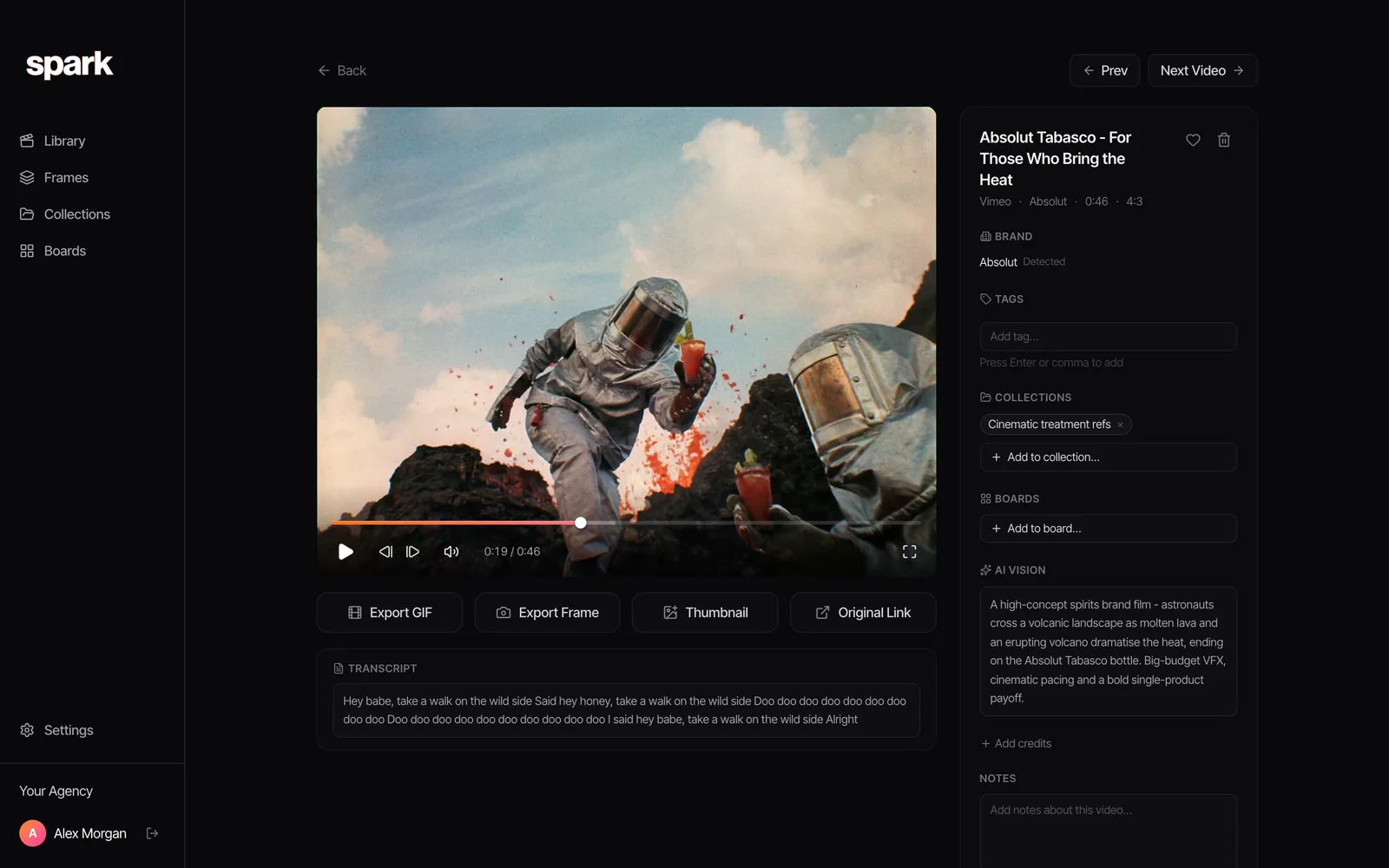
Spark is ours. It covers both halves of this job: saving the link where a link works, and recording where it doesn't.
The Chrome extension. Click the Spark icon in the toolbar and Add to Spark saves the page you're on as a video. That works on YouTube, Vimeo, Instagram, TikTok, Facebook and LinkedIn pages, and the video lands in your library with its page link. For pictures, right-click any image or GIF on any website and choose Add to Spark, and it goes into Frames. What the extension won't do is pull a self-hosted video off a brand's own site with its own player. That's what the recorder's for.
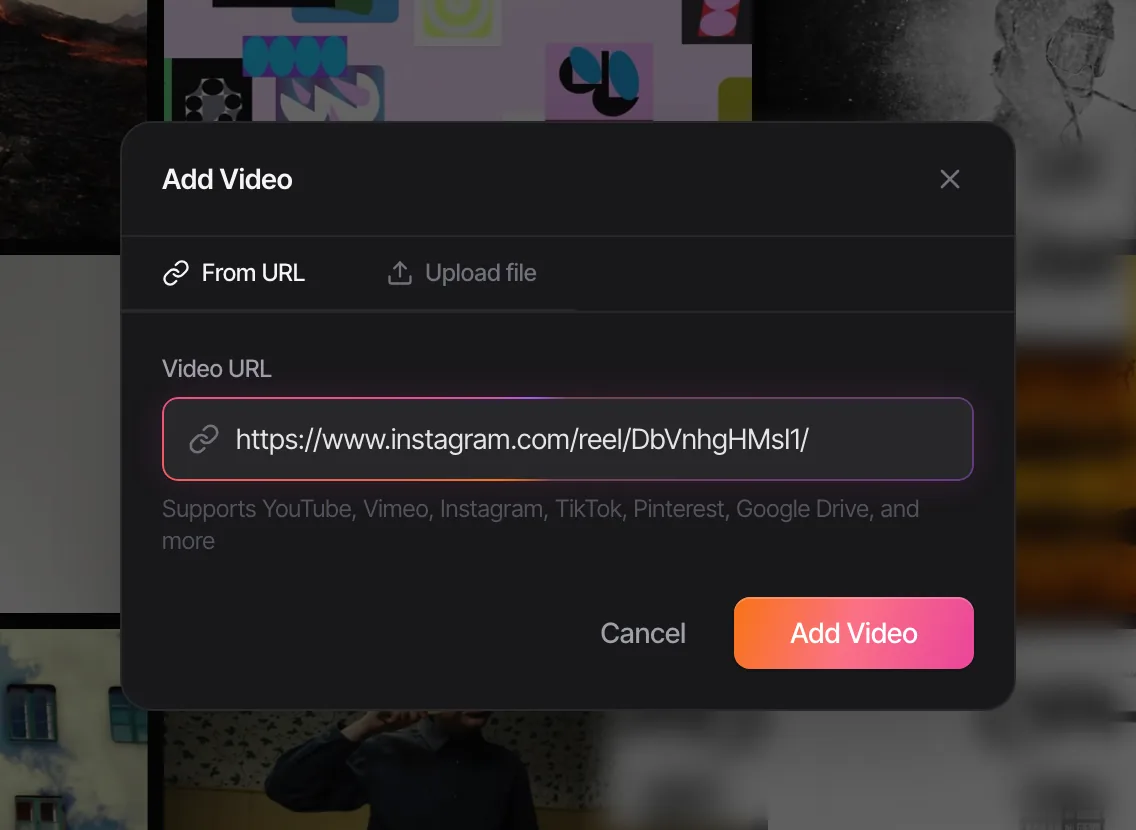
The screen recorder. In the desktop app, click Add Video and open the Screen recording tab. On a Mac you pick the whole screen, an area or a single window, then the audio: what the page is playing, your microphone, both, or picture only. Spark's recorder catches system audio from macOS 13 (the microphone needs macOS 15), so you aren't waiting on the newest macOS for sound. On Windows you choose the whole screen or an area. Afterwards, trim the start and end and click Add to library, with the option to keep a copy on your computer as well.
Either way, the reference gets the same treatment as everything in Spark: a thumbnail, an AI description and a transcript (those two need Creator or Studio). Later you can find it by what was on screen or a line someone said. Recordings sit under their own filter, so "everything we recorded off a website" is one click.
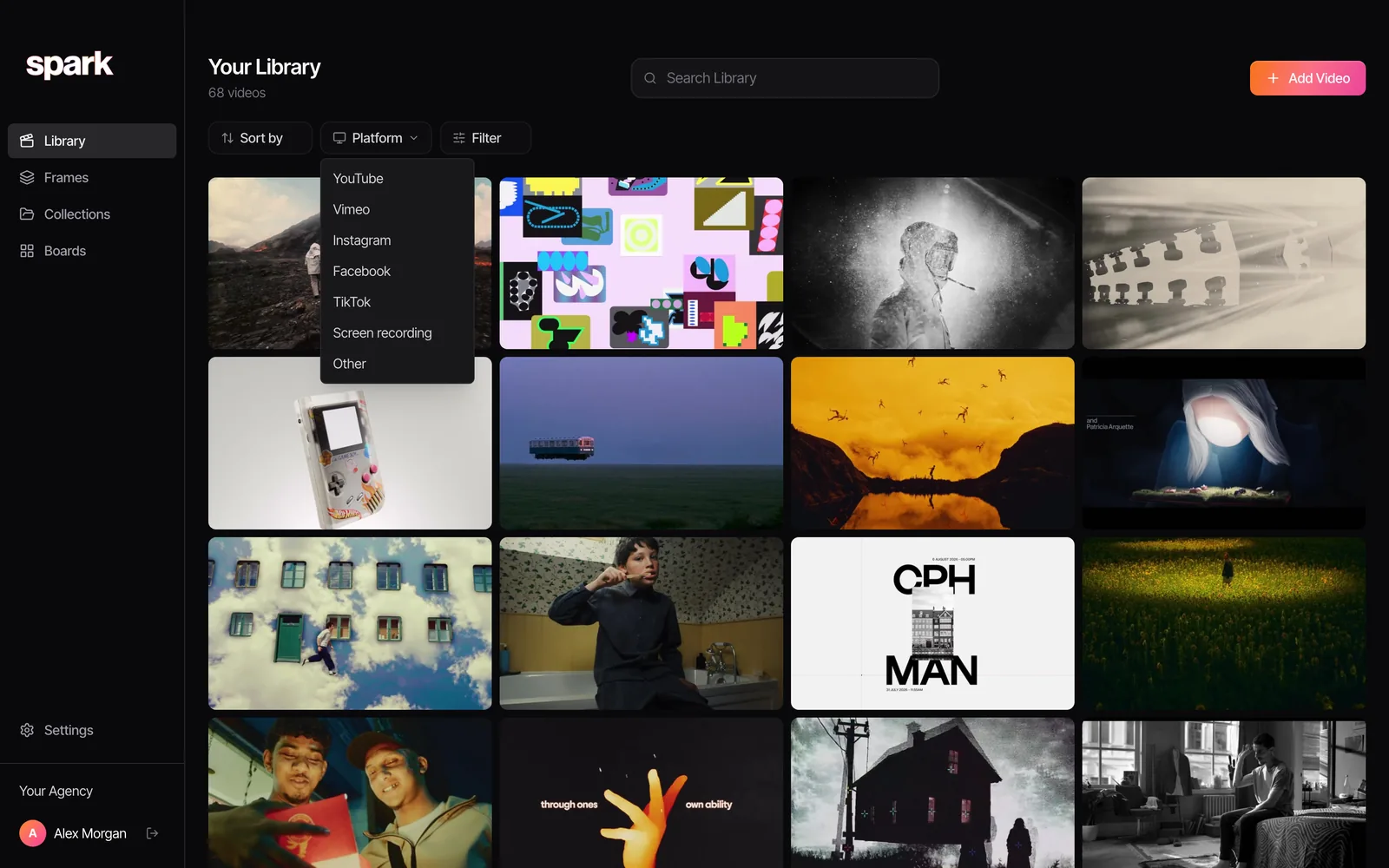
Once it's in, you can pull a GIF or a still straight out for a deck. If you're working from a recording you made yourself, the GIF maker on this site does it without uploading anything, and our palette tool gives you hex codes from any frame. Traced an embed back to its Vimeo page? Making a GIF from a Vimeo video picks up from there. If what you remember about a clip is a line of dialogue, searching by transcript is how you'll find it again.
Where it goes wrong, and the fix
| Problem | Likely cause | Fix |
|---|---|---|
| Recording is black | The site uses DRM | Don't fight it. Save the link and a written note. |
| No sound (Mac) | Built-in recorder before macOS 27 | Use a recorder that captures system audio, or accept a silent reference. |
| Soft or blocky | Player dropped to low quality | Pick the top quality setting and play it through once first. |
| Vimeo embed won't open on vimeo.com | Owner restricted it to their own site | Record it, and save the page link as the source. |
| Link dead a year later | Site rebuilt or video made private | Keep a copy as well as the link next time. Finding a video you saved months ago has rescue steps. |

The best version of all this is boring. One place every reference goes, the source written down, and a recording for anything a link can't hold.
FAQs
How do I save a video from a website?
First check whether it's a YouTube or Vimeo embed, and if it is, save the original link by right-clicking the player or clicking its title. If the site offers a download, use it. Otherwise screen record it with Shift-Command-5 on a Mac or Windows key + Shift + R on Windows 11, and keep the page link with the file.
How do I save an embedded video?
Right-click a YouTube embed and choose Copy video URL, or click the title in a YouTube or Vimeo player to open the original page. If the embed hides where it's from, view the page source and search for "youtube.com/embed" or "player.vimeo.com". Some owners lock videos to their own site, and then a screen recording is the fallback.
Is it legal to save videos from websites for reference?
Keeping references for internal research and pitching is common practice, but copyright stays with the creator and some sites' terms forbid downloading. Keep copies inside your team, credit the work when you show it, never republish it, and don't try to get around DRM or paywalls. If a project depends on using the footage, ask permission.
Why is my screen recording black?
The site protects the video with DRM, which blocks screen capture on purpose. Streaming services do this routinely. You won't get a usable recording, so save the link and a note of the moment you wanted.
How do I screen record a website video with sound on a Mac?
Apple's built-in recorder (Shift-Command-5) can include system audio from macOS 27 Golden Gate, under Options, Include System Audio. On earlier versions it records the microphone but not the page's sound. Spark's built-in recorder captures system audio from macOS 13.
Can Spark save a video straight from any website?
Not from a site with its own self-hosted player. Spark saves video links from YouTube, Vimeo, Instagram, TikTok, Facebook, LinkedIn, Pinterest, Google Drive and the Meta Ad Library, and its screen recorder covers everything else.
Keep reading
All articles
How to Build a Shared Creative Reference Library for Your Team
A team library fails for different reasons than a personal one. Set up ownership, rules, client separation and a ten-minute weekly habit, and it survives past the first month.

How to Organise YouTube Videos for Creative Research
Watch Later is not a research system. Here's the playlist setup we use for YouTube research, the bits YouTube quietly took away, and when it's time for something better.

How to Save and Organise TikTok Videos for Future Projects
TikTok's Favourites are fine for recipes. For a pitch due this week you need collections named by technique, links you can share, and a way out of the app.