
How to Present a Moodboard to a Client (Without Losing the Room)
A moodboard doesn't speak for itself. Left alone on a screen, it invites a room full of opinions; introduced well, it gets you a decision in five minutes.
By the Spark team ·

To present a moodboard, say the idea in one sentence before the board appears, then walk the room through two or three frames that prove it, and end on a question that gets a decision. Run it as a slideshow, not from the editor, so the GIFs move. On a call, share the slideshow window, not your whole screen. Afterwards, send a PDF people can read on a phone and keep the editable file or a live link for whoever builds the next version.
That's the shape. The rest of this guide is the detail that makes it work, and most of it happens before anyone sees a slide. The boards that land in a pitch are rarely the prettiest ones. They're the ones with a clear question attached.
Before the meeting: decide what you need from the room
Write down the decision you want the client to make. Not "feedback on the board" but something they can say yes or no to. Warm or cold? This world or that one? Handheld and close, or locked off and wide? If you can't write the question, the board isn't ready, and the meeting will drift into taste.
The simplest boards to present ask one question with two answers side by side.

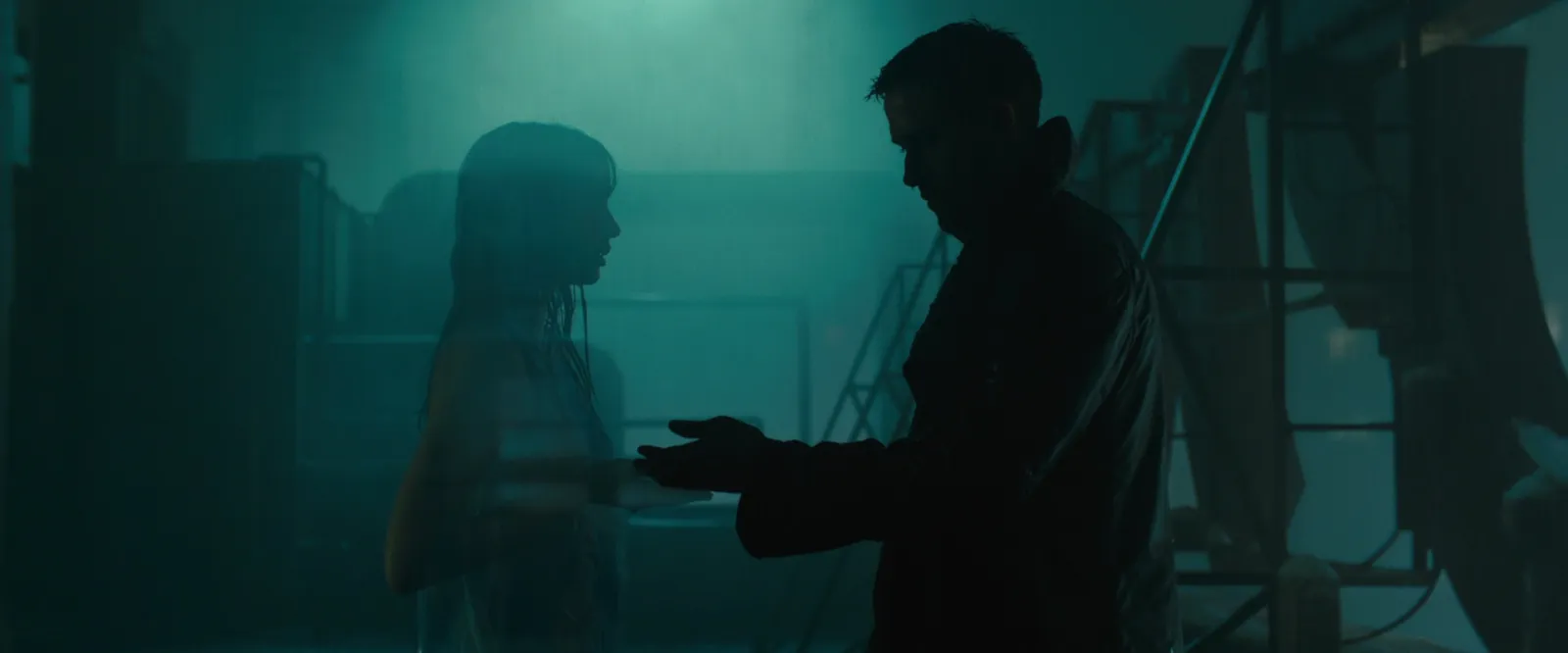
Two directions are enough. Three and people start mixing them ("the colour from B with the camera from C"), which sounds collaborative and usually means the decision has been put off.
Cut the board before anyone sees it
Every frame on the slide will get looked at, and some will get questions. So cut, in this order:
- Frames you'd have to explain. If the reason it's there takes more than a sentence, the client won't see it.
- Doubles. Two frames that say the same thing make the board quieter, not stronger. Keep the better one.
- Recognisable work from the client's competitors. It derails the meeting into a conversation about the other brand.
- Famous faces that pull focus. People look at the actor, not the light.
- Frames where the point is tiny. If you love the window light in the corner, crop to the corner or find a better reference.
What survives is usually six to twelve frames per slide. A packed board still has a job, as the crew version, where the DoP and designer want everything. It just isn't the version for the room.
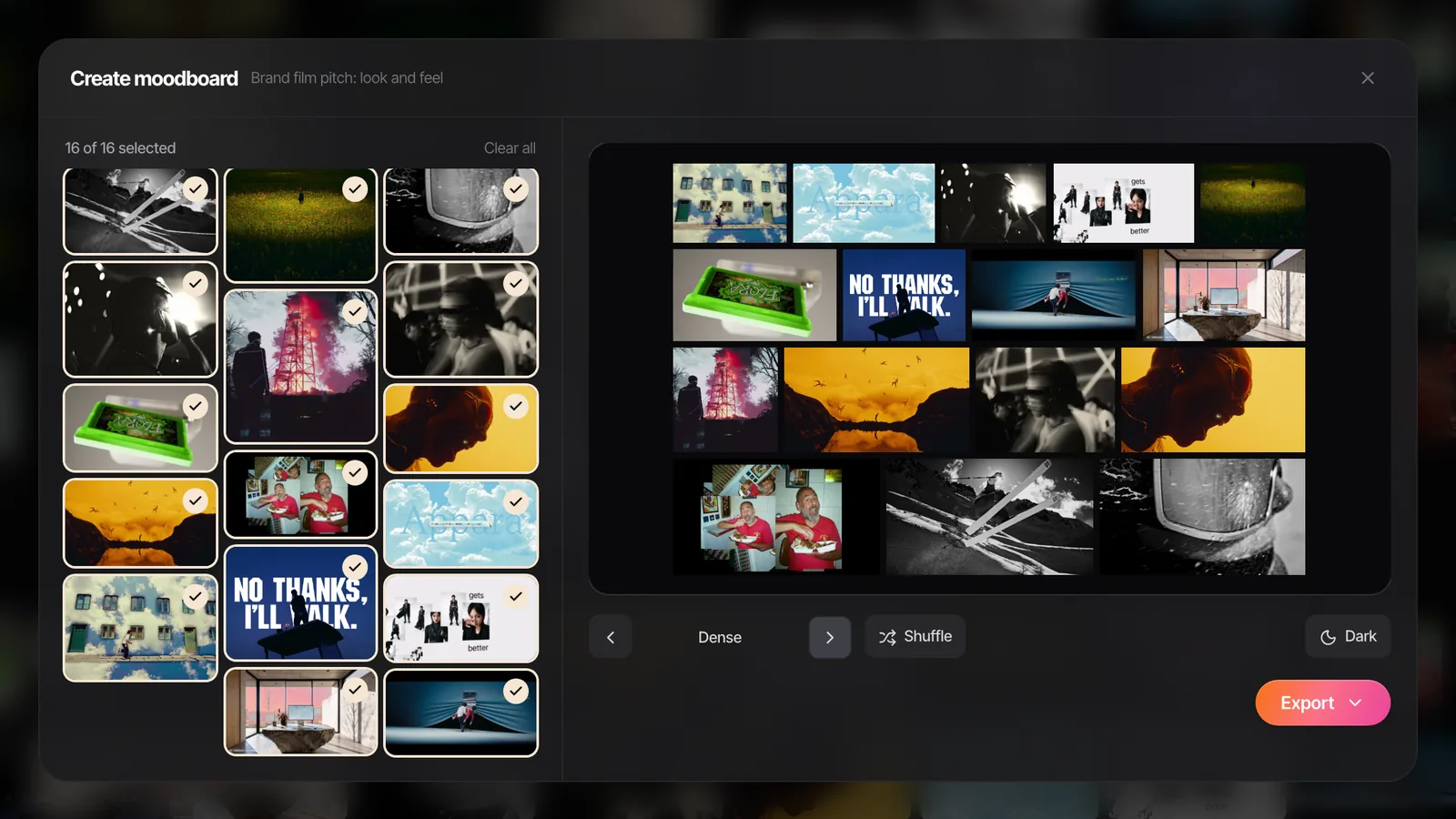
Our guide to making a moodboard for a video project covers the two versions in more depth.
Open with the idea, then show the board
People look for what you've told them to look for. If the board appears first, everyone reads it their own way, and the first opinion in the room sets the agenda. So say the idea out loud while the screen is still on the previous slide, or on a single image.
A good opening line names the feeling and the reason in one breath:
- "This film should feel like the last hour of daylight, because that's when people actually use the product."
- "We want it cold and very still, so the one warm moment at the end lands."
- "It's a music video that looks like it was found, not shot."
Then show the board. Pause. Let people look for a few seconds before you speak again; the first silent look is when the idea either clicks or doesn't.

Talk through two or three frames, then stop
Don't tour the board. Pick the frames that carry the argument and talk about those:
- The lead frame. What it gives the film. Be concrete: "one hard source from the left, everything else falls to black", not "moody lighting".
- One detail. The texture, the colour accent, the lens, the movement. The thing that makes your version specific.
- Optionally, the outlier. If one reference is deliberately different (a moment of colour in a cold board), name it so nobody thinks it's a mistake.


Then stop and ask your question. The rest of the board does its work in the background while people answer. If they ask about another frame, good: that's interest. If the conversation moves to a frame you didn't mention, it's often the one you should have cut.
Run it as a slideshow so the GIFs move
Moving references are the reason a lot of film boards are decks at all, and the commonest failure is presenting from the wrong mode.
- PowerPoint: start the show (Slide Show > From Beginning on Windows, Slide Show > Play from Start on a Mac, or Shift+F5 on Windows for the current slide). GIFs usually move in the editor too, but the show is the real test.
- Keynote: Play > Play Slideshow. Same rule.
- Google Slides: Slideshow at the top right. GIFs animate while you edit as well, but present anyway, for the full screen.
- Canva: Present.
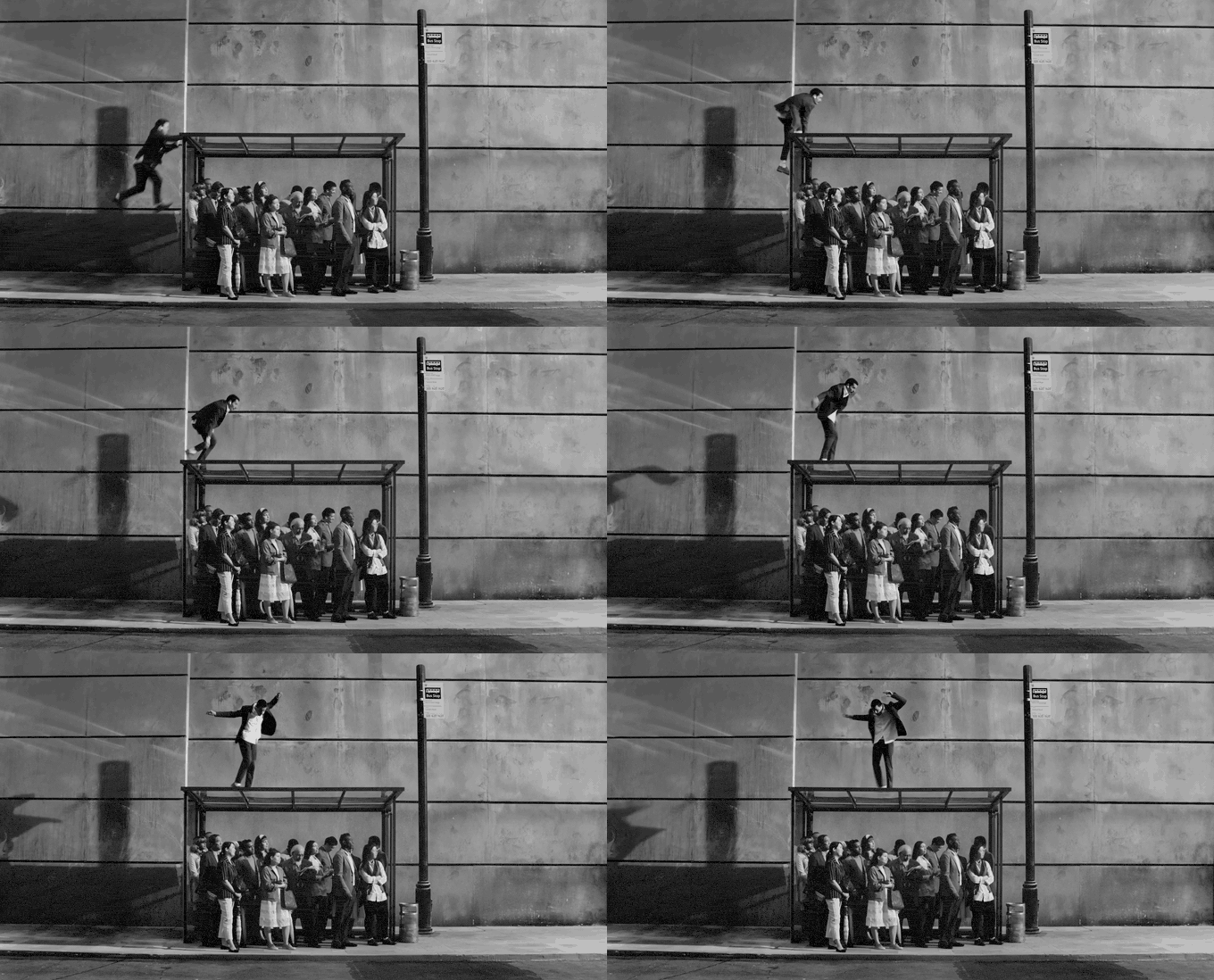
Two more checks before the day. Look at the first frame of every GIF, because that's what shows if anything freezes, and in a PDF. And check the deck on the machine you'll present from, not just your own. Our guide to inserting GIFs into PowerPoint runs through the eight reasons a GIF stops moving, and GIF vs MP4 for presentations compares the two formats app by app with measured sizes.
Presenting a moodboard on Zoom or Teams
A remote presentation loses the room's reactions, so everything above matters more: say the idea, pause longer, ask the question directly. The mechanics:
Share the slideshow window, not your screen. Full screen slideshows and video calls don't always get on, and sharing the whole screen shows your notifications too. In Keynote, choose Play > In Window, then share that window; Apple's guide to presenting over a video call walks through it, presenter display included. In PowerPoint, go to Slide Show > Set Up Slide Show and choose Browsed by an individual (window), then start the show and share its window.
Zoom. When you share, there's an Optimize for video clip box. Zoom recommends it for full screen video, and warns it can make an ordinary share blurry. For a board that's mostly moving references, try it with a colleague first; for a board of stills and type, leave it off. Tick Share sound only if a clip's audio matters.
Microsoft Teams. Share the file through PowerPoint Live (Share, then pick it under PowerPoint Live), which Microsoft says uses significantly less bandwidth than ordinary screen sharing, and gives you a presenter view with chat beside it. Microsoft also notes that meeting recordings won't capture videos or animations from a PowerPoint Live session. Test your GIFs in it before the meeting; if they misbehave, share the slideshow window instead.
Count to two after every slide change. Screen sharing lags, and talking over a slide your client can't see yet loses them. Turn on Do Not Disturb, close the other apps, and keep the chat visible so you see a "can't see it" message before it's a problem.
Sending it afterwards: PDF, .pptx or a link
Send something within the hour, while the decision is fresh. Which file depends on what the client will do with it.
| Format | Best for | Do GIFs move? | Watch out for |
|---|---|---|---|
| Reading on a phone, forwarding to a boss, printing | No, each shows its first frame | Big decks can pass email limits | |
| .pptx or Keynote | The person who builds the next version | Yes, in PowerPoint and Keynote | Fonts can swap on another machine; large file |
| Live link (Google Slides, Canva, Spark) | A board that will keep changing | Yes in Slides and Canva; videos play in a Spark board | The client sees later edits unless you duplicate it |
Our default is a PDF plus a link, with three lines in the email: the question we asked, the answer we heard, and what happens next. The PDF is the record; the link is the working copy. If motion was part of the decision, send the .pptx too, because the PDF won't show it.
A board shared from Spark goes out as a view-only link, so the client can watch the saved videos play in place, and you can rotate or revoke the link when the pitch is over.
What to leave out of the room
A few things that eat presentation time and never help:
- A tour of the tool. Nobody needs to know how the board was made.
- Apologies for references. "This isn't exactly it, but" tells the room to doubt the frame. If it isn't right, cut it.
- Reading captions aloud. Captions are for the PDF afterwards.
- Every slide. If a slide doesn't serve the question, move it to an appendix and keep going.
If the board is one section of a bigger pitch document, where it sits and how much of it to show is covered in our guide to building a film treatment, and our director's treatment examples show how winning treatments handle their reference pages. For boards worth presenting in the first place, see our moodboard examples, each with the one rule it follows.
Building a board that's easy to present
The easiest boards to present have a lead frame, plenty of space and moving references that are already GIFs. Our free moodboard maker does that in the browser: eight layouts (Hero gives your lead frame most of the slide), shuffle, backgrounds and spacing, and a .pptx export where GIFs play when you present. If you want to walk through the board one frame at a time, its One per slide layout gives every picture its own slide; our free moodboard templates post shows each layout with a real board, and how to make a lookbook covers sequencing frame by frame.
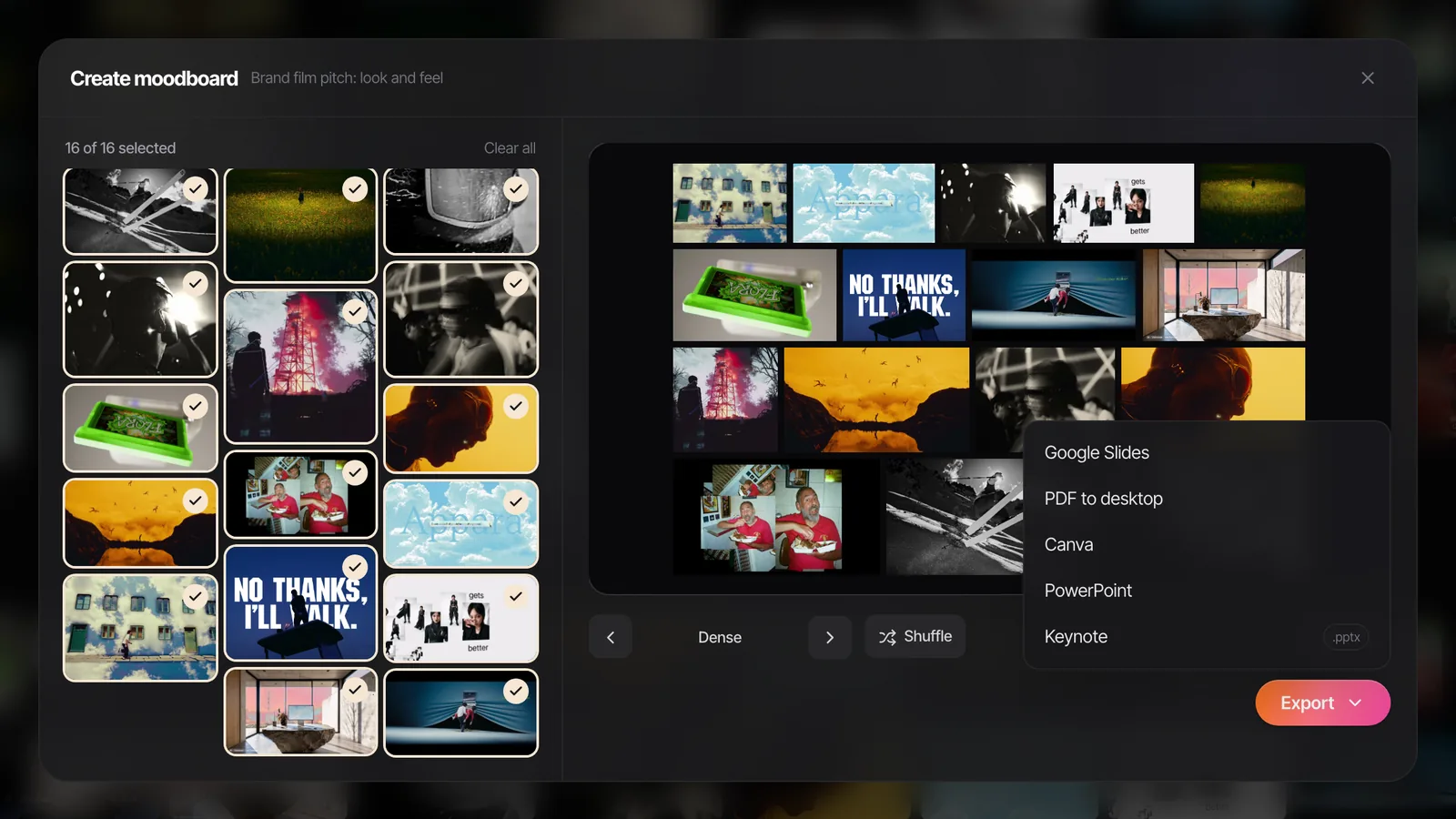
In Spark, Create Moodboard builds the slides from a board or collection of saved videos and frames, and exports to Google Slides, Canva, PowerPoint, Keynote or PDF, with the GIFs still moving everywhere except the PDF.
FAQs
How do you present a moodboard to a client?
Say the idea in one sentence before the board appears, show it, and pause while people look. Then talk through the two or three frames that carry the idea, and finish with a question that needs a yes or no, such as warm or cold. Send a PDF and a link afterwards with the decision written down.
How long should a moodboard presentation be?
Five to ten minutes per board is plenty. One sentence for the idea, a minute or two on the key frames, then the conversation. If a board needs longer than that, it's usually trying to answer more than one question and should be split.
Should I send a moodboard as a PDF or a PowerPoint?
Send a PDF for reading and forwarding, because it opens anywhere, and add the .pptx or a live link if the next person needs to edit it or if motion matters. A PDF freezes every GIF on its first frame, so it can't show camera moves or animation.
Why aren't my GIFs moving when I present?
Keynote treats a GIF as a movie that plays in the slideshow, and PowerPoint can behave differently in the editor than in the show, so start the slideshow. If they still don't move, check that the file is a real GIF set to loop, that no entrance animation is applied, and that you aren't presenting from PowerPoint for the web.
How do I present a moodboard on Zoom?
Run the slideshow in a window (Keynote: Play, In Window; PowerPoint: Set Up Slide Show, Browsed by an individual) and share that window, not your whole screen. Zoom's option to optimise for video clips helps full screen motion but can blur stills, so test it first. Pause for a second or two after each slide change, because shared screens lag.
How many images should a client moodboard have?
Six to twelve per slide for a client, and fewer if one frame needs to lead. The fuller version with every reference you kept is for the crew. Cut anything you'd need to explain, anything that duplicates a stronger frame, and recognisable work from the client's competitors.
Keep reading
All articles
How to Make a Lookbook for Fashion, Film and Brand Shoots
A lookbook is a moodboard with a running order. Get the order right and the pictures do the talking; get it wrong and even great frames read as a slideshow.

Moodboard vs Storyboard vs Shot List: What Each One Is For
Six documents, six different questions. Ask for the wrong one and you get a beautiful answer to something nobody asked, usually a day before the shoot.
How to Make a Moodboard in Figma or FigJam
Figma gives you more control over a moodboard than any slide app. It also freezes your GIFs in the editor, which matters the moment your references move.