
How to Make a GIF on iPhone (Shortcuts, Live Photos and Video)
Your iPhone can make a real GIF without any extra apps, just not from the Photos app on its own. Here are the routes that work, checked against Apple's own guides, and the point where a laptop wins.
By the Spark team ·

To make a GIF on iPhone, use the Shortcuts app: build a shortcut with Select Photos, Make GIF and Save to Photos, run it, pick a video, and a real GIF lands in your library. For a quick looping moment, open a Live Photo in Photos, tap Live in the top left and choose Loop or Bounce. That gives you a loop that plays like a GIF in Photos, though it isn't a GIF file. The free GIPHY app makes GIFs and stickers from its own camera too.
Those three cover a group chat. For a GIF that goes in a pitch deck, at a size you choose and trimmed to the frame, AirDrop the video to a computer and convert it there. We'll get to why.
Every step below was checked against Apple's current iPhone and Shortcuts guides, and against the action names inside the Shortcuts app itself. File sizes come from our own tests on Spark's launch film. Phones shoot plenty of reference and behind the scenes footage, so this is the triage worth using for it.
The fastest route on an iPhone
| Route | What you get | Cost (as of October 2026) | Best for |
|---|---|---|---|
| Apple Photos Loop and Bounce | A looping Live Photo, not a GIF file | Free, built in | Sharing a moment with other iPhone users |
| Apple Shortcuts Make GIF | A real .gif file | Free, built in | A GIF from any video, without leaving the phone |
| GIPHY GIPHY app | GIFs and stickers with text and face filters | Free | Reactions and stickers |
| Apple Photos Photos on a Mac | A real .gif from a Loop or Bounce | Free with macOS | Turning a Live Photo loop into a file |
| Spark Video to GIF converter, on a computer | A GIF at the width, frame rate and length you pick | Free | Anything going in a deck or a treatment |



Route 1: Loop and Bounce on a Live Photo
A Live Photo keeps a moment of movement around the shot, and the Photos app can turn that movement into a loop. Apple's Live Photos guide puts it like this:
- Open the Live Photo in the Photos app.
- Tap Live in the top left corner.
- Choose Loop (it repeats the action in a continuous loop) or Bounce (it plays forward, then backward).
There's a fourth option, Long Exposure, which blurs everything that moves into one still frame. Lovely for waterfalls and traffic. Not a GIF.

Before you add the effect, trim it. Open the Live Photo, tap Edit, tap the Live Photo button and drag either end of the frame viewer. Half a second of fumbling at the start of a loop shows every single time it repeats.
The catch is what happens when you send it. The loop plays in Photos, but Apple says a Live Photo shared through Mail arrives as a still image. To send it anywhere else, turn it into a video: tap the More button in the top right corner, then Save as Video. Now you have a short MOV, which Route 2 can make into a real GIF.

Route 2: the Shortcuts app's Make GIF action
Shortcuts comes with every iPhone, and it has an action called Make GIF. Its own description reads: creates an animated GIF from the images or video passed into the action. Build the shortcut once and it's there every time.
- Open Shortcuts and tap the + button.
- Tap Add Action, search for Select Photos and add it. That's the step where you'll pick the video.
- Add Trim Media. Optional, but it shows a trim view so you can keep only the moment you want.
- Add Make GIF.
- Add Save to Photos.
- Rename it, for example Make GIF, and tap Done.
Run it, choose a video, trim, and the GIF goes into your photo library. To run it straight from a video you're looking at, open the shortcut, open its Details and turn on Show in Share Sheet. It then appears when you tap Share in Photos.
The settings that matter
Expand the Make GIF action to see its options. Loop Forever is the one you want on (otherwise you choose a Number of Loops). Seconds Per Photo only matters when you feed it stills, such as a burst; it's 0.2 by default. And there's Auto Size: switch it off and the action asks for a Width and Height, suggesting 500 by 500. For an upright iPhone clip, 270 by 480 keeps the shape and keeps the file down.
That last setting matters more than it looks, because phone video is tall, and tall GIFs are heavy. We cropped the same three seconds of footage three ways and measured the result:
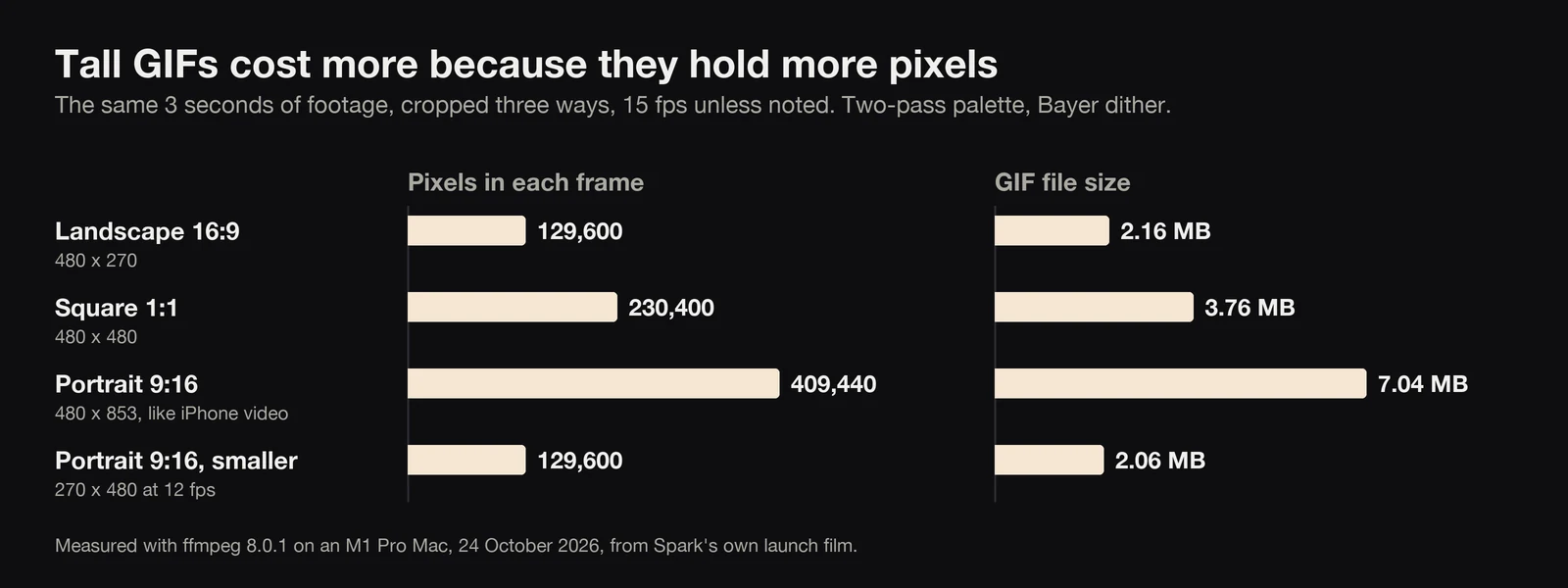
At 480 px wide, the upright version held three times the pixels of the widescreen one and came out at 7.04 MB against 2.16 MB. Bring it down to 270 px wide at 12 fps and it fell to 2.06 MB. If your GIF is going to a group chat, that difference is the gap between it sending and it sitting there with a progress bar.

Route 3: the GIPHY app
GIPHY: The GIF Search Engine is free on the App Store and needs iOS 15.6 or later. Its listing says you can create your own GIFs and stickers with its camera, or by uploading your own, and add face filters and animated text. It's the quickest way to a reaction GIF with words on it.

It's the wrong tool for references and client work. It's designed for sharing in public, not for controlling the output, so for anything confidential stay on Routes 2 and 4.
Route 4: move it to a computer when quality matters
The phone routes are fine for messages. They fall down on three things a pitch deck needs: an exact in and out point, a sensible width, and a predictable file size. That's when we move the video to a laptop.
Get the file across. AirDrop the video to your Mac, or use iCloud Photos so it's already there. Apple's HEIF and HEVC guide notes that AirDrop, Messages and email may send it in a more compatible format such as H.264 if the other device can't handle HEVC, and that a USB import to Photos or a PC converts it too unless Keep Originals is on under Settings > Apps > Photos.
Turn a Loop into a real GIF on a Mac. Photos on the Mac can export a Loop or Bounce as a GIF file. Select the Live Photo with the effect applied and choose File > Export > Export GIF. It's the only route we know that keeps Apple's own loop.
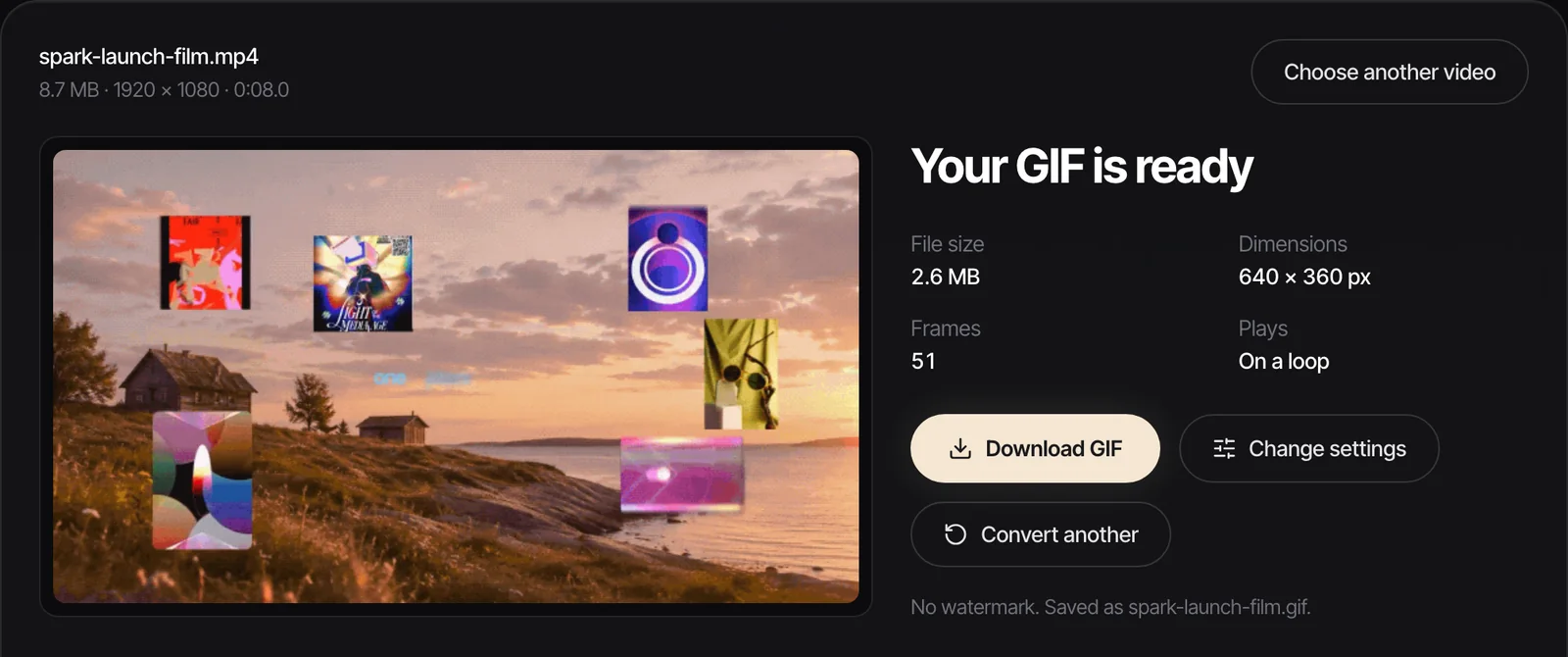
Convert the video. Open our video to GIF converter in Safari or Chrome on the computer and drop the MOV in. It runs in the browser, so nothing is uploaded and there's no watermark.
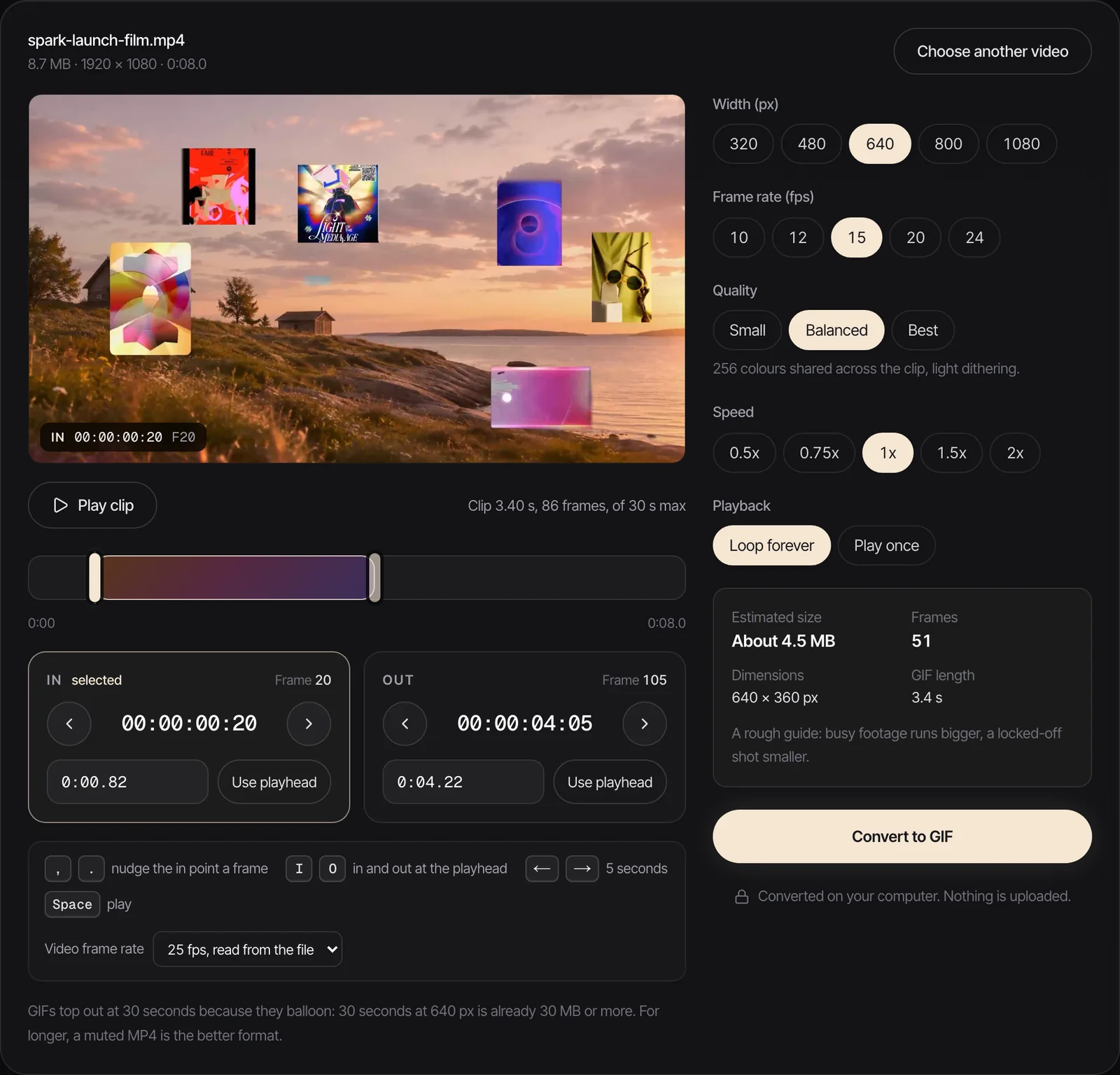
For an upright clip, start at 320 px and 12 fps, or crop it square first if your editor can. For widescreen footage, 480 px at 15 fps is our default for decks.
Two iPhone quirks to know about. Clips shot on the High Efficiency setting are HEVC, which Chrome opens on a Mac but not every Windows PC can. And clips shot in HDR can come out looking grey and flat in some converters. In our test, plain ffmpeg halved the colour saturation of an iPhone 15 Pro HDR clip, while the browser converter kept it. Our guide to converting MOV to GIF has the fixes and the numbers. If you'd rather avoid it at source, Apple's HDR settings page says HDR recording is switched off under Settings > Camera > Record Video.
Still too big? The GIF compressor shrinks a finished GIF to a target size, our guide to reducing GIF file size ranks every fix, and GIF size limits lists what each app will accept.
When the video isn't yours
Most GIFs we make for decks start as someone else's work: a reel, a TikTok, a campaign film. The routes are different there, because you need the video before you can make the GIF. We've covered turning an Instagram reel into a GIF and making a GIF from a TikTok. Treat these as references for internal decks and pitches, credit the maker, and ask before using anything in public.
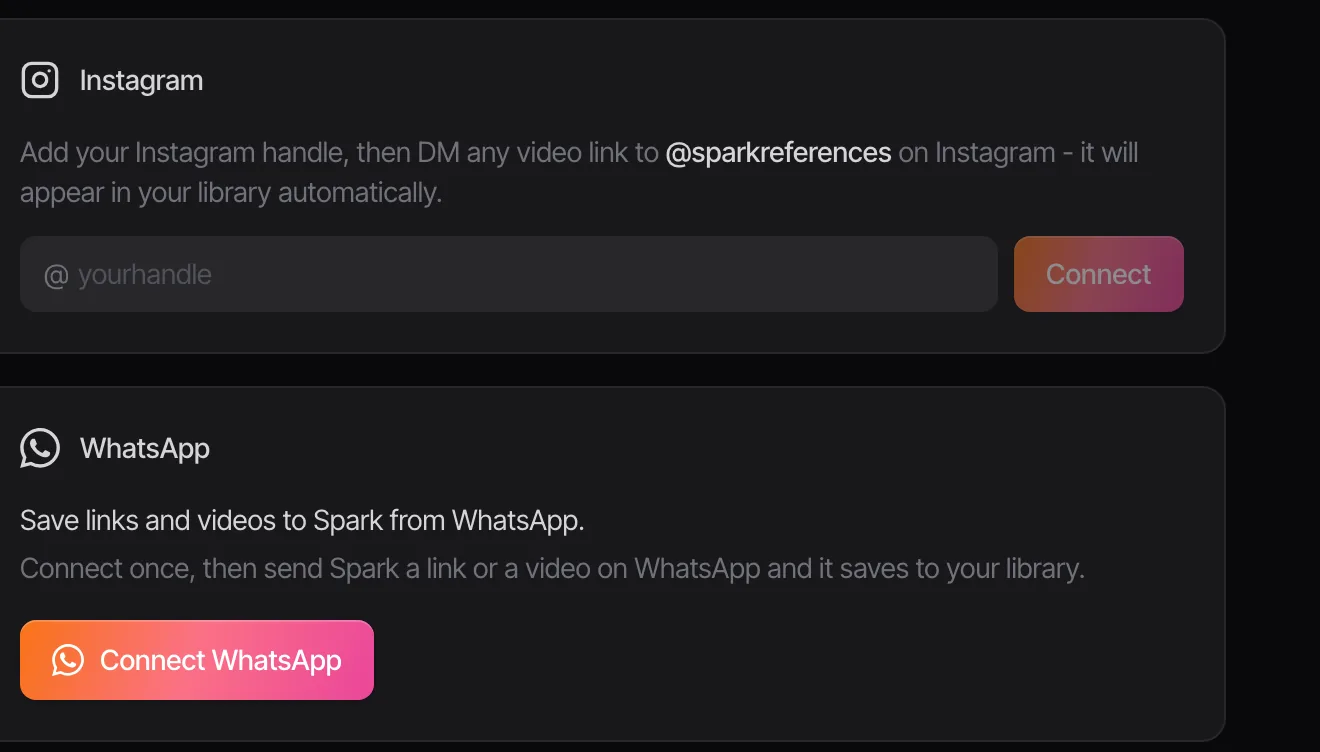
Spark is how we keep those references from vanishing into a camera roll. There's no Spark app for the phone, but you don't need one to save from it: DM a reel or post to @sparkreferences on Instagram, or send a link or a video to Spark on WhatsApp, and it goes into your library. Clips that arrive in a WhatsApp chat have their own routes off the phone, in saving WhatsApp videos to your computer.
Then, on your Mac or PC, open the saved video in Spark and use Export GIF to trim it, nudge the in and out points, choose the frame rate and width, and save the GIF to Frames.
FAQs
Can you make a GIF on iPhone without downloading an app?
Yes. The Shortcuts app, which comes with every iPhone, has a Make GIF action. Build a shortcut with Select Photos, Make GIF and Save to Photos, run it on a video, and it saves a real GIF to your library.
How do I turn a Live Photo into a GIF?
On the iPhone, add the Loop or Bounce effect by tapping Live in the top left of the photo. That makes a loop, not a GIF file. To get a real GIF, open the Live Photo in Photos on a Mac and choose File > Export > Export GIF, or tap More > Save as Video on the iPhone and run the video through a Make GIF shortcut.
Why does my Live Photo send as a still image?
Some routes don't carry Live Photos. Apple says a Live Photo shared through Mail arrives as a still image. Save it as a video (More > Save as Video) or make it into a GIF before you send it.
Why is my iPhone GIF so big?
Phone video is tall and high resolution, and GIF size follows the pixel count. In our test a 480 px wide portrait GIF was 7.04 MB while the same clip as a 480 px landscape GIF was 2.16 MB. Make it 270 or 320 px wide, keep it to three seconds, and use 12 fps.
What's the best GIF maker app for iPhone?
For reactions with text and stickers, the free GIPHY app. For turning your own video into a GIF without uploading it anywhere, the built-in Shortcuts app. For deck-quality GIFs, move the video to a computer and use a converter where you can set the width, frame rate and exact frames.
Can I make a GIF from a video someone sent me on WhatsApp?
Save the video to your phone first, then run your Make GIF shortcut on it, or send it to a computer and convert it there. If it's a reference rather than your own footage, keep the GIF for internal use and credit whoever made it.
Keep reading
All articles
How to Add a GIF to Keynote So It Actually Plays
Keynote is the kindest app to a GIF, right up until the file leaves your Mac. We built a test deck and exported it every way Keynote allows, so you know what arrives where.

How to Put a GIF in an Email (Gmail, Outlook and Apple Mail)
A GIF in an email is the one moving image almost every inbox will show you. Get it in the right place, keep it light, and make sure the first frame can stand on its own.
How to Use GIFs in Canva (Upload, Animate, Export)
Canva quietly treats a GIF as a video, which is good news once you know where the settings went. Here's every step, with Canva's real limits for Free and Pro.