
How to Convert MOV to GIF (iPhone, ProRes and Screen Recordings)
A MOV is a box, and what's in the box decides whether your converter opens it. We cut the same three seconds five ways to find out which tools choke on which MOV.
By the Spark team ·

To convert a MOV to a GIF, open it in a converter that can read the video inside it, trim it to a few seconds, and export at about 480 px wide and 12 to 15 frames per second. Our free video to GIF converter does that in your browser without uploading the file. ffmpeg does it in one command. Either way, a three second clip lands at around 1 to 2 MB.
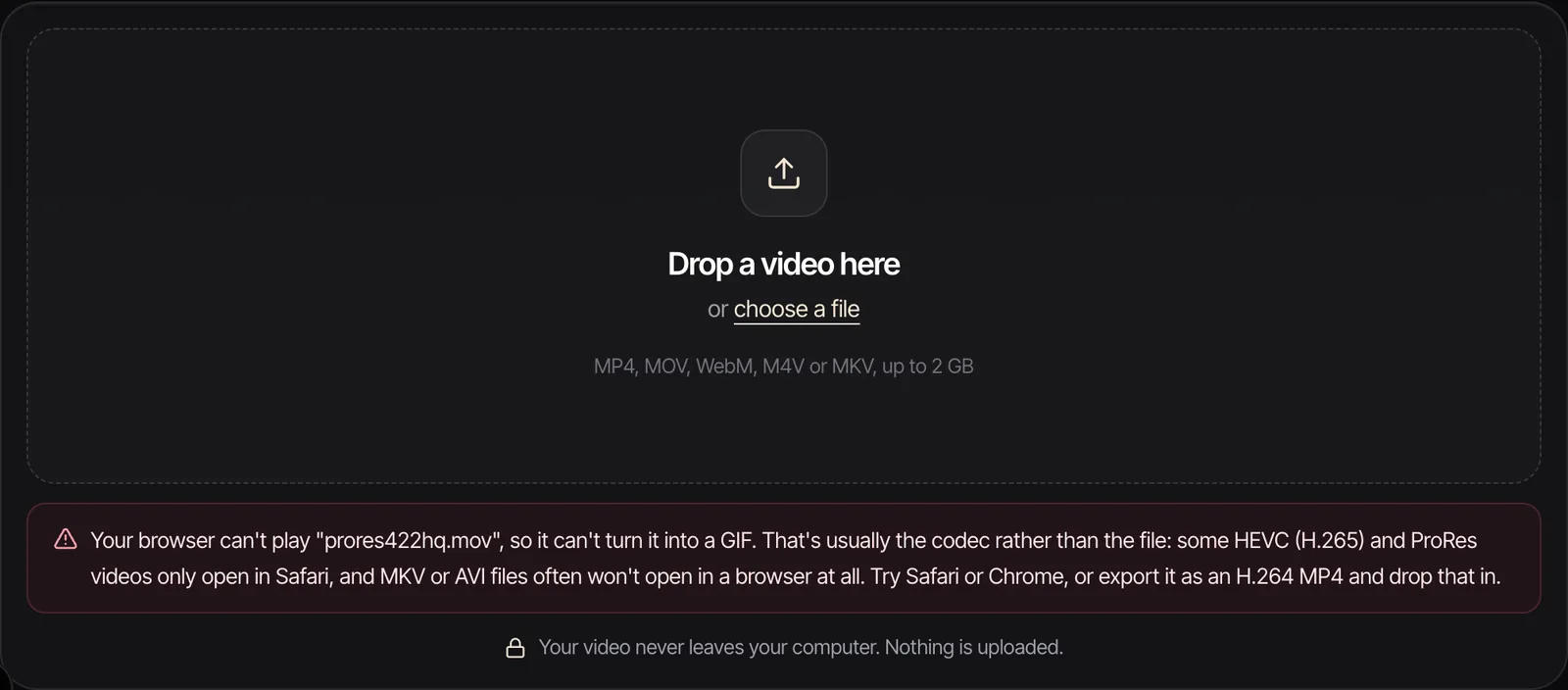
The catch is the MOV itself. MOV is a container, and the video inside it can be H.264, HEVC or ProRes. That decides which tools will open it. In our tests, Chrome on a Mac opened H.264 and HEVC MOVs but refused ProRes, while WebKit (the engine inside Safari) opened all five files we gave it.
We cut the same three seconds of Spark's launch film into five different MOVs, ran each one through every route below and logged every file size. MOVs usually come from three places: phones, edit suites and screen recordings. Each one has its own trap, so this guide goes through them one at a time.

Pick a route
| Route | Cost (as of October 2026) | Best for |
|---|---|---|
| Spark Video to GIF converter | Free, nothing uploaded | A one-off GIF, trimmed to the exact frame |
| FFmpeg | Free, open source | ProRes masters, batches, the same settings every time |
| QuickTime Player and avconvert | Free, built into macOS | Turning ProRes or HDR into a plain H.264 file first |
| Photoshop | Adobe subscription | Fixing individual frames by hand |
| After Effects | Adobe subscription | Building a loop or adding type before export |





If the MOV came off an iPhone or out of a screen recording, the browser converter is quickest. If it came out of an edit as ProRes, use ffmpeg, Safari, or re-export it first.
What's inside your MOV
Three codecs cover nearly every MOV we see:
- H.264. The universal one. iPhones record it on the Most Compatible setting, and the Mac screen recording we checked used it too.
- HEVC (H.265). Smaller files for the same picture. iPhones use it on the High Efficiency setting, which you'll find under Settings > Camera > Formats (Apple's guide), and it carries iPhone HDR video too.
- ProRes. Apple's editing codec. Huge files, very little compression, and a common master format out of editing apps.
To check, open the file in QuickTime Player and choose Window > Show Movie Inspector (or press Command I). Apple says the inspector shows the compression format, bit depth, frame rate and HDR format. Or ask ffprobe, which installs alongside ffmpeg:
ffprobe -v error -select_streams v:0 -show_entries stream=codec_name,profile,width,height,pix_fmt,color_transfer -of default=nw=1 input.movcodec_name=hevc with pix_fmt=yuv420p10le is a 10-bit HEVC file. If color_transfer says arib-std-b67, it's HDR, and that changes things (more below). codec_name=prores is a ProRes master.
Which browsers open which MOV
| Inside the MOV | Chrome and Edge | Safari |
|---|---|---|
| H.264 | Yes | Yes |
| HEVC, 8 or 10-bit | Yes on a Mac (we tested Chrome 149). On Windows only with hardware support, and Edge also needs Microsoft's HEVC Video Extensions | Yes |
| ProRes | No in Chrome, in our test | Yes in WebKit, Safari's engine, in our test |
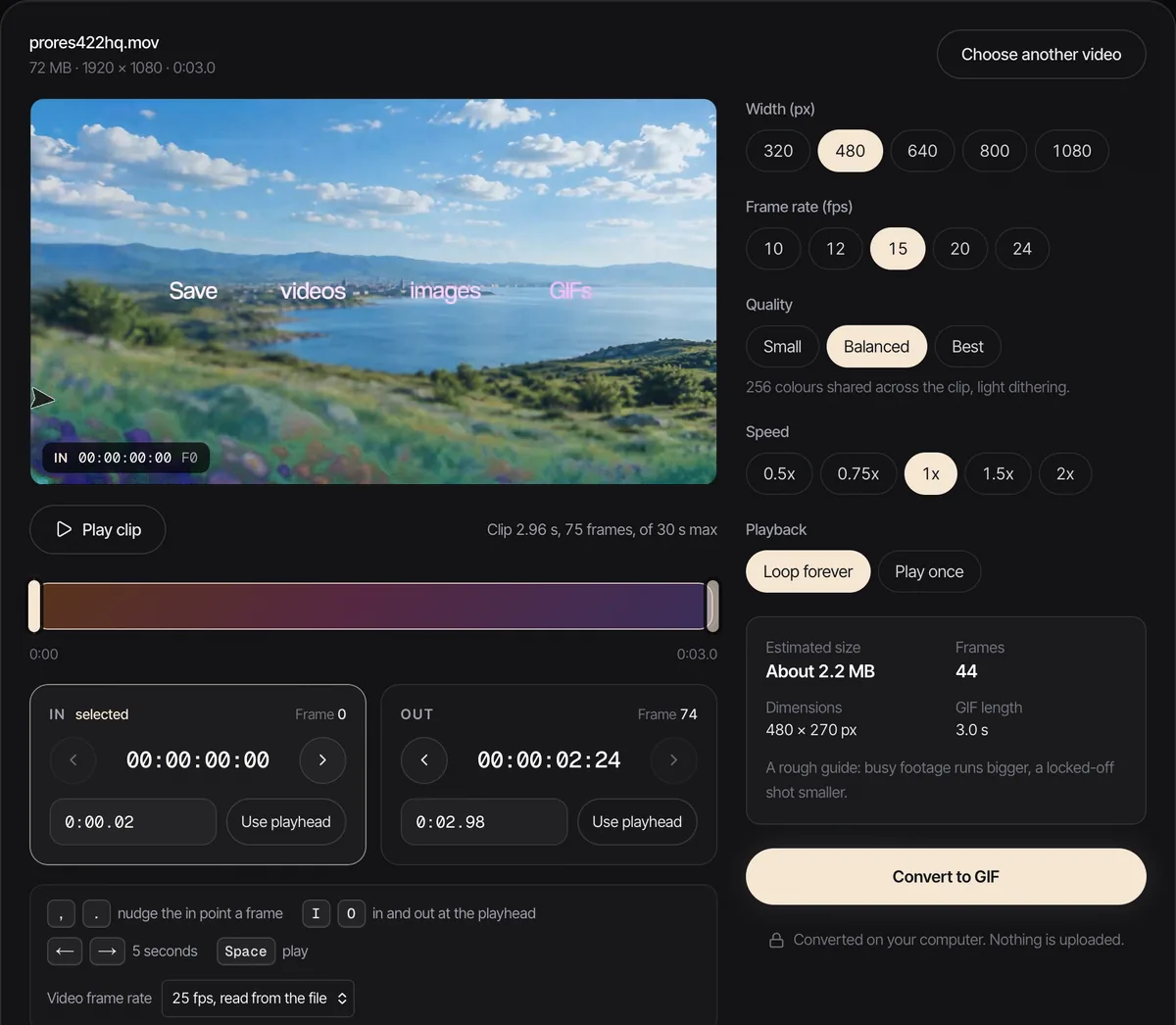
The HEVC rows come from caniuse and MDN's codec guide. MDN says Firefox decodes HEVC on Windows from version 134 and on macOS from 136. We didn't test Firefox. The ProRes row is our own test, on a Mac, with the same 72 MB file in both browsers:
What the codec does to file size
Less than you'd think. Here's the same three seconds as five MOVs, each turned into a GIF with identical settings:
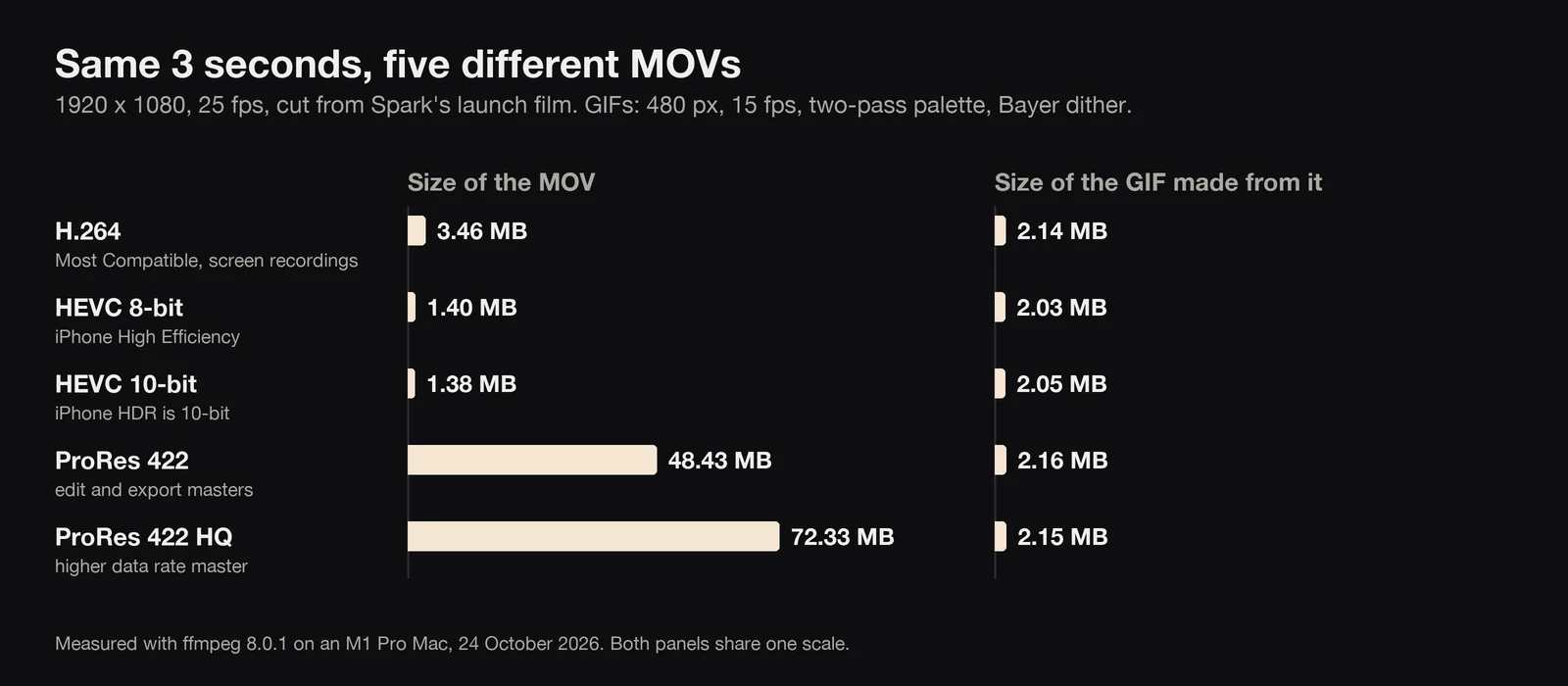
The ProRes 422 HQ file weighed 72.33 MB and the HEVC file 1.40 MB. Their GIFs came out at 2.15 MB and 2.03 MB. HEVC's GIFs ran slightly smaller, most likely because heavier compression softens fine texture, and texture is what makes a GIF big. So don't pick a MOV for its size. Pick the one your converter can open.
What does move the number is width and frame rate. All from the same HEVC MOV, all two-pass palettes:
| GIF settings | File size |
|---|---|
| 1920 px, 25 fps (no scaling at all) | 37.60 MB |
| 640 px, 15 fps, Bayer dither | 3.50 MB |
| 480 px, 15 fps, Sierra dither | 3.06 MB |
| 480 px, 15 fps, Bayer dither | 2.03 MB |
| 480 px, 12 fps, Bayer dither | 1.79 MB |
| 320 px, 12 fps, Bayer dither | 0.84 MB |
| Our converter's defaults (480 px, 15 fps, Balanced) | 1.17 MB |
That first row is what happens when you drop a full HD MOV into a tool that keeps the original size. Thirty-seven megabytes for three seconds is too heavy to email, and our post on GIF size limits has the numbers for each app.

Route 1: the free converter in your browser
- Open the converter in Chrome, Edge or Safari. For ProRes, use Safari.
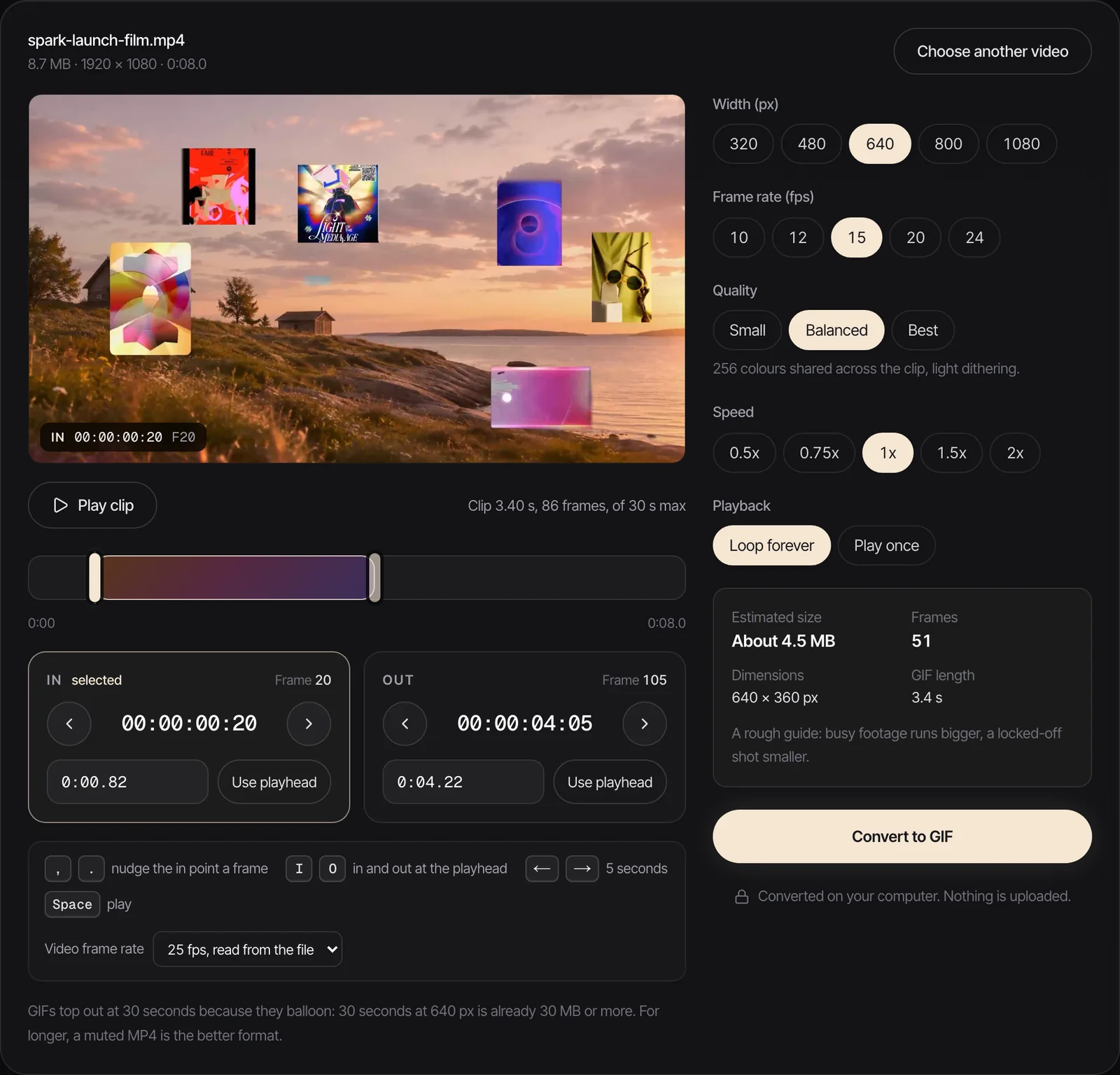
- Drag the MOV onto the drop box. It opens from your disk, so a 2 GB file is no slower to load than a small one, and nothing is uploaded.
- Drag the handles to the moment you want (up to 30 seconds). Then nudge the in and out points one frame at a time with the comma and full stop keys, or the arrow buttons beside each timecode.
- Pick a width, a frame rate and Small, Balanced or Best. The estimated size updates as you go.
- Click Convert to GIF, then Download GIF. No watermark.
If you get the red message instead, the browser can't decode what's in the file. Switch browser, or re-export it as H.264 (Route 3), which takes seconds.
Route 2: ffmpeg, which opens everything
ffmpeg decodes H.264, HEVC and ProRes without caring which browser you prefer, so it's our route for ProRes masters. On a Mac, brew install ffmpeg; the Mac and Windows guides cover installing it. Then:
ffmpeg -i input.mov -vf "fps=15,scale=480:-1:flags=lanczos,split[a][b];[a]palettegen=stats_mode=diff[p];[b][p]paletteuse=dither=bayer:bayer_scale=3" output.gifThat's the 2.03 MB row above. To take part of the clip, put the start and length before the input. This takes two seconds starting half a second in, and made a 1.39 MB GIF of 30 frames:
ffmpeg -ss 0.5 -t 2 -i input.mov -vf "fps=15,scale=480:-1:flags=lanczos,split[a][b];[a]palettegen=stats_mode=diff[p];[b][p]paletteuse=dither=bayer:bayer_scale=3" output.gifEvery MOV in a folder (we ran it on an H.264, an HEVC and a ProRes file together):
for f in *.mov; do ffmpeg -i "$f" -vf "fps=15,scale=480:-1:flags=lanczos,split[a][b];[a]palettegen=stats_mode=diff[p];[b][p]paletteuse=dither=bayer:bayer_scale=3" "${f%.mov}.gif"; doneSkip the palette step and ffmpeg falls back on a generic palette. It made a smaller file in our test (1.07 MB), and a worse one: the sky turned green and speckled. Our quality guide has thirteen versions of that trade-off measured.

The iPhone HDR trap
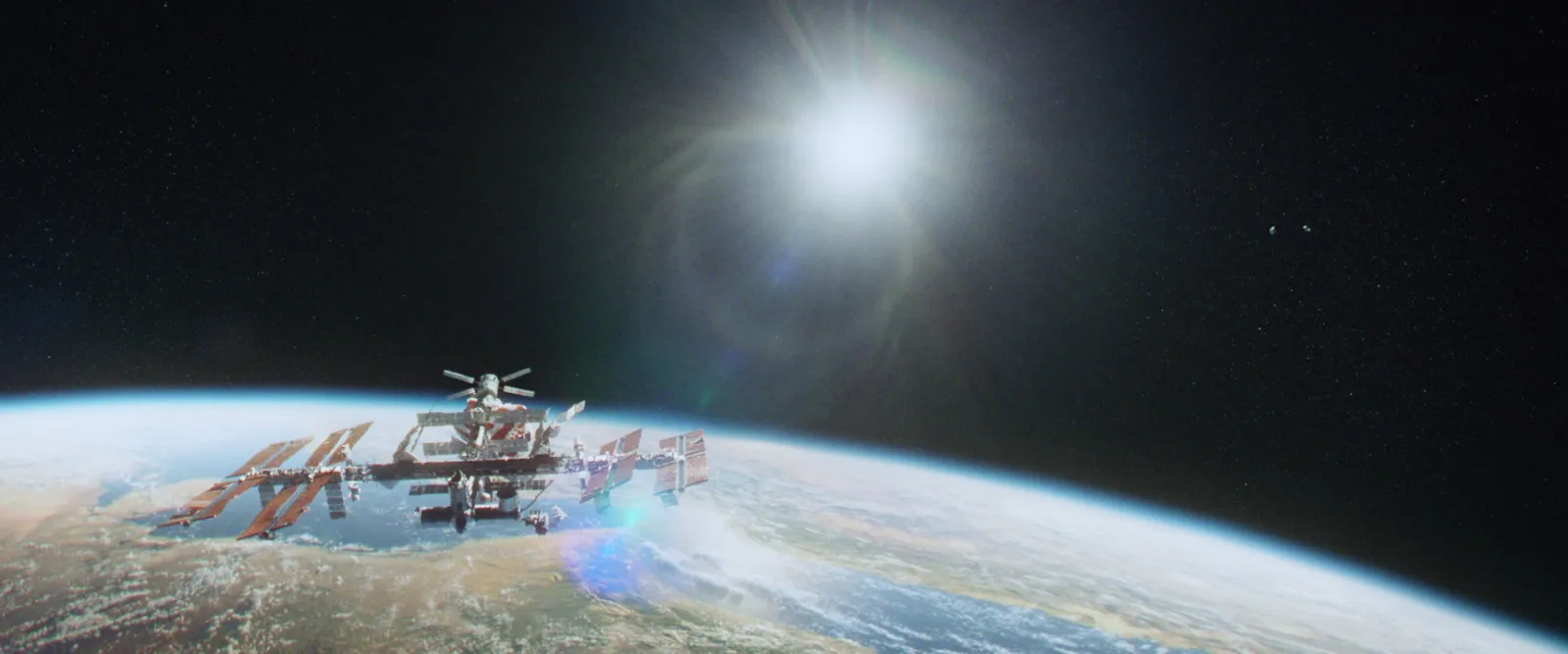
Recent iPhones record HDR video, which Apple calls Dolby Vision HDR, and it's 10-bit HEVC with a different brightness curve. A GIF has no idea what that is. We ran a four second HDR clip from an iPhone 15 Pro through the ffmpeg command above, and the GIF came out grey and flat: average saturation in a sample frame was 11.5, against 23.0 for a properly converted version.
Three fixes, all tested:
- Convert to H.264 first with avconvert (Route 3 below). Apple's converter maps HDR down to normal video, and the GIF made from it measured 23.0.
- Use the browser converter. Chrome and WebKit both did the conversion themselves: 22.7 and 22.6 in the same frame.
- Stop it at source. If the clip is only ever going to be a GIF, turn HDR off under Settings > Camera > Record Video (Apple's HDR settings page says the switch is called HDR Video or HDR, depending on the model).
Route 3: re-export ProRes or HDR to H.264 first
When a MOV won't open, or opens looking wrong, turn it into a plain H.264 file and start again. Every tool reads H.264. We ran avconvert and ffmpeg ourselves; the QuickTime steps are from Apple's guide.
QuickTime Player. File > Export As > 1080p, then set Format to Greater Compatibility, which Apple's export guide says means H.264 (Smaller File Size gives you HEVC, which is the opposite of what you want here).
avconvert. Every Mac has Apple's converter on the command line, no install needed:
avconvert --source input.mov --preset Preset1920x1080 --output output.mov --replaceOur 72.33 MB ProRes HQ file became a 4.10 MB H.264 MOV in 4.2 seconds.
ffmpeg, on Mac or Windows:
ffmpeg -i input.mov -c:v libx264 -crf 18 -pix_fmt yuv420p -movflags +faststart -an output.mp4Same ProRes file: 3.28 MB, 6.2 seconds. -an drops the audio, which a GIF can't use anyway.
Better still, if you're the one exporting from the edit, export H.264 in the first place. Our guide to exporting a GIF from Premiere Pro goes through the settings.
Route 4: Photoshop or After Effects
Both are overkill for a straight conversion. Photoshop earns its place when one frame needs fixing by hand: File > Import > Video Frames to Layers, edit, then File > Export > Save for Web (Legacy) and choose GIF. Trim the MOV first, because long clips get slow.
After Effects is where a GIF gets built: a loop timed to the frame, a caption, a crop for a deck. It has no GIF export of its own, so render a file and convert it with any route above. Our guide to exporting a GIF from After Effects covers the three ways that work.
Mac screen recordings are MOVs too
Press Shift Command 5, record, and macOS saves a MOV. We checked one on our Mac with ffprobe: H.264, 2636 x 1960 pixels for a window that looked half that size on screen (Retina doubles everything), and a variable frame rate that averaged about 33 frames a second.
H.264 means every converter opens it. The size and frame rate are the problems. Scale it to 480 or 640 px, drop to 10 fps for interface footage, and switch dithering off for flat UI. Our walkthrough on turning a screen recording into a GIF measures why that works.
When the MOV is a reference, not your footage
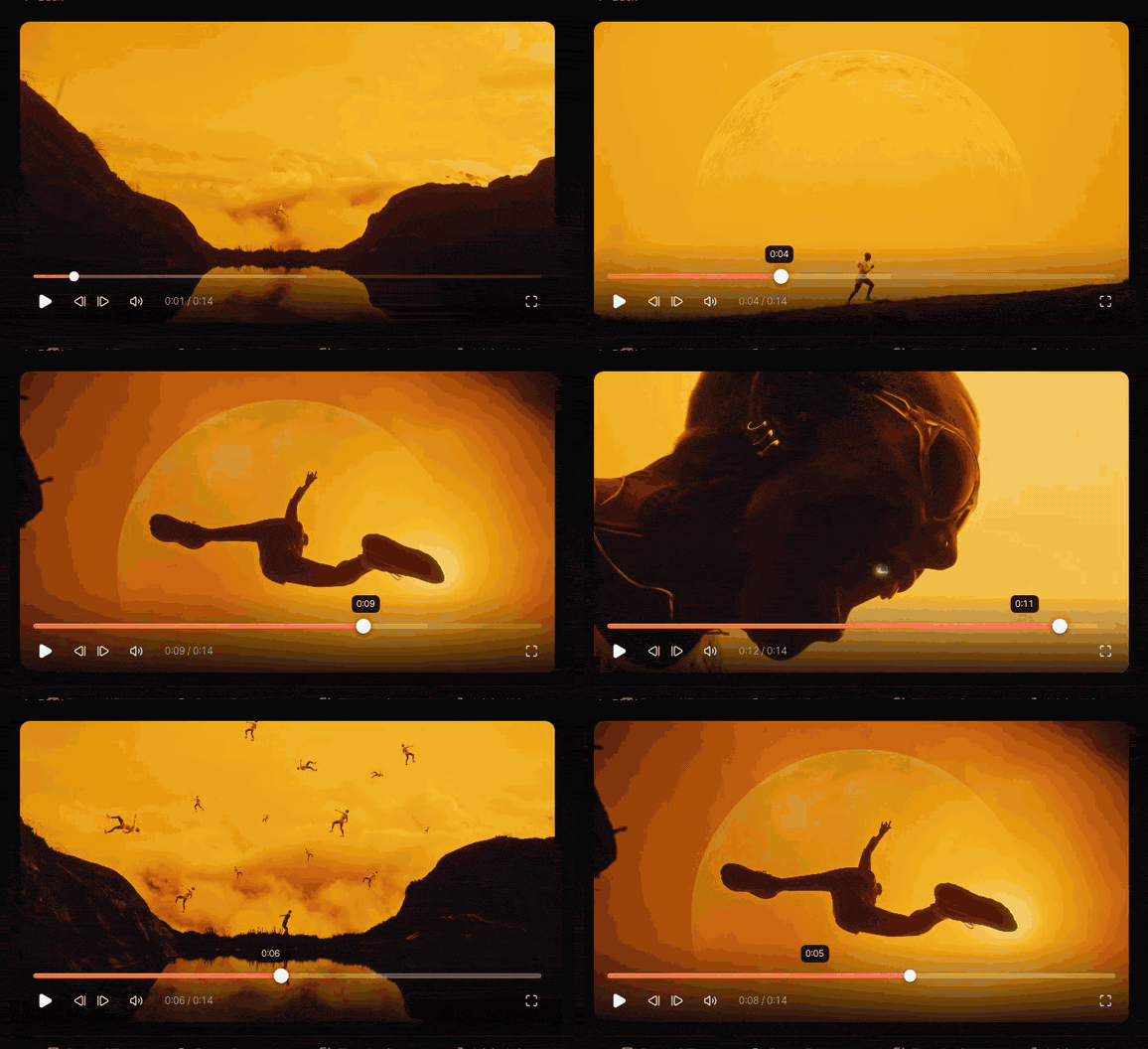
Plenty of MOVs aren't ours to cut up. They're references: the director's cut a production company sent over, a campaign film a client loved. For those, the GIF is for a treatment or a deck, not for publishing, and the maker gets credited.
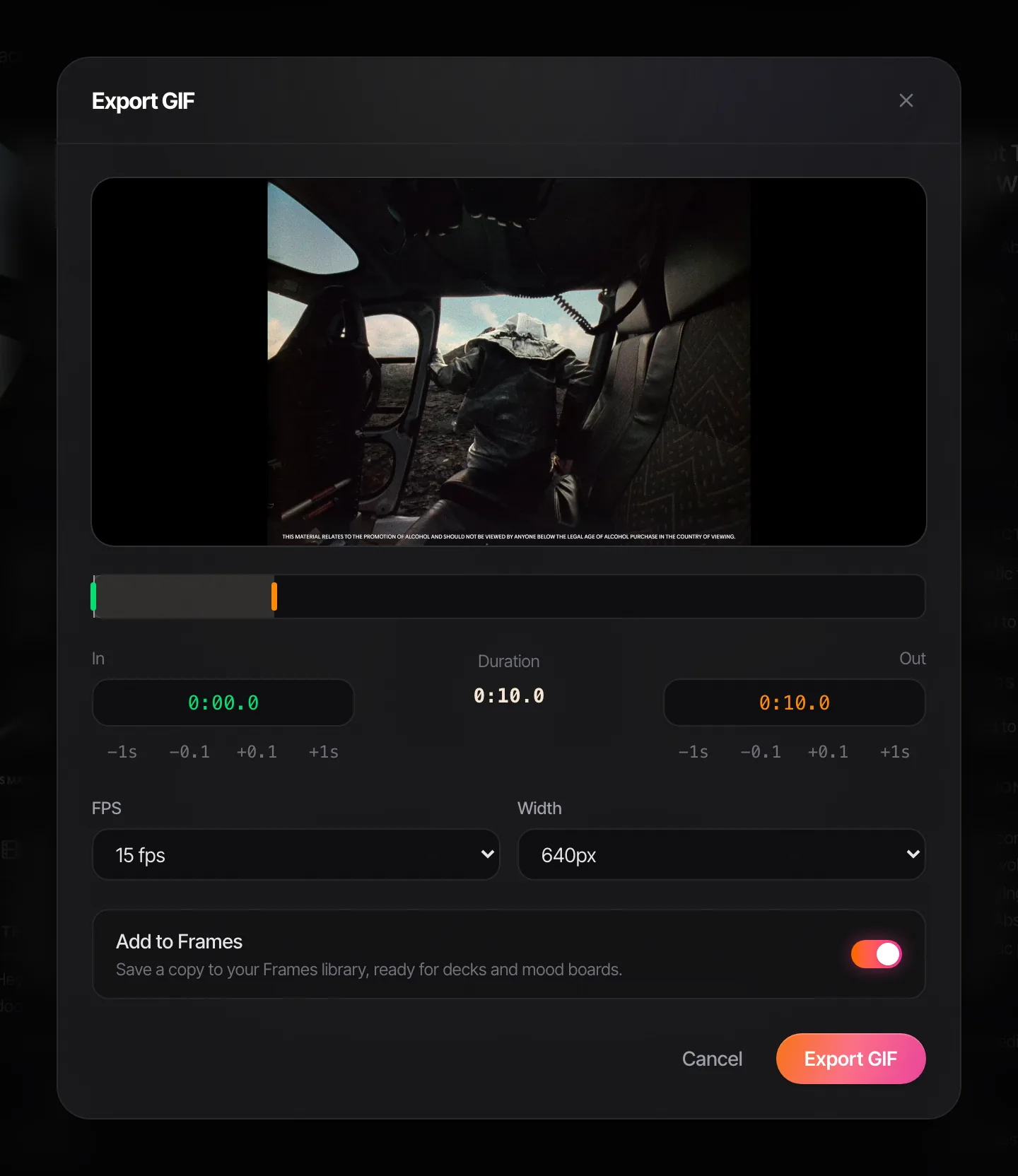
Spark keeps references in one library on your Mac or PC. Upload a file from your computer, or paste a link from Vimeo, YouTube, Instagram and the rest. Open any saved video and Export GIF trims it, nudges the in and out points, sets the frame rate and width, and saves the GIF to Frames.
Making the GIF on the phone instead? Our guide to making a GIF on iPhone covers Live Photos, Shortcuts and when it's worth AirDropping the MOV to a computer. And if the finished file is still too heavy, the GIF compressor and our guide to reducing GIF file size will bring it down.
FAQs
Why won't my MOV convert to a GIF?
Usually the converter can't decode the codec inside the MOV. HEVC files from iPhones need a browser with HEVC support, and ProRes files only opened in Safari's engine in our tests. Open it in Safari, use ffmpeg, or re-export it as H.264 with QuickTime Player's Export As > 1080p and Greater Compatibility.
Is MOV to GIF any different from MP4 to GIF?
The conversion is identical once the video is decoded, and our five test MOVs made GIFs within 0.13 MB of each other. The difference is compatibility: MP4s are usually H.264, while MOVs are often HEVC or ProRes, which some browsers and apps can't open.
Why does my GIF from an iPhone video look washed out?
The clip was probably shot in HDR, which is 10-bit HEVC with a different brightness curve. Converters that ignore that curve produce grey, flat GIFs: in our test, average saturation halved. Convert it to H.264 first with avconvert, use a browser converter, or turn off HDR Video in the iPhone's camera settings.
Can I convert ProRes straight to GIF?
Yes, with ffmpeg, or in Safari with a browser converter. Chrome refused our ProRes files. The GIF will be about the same size as one made from an H.264 copy: 2.15 MB from a 72 MB ProRes HQ file in our test, against 2.14 MB from H.264.
What size should a GIF from a MOV be?
480 px wide at 12 to 15 fps suits decks and messages, and three seconds of our footage came out between 1.2 and 2 MB. Full HD at 25 fps was 37.6 MB for the same three seconds, which is too big for almost anything.
How do I turn a MOV into a GIF on iPhone?
The Shortcuts app and Live Photo effects can make simple GIFs and loops on the phone. For a GIF that has to look good in a deck, AirDrop the MOV to a computer and convert it there. Our iPhone guide has both.
Keep reading
All articles
How to Add a GIF to Keynote So It Actually Plays
Keynote is the kindest app to a GIF, right up until the file leaves your Mac. We built a test deck and exported it every way Keynote allows, so you know what arrives where.

How to Put a GIF in an Email (Gmail, Outlook and Apple Mail)
A GIF in an email is the one moving image almost every inbox will show you. Get it in the right place, keep it light, and make sure the first frame can stand on its own.
How to Use GIFs in Canva (Upload, Animate, Export)
Canva quietly treats a GIF as a video, which is good news once you know where the settings went. Here's every step, with Canva's real limits for Free and Pro.