
How to Make a Moodboard on Pinterest (and Turn It Into a Deck)
Pinterest is still the quickest place to fill a board. Getting that board in front of a client as a deck is where it stops helping, so here's the whole route, both halves.
By the Spark team ·
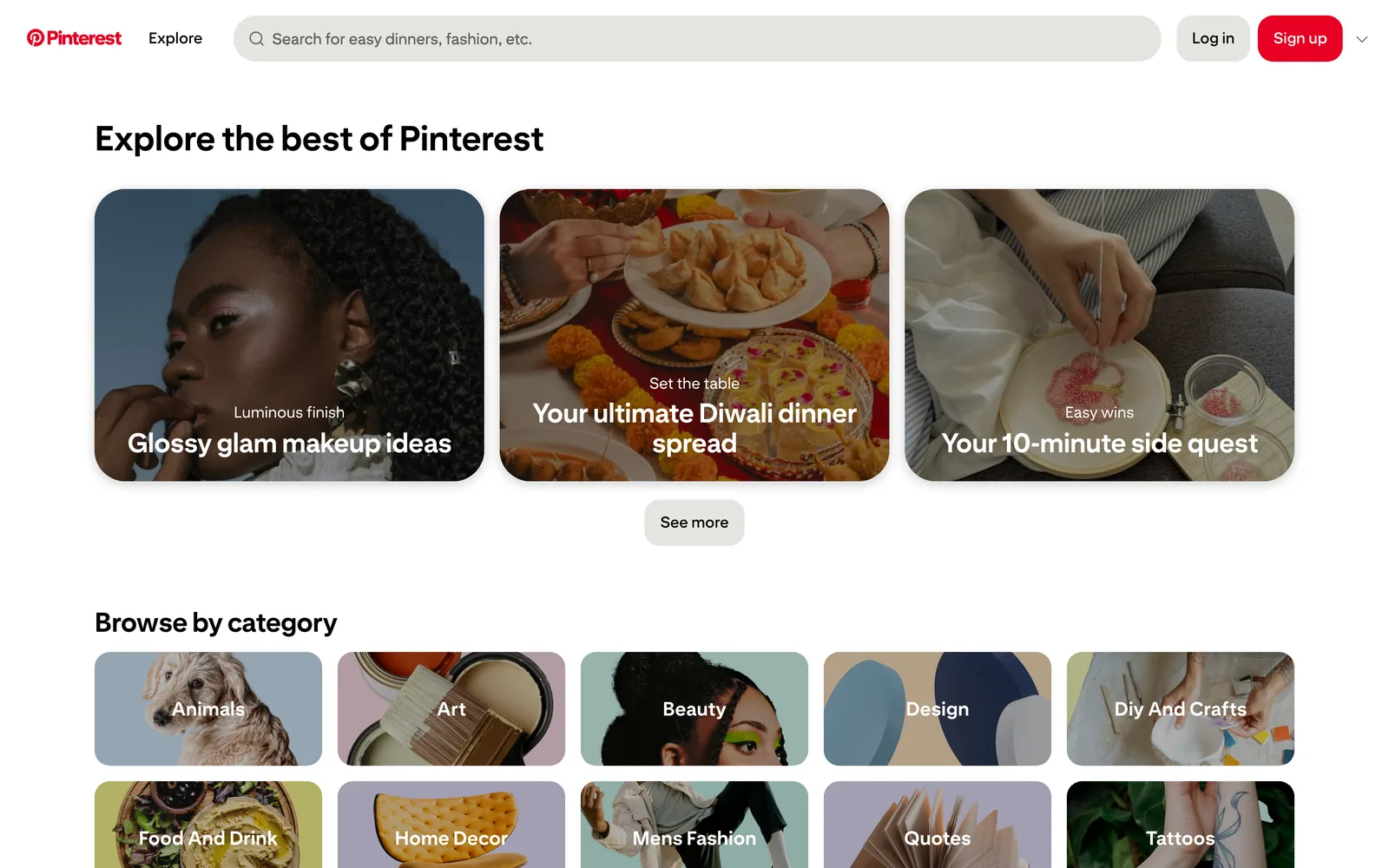
To make a moodboard on Pinterest, create a board (the plus icon, then Board), switch on Keep this board private while it's a work in progress, split it into sections such as Light, Colour and Wardrobe, then fill it from search and visual search. Invite collaborators if the team should add to it. That's the board. What Pinterest won't give you is a deck: there's no export to slides, PDF or even a folder of images. To present it, you get the pictures out one way or another and lay them out somewhere that makes slides.
We're the team behind Spark, a reference library for video. Pinterest is where a lot of pitches start and almost none finish. This guide covers both halves: the board, using the menu names in Pinterest's own help centre as of October 2026, and the routes out of it.
Step 1: Create the board and keep it private
On the web, click the square plus icon in the left navigation and choose Board. In the app, tap the plus icon, then Board. Name it, and before you click Create, switch on Keep this board private. Pinterest used to call these secret boards, and a few of its help pages still do.
Three reasons to start private:
- Only you and the people you invite can see it. A pitch board for a brand shouldn't sit on your public profile where its competitor can find it.
- Saving a pin to a private board doesn't notify the person who posted it, and doesn't add to its save count, according to Pinterest's help on private boards.
- You can make it public later by switching the setting off.
Name the board after the job, not the mood. "Brand film, autumn, tone" is findable next year. "Inspo 4" isn't.
Step 2: Split it into sections before you save anything
Sections are what turn a pile of pins into a moodboard. Each one answers a different question for the crew, and a board without them makes the client guess which picture is there for the light and which for the wardrobe.
To add one on the web, open the board, click the plus icon at the bottom of the screen, choose Section, name it and click Add. To move pins into it, click Organize at the top of the board, select the pins, click Move, then Save next to the section. In the app you name the section and pick its pins in one go. The steps are in Pinterest's section guide.
For a film or video board, ours are the six from our guide to making a moodboard for a video project: tone, colour, light, framing and lens, movement, and wardrobe with locations. Fashion boards split differently, but the rule holds. One question per section.
Step 3: Search like a researcher, not a scroller
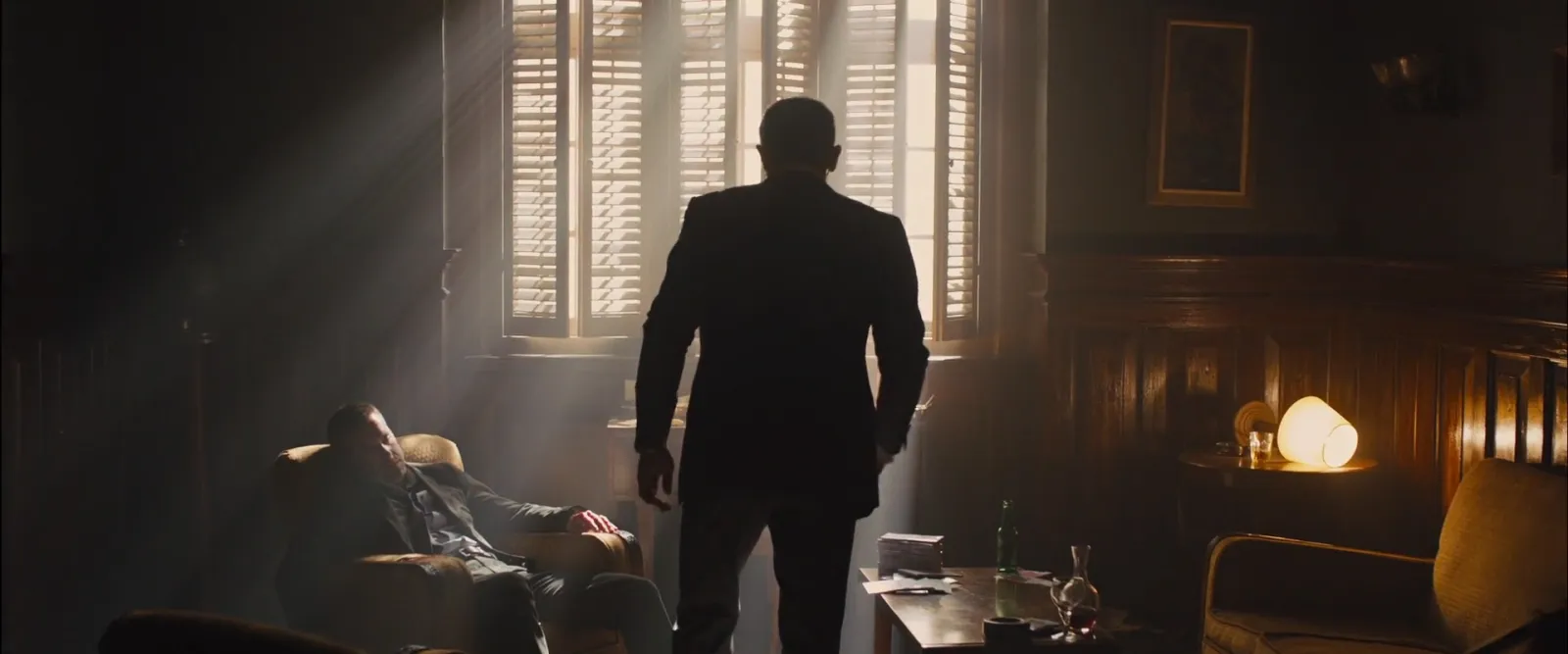
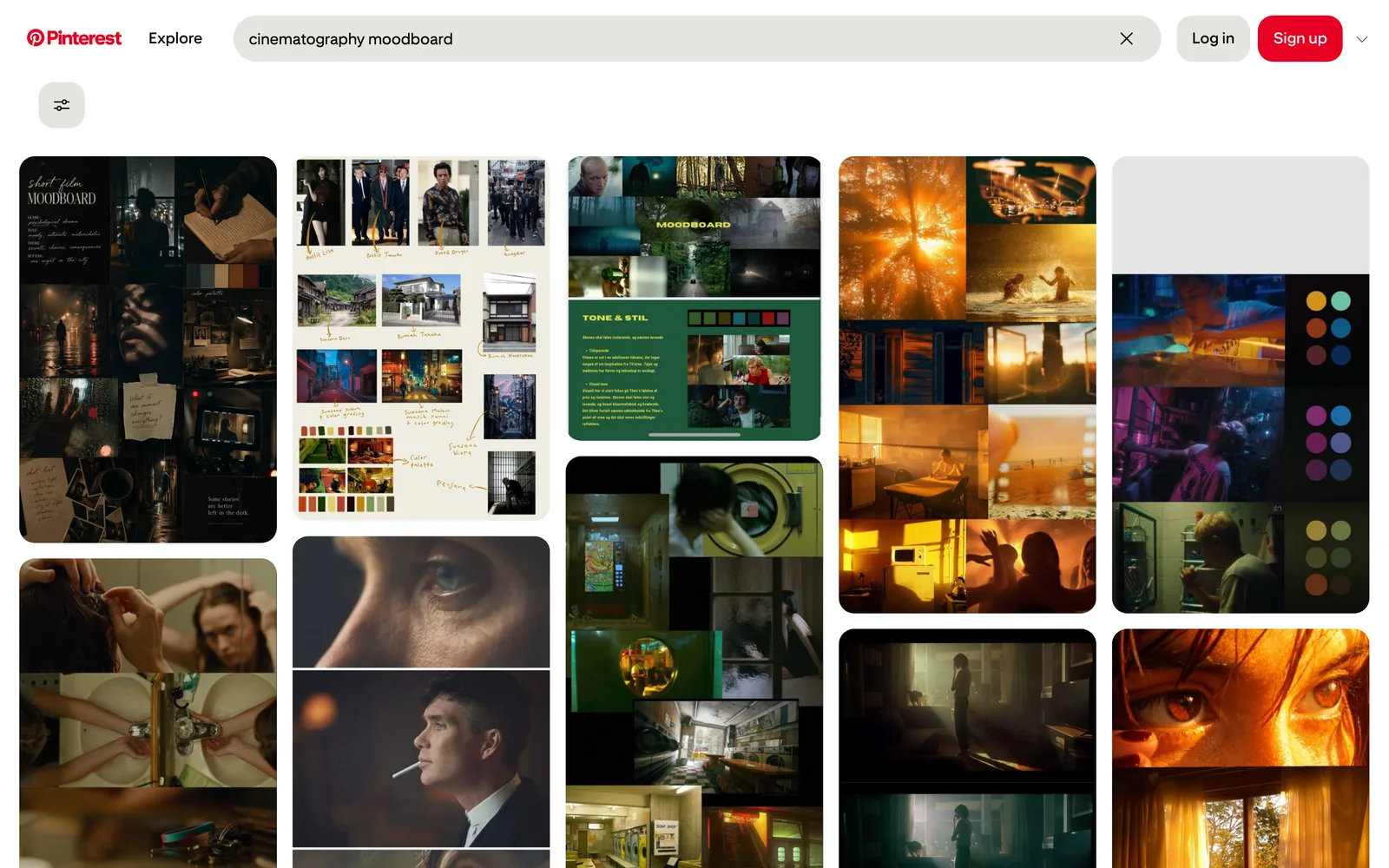
Pinterest's search rewards specifics. Type "moody cinematic" and you get the collages everyone else is getting. Name the thing you're after instead: the light source, the lens, the film, the cinematographer, the decade. "Sodium vapour car park night" and "fluorescent phone booth" pull up far better material than "dark aesthetic".


Four more habits that pay off:
- Use visual search on the detail. Open a pin and click the magnifying glass icon with the sparkle. Click an object, or drag the corners of the selection around the part you care about (a lamp, a collar, a patch of colour), and similar pins appear beside it. It isn't available on ads or collage pins, says Pinterest's visual search help.
- Open the More ideas tab on your own board. It suggests pins based on what's already saved there. Only the owner sees it, even on a public board.
- Tell it to show fewer AI pins. On pins in some popular categories, the ellipsis at the bottom right of a pin offers a see fewer AI Pins option, and Pinterest's help points to Refine your recommendations for the wider setting. It reduces them. It doesn't remove them.
- Click through before you trust a pin. Visit takes you to where the pin came from, which is often a repost of a repost. Find the original film, ad or photographer now, while you still remember why you saved it.

If the feed has gone stale for you, Cosmos and Savee are the calmer places to hunt, and our round up of Pinterest alternatives for creatives covers the rest.
Step 4: Bring the team in with a group board
A board with collaborators is what Pinterest calls a group board. Open the board, click the plus circle icon below its name, search for people by name, username or email and click Invite, or click Copy link and send it.
Then set what they can do. Click the plus circle icon above your pins and open the chevron next to Collaborators can…. Do (almost) everything lets people add, move and delete pins and sections. Save and comment lets them save and organise pins, comment and react, without deleting anything. Separate switches decide whether collaborators can invite other people and whether anyone can ask to join. It's all in Pinterest's group boards help.
Our preference: whoever owns the pitch keeps the sections, and everyone else gets Save and comment. Sections that move overnight are how a moodboard loses its argument.
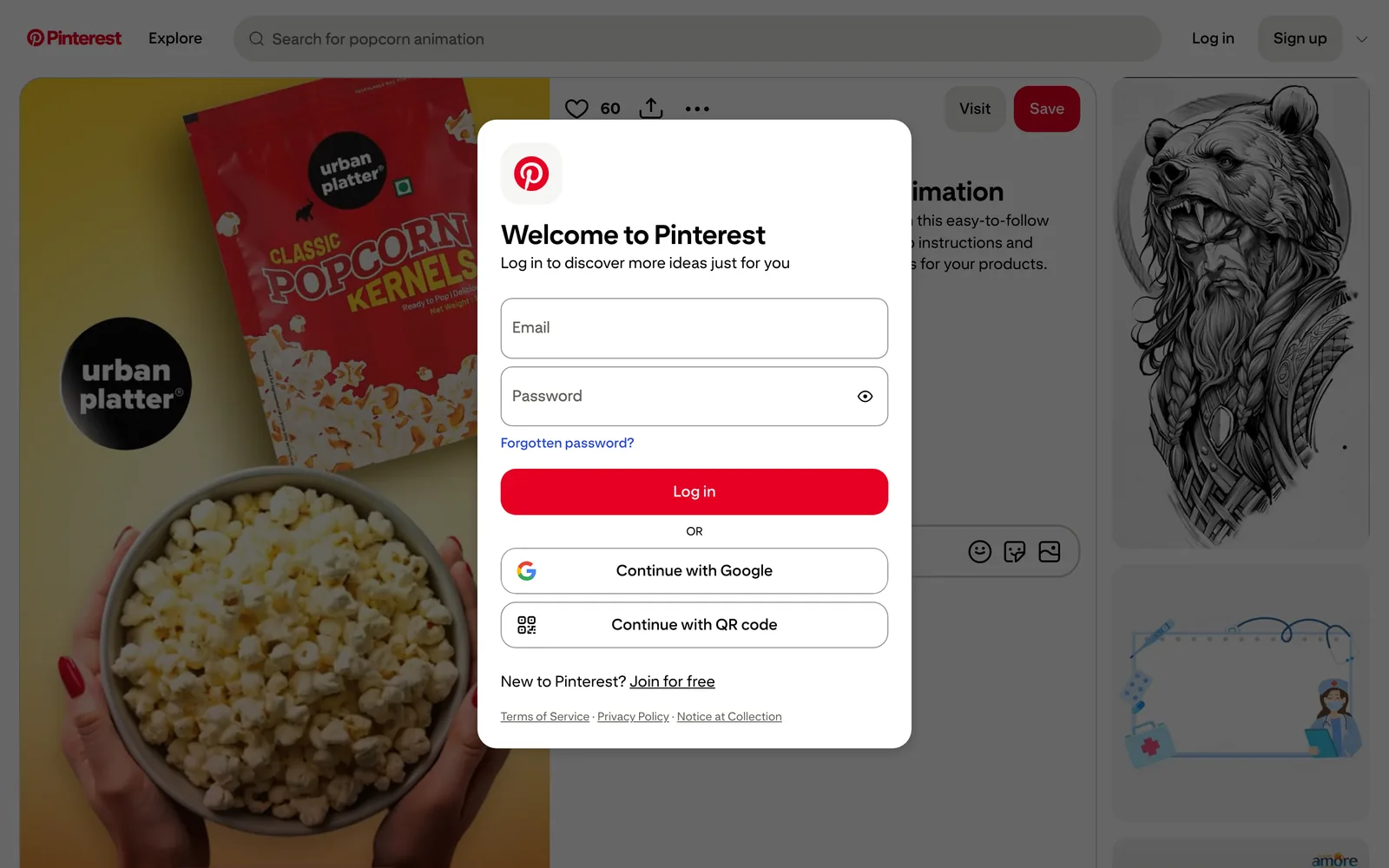
Clients are the awkward part. A private board only opens for people you invite, which means a client needs a Pinterest account and has to accept. A public board opens for anyone, but it also sits on your profile and in search. And a client without an account who opens a single pin link may not get far: when we opened a public video pin signed out in October 2026, the log in prompt covered it as soon as the page loaded. Send a deck instead.
Pinterest's collage tool: useful, but not for film frames
Pinterest does have a moodboard maker of its own. On the web, click the square plus icon and choose Collage. Pick pins from the More ideas, Your boards, Image uploads or Drafts tabs, add a whole pin with the plus icon or crop part of one and click Add cutout. Each piece becomes a layer you can move. Click Next, add details and Publish, and the collage becomes a pin. In the app you can start from a template, keep drafts, and download the finished collage. The full steps are in Pinterest's collage guide.
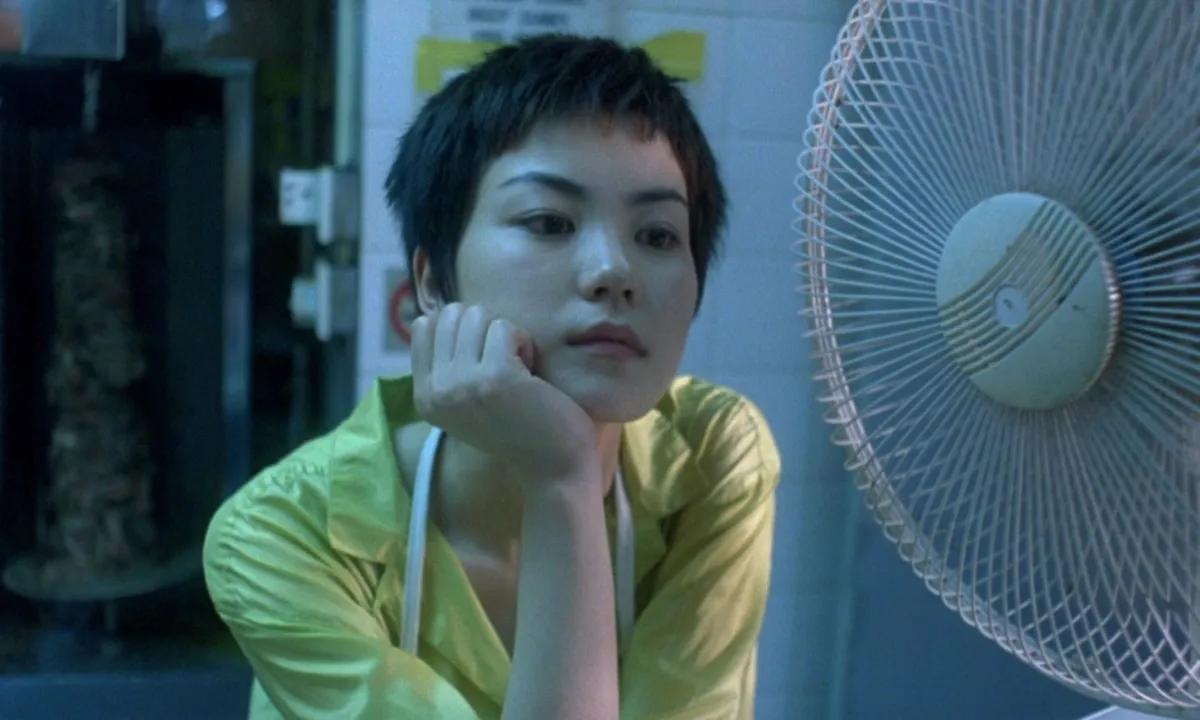
It's built around cutouts: the chair, the bag, the lamp, lifted off their backgrounds and arranged on a page. That suits interiors, product and fashion styling very well. Film references are the opposite. The frame is the point, and a cutout of an actor from a Wong Kar Wai shot loses the light, the lens and the colour that made you save it. It also publishes as a pin, and the help doesn't mention a private option, so check before you publish anything with a client's name near it.

Video pins: where a Pinterest board gets fragile
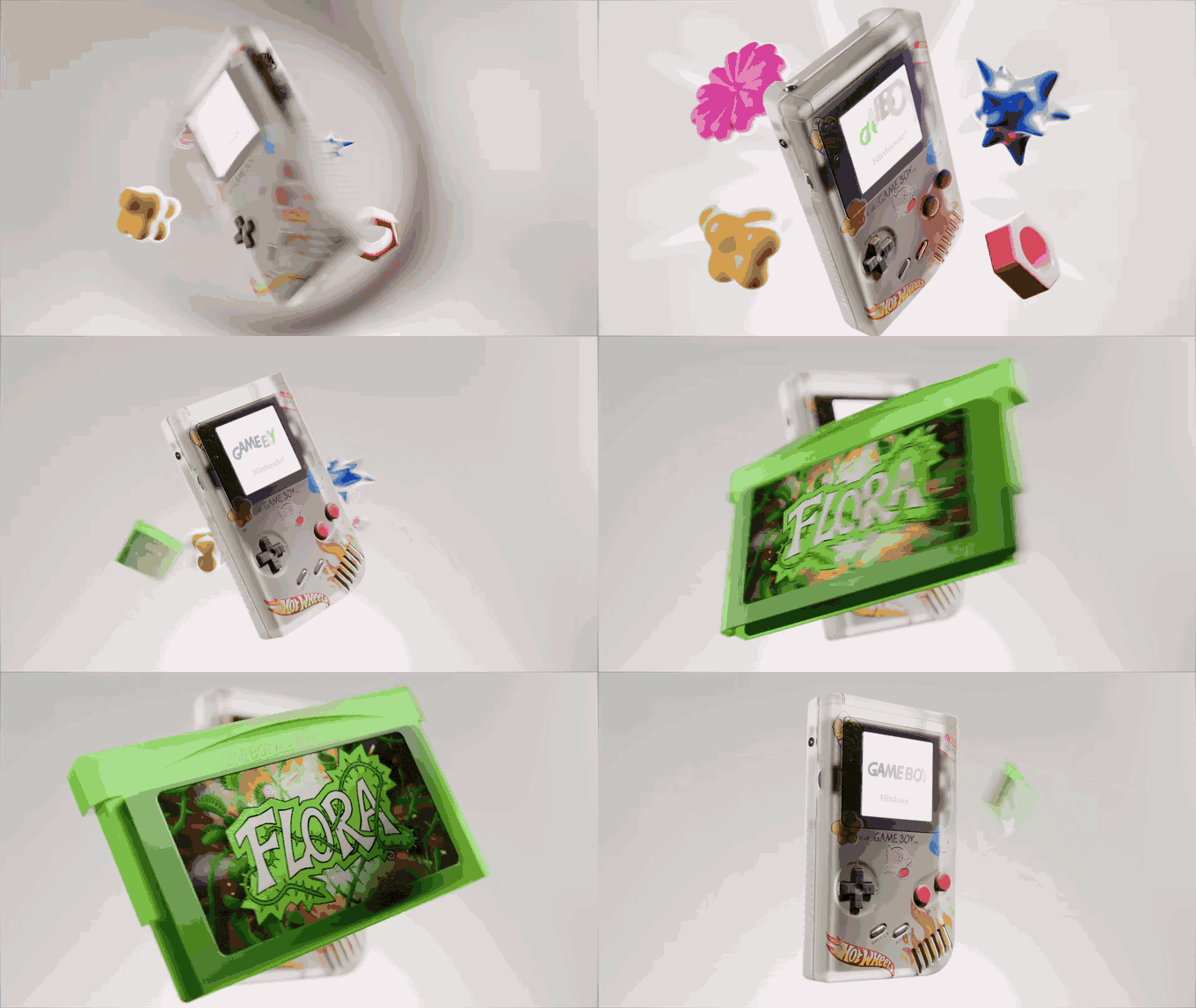
Pinterest is full of good motion: product animation, food films, title sequences. Saving a video pin to a board works like any other pin. The trouble is everything after that.
A pin is a pointer. If the person who posted it deletes it, it goes from your board too. Video pins are stricter than pictures: you can only download one if its creator has switched downloads on, and the copy carries their username as a watermark. And as the log in prompt above shows, a video pin sent as a link may never play for the person you sent it to.
On a moodboard, the movement is often the reason the reference is there. A still of a product spin sells nothing; four seconds of it on a loop sells the whole idea.
We've written a separate guide to saving Pinterest videos properly. For the board, the short answer is in Route 2 below.
The gap: Pinterest has no export
There's no export board button, no slides, no PDF and no bulk download in Pinterest. You can download pictures one pin at a time: open the pin, click the ellipsis next to the image and choose Download image. Pinterest's own download help adds that not all pins can be downloaded.
You'll find browser extensions that promise to download a whole board. They're a poor fit for client work: they scrape pages Pinterest didn't build to be scraped, they're one more extension with permission to read the sites you visit, and they hand you a folder of files with no record of where any of them came from.
Here are the ways out, and below them the two we'd use. Pick by how many pins you're moving and whether any of them move.
| Route out of Pinterest | What you end up with | Best for | Cost |
|---|---|---|---|
| Download image, then our moodboard maker | A .pptx, PDF or PNG slides from your downloads | Up to 40 picture pins, one deck | Free |
| Pinterest collage, then download | One flat image of cutouts | Product and interiors pages | Free |
| Right-click or paste pins into Spark | Picture pins in Frames, video pins in the Library, then Create Moodboard | Boards with video, or references you'll reuse | Free plan (15 videos, 30 frames); Creator £16 a month |
| Spark bulk import | The first 25 pins of a public board at once | Moving a whole board | Studio, £23 per user a month |
Spark prices as of October 2026, billed monthly.
Route 1: download the pins, then lay them out in our moodboard maker
This is the free route and it takes about as long as the downloads do.
- Open each pin you want, click the ellipsis next to the image and choose Download image. Put them all in one folder.
- Open our moodboard maker and drop in the folder: up to 40 JPEG, PNG, WebP or GIF images, 25 MB each. Nothing is uploaded; it all runs in your browser.
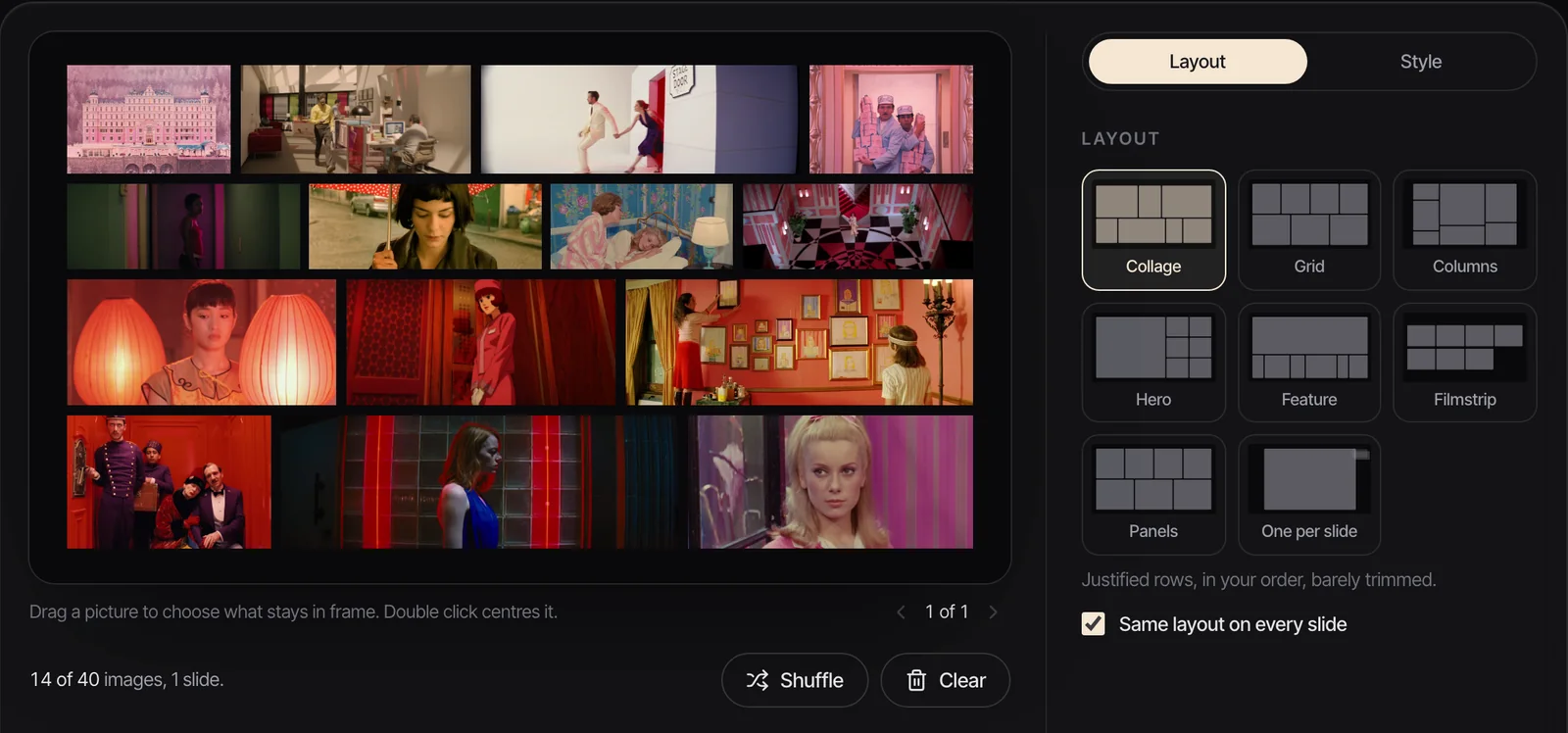
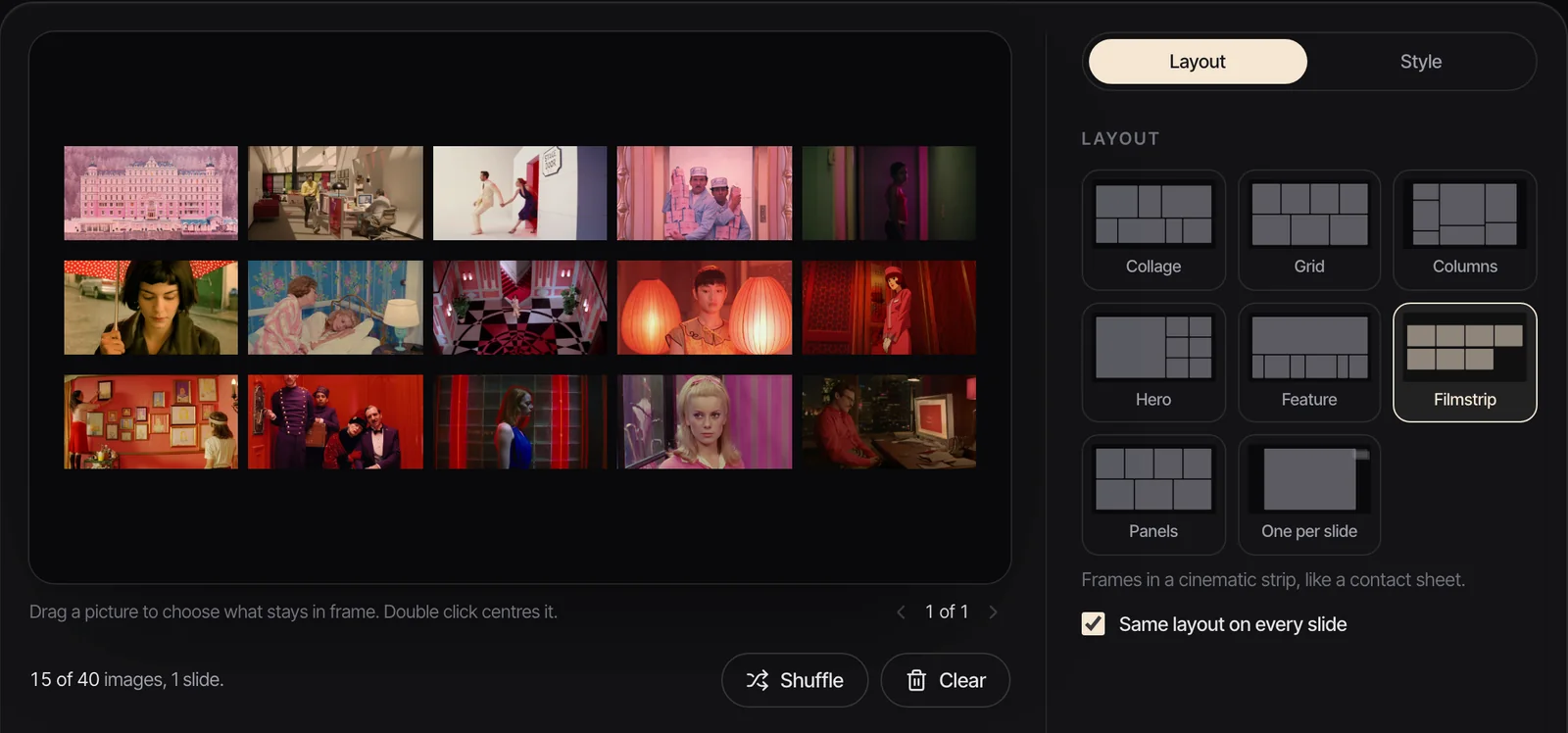
- Pick a layout. There are eight: Collage, Grid, Columns, Hero, Feature, Filmstrip, Panels and One per slide. Shuffle until the order reads well, set pictures per slide, background and spacing, and drag inside a frame to choose what stays in the crop.
- Export a .pptx, which opens in PowerPoint, Keynote, Google Slides or Canva, or a PDF, or 1920 x 1080 PNGs.
Then dress it in the app the client will open. Our guide to making a moodboard in Google Slides covers labels, comments and sharing once the .pptx is in, and free moodboard templates has layouts worth copying. Put a credit under every frame while you're there. Pinterest won't have done it for you.
Route 2: right-click pins into Spark
Spark is our desktop app for Mac and Windows, a library for video and image references. It's the route we take when a board has video pins in it, or when the references are good enough to want again on the next job.
From the browser. With Spark's Chrome extension installed, right-click any picture on Pinterest and choose Add to Spark. It lands in Frames. On an open pin, the extension's toolbar button works out what the pin is: a picture pin goes to Frames, a video pin goes to the Library as a video.
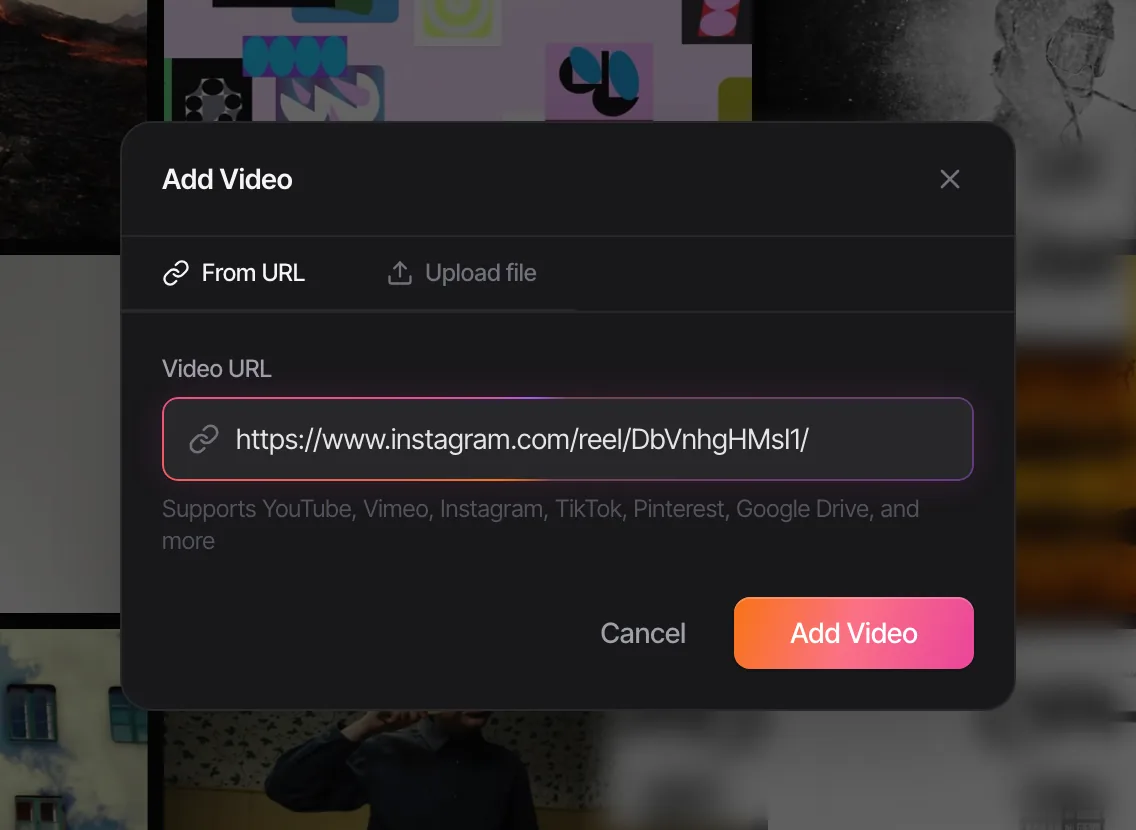
From the app. Copy the pin's link and paste it into Add Video in Spark. Same rule: pictures to Frames, videos to the Library.
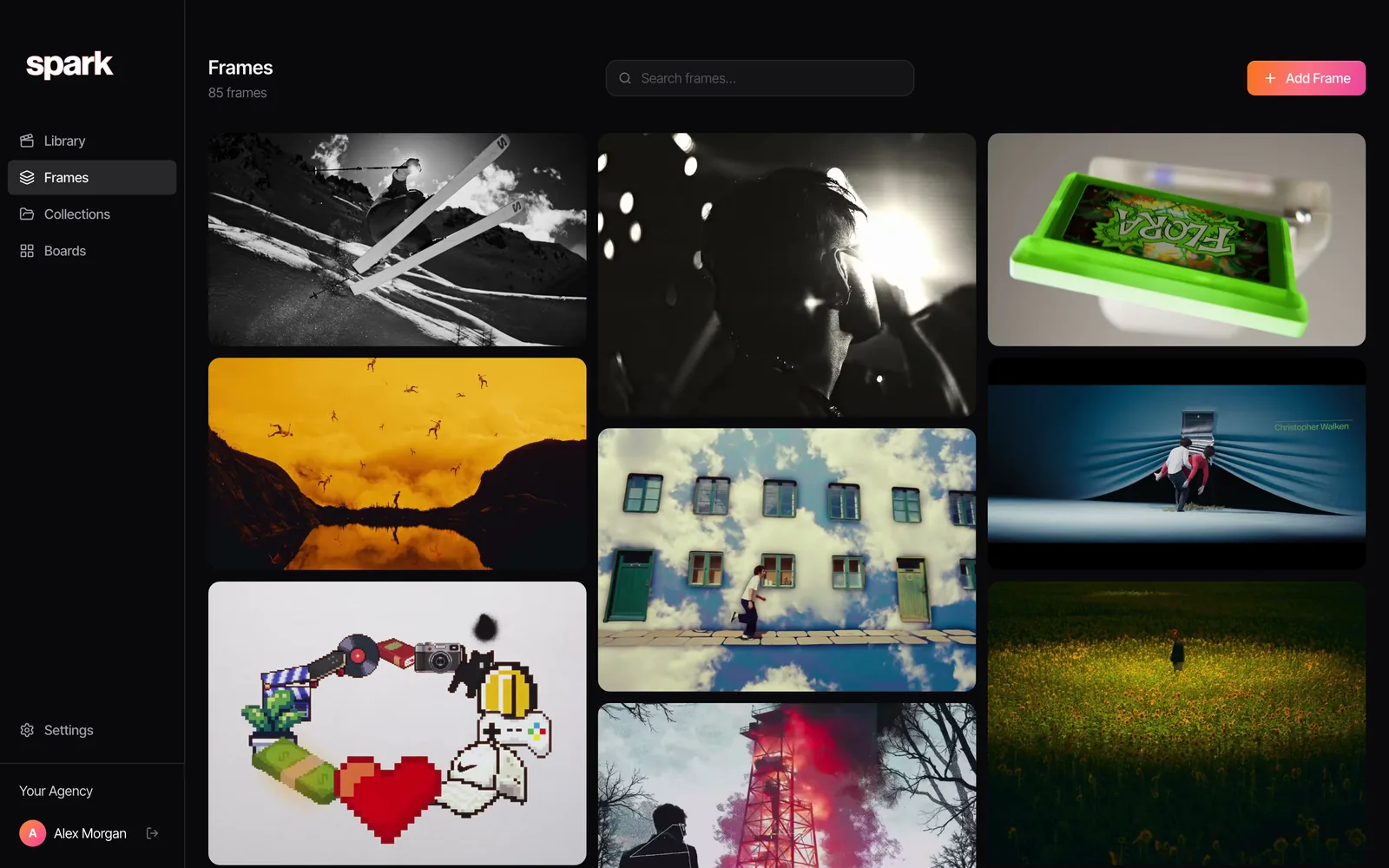
Frames is where the pictures collect. Each frame gets a five colour palette, and colour words in search match it, so a search for teal finds a teal walled frame even though nobody typed the word. Video pins arrive in the Library as videos that play, so the product spin stays a moving reference.
On Studio, bulk import takes a public board link and brings in its first 25 pins in one go, which is all Pinterest shows anyone who isn't signed in.
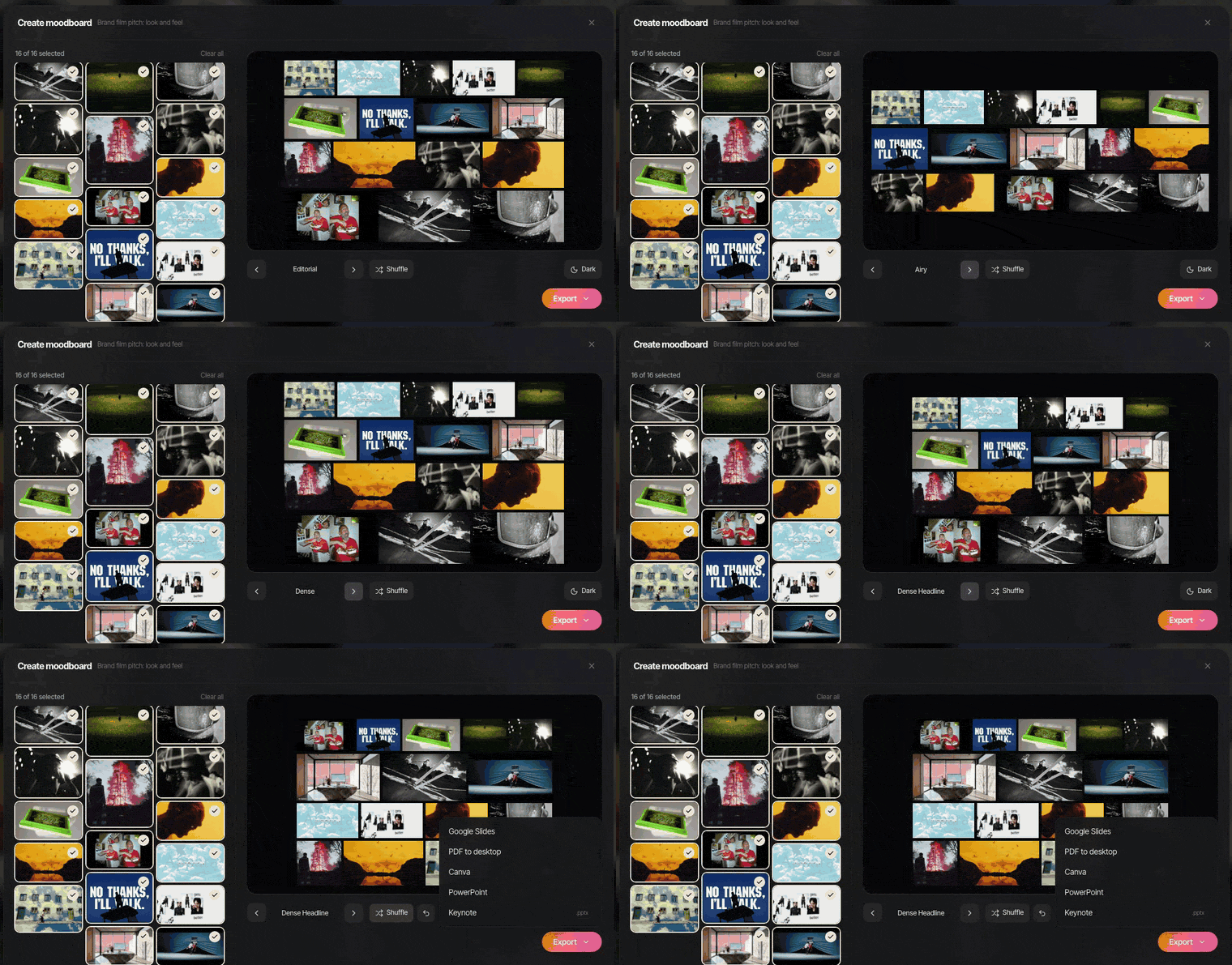
Then build the deck. Put the frames and videos on a board or in a collection, click Create Moodboard, choose a layout and shuffle, and export to Google Slides, Canva, PowerPoint, Keynote or PDF. GIFs stay animated in Slides, PowerPoint, Keynote and Canva. Only the PDF freezes them.
For the longer comparison of the two apps, read Spark vs Pinterest. The short version: Pinterest to find, Spark to keep.
Credit what you pin
Almost everything on Pinterest is someone else's work, and much of it has been reposted until the name fell off. Before a frame goes into a client deck, find the original and write the credit under it: film, director and cinematographer for a film still; brand, agency and production company for an ad; the photographer for a photo. References are for internal research and pitching. If anything from the board is going to be used publicly, ask the owner first.

FAQs
How do I make a moodboard on Pinterest?
Create a board with the plus icon, choose Board, and switch on Keep this board private while you work. Add sections for each idea (light, colour, wardrobe), fill them from search and visual search, and invite collaborators from the plus circle icon under the board name if the team should add to it.
Can you export a Pinterest board to PowerPoint or Google Slides?
No. Pinterest has no export to slides, PDF or a folder of images. Download the pictures one pin at a time with Download image and drop them into a free moodboard maker that exports a .pptx, or save the pins into Spark and use Create Moodboard to send them to Google Slides, PowerPoint, Keynote, Canva or PDF.
Are Pinterest secret boards private?
Yes. Pinterest now calls them private boards: only you and people you invite can see them, and they don't appear on your profile or in search. Saving a pin to one doesn't notify the original poster. To share one, invite collaborators or switch the board to public.
How do I download all the images from a Pinterest board?
Pinterest only lets you download one pin at a time, from the ellipsis menu next to the image, and not every pin can be downloaded. Third party board downloaders exist, but they scrape the site and need permission to read the pages you visit, so we avoid them. Spark's Studio plan can import the first 25 pins of a public board in one go.
Does Pinterest have a collage or moodboard maker?
Yes. Collage sits under the square plus icon on the web and the plus icon in the app. You combine whole pins and cutouts as layers, then publish the result as a pin or download it in the app. It suits product, interiors and fashion styling better than film frames, which lose their point when cut out.
Can I put Pinterest videos on a moodboard?
You can save video pins to a board, but they're pointers to someone else's upload, and a client without an account may hit a log in prompt. To keep the clip, paste the pin link into Spark, which saves video pins to the Library, then export a short GIF of the moment you need on Creator or Studio.
Keep reading
All articles
How to Make a Moodboard in Figma or FigJam
Figma gives you more control over a moodboard than any slide app. It also freezes your GIFs in the editor, which matters the moment your references move.
How to Make a Moodboard in Notion
Notion is very good at the notes beside the pictures. The pictures themselves, and especially the moving ones, need a bit more care, so here's how we'd set it up.

Free Moodboard Templates for Film, Video and Brand Pitches
Most template downloads are a grid of grey boxes behind an email form. These eight fill themselves with your pictures and leave as slides, ready for PowerPoint, Keynote, Google Slides or Canva.