
How to Make a Moodboard in Figma or FigJam
Figma gives you more control over a moodboard than any slide app. It also freezes your GIFs in the editor, which matters the moment your references move.
By the Spark team ·

To make a moodboard in Figma, draw a frame (press F and set it to 1920 by 1080), drag your references onto it, select them and press Shift A to add auto layout, then turn on Wrap so the pictures flow into tidy rows. Add a short label under each picture and a palette strip along the bottom, then export a PNG from the Export section of the right sidebar or a PDF from File > Export frames to PDF. For a looser board, use FigJam. To present it as slides, use Figma Slides.
One catch shapes everything below: GIFs sit still in the Figma editor and only play in presentation view, and in FigJam only the GIF you've selected plays. If your references move, you need to know that before you build.
We make Spark, a reference library for video. Figma is the right place for a board when it's going to turn into design work: titles, graphics, a campaign system. Menus and prices below were checked on Figma's own site and help centre in October 2026.
Figma, FigJam or Figma Slides?
Figma is really three tools for this job, and they treat moving references differently.
| Tool | Best for | GIFs | Price (as of October 2026) |
|---|---|---|---|
| Figma Figma Design | A precise board that turns into design work | Still in the editor, play in presentation view | Free Starter plan; Full seat USD 16 a month on Professional |
| FigJam FigJam | The loose first round with the whole team | Play when selected, one at a time | Included with every seat; Collab seat USD 3 a month |
| Figma Slides Figma Slides | Presenting the board as a deck | Still in the editor, play in presenter view | Included with every seat; Collab seat USD 3 a month |

Prices from Figma's pricing page, before tax. Figma's FAQ there says the Collab seat includes full access to FigJam and Figma Slides; editing design files in a paid team needs a Full seat. Video uploads in Figma Design and Figma Slides need a paid plan.
Step 1: Start from your own references
The quickest way to fill a Figma frame is a stock photo plugin. Don't. A board of stock pictures tells a client what stock looks like. A board of frames from films, ads, photographers and your own shoots tells them what you're going to make.
So gather first, outside Figma: stills as JPG, PNG or WebP, moving references as GIFs, all in one folder. Figma's help says images larger than 4096 pixels on either side get scaled down, so there's no point exporting anything bigger. If you're working out what the board needs to say, our guide to making a moodboard for a video project has the six sections we use for film.
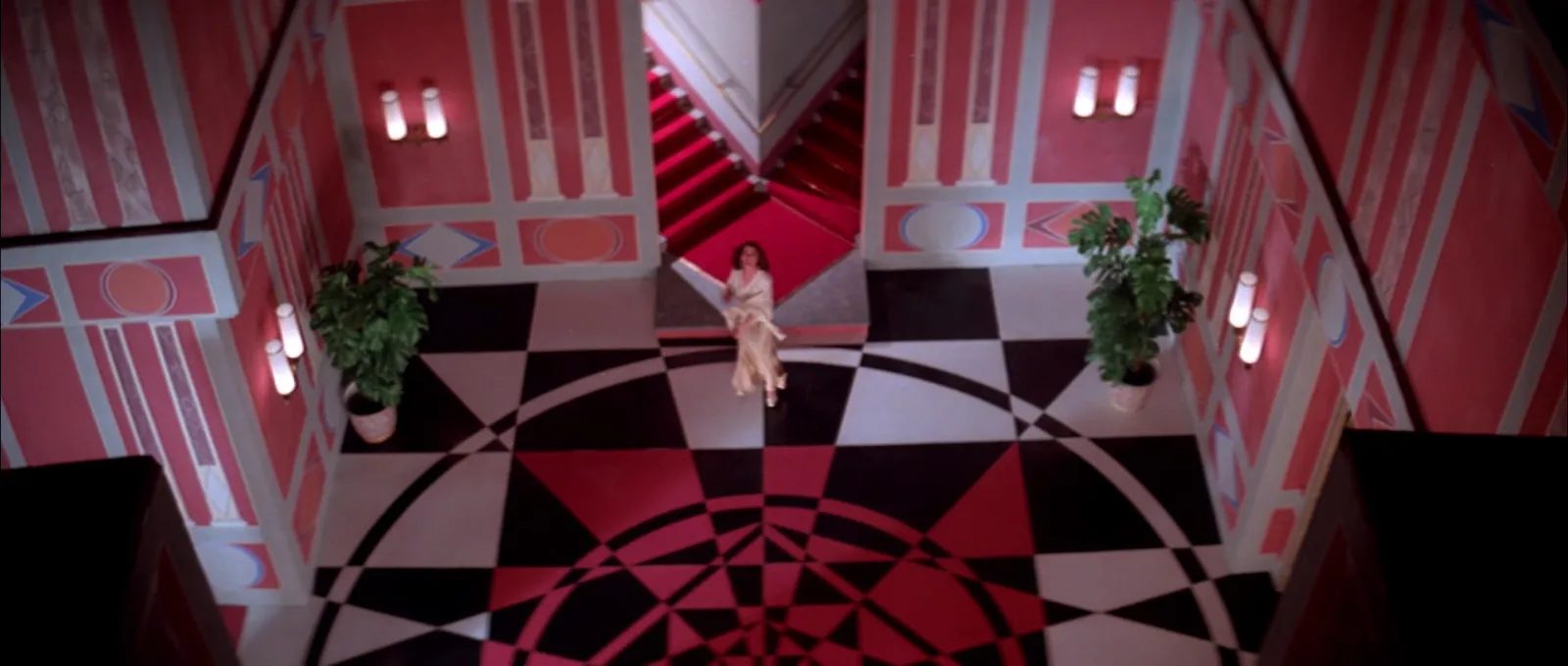
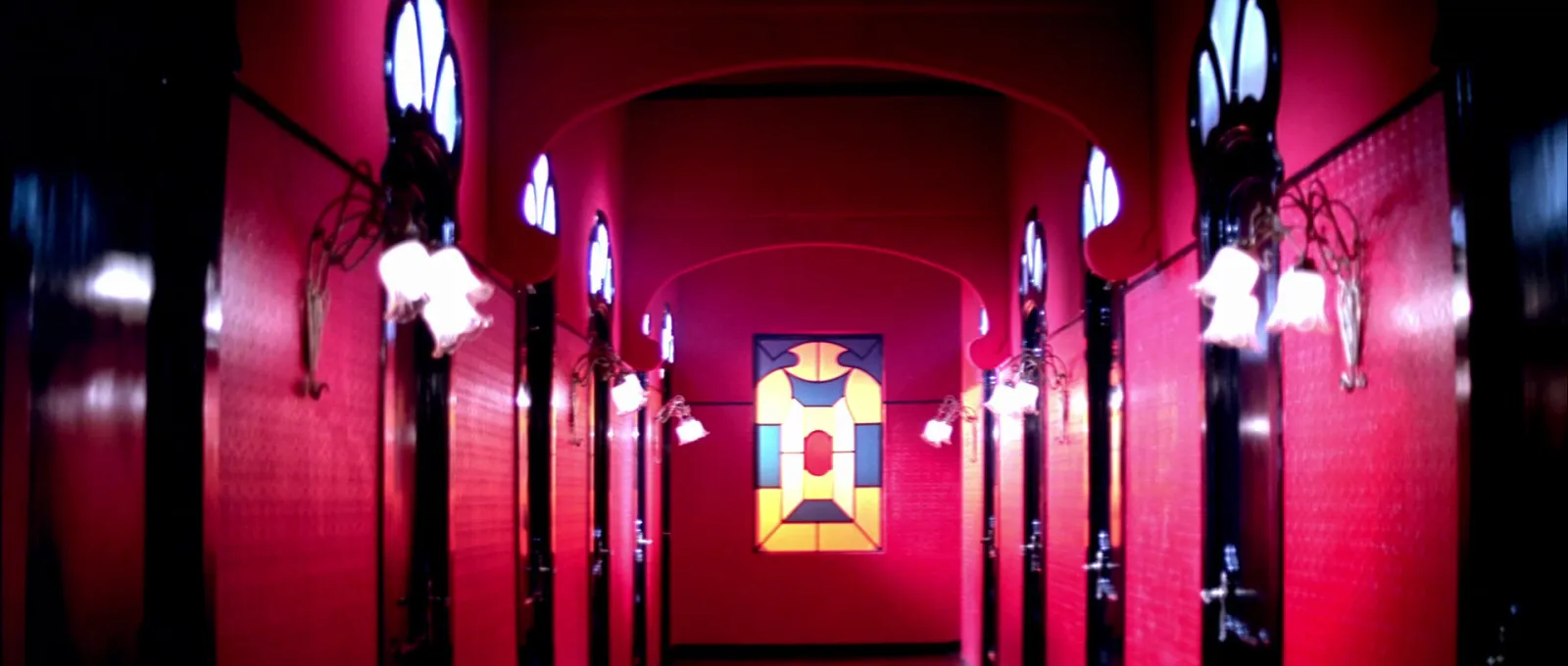
Write the credit next to each file name while you still know it: film, director and cinematographer, or brand and production company for an ad. References like these are for internal pitching. Ask before anything goes public.
Step 2: Build the board as one frame with auto layout
- Press F for the frame tool, draw a frame and type 1920 and 1080 into the width and height in the right sidebar. A 16:9 frame is the shape of the screen it'll be shown on.
- Drag the folder's images onto the frame. To fill several placeholder rectangles at once, use Place image/video (Shift Cmd K on a Mac, Shift Ctrl K on Windows).
- Select the images and press Shift A. Figma adds auto layout and guesses a flow: vertical, horizontal or grid.
- Choose Horizontal and turn on Wrap. Pictures now move to a new row when they no longer fit. With Wrap on you get two gap settings, one between pictures and one between rows. We use the same value for both.
- Give every picture the same height. Even heights with varying widths read as a deliberate board; varying heights read as a scrapbook.
The details are in Figma's guide to auto layout. If you want a strict grid instead, the Grid flow lines everything up in cells, though it doesn't wrap.
The trick that makes Figma worth it: make one card (a picture with a text label under it, in a vertical auto layout) and duplicate that card, not the bare image. Change a picture and the label stays in place. Reorder by dragging cards within the frame and the gaps look after themselves.
Step 3: Pull the palette from the pictures
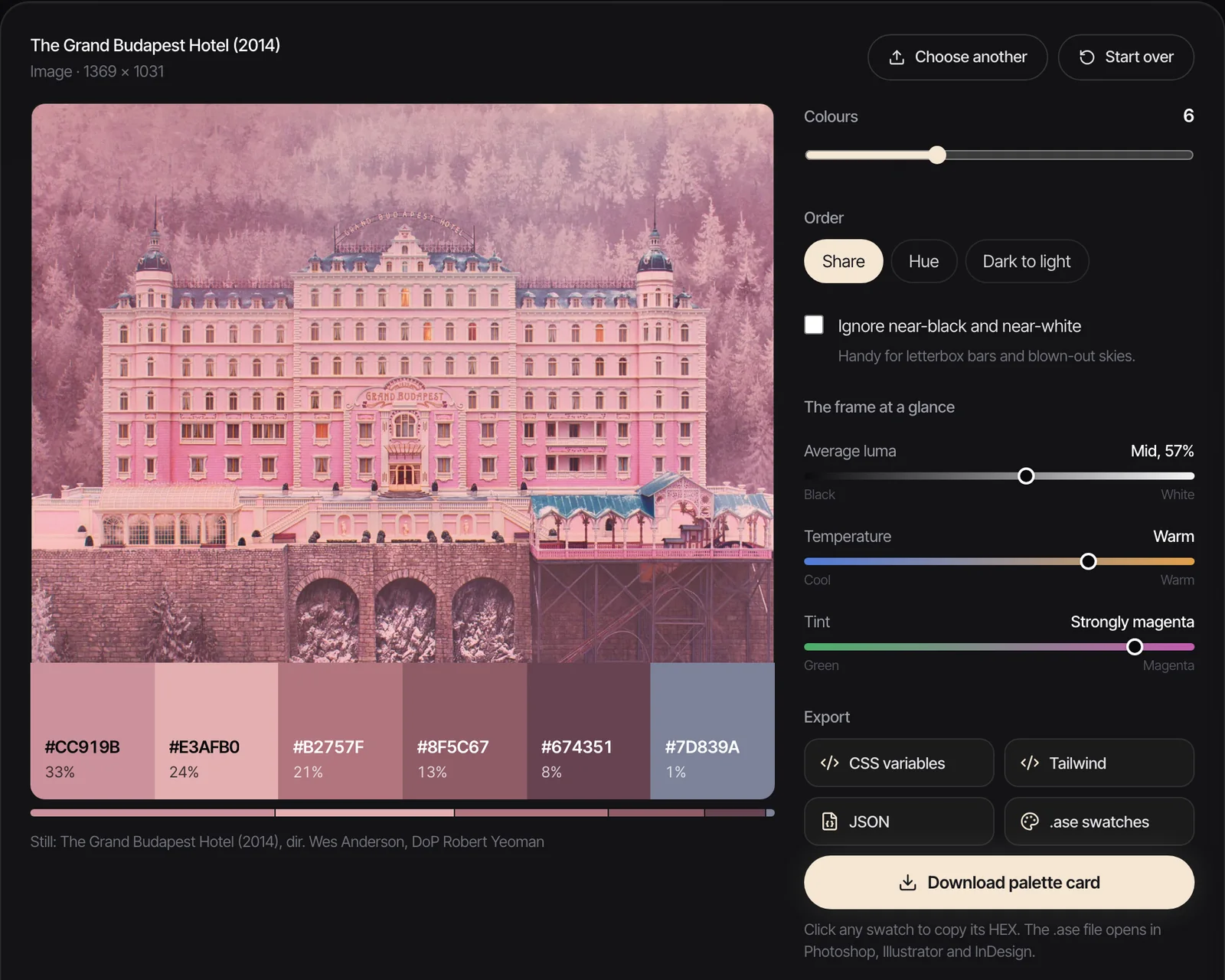
A palette strip under the board saves a lot of pointing at screens. Build it from the references, not from memory. Figma's colour picker has an eyedropper for sampling a pixel, but a single pixel is a lucky dip. A palette extractor clusters the whole frame and tells you how much of it each colour covers.
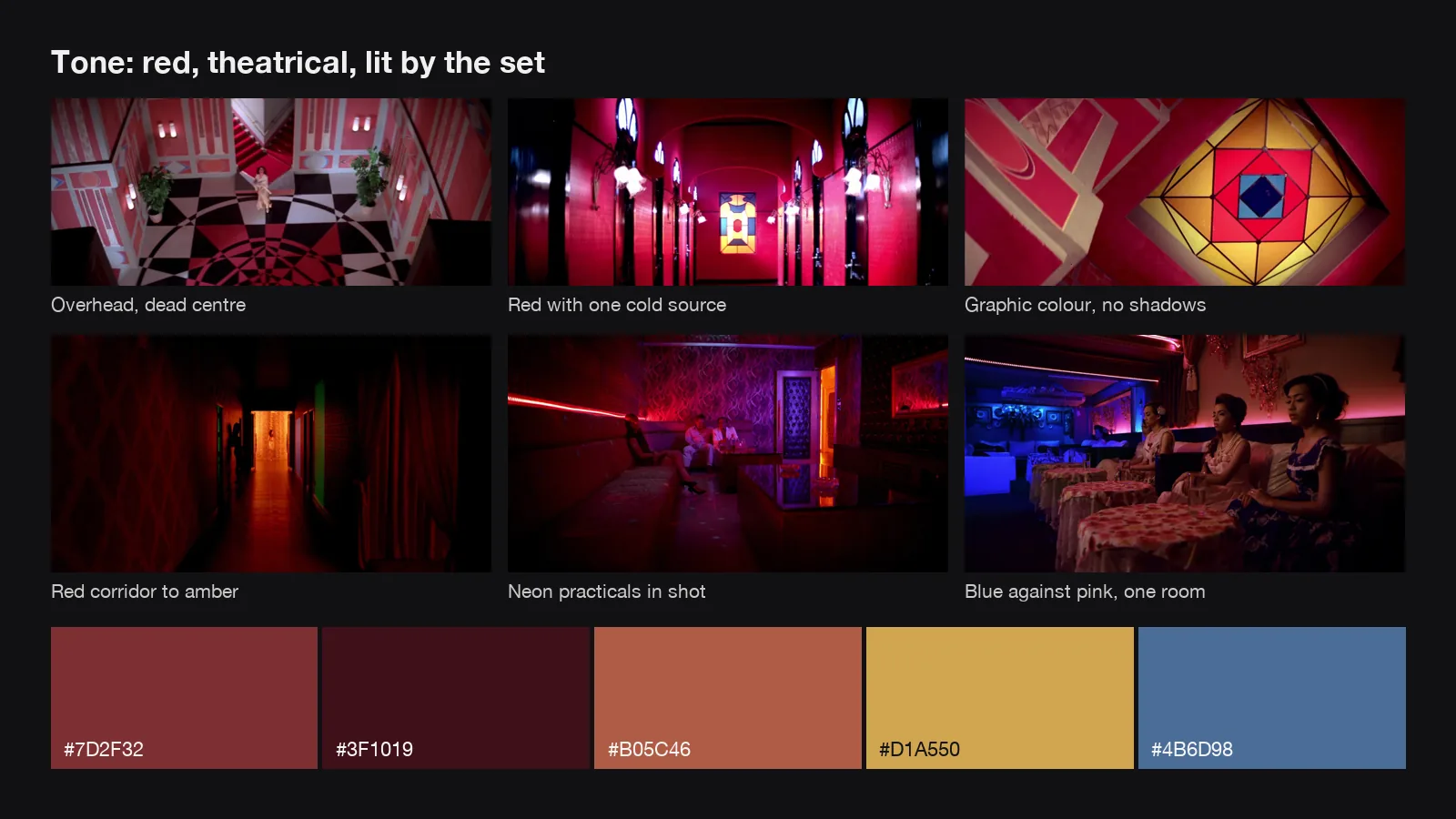
We ran the stained glass frame at the top of this page through our colour palette extractor. At five colours it returned #7D2F32, #3F1019, #B05C46, #D1A550 and #4B6D98, with that blue covering 1% of the frame. Ask for six and the blue disappears: the extractor spends the extra slot splitting the reds and gives #C92340 instead. Same picture, different argument.
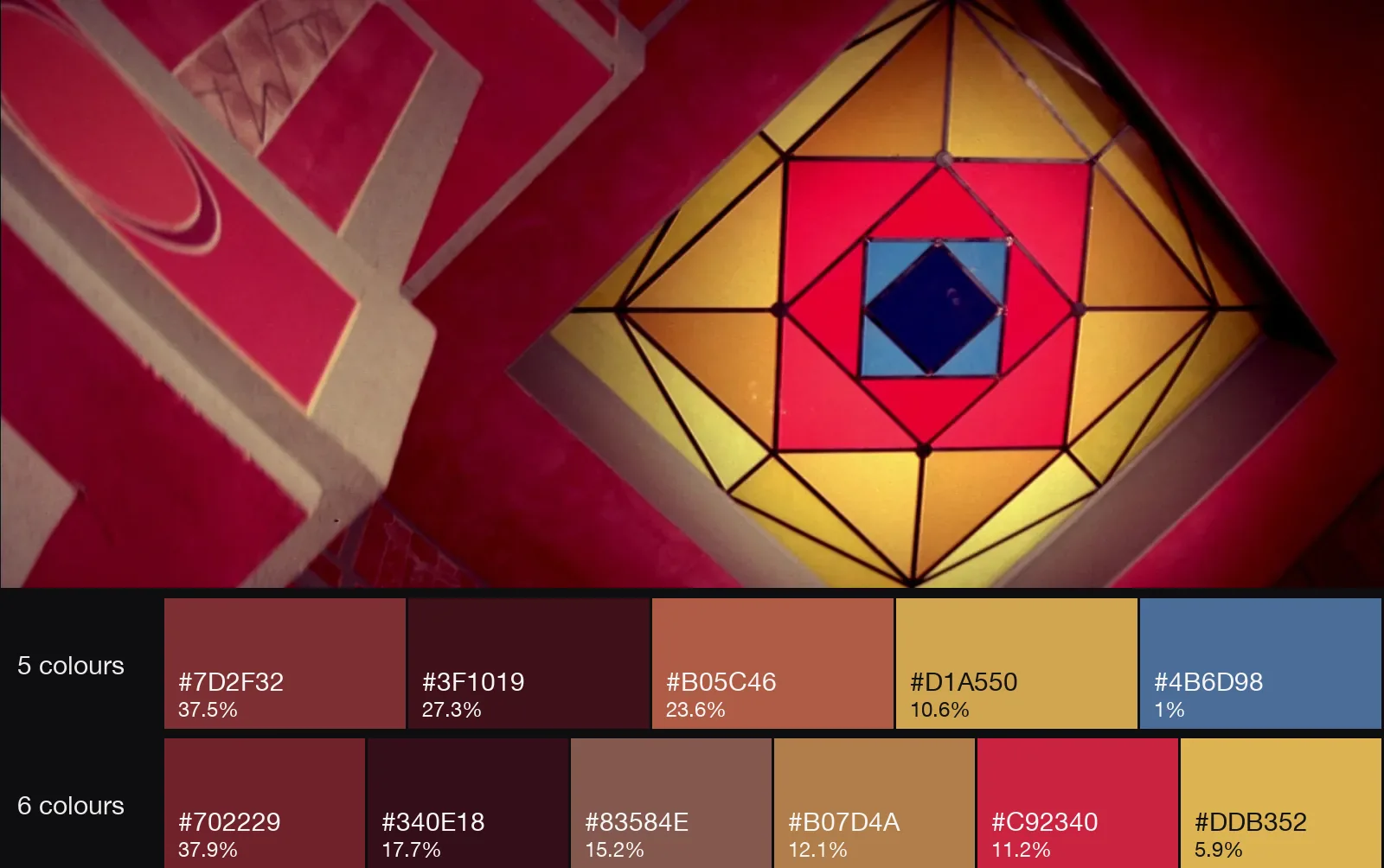
Our rule: if a colour carries the idea, it stays on the strip, however small its share. Then in Figma, draw a row of rectangles and paste the HEX codes into each fill. The extractor also copies CSS variables, Tailwind or JSON, or downloads a palette card, if the board is headed for a developer or a brand guide. Our guide to visual style guides shows where a palette like this goes next.
Step 4: Moving references, and how each Figma tool treats them
This is where Figma differs most from a slide app, so here it is from Figma's own help pages:
- Figma Design. A GIF can be a fill on any layer, even text. In the editor it shows as a still; it only animates in presentation view. Copying a GIF from a browser can paste a frozen version, so save the file and drag it in. (Use animated GIFs in prototypes.)
- FigJam. GIFs are static until you select one. Only one can play at a time, and if you select several, none of them play. Video goes in as MP4, MOV or WebM. (Place images, video and GIFs in FigJam.)
- Figma Slides. GIFs are static in the editor and animate in presenter view. Video uploads need a paid plan; YouTube embeds work on any plan. (Add images and videos to slides.)
In practice: build in the editor, judge the board in presentation view. In Figma Design, select the frame and press Present (the play button at the top right). That's also how you show a client a board that moves.
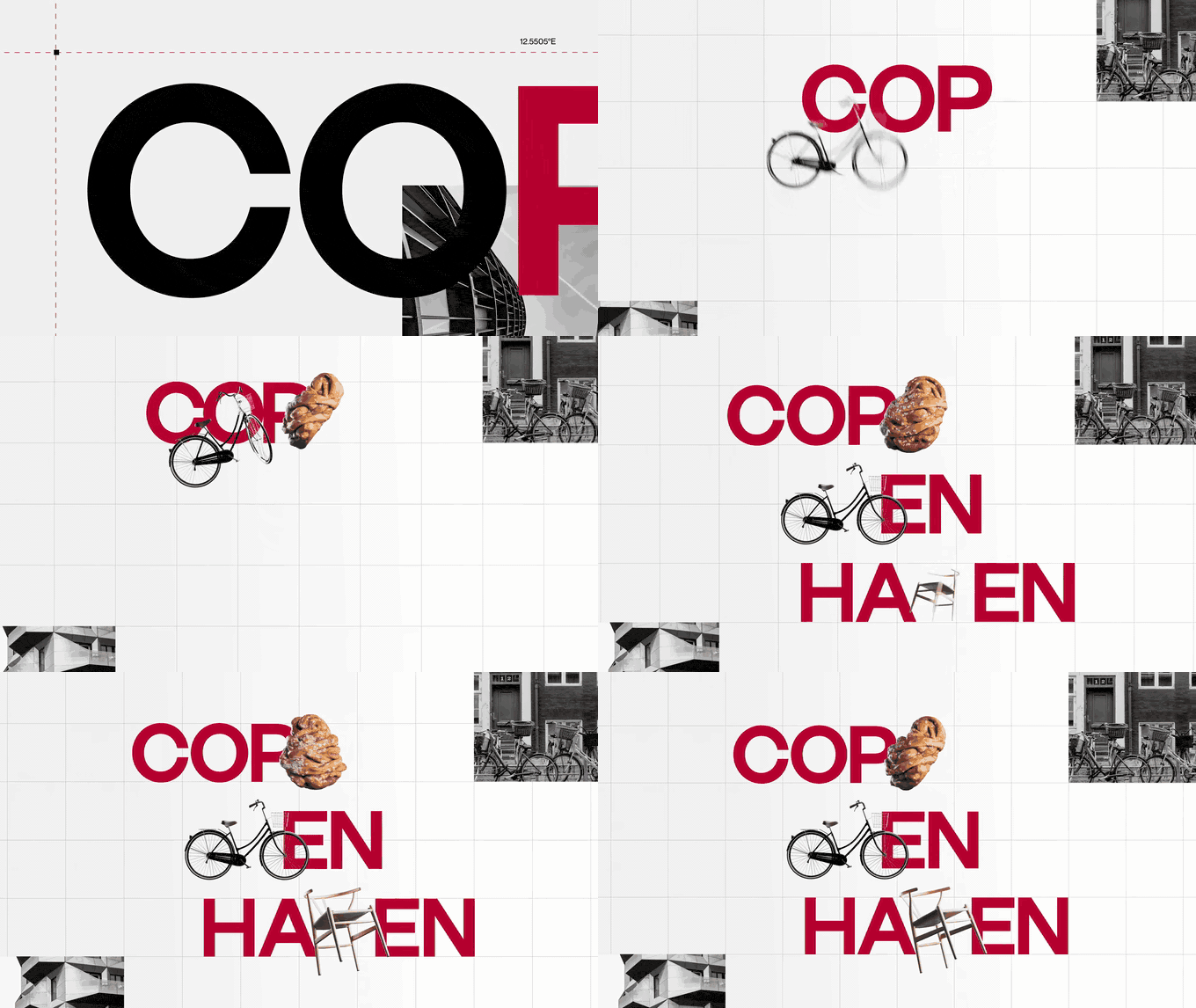
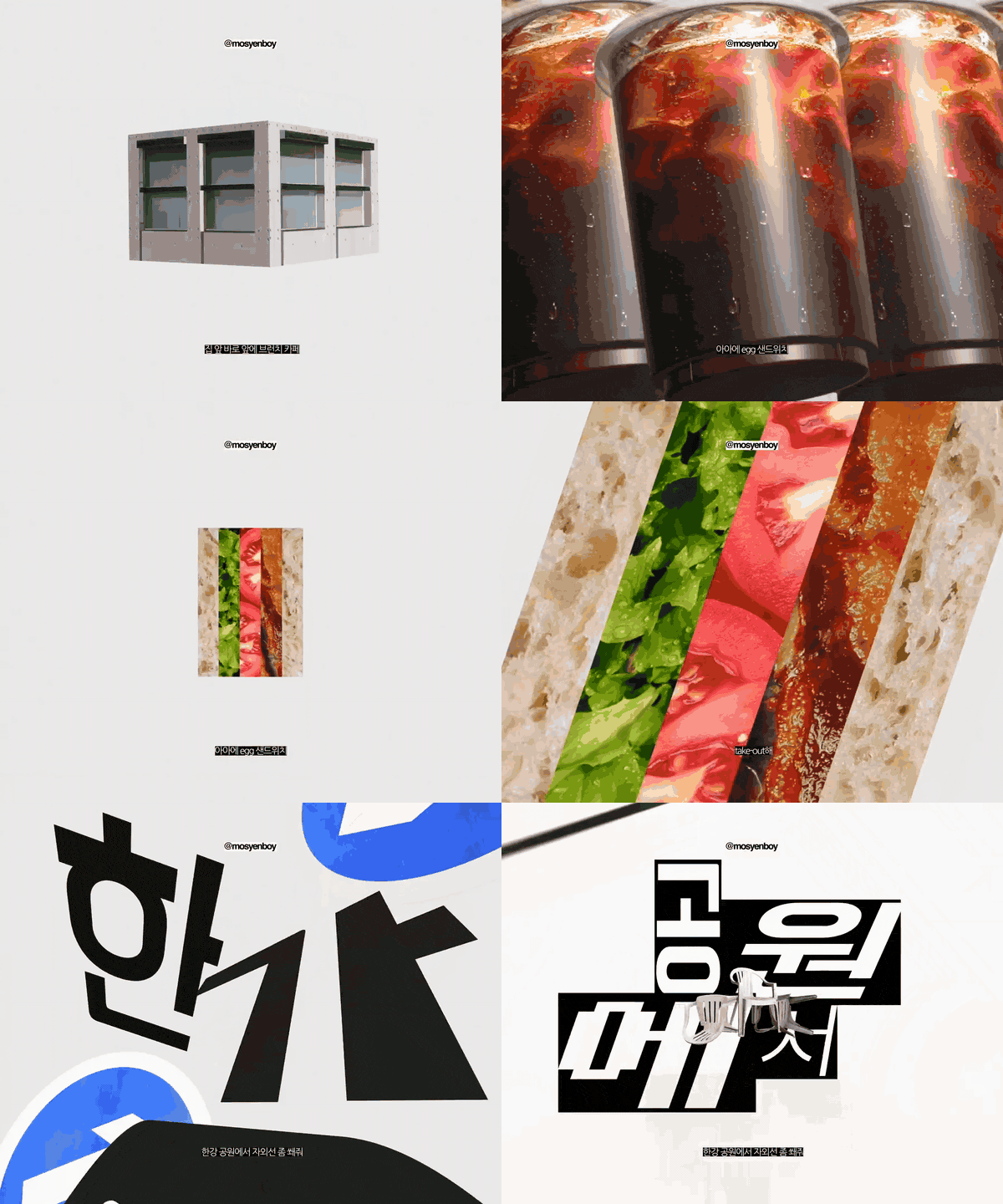
Keep GIFs short and light. Cut the three or four seconds that matter with our video to GIF converter, which nudges the in and out points a frame at a time, and run anything heavy through the GIF compressor. Every GIF in the file loads for everyone who opens it, so small ones keep the file quick.
Step 5: Use FigJam for the messy first round
FigJam is Figma's whiteboard, and it's the better place to start when the whole team is throwing references in. Nobody needs to understand auto layout. Place pictures from the More tab in the toolbar (choose Images, or Media for video), drop sticky notes beside them, and let people argue in the margins.
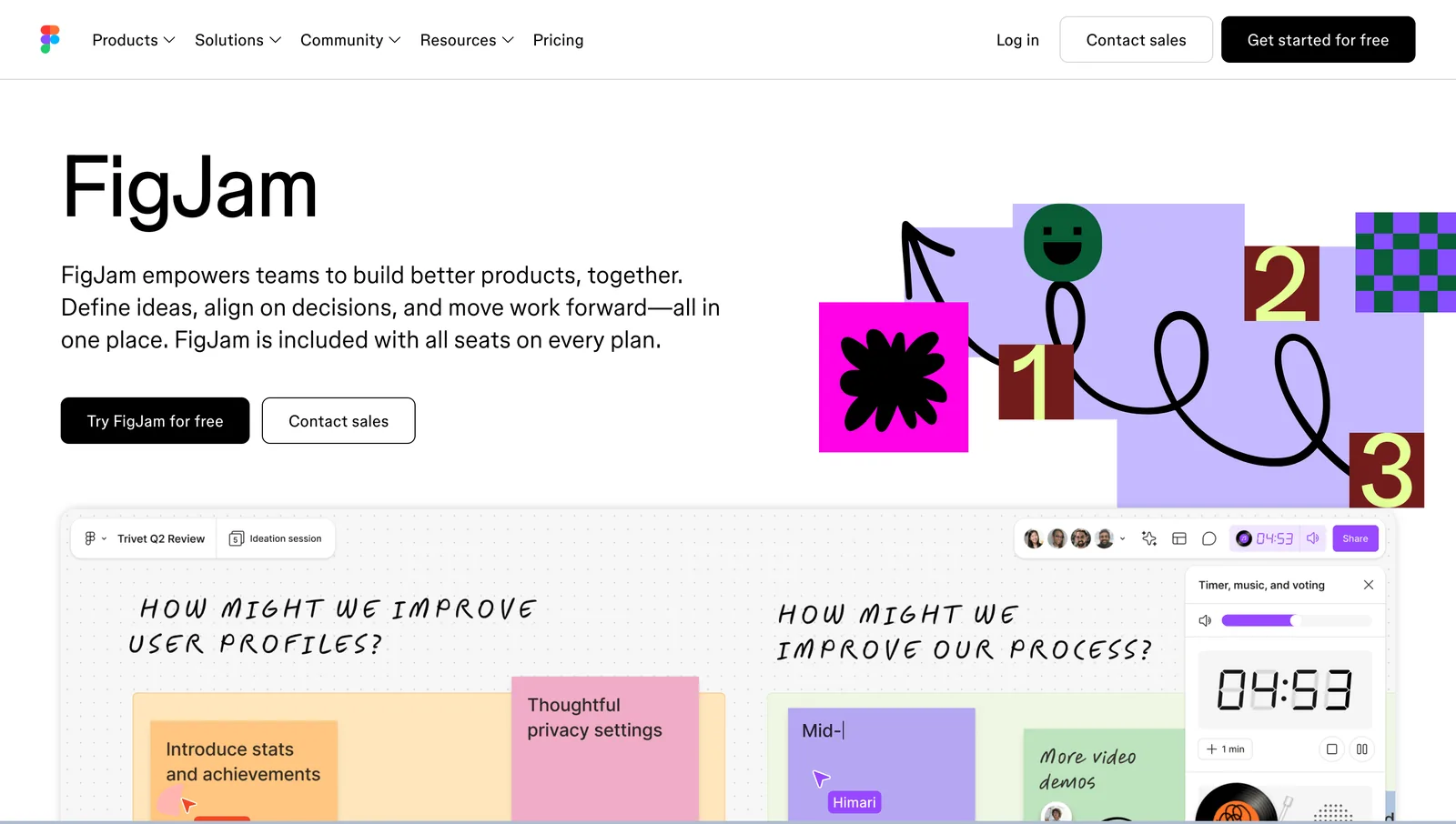
Figma has a free mood board template for FigJam, made by designers at Mixpanel. It's a set of grid layouts with accompanying slides, and there's a Google Sheets layout that fills itself from a spreadsheet through a plugin, which is handy if a researcher is logging references in a sheet.
Remember the GIF rule in FigJam: everything sits still until you click it. For a quick team sort that's fine. For anything a client sees, move the picks into a Figma Design frame or into Slides. Figma's Slides page says a FigJam board can be turned into a deck outline, which saves retyping the section names.
Step 6: Present it, or export it
Figma Slides
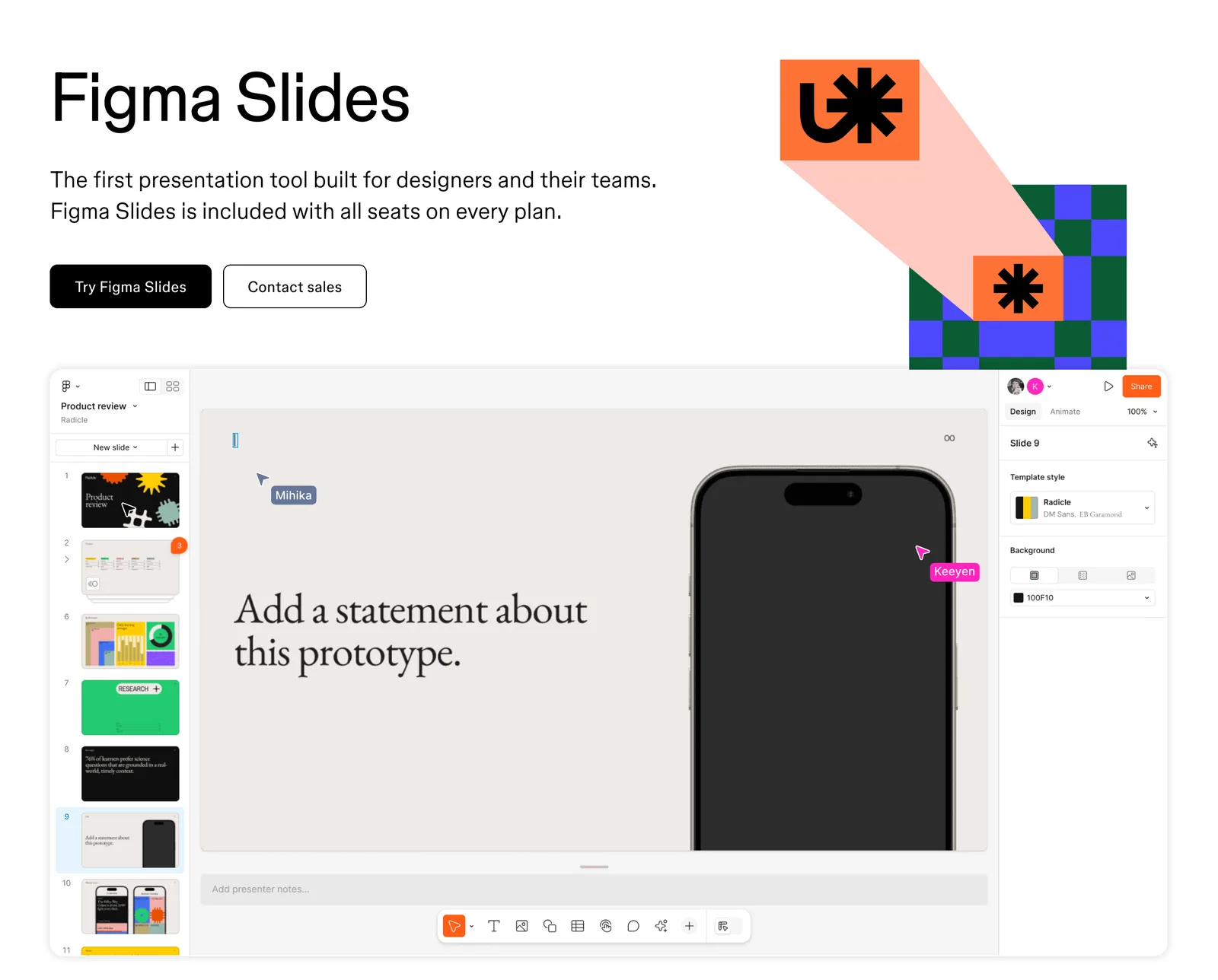
Figma Slides is Figma's presentation tool. You get a single slide view, a grid view of the whole deck and presenter notes; switching to design mode for auto layout and layers needs a Full seat. Lay out one section per slide (tone, colour, light, movement), present it, and the GIFs play.
To hand the deck over, use File > Export slides to and pick PPTX or PDF. Figma's export help lists what PPTX changes: fonts PowerPoint doesn't have become its default font, interactive elements become static images and gradients become solid colours. A PDF can't hold animation, so every GIF becomes a single still. If the PDF matters, swap each GIF for the still you'd choose before exporting.

Export from Figma Design
Select the frame and use the Export section in the right sidebar. PNG at 2x is our default for a board that's going in an email or a Slack thread. PDF only exports at 1x. For a multi page PDF, put the board frames in order on their own page (Figma reads them left to right, top to bottom) and use File > Export frames to PDF from the main menu. Shift Cmd E (Shift Ctrl E on Windows) exports everything that has export settings at once.
Sharing the live file works too: anyone with view access can open it in a browser. Clients who don't use Figma tend to find the canvas fiddly, which is why it's worth sending the board as slides.
Where Figma stops, and where Spark comes in
Figma won't save a reel, a TikTok or a Vimeo link. Every moving reference has to be downloaded or screen recorded, trimmed, turned into a GIF and dragged in, and once it's on the canvas Figma has no idea where it came from. Six months later, finding that reference again means opening old files one by one.
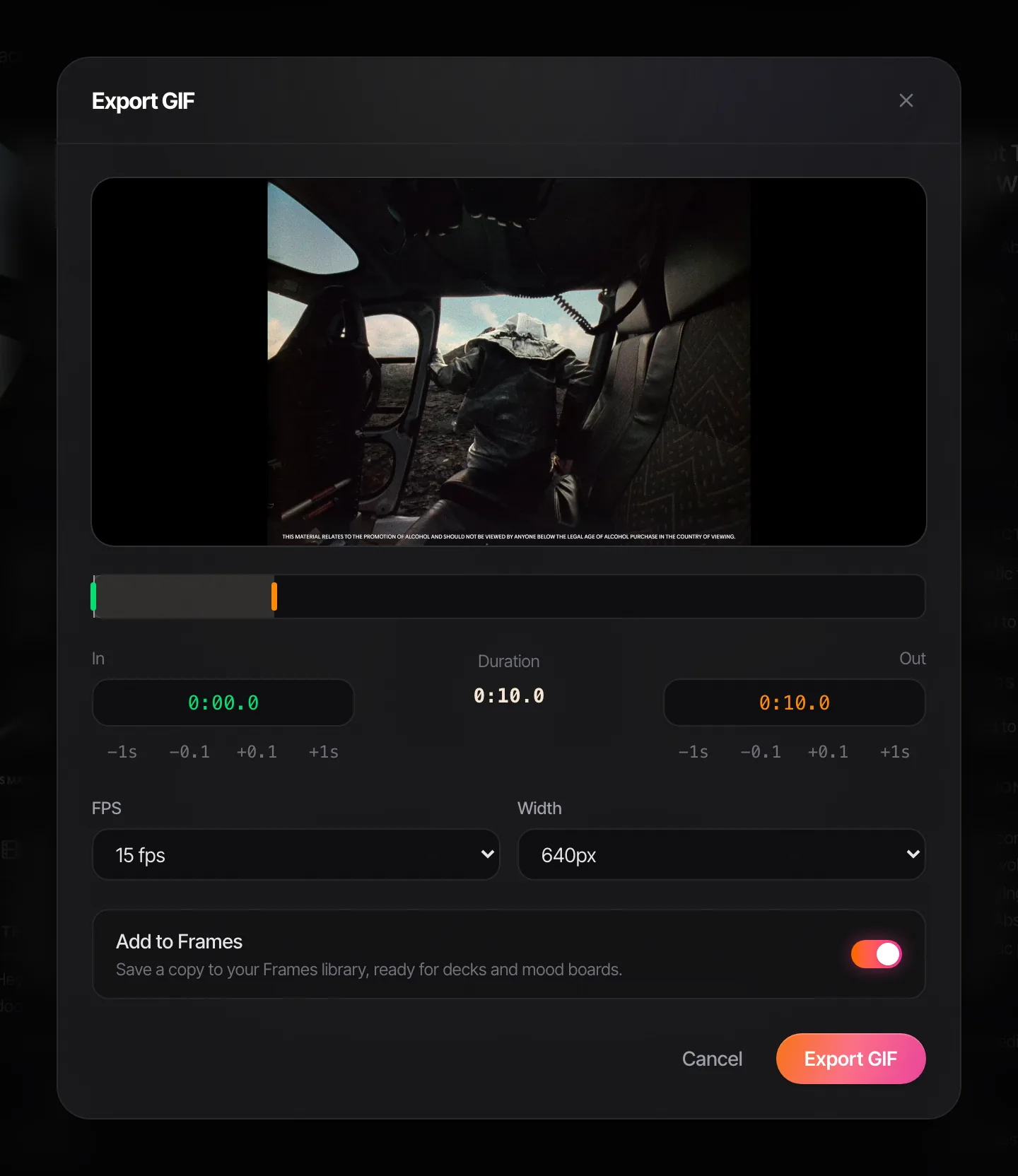
That's the job we built Spark for. It's a desktop app for Mac and Windows: paste a link from Instagram, TikTok, YouTube, Vimeo, Facebook, LinkedIn or Pinterest and Spark saves the video into a searchable library. On Creator and Studio it writes an AI description of each video and transcribes the speech, so you can search for what happens in a clip. Export Frame pulls a clean still to Frames, and Export GIF (Creator and Studio) cuts a loop: trim in and out, nudge them, pick a frame rate and width.
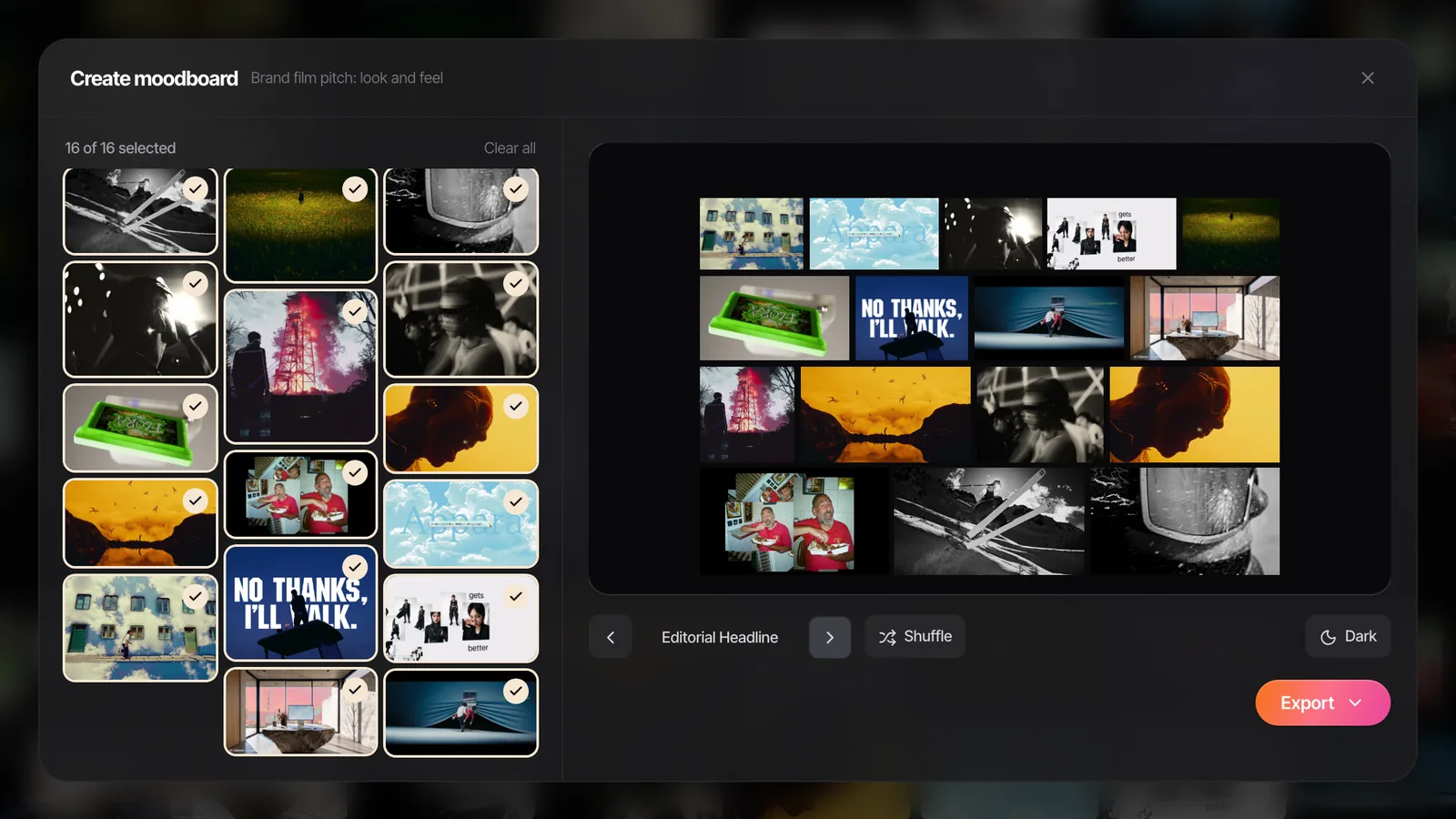
From a board or collection, Create Moodboard lays the frames and GIFs out as slides and exports to Google Slides, Canva, PowerPoint, Keynote or PDF. Spark doesn't export to Figma directly. Figma Slides can import a PowerPoint file (Import, then Import from computer in the file browser), but Figma's import help says videos aren't brought in, text switches to the Inter font, and it doesn't say what happens to GIFs. So if you go that way, check every moving slide after the import. Our free moodboard maker makes the same kind of .pptx from a folder of images without an account.
If Figma isn't where your team lives, the same board works in Canva, where uploaded video loops when you present, or Google Slides, where clients can comment on single frames. A board that's mostly notes and links belongs in Notion. And for a wider view, we've compared the best moodboard tools for creative directors and put Milanote against Miro for teams choosing a board tool.
FAQs
Can you make a moodboard in Figma for free?
Yes. The Starter plan is free and covers frames, auto layout, image uploads and PNG or PDF export, and FigJam has a free mood board template. Video uploads need a paid plan, so use GIFs on Starter. Paid seats start at $3 a month for a Collab seat as of October 2026.
Is FigJam or Figma better for a moodboard?
FigJam is better for the early, messy round with a whole team, because anyone can drop pictures and sticky notes without learning layout tools. Figma Design is better for the board a client sees, because auto layout keeps the grid tidy and presentation view plays the GIFs. Our habit is to start in FigJam and move the picks into Figma.
Why are my GIFs not moving in Figma?
In Figma Design and Figma Slides, GIFs show as stills in the editor and only animate in presentation or presenter view. In FigJam, a GIF plays only while it's selected, and only one at a time. If a GIF stays still in Present too, it may have been pasted from a browser as a frozen copy; save the file and drag it in instead.
How do I export a Figma moodboard as a PDF?
Select the frame and add a PDF export in the Export section of the right sidebar, or use File > Export frames to PDF from the main menu to make one PDF with a page per frame. In Figma Slides, use File > Export slides to and choose PDF. Any GIFs freeze on one frame in a PDF.
Does Figma Slides cost extra?
No. Figma Slides is included with every seat on every plan, and on Professional a Collab seat at $3 a month covers both FigJam and Figma Slides, as of October 2026. Design mode inside Slides needs a Full seat, and video uploads need a paid plan.
How do I get a colour palette from an image for Figma?
Run the image through a palette extractor, such as our free colour palette extractor, choose how many colours you want, and copy the HEX codes into rectangle fills in Figma. Check the count by eye: a small accent colour can vanish when you ask for one more swatch.
Keep reading
All articles
How to Make a Moodboard in Notion
Notion is very good at the notes beside the pictures. The pictures themselves, and especially the moving ones, need a bit more care, so here's how we'd set it up.

How to Make a Moodboard on Pinterest (and Turn It Into a Deck)
Pinterest is still the quickest place to fill a board. Getting that board in front of a client as a deck is where it stops helping, so here's the whole route, both halves.

Free Moodboard Templates for Film, Video and Brand Pitches
Most template downloads are a grid of grey boxes behind an email form. These eight fill themselves with your pictures and leave as slides, ready for PowerPoint, Keynote, Google Slides or Canva.