
How to Save LinkedIn Videos for Reference
LinkedIn is where the case film and the launch cut get posted, then sink under a hundred job updates. Its Save button keeps your place. It doesn't keep the video.
By the Spark team ·

To save a LinkedIn video, click the three dots (More) at the top right of the post and choose Save. It goes to Saved items, which you'll find in the left-hand column of your LinkedIn homepage under Saved posts and articles. In the app, tap your profile picture, then Saved posts. That's a bookmark to someone else's post. LinkedIn gives you no download button for other people's videos, so when the post goes, so does your reference.
That's fine for "watch this later". For work, you need a copy you control. We're the team behind Spark, and LinkedIn is one of the feeds worth saving from: agencies post case films there and brands post launch cuts. Below is LinkedIn's own route (checked against its help centre on 24 October 2026), how to find things again, and how we keep the ones that matter.

Saving a post with LinkedIn's own button
LinkedIn's help page, Save content in your feed, gives the same three steps on a computer and in the app:
- Click or tap More (the three dots) at the top right of the post.
- Choose Save from the menu.
- A banner pops up for a moment with a View Saved Posts link. Ignore it or use it, the post is saved either way.
To remove one later, open it from your saved list, click More again and choose Unsave. Saving is the only filing LinkedIn offers. There are no folders or collections in the help page's description, and no way to add a note saying why you kept it.
Video posts, document posts and articles all save the same way. Some things in the feed can't be saved at all: LinkedIn lists recommended jobs, follow suggestions, work anniversaries and profile updates as exceptions, which is no loss for a reference library.
Finding your saved LinkedIn posts again
On a computer, click Saved items in the left-hand column of your homepage, then Saved posts and articles. The list opens on a page under My items, and it's worth bookmarking that page in your browser, because the link in the sidebar is easy to miss. In the app, tap your profile picture, then Saved posts.
What you get is one list. LinkedIn's help page describes no search, no folders and no notes for it, so if you remember a reference as "the one with the red kinetic type", you're scrolling until you see it.

Two habits make the list bearable. Save less, and only things you'd show someone. And once a fortnight, go through it and move the keepers somewhere better, unsaving as you go. An empty Saved list is a working one.
Is there a LinkedIn download button?
Not for viewers. LinkedIn's help centre has no option for downloading a video from someone else's post, and its User Agreement (section 8.2) asks members not to copy or distribute other people's content, except through the sharing tools LinkedIn provides, without permission. Two narrower cases do exist:
- Your own videos. Keep the file you uploaded. It's the master, and anything you could pull back off the feed would be a compressed copy of it.
- LinkedIn Live recordings. According to LinkedIn's Live events help page, event organisers can download the recording from the Event Details page. Viewers can't.
What LinkedIn does give everyone is the post's link. On a computer it's More, then Copy link to post. In the app it's More, Share via, then Copy on iPhone or Copy to clipboard on Android. LinkedIn's page on finding the URL for shared content adds a detail worth knowing: editing a post changes its address but the old one redirects, while changing your custom profile URL changes it and the old one doesn't redirect. Links on LinkedIn are less permanent than they look.

Then there are the downloader websites that turn up when you search for this. Paste a link, get a file, and on the way collect a page of ads, redirect pop ups and the odd fake download button. You're also handing your link (sometimes to a post shared only with your network) to a server you know nothing about. We don't use them, and with a screen recorder built into every Mac and Windows PC, there's no reason to.
Why a saved post isn't a reference library
To be fair to LinkedIn, Save is built for one thing: coming back to a post. It's private, it's free and it's one click. The trouble starts when you treat it as an archive.
- It's a pointer. If the person who posted deletes it, narrows who can see it or leaves LinkedIn, the video leaves your list.
- It can't be shared. You can send a client the link, but if they're not on LinkedIn or the post isn't public, they're looking at a sign in page.
- It can't be searched by what's in it. Nothing in Saved knows that the film you kept has a drone shot over salt flats, or a line in the voiceover you'd quote in a treatment.
- It lives in a work feed. Your references sit between a job post and a former colleague's promotion.

Keeping a copy with a screen recording
For anything you'd put in a pitch, keep the video itself. Where you can't download, record it. Both operating systems have a recorder built in. X works the same way, and saving videos from X covers its paid download option.
On a Mac: press Shift-Command-5, choose Record Selected Portion, drag the box to the edges of the video and click Record. Play the post, then stop from the menu bar. Check Options first: set the microphone to none unless you want your own voice on it.
On Windows 11: press Windows key + Shift + R to open the Snipping Tool's recorder, drag a box round the video and click Start.
A few habits make the recording worth keeping. Let the video play through once before you record, so the player has a chance to settle on its best quality. Go full screen if you can. Park the cursor off the frame. Record a second either side, because you can trim but you can't recover a missed first frame. Then rename the file the moment it lands (brand, film, director) and keep the post's link and credits next to it.

Saving LinkedIn videos with Spark
Spark is the library we built for this, so weigh our view accordingly. It saves the video, not a bookmark, and puts it in one searchable place with everything you've saved from Instagram, YouTube, Vimeo and the rest.
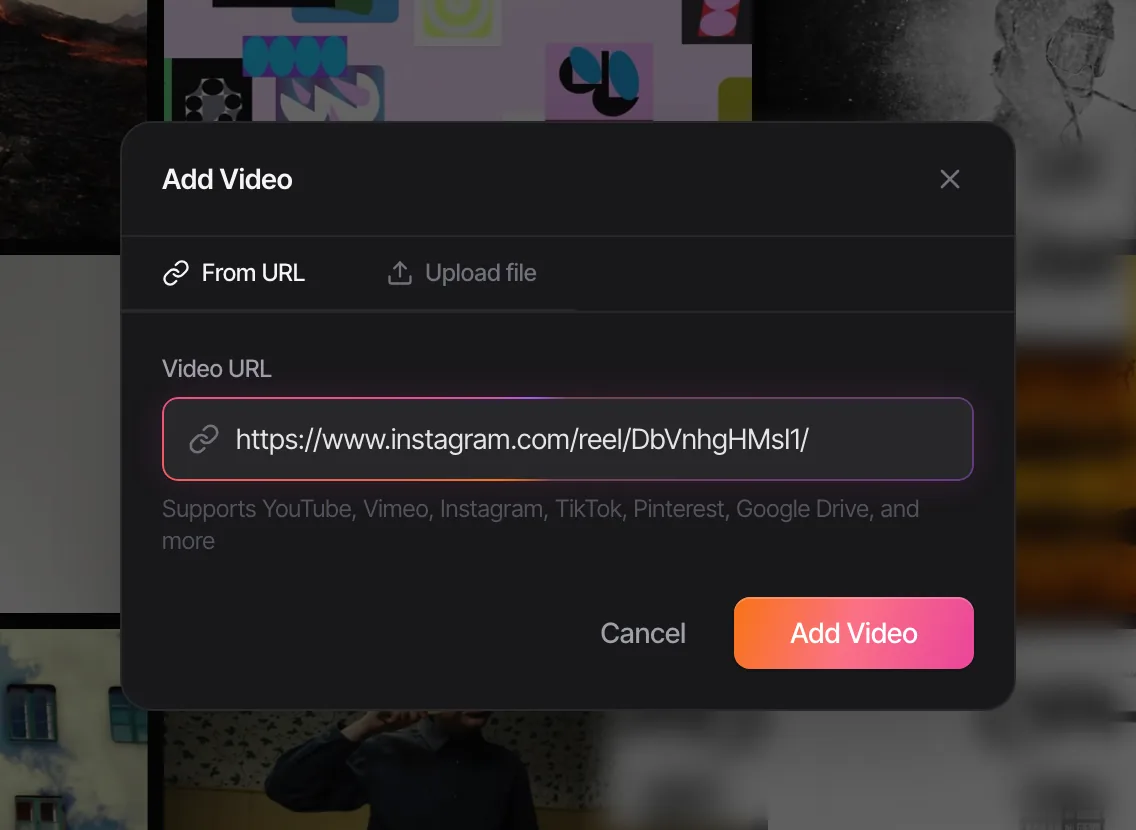
Step 1: paste the post's link
Copy the post's link (More, then Copy link to post), open Spark, click Add Video and paste it. Spark fetches the video and adds it to your library with the link to the original. Short lnkd.in links work too: Spark follows them to the post they point to. One catch: an lnkd.in link found inside a post can point to some other website, and that isn't a post. Open the post you found it in and copy that one.
Step 2: or save from the post in Chrome
With Spark's Chrome extension, open the post on its own page (paste the copied link into the address bar) and click the Spark icon in the toolbar, then Add to Spark. The extension saves the video on the page you're on, so the feed itself won't work: it has to be the post. For an image in a post, right-click it and choose Add to Spark to save it to Frames.
Step 3: when the post is only visible to members
Spark can only save what it can open. If a post is visible only to people signed in to LinkedIn, or it's been removed, Spark will say it couldn't find a video on it. That's where Spark's own screen recorder comes in: Add Video, then the Screen recording tab. Pick a window, an area or the whole screen, choose system audio, your microphone or both, trim the ends and add it to the library.
Step 4: find it by what's in it
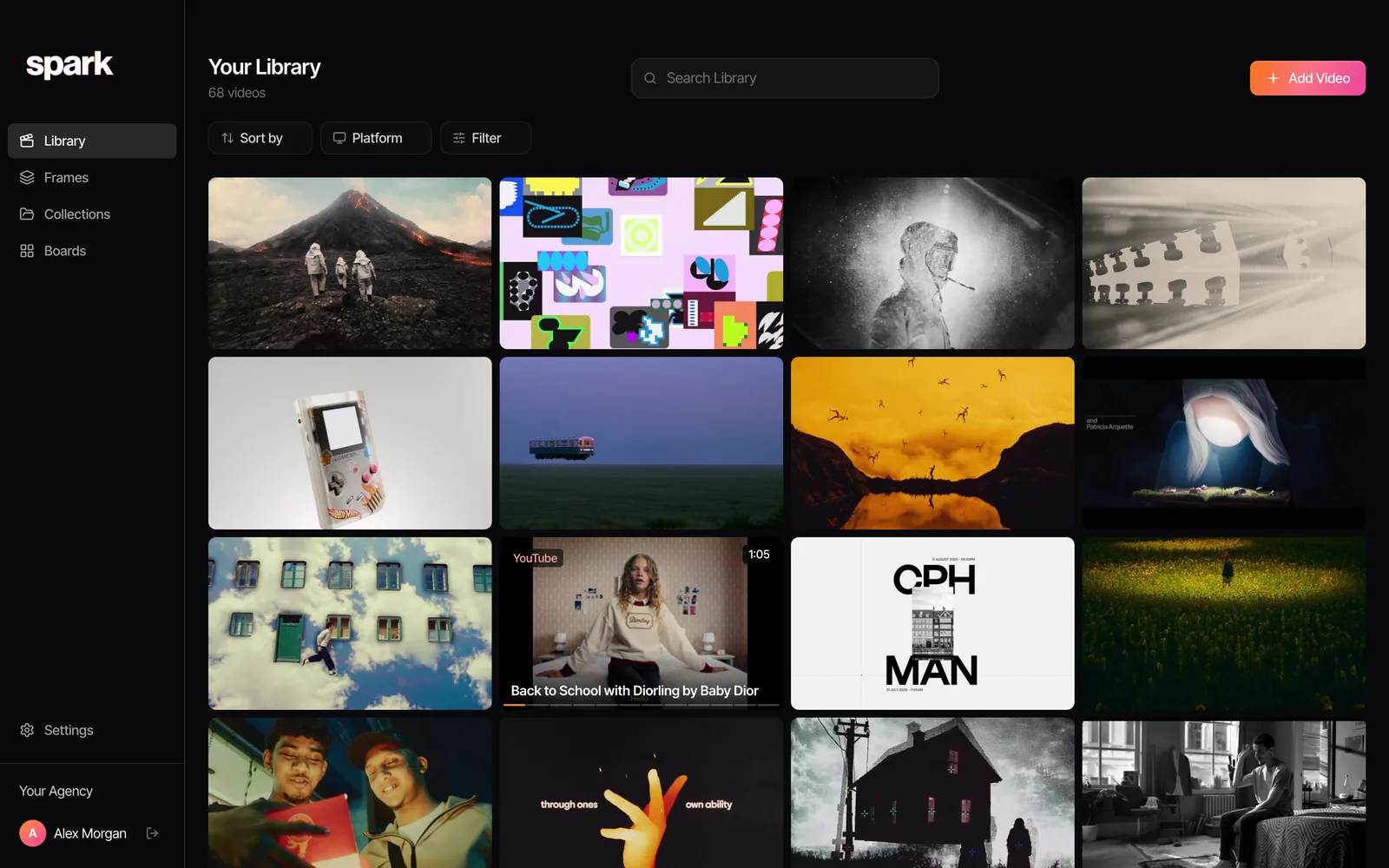
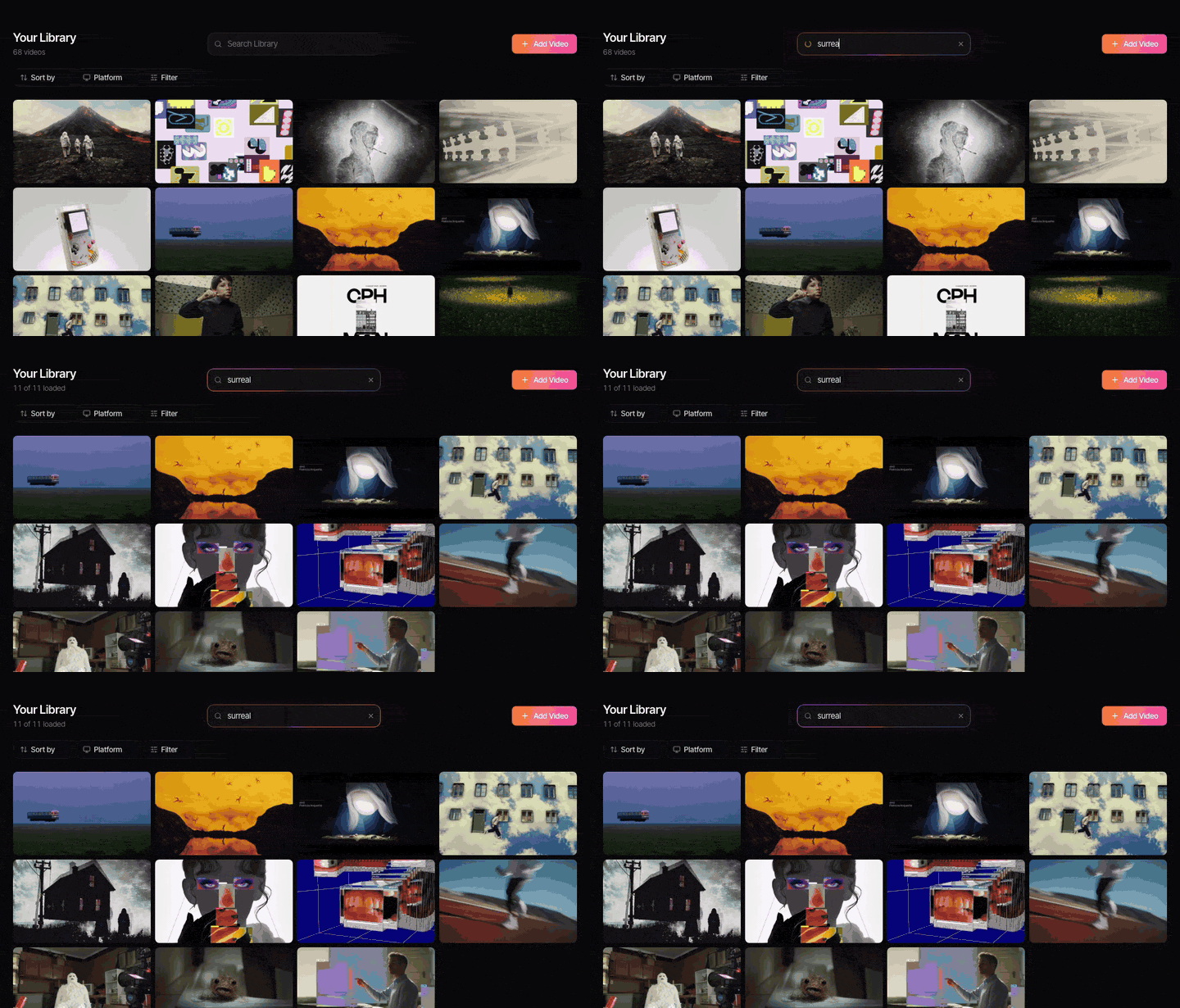
Each saved video gets a card with its title, platform and length. On Creator and Studio, Spark also writes a description of what happens in each video and transcribes the speech, so you can search for "salt flats", "voiceover" or a line someone says on camera.
From the saved video, Export Frame pulls a clean still into Frames and Export GIF (Creator and Studio) cuts a looping moment for a deck. If you'd rather not use Spark for that part, our free video to GIF converter does it in the browser from any file you're allowed to use, nothing uploaded.
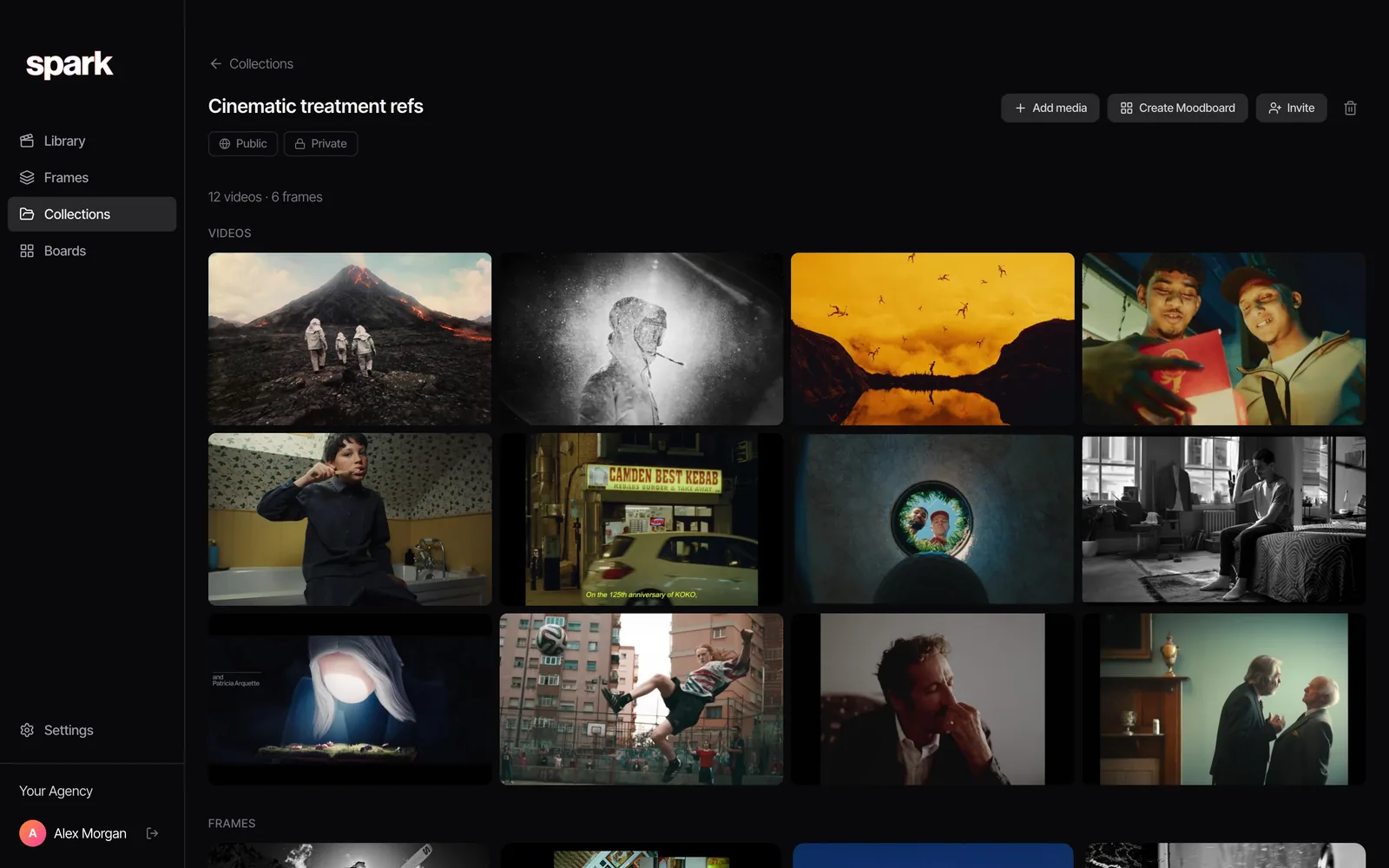
To show a client, put the references in a collection or on a board and send a view-only link. They don't need a LinkedIn account, or Spark.
Using LinkedIn references without overstepping
LinkedIn makes asking permission easy, because the person who posted is one message away. So:
- Keep saved videos internal. Research, pitches, treatments shown to a client. Not your website, not your showreel, not an ad.
- Credit properly. The director, the production company, the agency and the brand, not the account that happened to post it. Our guide to saving video references from websites covers keeping the source with the file.
- Ask when it matters. If a reference is going to shape a project, or you want to show it outside the room, message the poster. It costs one message.
- Leave client work alone. Someone's work in progress, shared to their network, isn't a public release.
If you research ads as well as brand films, the Meta Ad Library is the public archive for Facebook and Instagram ads, and our guide to building an ad swipe file shows how to file them by idea. The same problem in another feed is covered in saving Facebook videos, and references that arrive by message rather than feed are in stopping references getting lost in Slack.
Which route to use
| Route | What you keep | Survives the post being deleted | Searchable by what's in it |
|---|---|---|---|
| LinkedIn LinkedIn Save | A bookmark in Saved items | No | No |
| Copy link to post | A web address | No | Only by your own notes |
| Screen recording on a Mac or PC | A video file on your computer | Yes | By file name |
| Google Chrome Spark's Chrome extension | The video in your Spark library, with its link | Yes | Yes, on Creator and Studio |
| Spark Spark, pasting the link | The video in your Spark library, with its link | Yes | Yes, on Creator and Studio |



The rest of the method, tags, naming and a weekly tidy, is in building a searchable creative library.
FAQs
Can you download a video from LinkedIn?
Not from someone else's post. LinkedIn has no download option for viewers, and its User Agreement asks members not to copy other people's content without permission. You can keep your own uploads, organisers can download LinkedIn Live recordings from the event page, and anything else can be screen recorded for internal reference.
Where are my saved posts on LinkedIn?
On a computer, click Saved items in the left-hand column of your homepage, then Saved posts and articles. In the LinkedIn app, tap your profile picture, then Saved posts. It's a single list, with no folders and no search.
How do I save a LinkedIn video to my phone?
LinkedIn's app has Save, which is a bookmark, but no download for other people's videos. You can use your phone's own screen recorder for an internal reference. With Spark, connect WhatsApp once in Spark's settings, then copy the post's link in the LinkedIn app and send it to Spark on WhatsApp. It lands in your library.
Why won't a LinkedIn video save to Spark?
Usually the post is visible only to people signed in to LinkedIn, has been removed, or never had a video in it. An lnkd.in link that points to another website also isn't a post. If the post is public, copy its link from LinkedIn and try again; if it isn't, record it with Spark's screen recorder.
Is it legal to save LinkedIn videos for reference?
Keeping a credited copy for internal research and pitching is common practice, but copyright stays with whoever made the video, and LinkedIn's terms ask you not to copy or redistribute content without permission. Keep it inside the team, credit the makers, and ask the poster before using it anywhere public.
What is an lnkd.in link?
It's LinkedIn's own short link, used when a link is shared in a post or message. It can point to a LinkedIn post or to an outside website. Spark follows lnkd.in links to the post behind them; if one leads somewhere that isn't a post, copy the link of the post you found it in.
Keep reading
All articles
How to Save Pinterest Videos (Not Just the Pin)
Pinterest is brilliant at finding motion and quietly bad at keeping it. A board of video pins is a board of bookmarks to other people's uploads.
How to Save Vimeo Videos for Reference (When There's No Download Button)
Vimeo is where directors keep the work they're proudest of, usually with downloads switched off. Here's how to keep a reference without a download button.

How to Save WhatsApp Videos to Your Computer (Mac and PC)
WhatsApp is where references get swapped and where they drown. Here's how to get a video out of a chat and onto your computer, and how to stop the good ones sinking.